- Copilot in Excel understands natural language to create formulas, summaries, charts, and pivot tables within the workbook.
- Available with Microsoft 365 licenses and privacy settings enabled; integrates into the Home tab.
- It includes advanced mode with Python and Deep Reasoning for more structured analysis plans.
- It has usage limits and is not suitable for high-risk scenarios; it is always advisable to validate results.
The introduction of Copilot in Excel This has been great news for those who regularly use this spreadsheet program. Its capabilities are enormous: from summarizing and sorting data to generating formulas and charts. A valuable tool that saves you work and speeds up everyday analysis.
It's important to be clear about the rules of the game: It acts within the Excel workbook itself, on the data you see.It places the result directly into the grid, just like any other Excel output. The experience is familiar, requires no scripts or add-ins, and the results update automatically when your data changes.
What is Copilot in Excel and what does it offer?
Furthermore, it goes beyond formulas: It allows you to import data from the web, OneDrive, or SharePoint....and even communications content from your organization, so you can start with a well-structured table without struggling with the format.
A key difference is that It integrates natively with the Excel calculation engine. It does not break the book's structure, respects defined ranges, tables, and names, and its results behave like any normal Excel output, with recalculation when the source data changes.
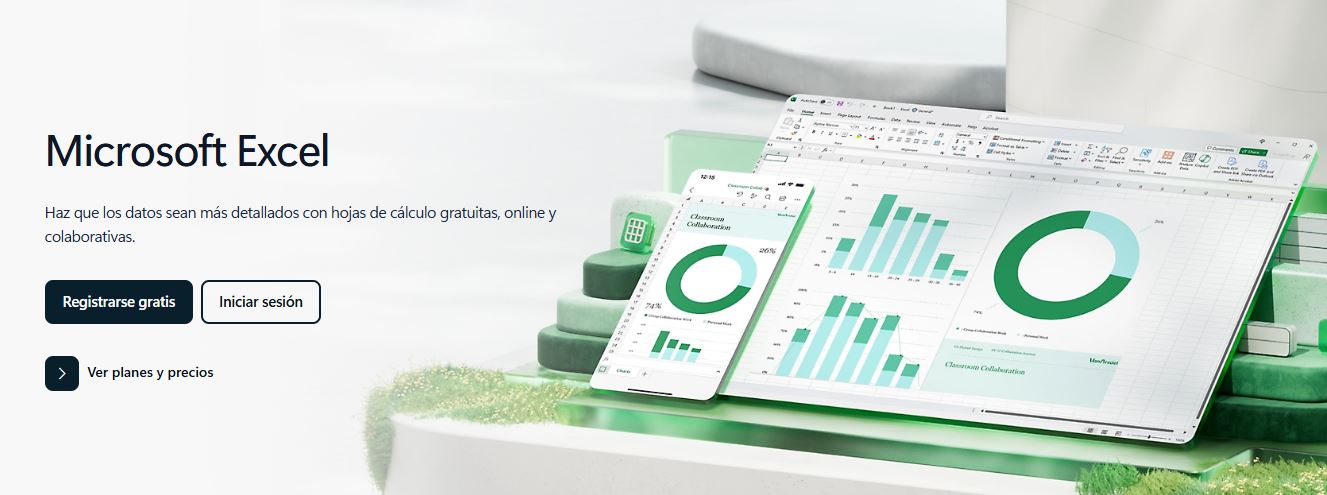
Where to find Copilot in Excel
Within ExcelYou'll see it on the Home tab. Press the Copilot button on the treadmill to open your dashboard, see startup suggestions, and start talking to the assistant.
You can also work at the cell level. Select a cell and use the lightning bolt icon that appears next to it. to apply contextual actions that affect that point or the detected range.
Preparation and first steps
When you open the panel, you can choose shortcuts to create something new, suggest formulas or formatting, or summarize data. If you prefer a free approach, enter the chat option with Copilot. and write your need in your own words.
Key functions and practical examples
Copilot excels at repetitive tasks or those requiring judgment about the whole. These are its most useful areas on a real leaf:
- Import data easilyTell it to bring information from the web, from OneDrive or SharePoint, or from internal communications; it helps you build a table ready for analysis.
- Highlight, sort, and filterAsk it to highlight the data that interests you, create custom filters, or sort by the field that suits you, including rules such as "only cells with numbers" or "values greater than 5".
- Generating and understanding formulasRequest new columns or rows calculated based on your data; Copilot can explain how each formula works so you can learn and trust the result.
- Identify valuable informationAsk questions about your data and receive charts, pivot tables, summaries, trends, or outlier alerts without leaving the sheet.
He is also very skilled in text-based scenarios. You can sort a list of comments by sentiment (positive, neutral, negative) and assign them a brief category such as "flavor", "noise" or "capacity", generating new columns to continue the analysis.
Create graphics directly
If you have a table and want to view it, just ask. Open Excel, select your range with the appropriate format and ask Copilot for the type of chart you need.
- With the data ready, open the Copilot panel and write your intention: For example, “create a bar chart with sales per month”.
- Copilot will generate the graph in context. When you're convinced, use the +Add to a new sheet option to move it to a separate tab in the book.
If you prefer inspiration, try varied and specific messages. The clearer the range and field to be representedThe result will be better without manual adjustments.

The =COPILOT() function: use it like any other formula
One of the most interesting new features is that Copilot also behaves like a function. You can write =COPILOT() in a cell and pass it, in quotes, an instruction in natural language, as well as references to ranges if you need context.
The result is placed directly on the grid. There are no hidden menus or weird tricks.It is used like you would use =SUM() or =VLOOKUP(), with the added benefit that it understands descriptions and generates outputs based on your data.
This approach is perfect for “enriching” columns: sort by sentiment, extract tags, summarize text, or generate categories with a syntax familiar to any Excel user.
Copilot in Excel with Python: Advanced Analysis
When the task requires a deeper level, Copilot can rely on Python within Excel. Describe in natural language the analysis you want and the wizard will automatically generate, explain, and insert the Python code into your spreadsheet.
- Open Excel and confirm that your data is in a table or a well-defined range. Go to Start and open the menu under the Copilot button It will show you several options.
- Choose App Skills and select the option «To provide a unique perspective using Python" Wait for the initial response and review the approach. that it proposes for your analysis.
- If it appears, press «Begin with Deep Reasoning" Alternatively, use the option "Get deeper results using advanced analysis mode" and then the Deep Reasoning start button.
- Upon entering this mode, Copilot creates a new sheet and Insert the necessary Python code with a more complete and structured plan for your analysis.
- When you're finished, return to the panel and select «Stop advanced analysis» to exit the mode and regain the rest of Copilot's abilities.
Deep reasoning mode is useful when the analysis requires several linked steps. It gives you an attack plan and automates execution with traceable codeso you can learn from the process or adjust it to your liking.

Availability and licensing: who can use it
Copilot appears on the Home tab of Word, Excel, PowerPoint, and Outlook on the web if you have one. Copilot subscription. If your Microsoft 365 plan includes desktop applicationsYou'll also see it in those desktop apps.
For home users, you need one of these licenses: Microsoft 365 Personal, Microsoft 365 Family or Copilot ProIf you use a business version, the requirement is Microsoft 365 Business Basic, Business Standard, Business Premium, E3, E5, F1 or F3, and have Microsoft 365 Copilot associated with your account.
Important for local or new unsaved files: The primary account that appears at the top of the Microsoft 365 window must be licensed. so that Copilot is available in that file.
The deployment is gradual. Currently, Copilot for Excel is offered to licensed users who are on the Beta channel. on Windows or Mac; the web version will arrive through the Frontier program as the launch progresses.
Privacy settings unlocked by Copilot
There are two privacy settings that, if disabled, can hide Copilot in Microsoft 365 apps. First, check your Windows settings. And if you use a Mac, check the equivalent panel.
- On Windows: Open Word, Excel, or PowerPoint. Go to File > Account and click on Account privacy > Manage settings.
- Activate «Experiences that analyze their content» and make sure you have the option turned on «All experiences connected» so that Copilot appears in the apps.
- On Mac: Open Word and go to Word > Preferences > Privacy. Activate the same two options to ensure that Copilot is available.
If you don't see it after changing these settings, check your license or update channel. In many cases, there is nothing more to "activate".The feature appears as soon as the account, privacy, and version requirements are met.
Ideas to get the most out of it without leaving the page
To unlock its usefulness, think of Copilot as a direct assistant on your cells. Here are some proven time-saving ideas In day to day:
- Brainstorming in contextGenerate lists of concepts, titles, or keywords from a brief description. Also ask them to rewrite a text with a clearer or more formal tone.
- Summaries that tell the storySelect a broad range and request a short text with trends, peaks, and dips. Perfect for converting tables into paragraphs ready for a report.
- Direct classification: deliver a column with comments or survey responses and ask for “positive/neutral/negative” labels and a brief category for each entry.
- Lists and tables on the flyDescribe what you need and request a table with the key columns (task, responsible party, date, status). This is a solid foundation for organizing work without arguing about the format.
How to interact: panel, chat and actions
If you like the conversational approach, open the panel and choose "Chat with Copilot". You'll find ad ideas to get you started quickly.Or you can write your need freely and then refine the answer with follow-up instructions.
For specific actions, the lightning bolt icon in the cell is very useful. Allows you to apply commands locally Without changing the context, ideal for creating a calculated column alongside the data you are reviewing.
In the responses, Copilot will offer to adjust the result. Ask him to change the graph to lines, and to filter by a different threshold. or that explains the generated formula step by step, all without leaving the sheet.
Copilot in the Microsoft 365 ecosystem
The assistant is not limited to Excel. It is present in Word, PowerPoint, and Outlook on the web when you have the corresponding subscription. If your plan includes desktop apps, you'll also see it in those versions.
In Word, it helps you write from scratch, summarize, or adjust the tone. In PowerPoint, create presentations from an idea or an existing document.proposing structure and design. The great advantage is the consistency of use between apps.
This unified approach means that what you learn in one app will help you in another. The icon is on the Home tab and the flow repeats.Open it, describe what you want, and refine it until it's to your liking.
Precision tricks for better results
The clearer you are, the better. Specify the range, fields, and target In your request: “from the range TablaVentas, show me the 5 products with the most units and create a bar chart.”
If you're going to ask for calculations, prepare the ground. Make sure the data types are correct and that there are no duplicate headers. And ensure that the numerical columns do not contain hidden text; you will avoid ambiguous answers.
A useful practice is to ask for an explanation of the solution. Ask him to show you the formula and tell you what each part does.You will learn to incorporate the pattern into your workflow without always relying on the assistant.
Effortless pivot tables and formulas
Copilot can create pivot tables based on your description. State the measure, rows, and columns in natural language, and the assistant will create a dynamic that you can refine on the fly.
For advanced formulas, describe the goal instead of the function. Ask it to “create a column that calculates month-over-month growth” and let Copilot determine the best combination of features; then, review the explanation to reinforce your learning.
If you get stuck, ask for the "how". Request the best way to perform a regression on two columns or how to normalize a series; in addition to giving you the output, it will explain the method.
Order, filters, and smart formatting
When there are many records, gaining clarity is half the job. Copilot can create custom filters such as “show only cells with numbers” or “keep values greater than 5”.
You can also apply highlighting to focus attention. Ask him to highlight the top N items, to color in the outliers. or that marks the rows that do not meet a condition. These are readability improvements that speed up reviews.
In complex orderings, specify criteria and priority. “Order by descending Benefit and, if equal, by ascending Units” It is sufficient to run a complete sequence without opening dialog boxes.
When to trust and when to verify
The reasonable motto is "trust, but verify." Validate the results before using them in decisionsespecially in contexts with legal or compliance requirements.
There is no absolute security, not even in advanced plans. Companies remind everyone that mistakes can happen.It's part of the current state of technology. Your judgment remains the essential final touch.
The good thing is that learning is progressive. The more you use it with well-structured data, the better answers you will get. And you'll incorporate more patterns into your workflow without relying on the assistant for everything.
Mastering Copilot in Excel isn't about letting AI "work magic," but about leveraging its speed where it contributes most: Import and organize data, summarize, visualize, create explained formulas, and automate analysis with Python When the challenge demands it. With the right licenses, correct privacy settings, and a well-structured data system, it becomes a real accelerator for your daily spreadsheet tasks.


Editor specialized in technology and internet issues with more than ten years of experience in different digital media. I have worked as an editor and content creator for e-commerce, communication, online marketing and advertising companies. I have also written on economics, finance and other sectors websites. My work is also my passion. Now, through my articles in Tecnobits, I try to explore all the news and new opportunities that the world of technology offers us every day to improve our lives.