- The Windows 11 Snipping Tool now lets you create GIFs from recordings.
- You can select quality, duration and export without any extra programs.
- Feature available for Insider builds, coming soon to stable Windows.
Animated GIFs remain a very popular way to share short, expressive visual content. In tutorials, on social media, or simply to illustrate a technical problem, GIFs have become a fundamental tool to communicate ideas quickly and easily.
Until recently, to record a GIF from your screen in Windows you needed to install third-party programs like ShareX or ScreenToGif, or go through the process a bit longer by exporting videos and then converting them. But now, Microsoft has taken a step forward by incorporating the option to create GIFs directly from the Clipping app., built into Windows 11. The best part? It's easy, fast, and you don't need any external tools.
The Evolution of the Windows Snipping Tool
La Snipping Tool It was born as a simple utility to take screenshots, replacing the traditional method of printing the screen and pasting it into Paint. With the Windows 11 updates, this small app has received major improvements: in addition to screenshots, it now allows you to record video and export directly in GIF format.
Currently, this feature is available to Windows Insider Program users, specifically in the Dev and Canary channels, with version 11.2505.21.0 or higher. Microsoft plans to release it to the rest of the users soon, which means if you don't see it yet, it shouldn't be long before it appears on your system.
This integration makes the Snipping Tool an all-in-one solution. to capture, record and share visual content without having to install anything else.
How to create GIFs with the Snipping Tool step by step
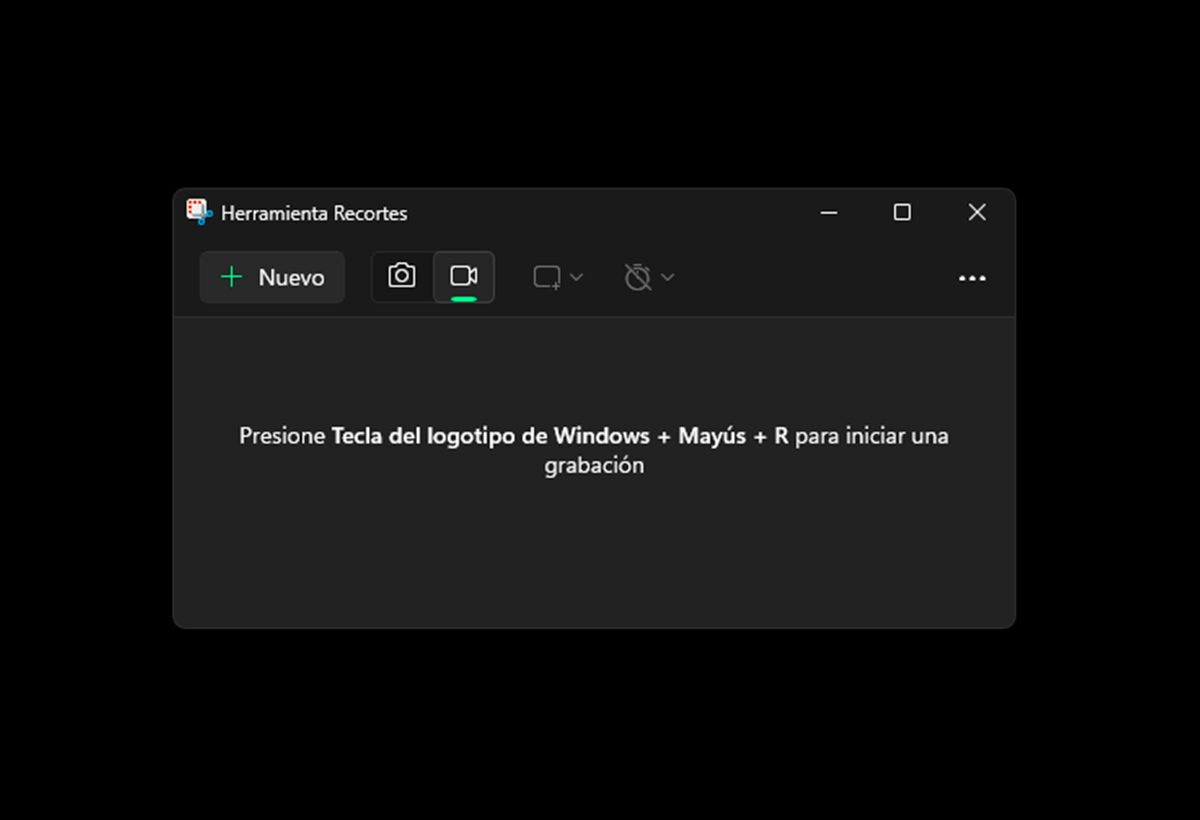
Using this new feature is extremely simple and accessible for any user, both technical and novice. Let's see how you can do it:
- Access the tool: press the keys Windows + Shift + R to directly open the Snipping Tool's recording mode. You can also open the app from the home menu.
- Select the recording area: When you start it, it asks you to choose which part of the screen you want to record.
- Record the content: Record the elements you want to include in your GIF, whether it's a tutorial, an animation, a visual glitch, or any other action on your desktop.
- Export the GIF: When you're done recording, a preview will appear with a new button labeled "GIF." Click it to access the export options.
- Choose quality: You can select between high or low quality. The quality high generates a sharper file, ideal for sharing in professional environments.
- Save the file: After setting the format to your liking, save the GIF file to your computer.
Current limitations of the GIF feature in Clippings
Although the new functionality is very promising, There are some restrictions that you should know about when recording and exporting as GIF:
- The maximum recording length for exporting in GIF format is 30 secondsIf you record more, only the first 30 seconds will be exported.
- In some development versions, the limit may be 3 secondsThis could change when it is finally released.
- The resulting format can be .GIF or .MP4 with looping function, as reported in some tests. This point is still evolving.
Despite these limitations, the function is perfectly suitable for short and direct processes., which is precisely where the GIF format shines the most.
What other apps allow you to record your screen to GIF on Windows?
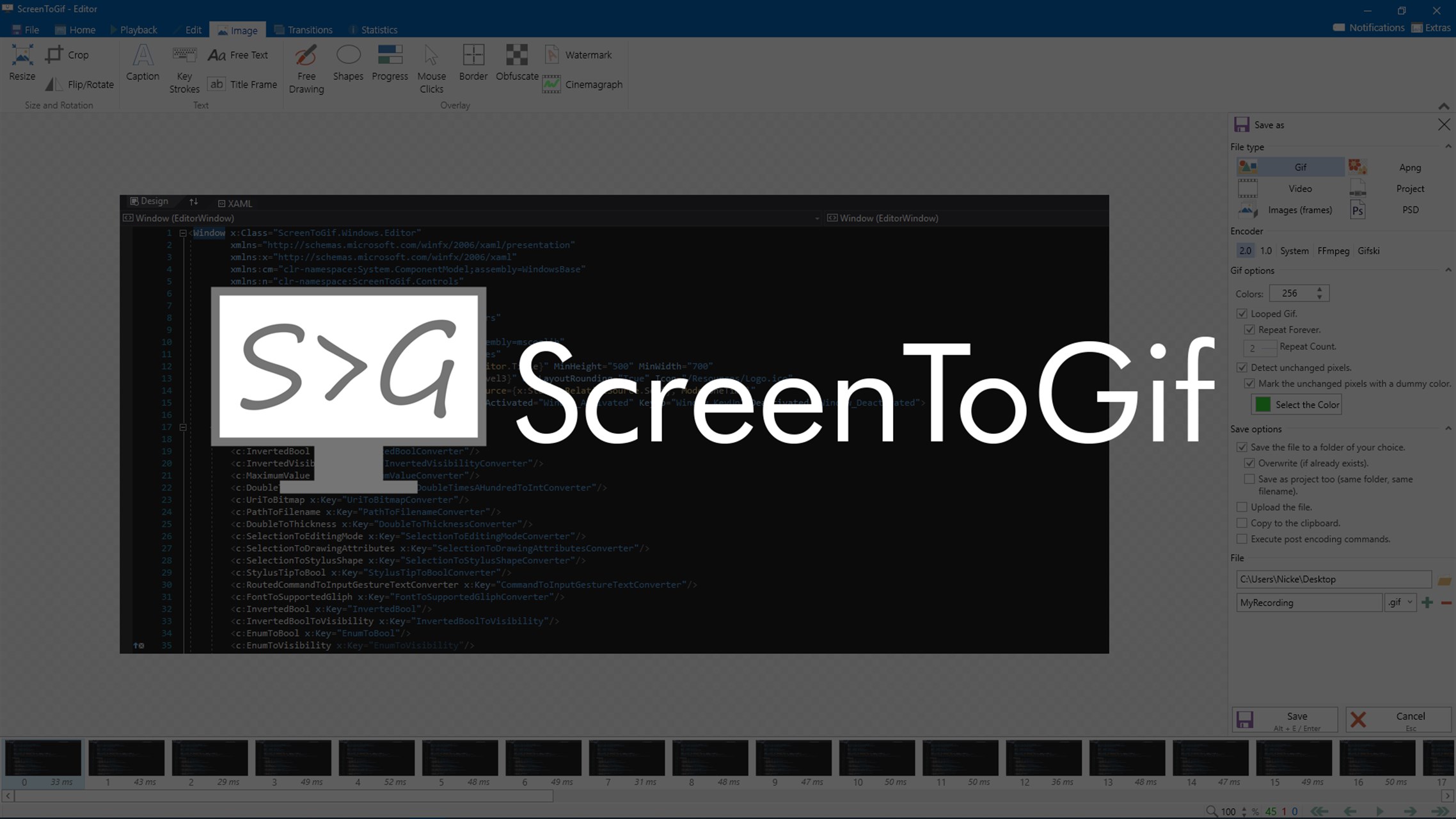
If you don't have this option available in the Snipping Tool yet, or if you need more advanced options, There are several free applications that allow you to record GIFs from your screen in Windows.:
ScreenToGif
It is one of the most complete apps, since allows you to record your screen, add text, edit frame by frame, and export in various formats. Highly recommended for tutorials.
ShareX
This is a well-known tool for screenshots, but It also includes a GIF recording mode.. Just select the area, record, and save.
ApowerREC
This recorder offers more features, since in addition to recording GIFs, it allows Capture audio, export in multiple formats, and customize advanced parameters.
Chrome Capture
A extension for Google Chrome which allows you to record directly from your browser and save as a GIF. Ideal if you work on the web and want to easily create GIFs.
EaseUS RecExperts
A more professional option that allows you to record content, export it as GIF, MP4 or even MP3, and edit the results with built-in tools.
Combining Snipping Tool and online converters
Before this new feature arrived, some users were already using an interesting trick: Record videos with the Snipping Tool and then manually convert them to GIF using online platforms like CloudConvert.
This process can still be helpful if your version of Windows doesn't have the automatic GIF export feature enabled.
Useful keyboard shortcuts for creating GIFs with Snipping Tools
One of the great advantages that Microsoft has incorporated with recent updates is the possibility of using Very agile keyboard shortcuts to launch the GIF recording function:
- Windows + Shift + R: Directly opens the Snipping Tool recording mode.
- Ctrl + G: Activate GIF mode if you are already viewing a recent recording, so you can export directly to the animated format.
Practical applications for GIFs in Windows
A feature as fast and visual as this has many practical applications:
- Show technical errors clearly when sharing with a support team.
- Create step-by-step tutorials to educate others without the need for narration.
- Share reactions or curious moments on social media or messaging apps.
- Illustrate visual elements within presentations or corporate documents.
You can also set a GIF as your desktop background in Windows., although you will need additional software such as Lively Wallpaper, available in the Microsoft Store. This new practical use of the Snipping Tool turns a basic utility into something much more powerful and creative, opening the way to new possibilities without leaving your operating system.
The incorporation of the The option to create GIFs directly from the Snipping Tool in Windows 11 is a small but very useful change.. It makes it extremely easy to create visual content without having to rely on external software or complicated processes.
Although It is still in testing phase in some Insider channels and has limitations such as the maximum recording length, it is clear that Microsoft is moving in the right direction by making Windows an increasingly versatile and visual environment. With a little practice, Any user will be able to turn their screen into a GIF generator to share ideas, solutions or fun moments with total ease.

I am a technology enthusiast who has turned his "geek" interests into a profession. I have spent more than 10 years of my life using cutting-edge technology and tinkering with all kinds of programs out of pure curiosity. Now I have specialized in computer technology and video games. This is because for more than 5 years I have been writing for various websites on technology and video games, creating articles that seek to give you the information you need in a language that is understandable to everyone.
If you have any questions, my knowledge ranges from everything related to the Windows operating system as well as Android for mobile phones. And my commitment is to you, I am always willing to spend a few minutes and help you resolve any questions you may have in this internet world.