
Automatic subtitles in Windows 11 work using the "Live Captions" feature. This feature transcribes, in real time, the audio playing on the PC or captured through the microphone. As a result, we can to see in text on screen what we hear such as videos, music, meetings, etc. Let's talk a little more about how this interesting Windows 11 tool works.
What are automatic subtitles in Windows 11?
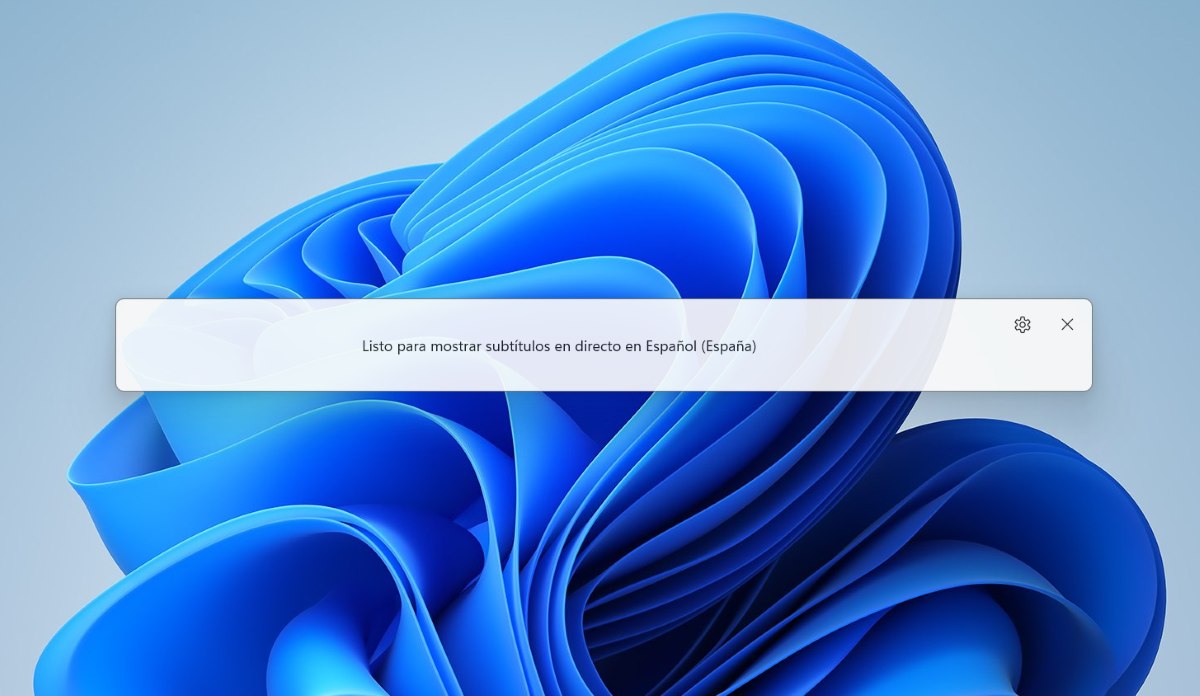
Automatic subtitles in Windows 11 automatically transcribe audio to text, displaying a floating or anchored window at the top or bottom of the screen. They work with any sound source in the systemApplications, browsers, media players, and even the microphone. This articleWe've already explained in more detail how to take advantage of them.
So, how do these subtitles actually work? We could say that automatic subtitles in Windows 11 They work in the following way:
- Voice recognitionWindows 11 uses speech recognition technology to listen to audio from videos, calls, etc.
- Local processingInitially, the function downloads language packs so that voice processing is done directly on your device (locally), without needing an internet connection once configured.
- The text is generatedThe tool converts the captured audio into text that appears in a floating window on the screen almost instantly.
- Personalization: You can adjust the appearance of the subtitles (size, color, background) and the position (top, bottom, or mobile).
- Versatility: You can transcribe audio from any application and even from the microphone for use in multiple scenarios.
Automatic subtitles in Windows 11 are designed to help all users, including those with disabilities. deaf or hard-of-hearing peopleBeing able to see text of what's being said or played in an application or meeting allows for better and faster comprehension. Now let's see how to activate this Windows feature.
How to enable automatic subtitles in Windows 11
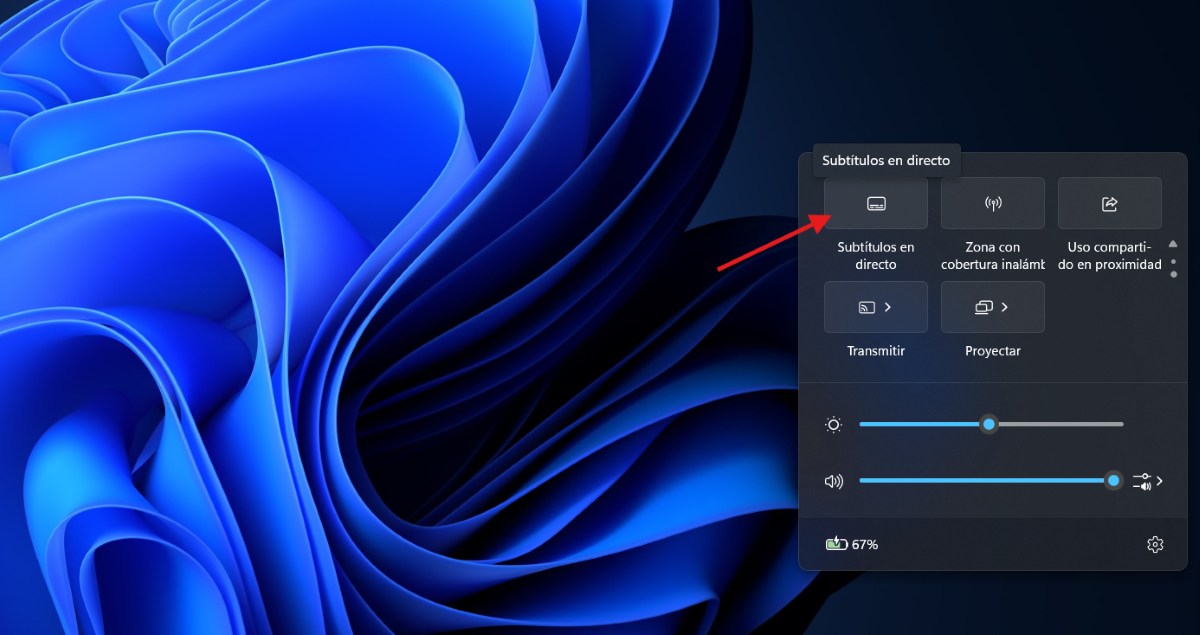
For Enable automatic subtitles in Windows 11 You can follow any of these different procedures:
- Using quick setupTap the battery, network, or volume icon in the taskbar. Scroll down to find the "Live Captions" option and tap it to turn it on.
- Home MenuHome – All apps – Accessibility – Live Captions.
- Keyboard shortcutsPress Windows key + Ctrl + L to turn on subtitles.
- Through ConfigurationGo to Settings – Accessibility – Subtitles and activate the “Live Captions” toggle button.
When you turn on automatic subtitles in Windows 11 for the first time, you They will ask for your consent to process voice data on the device. You will also be prompted to download language files for the device's speech recognition to use. If your desired language is not available, you can select a different one during setup.
Customize subtitles
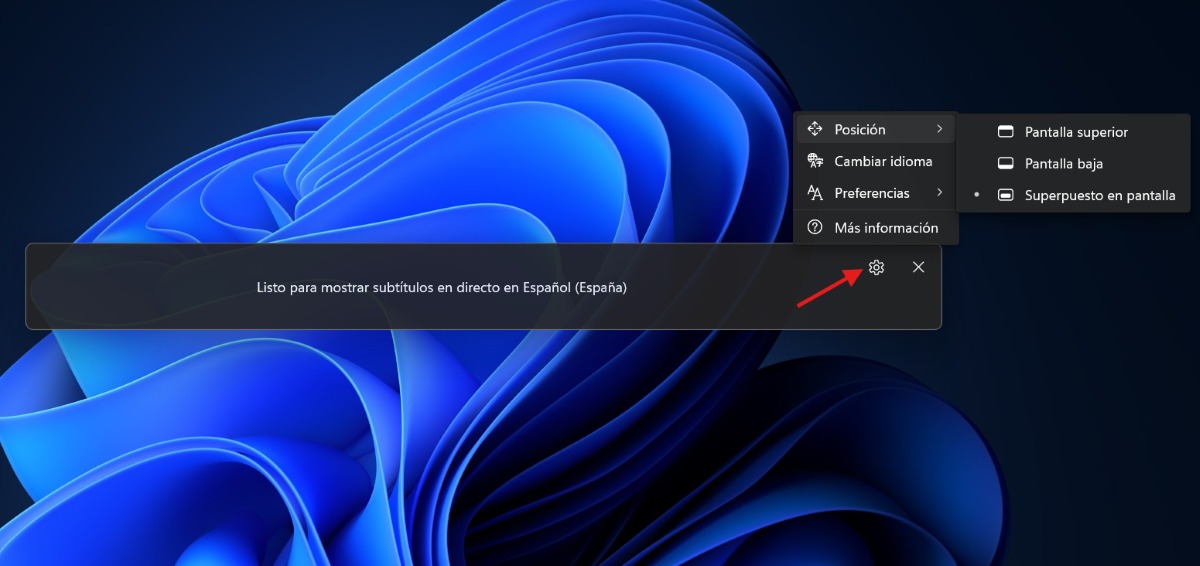
Once live subtitles are enabled, you can customize them. For example, you can choose where you want them to be displayed The subtitles. To change their position, follow these steps:
- Click on the gear icon to go to Configuration in the live subtitles window.
- Select Position.
- Choose Top Screen, Bottom Screen, or Overlay on Screen.
When to use each position? If you choose Top Screen or Bottom Screen, the subtitles window will appear at the top or bottom edge of the screen. If you want to share a video or are in a virtual meeting or conversation, they might work best at the top of the screen. In other cases, such as watching videos, it might be better to have the subtitles at the bottom.
And, if you choose Overlay on screen, the subtitles will appear in an overlay window that you can move as needed to avoid blocking visibility in other applications. Also, You can increase the window size with the mouse, touchpad or keyboard and so show more lines of text in the window.
How do I change the language?
If you want to change or add another language, tap the button. Configuration in the live subtitles window. Select Change language Choose your desired language from the drop-down list and tap on Continue. If the language pack hasn't been downloaded yet, you'll be prompted to download it. Select Discharge To confirm. Once the download is complete, live subtitles will show that it is ready for subtitling in a new language.
Use the microphone to add subtitles to your own voice.
With automatic captions in Windows 11, you can also use your microphone to caption your own voice. When this feature is enabled, All audio captured by the microphone will be subtitled...as long as no other audio from the device is being subtitled. For example, if you use live captions during an online meeting with someone else, you will only see the other person's captions.
Follow these Steps to use the microphone for automatic subtitles in Windows 11:
- Select the button Configuration in the live subtitles window.
- Click on Preferences and activate the option Include microphone audio (To use it, you must activate it, as it is deactivated by default).
- Start speaking to verify that the function was successfully activated.
If the function doesn't detect anything you say, you may need to check the settings of Microphone privacy in WindowsTo do this, go to Settings – System – Sound and check the Input Options. You can also Verify that this tool has access to your microphone doing the following:
- Go to Settings – Privacy and security – Microphone.
- Enable microphone access by the system.
- Next, tap on Allow apps to access the microphone.
- Done. This will subtitle everything you say into the microphone on your PC.
Is it safe to use automatic subtitles in Windows 11?
Finally, is it safe to use automatic subtitles in Windows 11? In short, yes, it's safe. All processing is done locally on your device. Audio, subtitles, and data are not sent to the cloud or stored anywhere. This ensures greater privacy and allows you to use the feature even without an internet connection. So you can use it with complete peace of mind.

From a young age, I've been fascinated by all things scientific and technological, especially those advancements that make our lives easier and more enjoyable. I love staying up-to-date on the latest news and trends, and sharing my experiences, opinions, and tips about the devices and gadgets I use. This led me to become a web writer a little over five years ago, focusing primarily on Android devices and Windows operating systems. I've learned to explain complex concepts in simple terms so my readers can easily understand them.