
Exporting your WhatsApp chats to Google Drive is a great way to save conversations and multimedia files you have in this messaging app. Doing so is very simple, and in this post, we explain how to do it step by step on your Android phone. We'll also discuss in what situations it's useful to back up your WhatsApp chats and how to restore them to another device from Google Drive.
When to export your WhatsApp chats to Google Drive
WhatsApp chats often contain everything: family conversations, work issues, important data, photos, documents, videos, and other files. The app has gone from being a simple messaging tool to becoming a personal space where we have relevant informationSince you probably don't want to lose it, we'll explain how to export your WhatsApp chats to Google Drive step by step.
Exporting your WhatsApp chats to Google Drive is the same as backing up your conversations in this messaging app. Saving your chats to the cloud is a good idea, since You never know when your phone might get lost or break down.In that case, it would save you a headache, as you'd only have to restore the backup to a new device to access your valuable WhatsApp chats.
The same applies if you decide change mobile phone and you want to keep your WhatsApp conversations intact on your new device. Exporting your WhatsApp chats to Google Drive also allows you to recover accidentally deleted messages, since you can restore them from the cloud. The advantage of backing up using this Google service is that you free up storage space on your computer.
Prerequisites for exporting WhatsApp to Google Drive
The process to export your WhatsApp chats to Google Drive is very simple from Android devices (see the article How to back up WhatsApp to iCloud to see the process on iPhone). The Meta messaging app and Google's storage service are perfectly compatible. Now, although the step-by-step instructions are very intuitive, it is important that you gather the following information: basic requirements:
- To have a linked Google (Gmail) account to your device.
- Dispose of enough storage space on Google DriveRemember that backups take up space depending on the size of your chats and the number of files you back up.
- Update to latest version of WhatsApp, this is to prevent errors or interruptions in the process.
- Have stable internet connection, especially if the backup is large.
With this in mind, it is worth clarifying that there are Two ways to export your WhatsApp chats to Google DriveThe first is an automatic process that can be activated from the app's settings. This automatically creates a backup every so often (daily, weekly, monthly).
On the other hand, if you prefer make an immediate backup of your most recent chatsYou have the option to export them manually. This process can also be done through WhatsApp settings and allows you to make backups at any time. Below, we'll discuss this last method, detailing the steps so you don't get lost along the way.
Step by step to export your WhatsApp chats to Google Drive
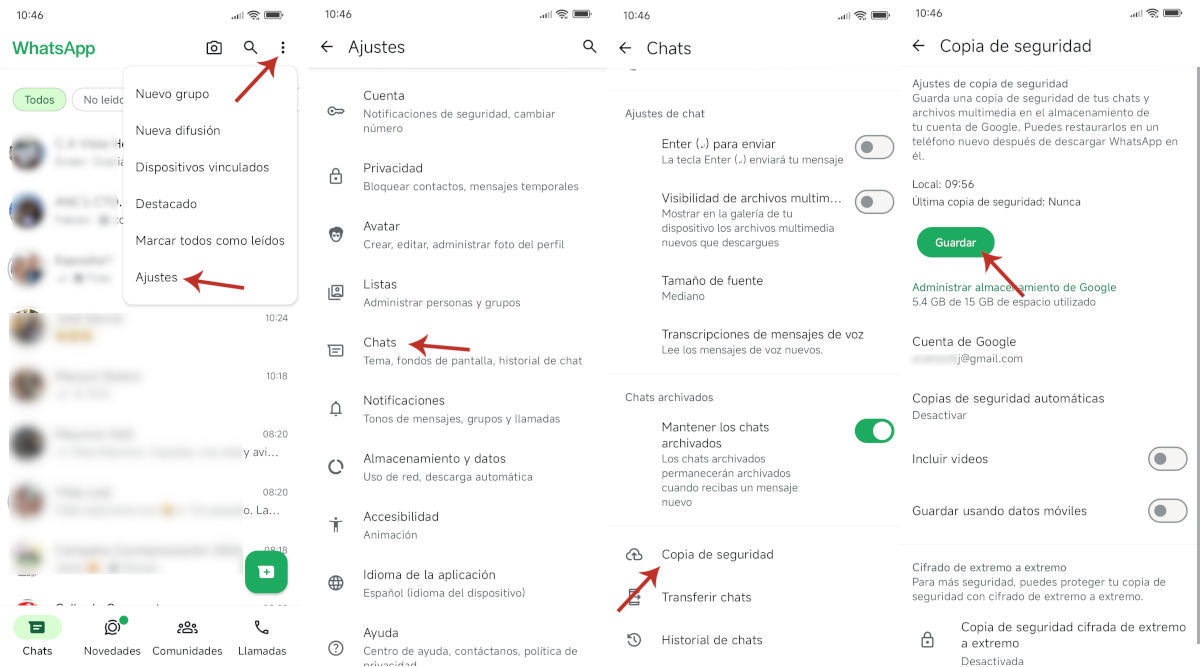
Let's begin with the Step-by-step instructions for manually exporting your WhatsApp chats to Google DriveThis method is perfect if you want to back up your recent conversations and protect important information, or to restore chats on a new device. Mobile in hand, let's get started:
- The first step is to open the WhatsApp app and click on the three-point menu in the upper right corner.
- In the menu that appears, select the option Settings at the end of the list.
- Within WhatsApp Settings, tap on the option Chats.
- Then, scroll down until you see the entry. Backup and tap on it. In this section, you can manage your chat backup preferences.
- If your Google account is not linked to WhatsApp, you will see the legend "None selected" under the option Google Account. Tap it to select your Google account.
- In the floating menu, check the email address that you want to use to store the backup. In the next menu, swipe and tap on Continue.
- Back in the main menu, you'll see your email address under the Google Account section. Just tap the button. Keep to start the backup.
- If you want the backup to include the videos you have in your chats, turn on the switch Include videos.
When you click the Save button, the application begins creating the backup. This process may take more or less time., depending on the number of chats you have and whether or not you choose to include videos. Once you've finished exporting your WhatsApp chats to Google Drive, everything will look the same, but you'll have created a backup of your most recent conversations.
How to export individual WhatsApp chats to Google Drive?
What if what you want is Export individual WhatsApp chats to Google DriveSimple: The app also allows you to save a chat with or without media files. To do this, it converts it into a text file (.txt) that you can store in Google Drive or anywhere else. This is ideal if you want to save important conversations or share them via email. Here's how:
- Open the chat from WhatsApp that you want to export.
- Press the three points – Further – Export chat.
- Choose whether you want to include media files.
- Select the shipping method: email, Dropbox, Google Drive, etc.
- Done! The file will be saved in .txt format and the media will be attached if you chose it.
As you can see, exporting your WhatsApp chats to Google Drive is a fairly simple process. You just need a Google account and enough space to save backups. You can export all your conversations or just one, however you prefer. Take advantage of this useful WhatsApp feature and never lose any more conversations or important files!

From a young age, I've been fascinated by all things scientific and technological, especially those advancements that make our lives easier and more enjoyable. I love staying up-to-date on the latest news and trends, and sharing my experiences, opinions, and tips about the devices and gadgets I use. This led me to become a web writer a little over five years ago, focusing primarily on Android devices and Windows operating systems. I've learned to explain complex concepts in simple terms so my readers can easily understand them.