- Prioritizes a single controller and delays the start of FanControl to avoid conflicts.
- Use Task Scheduler or shell:startup with correct paths and high privileges.
- Calibrate with the wizard, create mixed curves, and limit maximums according to your needs.
- If there are RPM spikes, disable other controls (Afterburner, Fan Xpert) and fine-tune thresholds.
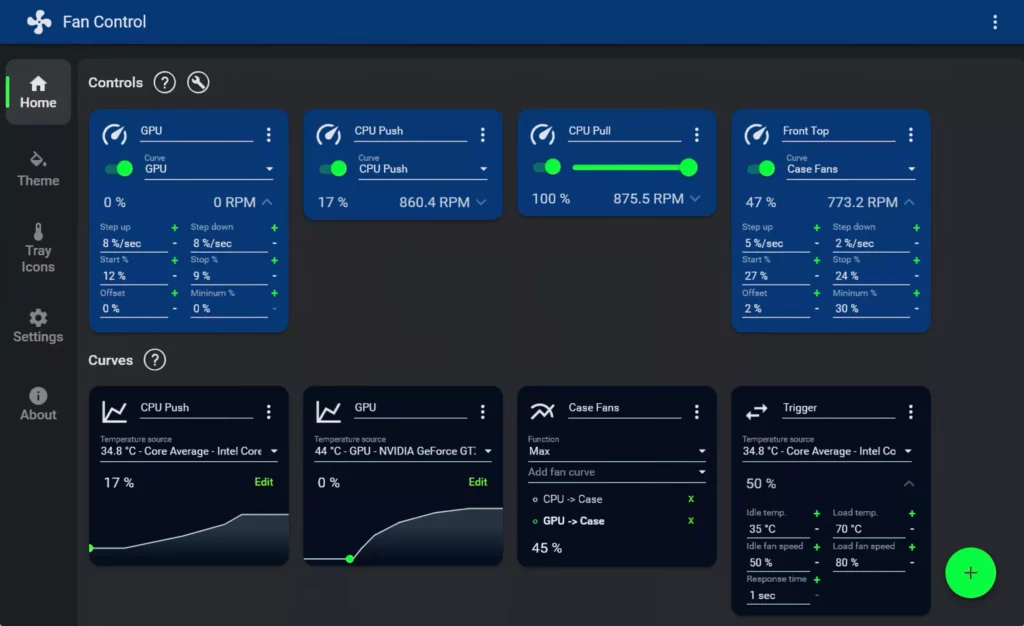
When FanControl does not start with Windows, the problem may seem like a mystery: you activate it in the app itself, you put it in the Startup folder, you see it marked in the Task Manager and even program a trigger in the Task Scheduler… and it still doesn't start. This situation is more common than it seems, especially after Move the FanControl folder or reinstall it after a disc change.
The key is to understand that FanControl is a lightweight and portable application, highly dependent on sensors and other system services being ready when the user logs in. If the program is launched too early or there is conflicts with fan control tools (MSI Afterburner, Armoury Crate, etc.) may not start or may only start partially. Let's look at a neat and complete method to ensure it always starts, and at the same time, to solve detection errors and RPM spikes which have also been reported by other users.
Why FanControl doesn't start when Windows starts
The typical symptom is that, after changes such as Move FanControl to another folder or reinstall it, Windows starts, you see FanControl in the startup programs, you've even created a scheduled task, but the window doesn't appear or act on the fans. This is usually due to two main causes: the program is launched before the sensors are available, or there is other software that “blocks” the same control devices and Fan Control is left without access.
It is also common that, even though the "Start with Windows" box is checked, the execution path is no longer valid after a folder or drive change. This is why FanControl doesn't start with Windows. In environments with multiple monitoring utilities, the loading order is crucial: if another tool takes control first, FanControl may fail on your first attempt and remain unable to start or connect to devices.
Additionally, FanControl requires the user to be logged in to restore profiles and apply custom curvesIf the app tries to start too quickly, it may not detect all the fans or it may do so erratically; Windows configuration issues (for example, how to activate the cursor on my Lenovo laptop) sometimes require similar steps. On slower computers, a small start delay often makes the difference.
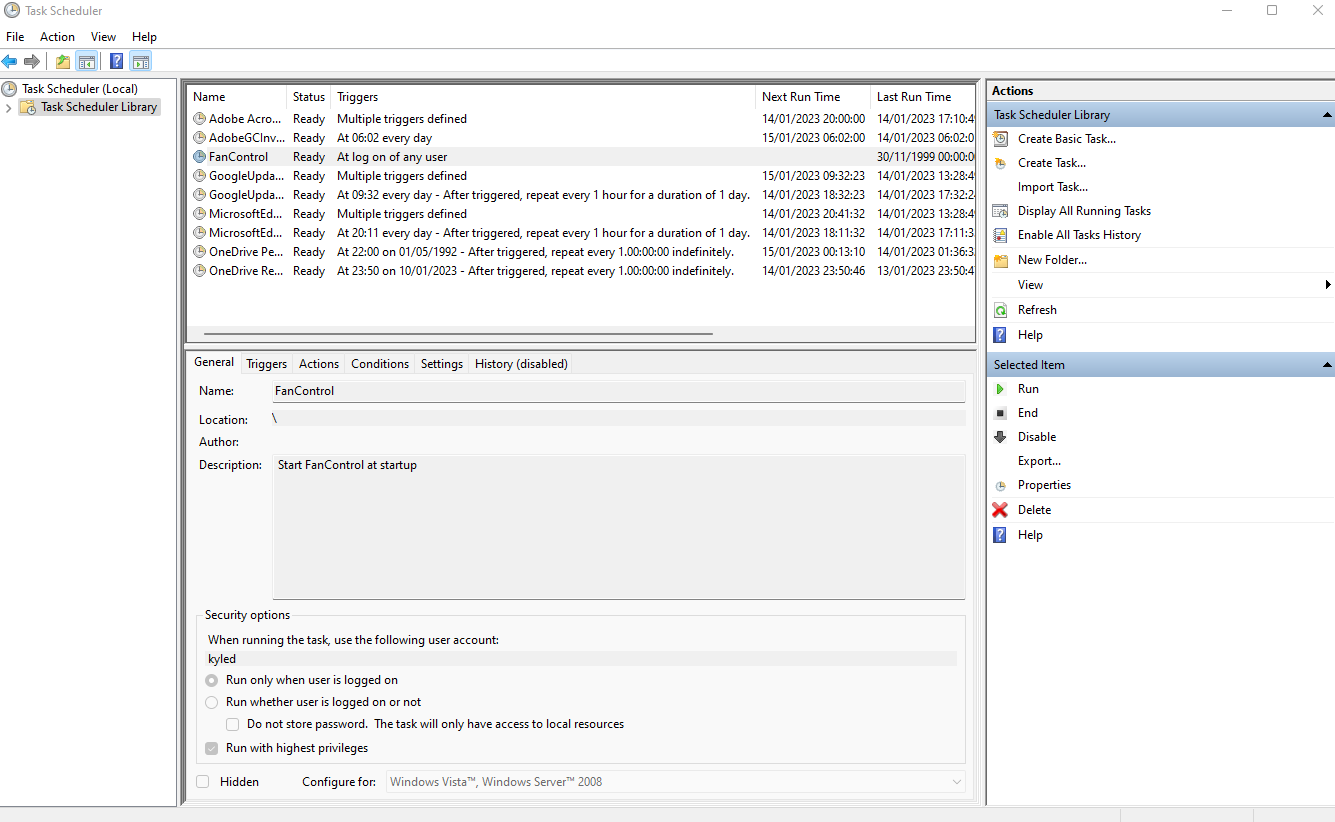
Activate and adjust startup from FanControl
If FanControl doesn't start with Windows, start with the internal options of the application itself. In the settings, select Start with Windows so that it proposes to start with your session. It is also advisable to activate that starts minimized, so it doesn't interfere visually when entering Windows and you can check in the background that the curves are applied correctly.
A critical feature is the "Start at User Log On" field. Here you can define a launch delayMany users report that about 30 seconds is sufficient, because during that time Windows finishes loading services, drivers, and other utilities that could compete for sensors. If your PC starts slower, increases that time until FanControl always starts on the first try.
Also check that the configuration file and application paths be consistent with its actual location. If you changed the drive or folder, make sure FanControl points to the correct executable and that no broken shortcuts remain. If you suspect the configuration is corrupted after the change, you can regenerate the profile from scratch to avoid legacy conflicts.
Startup Folder, Task Scheduler and other startup methods
Alternatively, or in addition, you can add a shortcut to the executable to the user's Startup folder. Press Win+R, type shell:startup and place the FanControl shortcut there. It's a simple and effective way; if you already had it, recreate it in case the old route became outdated.
For more controlled environments, the Windows Task Scheduler is the most robust option. Create a task with a trigger.When logging in", brand "Run with highest privileges» and points to the FanControl executable with its absolute path. Add a delay using «Delay task» or using the advanced trigger options; 30 seconds is usually a good starting point. Also check the « field.Start at (work route)» to point to the folder where the exe resides.
Finally, take a look at the Task Manager, Startup tab, and confirm that FanControl is enabledIf multiple entries appear, remove or disable duplicates. Maintaining a single startup method reduces errors and prevents the app from attempting to restart. throw several times at once.

Avoid conflicts: MSI Afterburner, Armoury Crate and company
A constant source of problems is having multiple utilities competing for fan and sensor control. If you use MSI Afterburner, EVGA Precision, or ASUS Armoury Crate (especially its module FanXpert), FanControl may not detect the fans correctly, or cannot apply curves at the beginning.
The solution is to close or disable the control modules in those tools. In Armoury Crate, for example, you can disable only Fan Xpert and leave the rest operational. In MSI Afterburner, uncheck the option to automatic fan control If you want FanControl to be in charge. This is recommended by experienced users: if both try to regulate, the system becomes unpredictable.
Also consider overlays or monitoring components from other apps that, while not actively monitoring, can interfere with reading of sensors. All of this can result in a situation where FanControl does not start with Windows.
If FanControl does not detect some fans or takes a long time to engage
On modern computers, it normally detects everything connected to the motherboard. However, sometimes nothing appears or a fan is missing, and FanControl won't boot into Windows. What to do? Close MSI Afterburner, EVGA Precision, or Fan Xpert, and try again. If that still doesn't work, delay the startup of FanControl with "Start at User Log On" so that Windows finishes loading before the app scans the devices.
When you run FanControl for the first time, follow the wizard that identifies the fans and performs tests to calculate minimum and maximum speed. It's useful to know, for example, that on some GPUs the fans don't activate below 40-45%. Label each group with clear names (e.g., "CPU Fans" if they share a header) and hides unused connectors so you don't get confused on a daily basis.
In the "Curves" section, create your profiles with "Add graph fan curve." You can choose the temperature source (CPU, GPU, etc.) and edit the curve visually. A typical example: keep 20% up to 40 ºC, increase by 40% at 60°C, and scale up to 100% at 80°C. Adjust to your liking with millimeter precision by moving the points or editing numerical values.
RPM spikes when gaming on NVIDIA GPUs: causes and remedies
There are reported cases where, when starting a game with a GPU like an RTX 4080, the RPM readings fluctuate wildly In the NVIDIA overlay and also within FanControl, reaching unrealistic values. Although the fans don't physically reach "tens of thousands" of RPM, a whirring noise can be heard above the temporarily set limit.
In these cases, FanControl does not start with Windows due to control conflicts or unstable sensor readings when several layers of software interact at the same time. Make sure that MSI Afterburner and NVIDIA's own application are not trying to influence the GPU curve; disable the Fan control in Afterburner and let FanControl be the sole regulator. Also check the minimum thresholds that the GPU supports: many will not boot until ~40-45%.
If there are still spikes after that, try entering a small delay at start FanControl and prevent other monitoring utilities from starting simultaneously. The goal is to eliminate overlaps during the first few seconds, where they occur most frequently. reading mismatches and takeover.
FanControl won't start on Windows? Practical tips for everyday use
- When you run FanControl for the first time, let the wizard run its detection tests and calibrate each fan and group. Label with meaningful names (CPU, case, GPU, etc.) and hide unused connectors to keep the panel clean. This will reduce errors and make it easier. diagnose unusual behaviors.
- Organize your Curves by component and, if you need to regulate case fans according to CPU and GPU, create a mixed curve that obeys the highest temperature. This is the optimal way to prevent the case air from running short when the GPU is running high, or the noise goes off unnecessarily when only the CPU is working.
- If you have a fan that you never want at 100%, remember: design the curve with a cap below 100% And if you see fit, rely on the maximum offset. This, combined with a good startup delay and the elimination of conflicts with other apps, will give you a system predictable and silent.
Once you've applied all of the above, the usual solution is to solve the problem of FanControl not starting with Windows by accurately detecting each fan and with the curves working as expected. The secret is in give the system time to load and prevent two programs from fighting for the same control, precisely the two causes that cause the most headaches in these cases.

Editor specialized in technology and internet issues with more than ten years of experience in different digital media. I have worked as an editor and content creator for e-commerce, communication, online marketing and advertising companies. I have also written on economics, finance and other sectors websites. My work is also my passion. Now, through my articles in Tecnobits, I try to explore all the news and new opportunities that the world of technology offers us every day to improve our lives.