- Error 0x8024a105 blocks automatic Windows 10 updates due to corrupted files, downed services, or misconfiguration.
- There are simple and advanced steps (SFC, DISM, delete SoftwareDistribution, reset services) that can fix the error without having to reinstall Windows.
- It's critical to keep your system protected, use genuine software, and prevent malware to prevent the error from recurring.
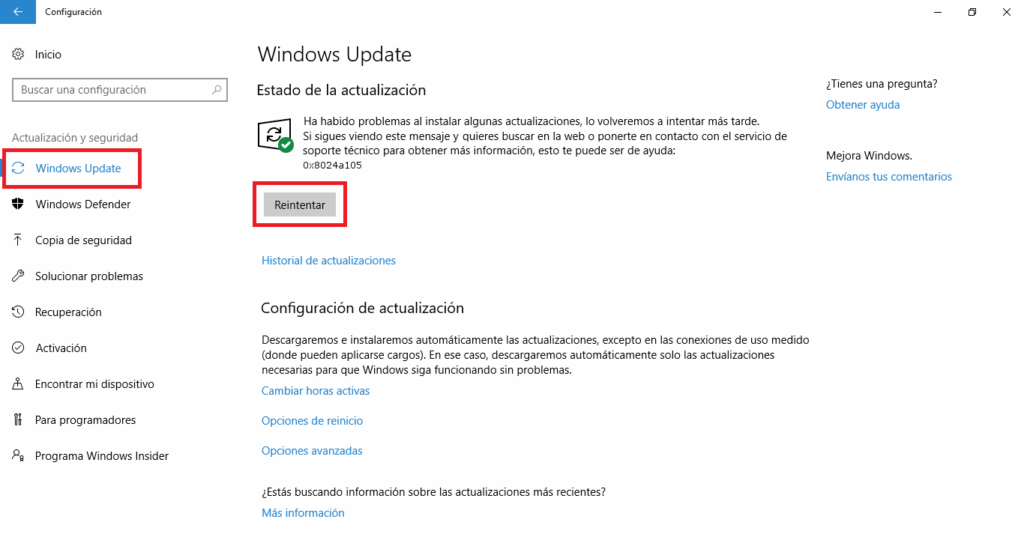
You may have come across it at some point. error 0x8024a105 in Windows Update, specifically when trying to update this tool. This is an annoying error, although relatively easy to resolve. In this article, we explain everything you need to know about this error: why it appears, how to avoid it, and, most importantly, how to fix it.
Normally, Windows takes care of download and install updates automatically to keep your equipment protected and optimized. This is the mission of Windows UpdateBut when this error occurs, updates are blocked. Hence the importance of fixing this situation.
What is error 0x8024a105 in Windows Update?
Error 0x8024a105 in Windows Update is usually accompanied by the following explanatory text: "There were problems installing some updates, but we'll try again later. If you continue to see this, try searching the web or contacting support for help. This error code may help: (0x8024a105)."
We are facing a failure that is closely linked to the Windows Automatic Updates client And in most cases, it is the tool itself that fails when trying to download or install system patches or enhancements.
Why does this happen? The causes can be very varied, these are the most common:
- Unexpected shutdowns that leave system files in a corrupted state.
- Corrupt or missing files on the system.
- Corrupted or misconfigured Windows Update components.
- Unstable internet connection or security software blocks.
- Presence of virus or malware.
- Problems with Windows Update services.
Before trying solutions for error 0x8024a105 in Windows Update…
Before you jump into complex solutions for error 0x8024a105 in Windows Update, There are a number of quick checks and tests that can resolve the problem.. Or at least rule out the simplest causes:
- Restart your computer: Sometimes a simple restart is enough for Windows to finish installing files and resolve temporary conflicts.
- Disconnect and reconnect the networkIf you're using Wi-Fi, turn your router off and back on or connect via cable. If you're using a wired network, unplug and replug the cable.
- Run the Windows Update troubleshooter: From 'Start' > 'Settings' > 'Update & security' > 'Troubleshoot' > 'Windows Update', run the tool and follow the steps it tells you.
If these basic actions don't work for you, it's time to move on to advanced methods.
Solutions for error 0x8024a105
There are a handful of ways to get around this error, so let's review them in order from least to most complex, always choosing the one that poses the least risk to your data and system.
Run the System File Checker (SFC)
System File Checker (SFC) is a native Windows utility that fixes corrupted or missing system files.. It uses the command line and is very effective for errors caused by corrupted files. These are the steps to follow:
- Open the start menu and type cmd in the search engine.
- Right-click on 'Command Prompt' and choose 'Run as administrator'.
- When the window opens, type: SFC /SCANNOW and press Enter.
- Wait for the process to complete. If it detects corrupted files, the system will attempt to repair them.
- Restart your PC and check if the error is gone.
Use the DISM tool to repair Windows images
DISM (Deployment Image Servicing and Management) is the next step if SFC doesn't workThis tool is used to correct errors in the system image and can save you on more than one occasion. Here's what you need to do:
- Open 'Command Prompt' as administrator (as in the previous step).
- Write and execute: DISM /online /Cleanup-Image /CheckHealth
- After: DISM /online /Cleanup-Image /ScanHealth
- And finally: DISM /online /Cleanup-Image /RestoreHealth
- When finished, restart your PC.
This triple combination scans, detects, and repairs errors in the Windows image and can resolve the error if it involves deeply corrupted files.
Delete the SoftwareDistribution folder
Sometimes, Temporary update files are responsible for the problemThe 'SoftwareDistribution' folder accumulates old or corrupted files that can clog up your system. To delete its contents, it's best to do so from Safe Mode, since some files will be locked in normal mode:
- Writes msconfig in the search engine and open 'System Settings'.
- Go to the 'Boot' tab, enable 'Secure Boot', and restart your computer.
- Once in safe mode, open file explorer and go to C:\Windows\SoftwareDistribution.
- Deletes all content inside the folder (only files and subfolders, not the parent folder).
- Go back to 'System Configuration', disable 'Secure Boot' and reboot normally.
Restart the Windows Update and BITS services
Sometimes the error is due toand the services responsible for updates stop working properlyThe main ones are "Windows Update" and "Background Intelligent Transfer Service (BITS)." Restarting them may unblock the process. You can do this as follows:
- Open 'Run' by pressing Windows + R.
- Writes services.msc and hit Enter.
- Search for 'Background Intelligent Transfer Service (BITS)' and 'Windows Update'. Right-click and select 'Stop' for both.
- Restart your PC.
- Go back to the same menu and select 'Start' for both services.
- Try updating again.
Remove and restore Windows Update components manually (advanced method)
If the above methods have not worked, you can opt for Manually restart the update components using the command lineThis method requires some experience but is very effective. If you're up for it, here's what to do:
- Open 'Command Prompt' as administrator.
- Stop the services with these commands (one by one and press Enter after each line):
- net stop bits
- net stop wuauserv
- net stop appidsvc
- net stop cryptSvc
- Delete temporary download and management files.
- From “%ALLUSERSPROFILE%\Application Data\Microsoft\Network\Downloader\qmgr*.dat”
- Rename key folders with:
- ren C:\Windows\SoftwareDistribution SoftwareDistribution.old
- ren C:\Windows\System32\catroot2 Catroot2.old
- Re-register critical .dll files using commands regsvr32.exe followed by the names of each file (this fixes broken references from updates).
- Restart stopped services:
- net start bits
- net start wuauserv
- net start appidsvc
- net start cryptSvc
- Close the console and restart your PC.
Perform an antivirus and malware scan
El malware It can also cause update failures and the appearance of this error. If you haven't done so recently, run a full scan with your updated antivirus.
- Go to 'Settings' > 'Update & security' > 'Windows Security'.
- Click 'Virus & threat protection' and run a full scan.
- Remove any detected threats and repeat the update attempt after a reboot.
Install updates manually using the Media Creation Tool
If nothing seems to work, you can resort to installing updates using the Microsoft Media Creation ToolThis tool allows you to update your system or reinstall Windows while keeping your files and programs. Here's how to do it:
- Download the tool from the official Microsoft website.
- Run the installer and select 'Update this PC now'.
- Follow the instructions and wait for the process to finish.
- The system should reboot and complete the necessary updates.
Reinstall Windows (only as a last resort)
If after trying all the above methods the error persists, Reinstalling Windows becomes the definitive solution. Please note that you must first back up your personal files, as there is a risk of data loss.
The recommended option is to use a USB flash drive with the latest Windows 10 ISO and proceed with a clean install. This will leave the system "as good as new" and eliminate any previous conflicts.
Error 0x8024a105 in Windows Update is annoying, but it can almost always be fixed.The key is to not skip steps and proceed calmly, following the order of the checks. With these guidelines, you'll most likely have your system up and running again in a matter of minutes or hours, saving you calls to tech support or unnecessary headaches.

Index
- 1 What is error 0x8024a105 in Windows Update?
- 2 Before trying solutions for error 0x8024a105 in Windows Update…
- 3 Solutions for error 0x8024a105
- 3.1 Run the System File Checker (SFC)
- 3.2 Use the DISM tool to repair Windows images
- 3.3 Delete the SoftwareDistribution folder
- 3.4 Restart the Windows Update and BITS services
- 3.5 Remove and restore Windows Update components manually (advanced method)
- 3.6 Perform an antivirus and malware scan
- 3.7 Install updates manually using the Media Creation Tool
- 3.8 Reinstall Windows (only as a last resort)