
If some or all of your files aren't syncing between your computer and Google Drive, there are steps you can take to troubleshoot the problem. The solution can range from checking your internet connection to making adjustments within the app or file. In this case, let's look at Why Google Drive won't sync files and what to do step by step.
Why isn't Google Drive syncing files?
Why isn't Google Drive syncing files, or just some of them? This could be due to several technical or configuration reasons. We'll cover them here. Some reasons why Google has stopped syncing your files:
- Weak or interrupted internet connection.
- Lack of storage in Drive.
- The file gets “stuck” along the way.
- Application errors.
- Outdated Drive.
- File size, usually very large file.
- Antivirus may be preventing syncing.
What to do if Google Drive won't sync files
As you can see, there's no single reason why Google Drive won't sync files. This means that, to solve the problem, You have to check and discard each of the solutions. which we'll look at next. Let's analyze what to do if Google Drive won't sync files, step by step.
Check your internet connection
The first thing you should check if Google Drive isn't syncing files is that your Internet connection is optimal. If you have a unstable or intermittent connection, it's likely that not all files are syncing correctly. How can you confirm that your internet is working properly? A simple way is to open other websites. If you're not connected, restart your router.
Look at the storage space
Remember that The storage limit on Google Drive is initially 15 GB., amount that you share with your Gmail account and Google Photos. So, if your account has reached the storage limit, Drive will automatically stop syncing. You can check your account storage in the next link.
Pause and resume syncing
Pausing and resuming syncing can be the solution when Google Drive won't sync files. This allows the app to unpause and re-sync files without any issues. To do this, click the Google Drive icon in the taskbar, go to the gear icon, and select "Pause synchronization”. Wait a few moments and resume it again.
Check that the file is not locked
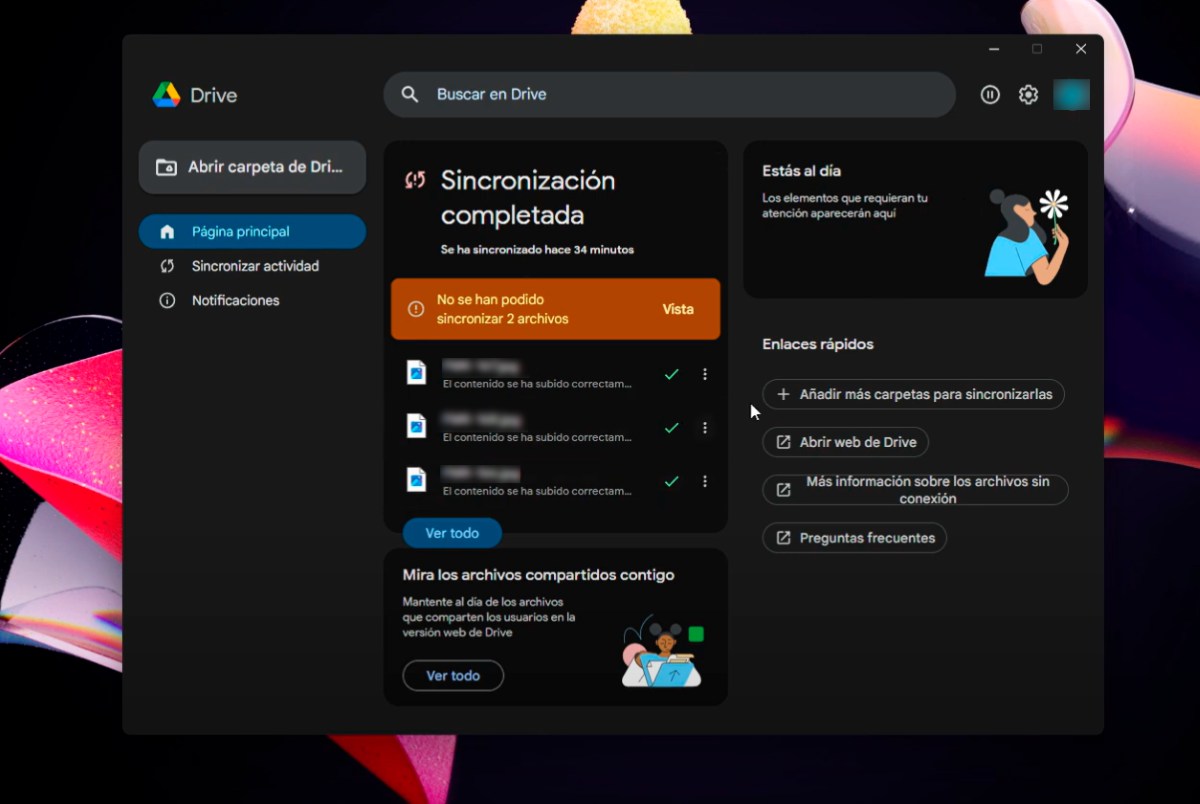
Sometimes it happens that, in the middle of synchronization, one of the files gets “stuck” in the path and you get the warning “The files could not be synchronized.”. In this case, there is a trick that can correct the problem. To do this, do the following:
- Locate the file that could not be synchronized and select "View".
- Now click on the three dots and choose “Open file”, there you will see the file with an X, which means it has not been synchronized.
- Write a letter or a symbol at the end of the file name. Wait a few seconds for the x to disappear.
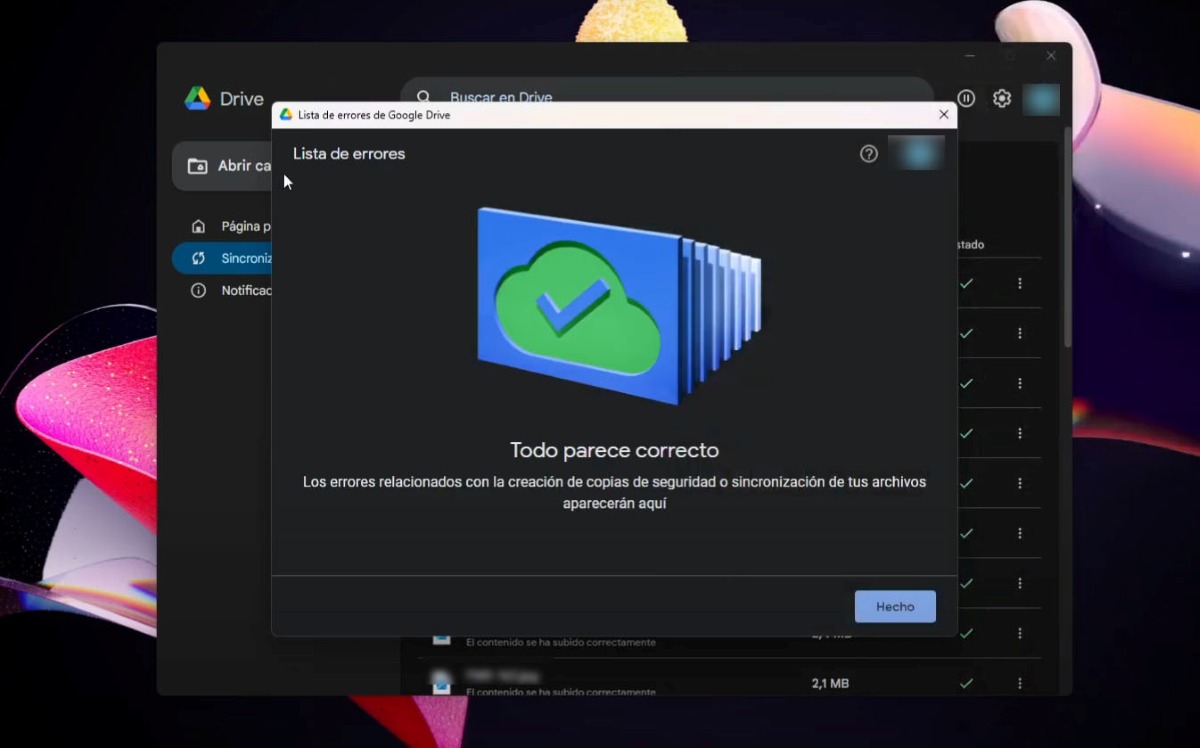
- If everything goes well, the problem has been resolved. You'll see Google Drive display the message "Everything looks OK" and a green cloud with a blue arrow in the middle.
Restart the Google Drive app
Completely close the Google Drive app on your computer. To do this, click Configuration – Go outOn Android, go to Settings – Apps – Google Drive – Force Stop. Then, reopen Drive to confirm that the issue has been resolved.
Update Google Drive
One step you can't skip (or at least check) is updating the app. If Google Drive is out of date, that may explain why it's not syncing your files. If it's the Desktop app, make sure you have the latest. And if it's on your mobile, go to Play Store – Google Drive – Update.
Check the app permissions
Is this your first time trying to sync your files with Google Drive? Then you need to verify that the app has access to your storage and filesIf you're using a mobile device, go to Settings – Apps – Google Drive – Permissions. Once there, make sure it has access to storage, network, and files.
Restart your computer
Another simple solution if Google Drive does not sync files is restart the computer you are usingSometimes, a simple restart of your PC can fix any problems you may have encountered. For Windows, click the Start button, tap the Start icon, click Restart, and you're done.
Temporarily disable your antivirus.
Have you thought that maybe your antivirus is the reason why Google Drive isn't syncing files? Sometimes, They can block the Drive connection on your PCWhat you can do is temporarily disable your antivirus and try syncing again. This will help you rule out the antivirus as the cause of the problem.
Disconnect your account and reconnect it
Disconnecting and reconnecting your account can also help your files sync again. Before disconnecting, however, It is good that you copy the files to a safe location. Since they may be deleted when you disconnect your account. To do this from your PC, follow these steps:
- Open Drive for computers.
- Click Settings – Preferences – Advanced Settings.
- Find the account you want to disconnect.
- Tap Disconnect Account (Drive may give you the option to move files to the desktop so you don't lose them).
- Sign in to Google Drive again.
- Choose a new location for your Google Drive folder.
Uninstall and reinstall Google Drive
If even after giving and verifying all the previous steps Google Drive still does not synchronize files, the last option you have is uninstall and reinstall the applicationThis may fix the problem. How do I uninstall it? To uninstall: close Google Drive, open the Control Panel, go to Programs, Programs and Features, Google Drive, and Uninstall. To reinstall it, do the following:
- On your computer, go to the download page for Drive.
- Download the latest version of Google Drive.
- Install the app and you're done.

From a young age, I've been fascinated by all things scientific and technological, especially those advancements that make our lives easier and more enjoyable. I love staying up-to-date on the latest news and trends, and sharing my experiences, opinions, and tips about the devices and gadgets I use. This led me to become a web writer a little over five years ago, focusing primarily on Android devices and Windows operating systems. I've learned to explain complex concepts in simple terms so my readers can easily understand them.