- Identify if the password, second factor, or policy is failing.
- Try another registered verification method.
- Request a backup code from the administrator.
- Configure an alternative after regaining access.

You try to access your work email, enter your password, and Google asks for a confirmation you can't complete. The code might not be arriving, you might have changed your phone number, or you might see a message indicating that... Your configuration does not comply with the organization's two-step verification policy..
The solution depends on the specific lock. An incorrect password, an inaccessible second factor, and additional identity verification require different actions. In a Google Workspace account, your administrator can help you regain access without having to disable company-wide protection.
Identify what is blocking access to Google Workspace
Before changing settings, write down the entire message and note when it appears. This distinction will help you choose the appropriate procedure.
- Google rejects the password: Check your email address and request a reset if necessary.
- It accepts the password, but asks for a second step: You need an available verification method or administrator assistance.
- It indicates that you do not comply with the organization's policy: You need to review the registration and the accepted payment methods for your account.
- It asks you to confirm your identity due to a suspicious login: This may be an additional security check, different from the usual two-step verification setup.
Resetting your password does not replace the second factor.If the problem lies in the subsequent verification, receiving a new password may leave you in the same place.
Provide the administrator with the error message and the approximate time of the attempt. Do not include passwords, one-time codes, or Authenticator QR codes in the screenshots you send.
Use another verification method that you already have set up
On the screen that requests the second step, look for Try another way or an equivalent option. Depending on your account and the organization's restrictions, you could use:
- A notification on another phone where you are logged in.
- An alternative number previously registered.
- An alternative verification code that you have saved.
- An additional security key.
- An access key available on another device.
Not all methods appear on all accounts. Just because an option exists on Google doesn't mean your organization allows it or that you've registered for it.
If you retain access from a trusted device, check if you can manage your methods from it. Google may require re-verification to make sensitive changes.
What to do if you don't receive the SMS or Google notification
When you don't receive the SMS
Please verify that the displayed number corresponds to your phone and that your line can receive messages. Availability and delivery also depend on the operator and location.
Check if Google is requesting a notification on another device instead of sending an SMS. If you've requested multiple messages, use the most recent code: Only the last of the requested codes works..
If the method is still unavailable, use another option offered on the screen or contact the administrator.
When the notification does not appear on the mobile phone
Google notifications require an internet connection. Please check the following:
- Activate a working Wi-Fi or mobile data connection.
- Confirm that the phone is logged into the correct account.
- Temporarily disable Do Not Disturb if it is hiding alerts.
- On Android, check that Google Play Services is up to date.
- Select Resend if the request has expired.
If you receive a request that you did not initiate, reject it and review the account activity. Do not approve notifications to make them disappear.
How to fix Google Authenticator codes that aren't working
If Google rejects the Authenticator codes, check that you're using the correct entry for your business address. It's easy to confuse it with another account when you have several similar entries.
Next, review these points:
- Enter a valid code: If it's about to change, wait for the next one.
- Check the date and time on your phone: activates the operating system's automatic adjustment.
- Check how you transferred the codes: Installing Authenticator on a new mobile device does not guarantee the recovery of records that were only saved on the previous one.
The old Authenticator time correction option It is no longer available since version 7.0The application uses the operating system's time.
Authenticator can generate codes without internet or network coverage. This distinguishes it from Google notifications. If you need to recover a lost configuration and have no other method, request assistance from the administrator before deleting entries or reinstalling the application.
Fixes the warning that you do not comply with the two-step verification policy
This message may appear when the organization requires two-step verification and your account doesn't have a compliant setup. There may also be restrictions on the allowed methods.
As a user, report the issue to the administrator. You cannot modify a company-imposed policy from your account.
The administrator should check the console:
- If the account is enrolled in two-step verification.
- What requirement is applied through your organizational unit or configuration group?
- The methods accepted and any restrictions on security keys.
- If the user needs to complete their registration or recover a lost method.
Group settings may override those of organizational units. Therefore, it is advisable to verify the user's actual configuration.
A temporary exception, where applicable, should be limited to the necessary case and end upon completion of registration. It is not advisable to deactivate the requirement for the entire organization as a solution to an individual blockage.
How can an administrator restore a user's access?
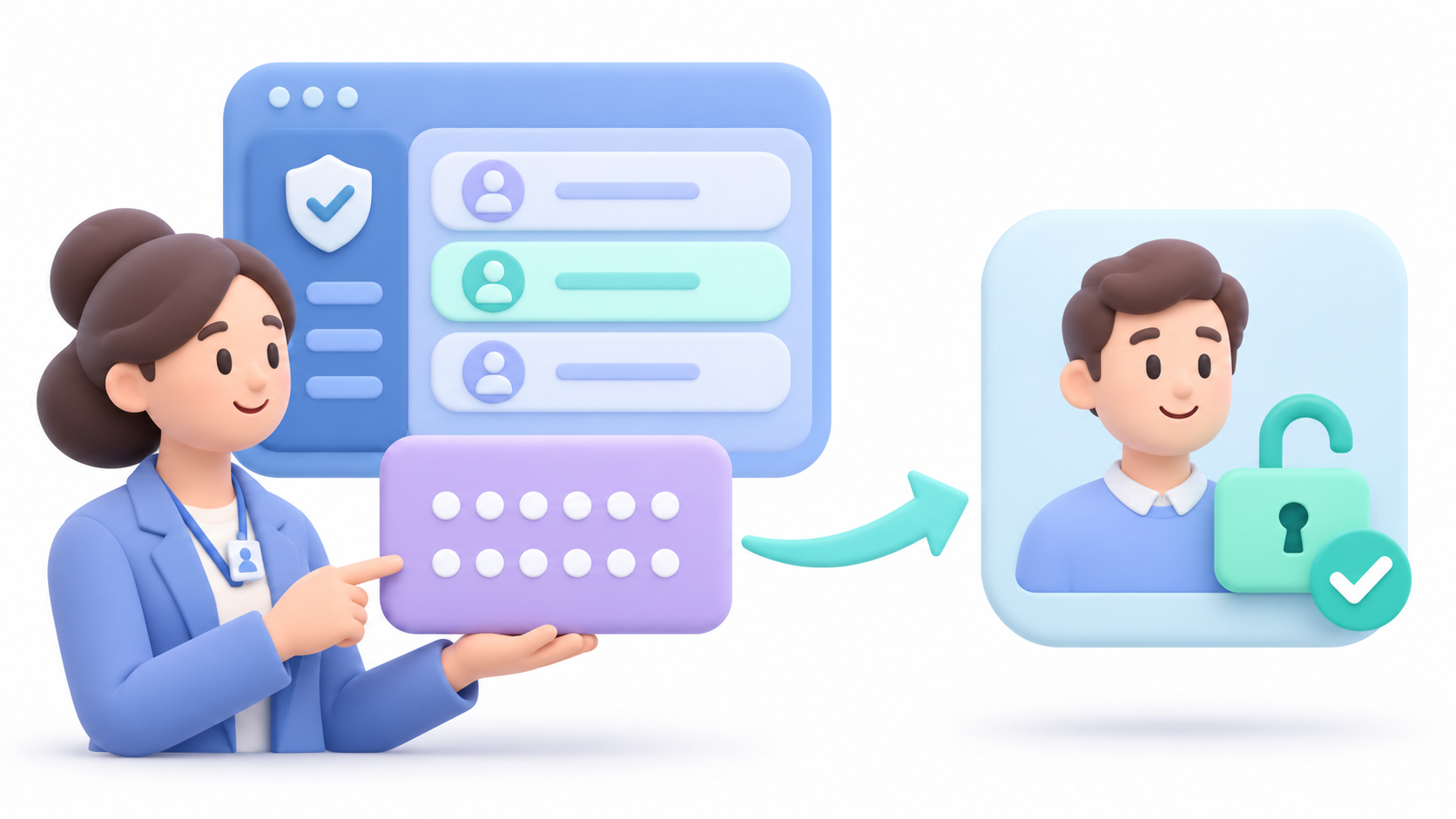
Google Workspace allows you to obtain backup verification codes from the administrative console. This procedure requires the appropriate privileges and is available when two-step verification is enforced by your organization or enabled for your account.
- Access admin.google.com with an authorized account.
- Enter Directory > Users.
- Select the affected account.
- Open Security o Security and access, according to the interface.
- Enter Two-step verification.
- Select Obtain backup verification codes.
After verifying the user's identity, provide them with a code through an appropriate channel. They can use this code along with their password to access and configure the necessary methods.
If you don't see the controls, review your role privileges and account settings. To recover an administrator account, Google indicates that an administrator must intervene. super administrator.
If the block is an additional identity check
Google may request additional verification if it detects a suspicious login. This mechanism should not be confused with enrolling in two-step verification.
When that check prevents a legitimate user from accessing the site, an administrator can use the specific procedure to temporarily disable the login challengeGoogle sets a ten-minute window and warns that the change may take several minutes to apply.
This action does not disable two-step verification. If the user is also required to complete a second factor, that must be addressed separately. Simply changing the password does not necessarily remove this restriction.
What to do if the administrator also cannot log in
If another super administrator retains access, ask them to help you with the recovery procedure. If none are available, use the official administrative access recovery process.
Depending on the case, Google may request recovery information or proof of domain ownership. The assisted procedure may require adding a DNS CNAME or TXT record following the provided instructions.
Use an easily accessible contact address that is not linked to the locked account. There is no universal recovery timeframe; it depends on the necessary checks.
Avoid future lockouts after regaining access
Before considering the incident resolved, register an additional method allowed by the company and verify that it works. If you have alternative codes, save them in a secure location that you can access even if your corporate email is locked.
Each alternate code is used only once.When a new set is generated, previous sets are invalidated. Some policies restrict user generation.
For administrators, it's advisable to have a backup security key and another authorized super administrator. Regaining access should be accompanied by completing any pending configurations, removing lost access methods, and maintaining a backup system.
Index
- 1 Identify what is blocking access to Google Workspace
- 2 Use another verification method that you already have set up
- 3 What to do if you don't receive the SMS or Google notification
- 4 How to fix Google Authenticator codes that aren't working
- 5 Fixes the warning that you do not comply with the two-step verification policy
- 6 How can an administrator restore a user's access?
- 7 If the block is an additional identity check
- 8 What to do if the administrator also cannot log in
- 9 Avoid future lockouts after regaining access
