- NFC on Xiaomi allows you to pay without contact, use virtual cards and share data by bringing the mobile phone close to other devices.
- NFC activation is done from the Control Center or from Settings, the path varying depending on MIUI or HyperOS.
- The "Security Element Position" and "Contactless Payments" settings determine how cards are handled and which app processes payments.
- You can choose between Google Pay or your bank's app as your primary method, provided the service and card are properly set up.

If you have a Xiaomi phone and want to start pay with your phoneTo share data instantly or use virtual cards, you need to know how NFC worksAlthough it may seem complicated, Activating, configuring, and taking advantage of NFC on Xiaomi is quite simple. once you know where the options are and what each setting means.
In recent years, contactless payments have gone from a novelty to a standard. These days, it's common to see people paying at the supermarket simply by holding their mobile phone near the card reader. Xiaomi phones, both with MIUI and with HyperOSThis NFC technology is integrated into in many of its models, and allow you to use it with Google Pay or your bank's app, as long as you have it properly configured.
What is NFC and what is it used for on a Xiaomi device?
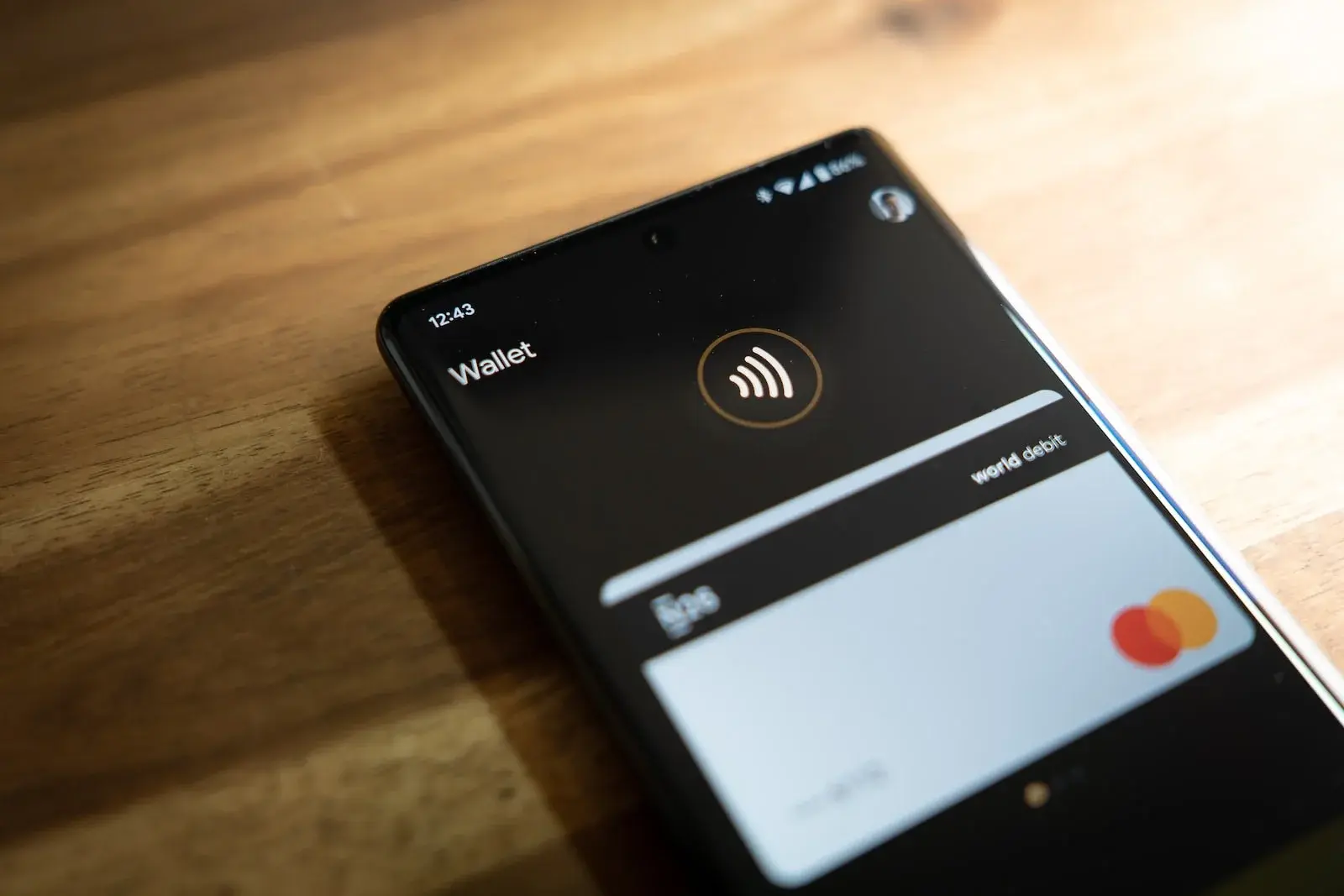
NFC (Near Field Communication) technology is a short-range wireless communication which allows two devices to exchange information when they are very close, almost touching. On a Xiaomi, The most common use of NFC is contactless mobile payments at compatible payment terminalsBut that's not its only use.
In addition to payments, your Xiaomi's NFC chip can be used for other tasks: pair accessories quicklyread NFC cards or tags, validate access, or load digitized transport cards in certain apps. All this without having to enter data over and over again, simply by bringing the phone close.
It is important to be aware that not all models include this feature. Some entry-level or very inexpensive Xiaomi phones may not have a built-in NFC chip.So before you go crazy looking for the menu, it's a good idea to check the technical specifications of your model to see if it actually has NFC.
When the mobile phone does incorporate it, the operating system offers its own menu for this technology. From that menu you can activate or deactivate NFC, choose the security method (SIM or HCE) and configure which app will be used to payusually Google Pay or your bank's app.
How to tell if your Xiaomi has NFC and where to activate it
Before you start messing with settings, the first thing to do is check if your phone has this feature. There are a few quick steps you can take to do this. First, Look on the box, on the official Xiaomi website, or on the store specifications Where did you buy it?It is usually clearly indicated whether the model has NFC.
Another practical way is to look for the option within the settings. If you see a section called "NFC" when you go into the connection menu, that's a very good sign.If it doesn't appear anywhere, it's most likely that your model doesn't have this chip.
You can also use the internal settings search engine. Open the Settings app and type "NFC" in the top search boxIf your phone supports the feature, it will directly show you the corresponding menu. If it returns no results, the feature is not available on your device.
Once you confirm that you do have NFC, it will be time to activate it. On Xiaomi devices, it's possible to turn it on from both the quick panel and the settings menu.However, the exact path changes depending on whether you have MIUI or HyperOS and the specific system version.
Activate and deactivate NFC from the Xiaomi Control Center
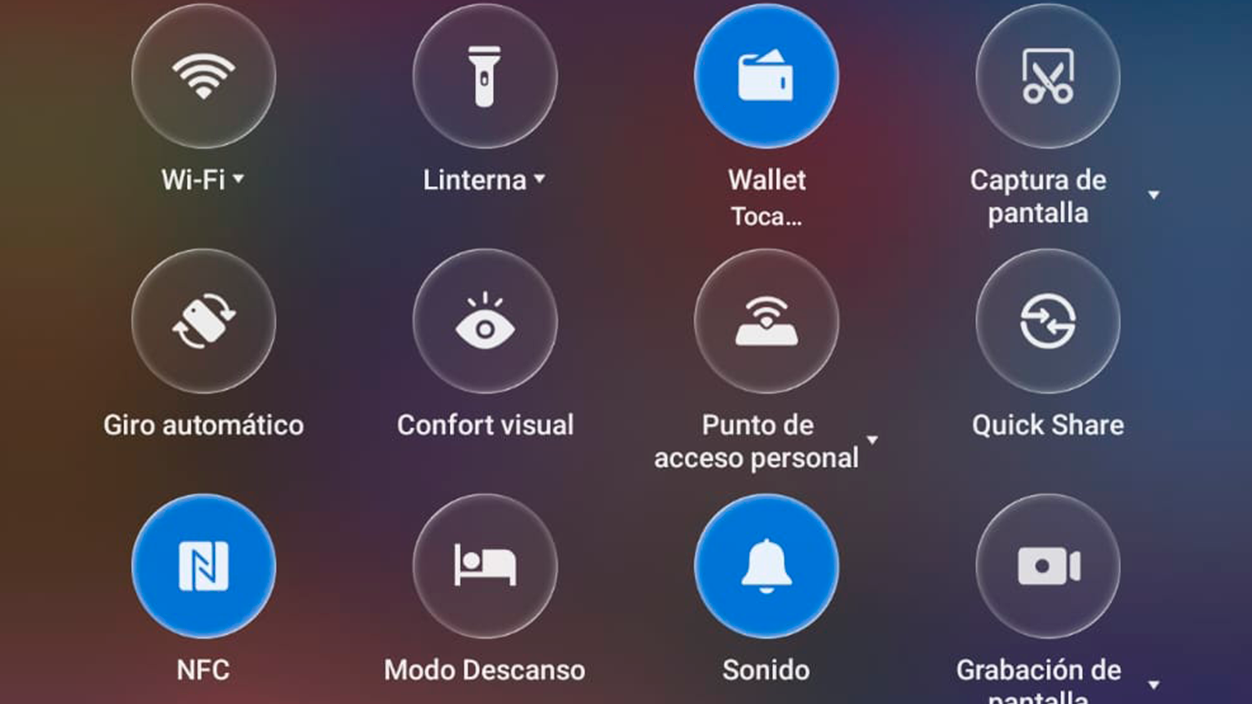
The easiest way to turn NFC on or off on a Xiaomi device is by using the quick settings. On most recent models, Simply swipe up from the top right corner of the screen to open the Control Center, which is the panel where the icons for WiFi, Bluetooth, mobile data, etc. appear.
Among those icons, one should appear with the NFC symbol. When the icon is lit up or highlighted, it means that NFC is active and ready to use.If it appears grayed out or off, the function is disabled. Tapping that icon once instantly toggles its state: on or off.
This system is very practical for everyday use. For example, If you only want NFC active when you're paying for something, you can keep it off normally and turn it on from the Control Center just before you bring your phone close to the payment terminal.Then, with a single tap, you can turn it off again.
On some models with older configurations or a classic notification panel design, you may not see the modern Control Center. In those cases, Swipe down the notification bar from the top and look for the NFC icon among the quick settings.If it doesn't appear, you can edit or customize the icons to add it if the system allows it.
Configure NFC from Settings in MIUI
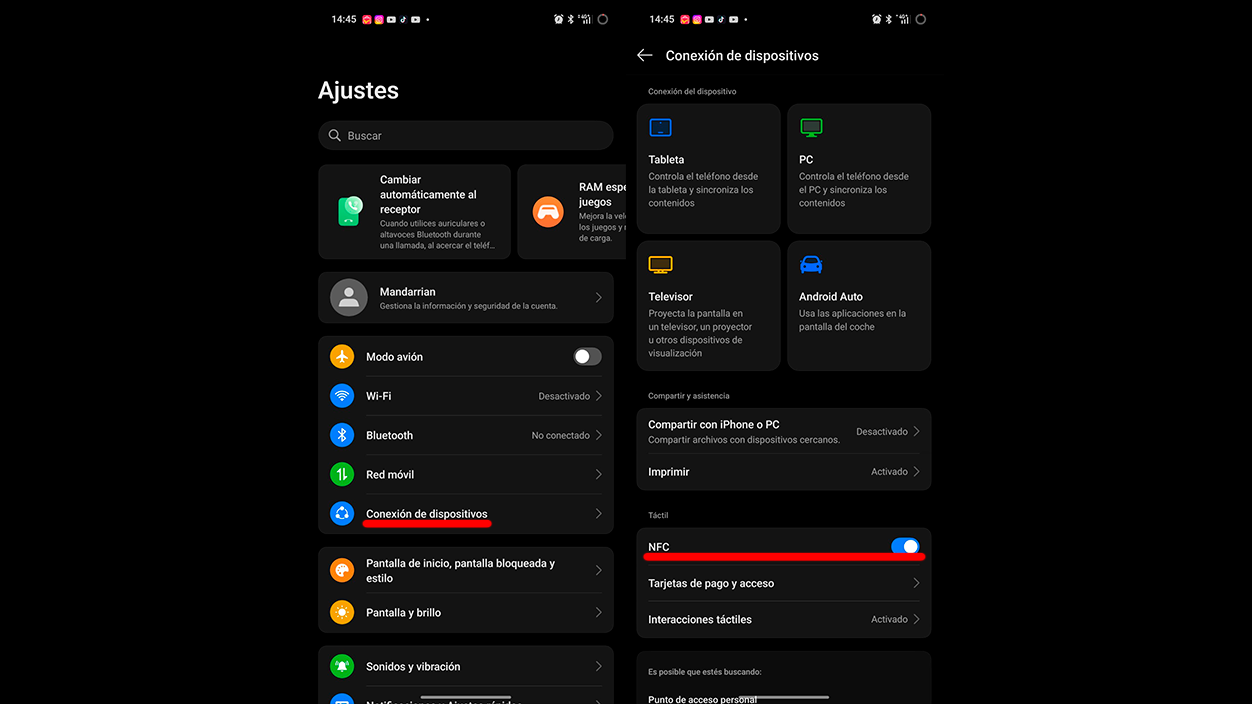
In addition to quick access, all Xiaomi devices with NFC offer the option to manage it from the Settings menu. In classic versions of MIUI, The usual path to locate the NFC option is: Settings > Device Connection > NFCWithin that section you will find a master switch to activate or deactivate the function.
Upon entering, you'll see a simple switch that, when turned on, allows the phone to use the NFC chip for payments and other uses. If you slide this switch to the off position, the phone will stop responding to any NFC communication attempts.Therefore, you will not be able to pay or read contactless cards while it is deactivated.
In slightly older versions of pure Android or less customized layers, the path may be slightly different. You usually have to go to System Settings and enter the "Wireless and Networks" section., where WiFi, Bluetooth and other connections are grouped together.
Within that menu there is usually a category called "More" or "More options". Upon entering, you should see a specific switch labeled "NFC".It works just like any other switch: one touch to turn it on and another touch to turn it off, no additional complications.
In all cases, if you can't find the exact path, the trick of using the built-in search engine in Settings still works. Type "NFC" in the top bar of the Settings app and the system will take you directly to the correct menu., regardless of what the section is called in your specific version.
Enable NFC on Xiaomi with HyperOS
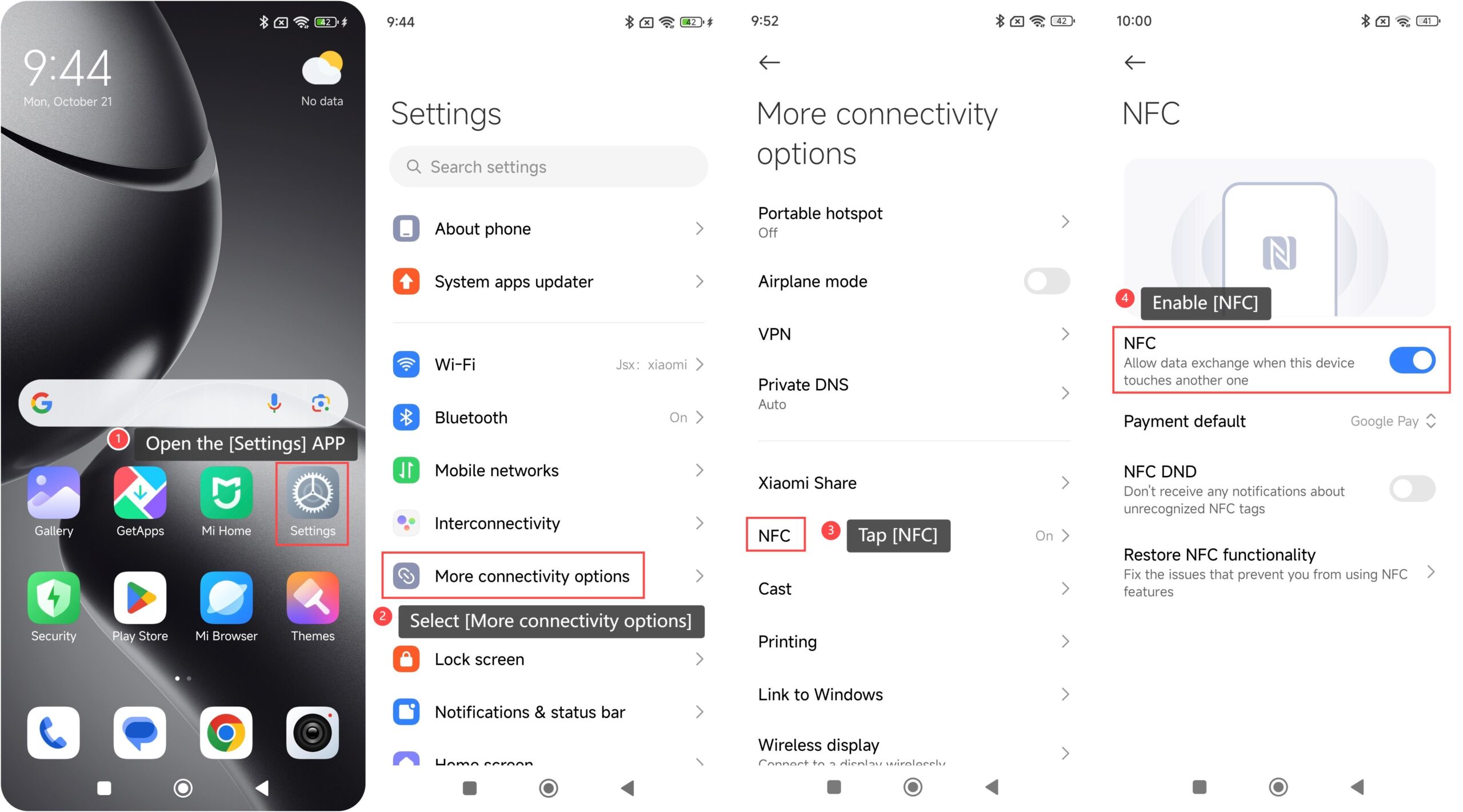
Many recent Xiaomi phones no longer use MIUI, but rather HyperOS, the brand's new operating system. Although the design may change slightly, The process for activating NFC in HyperOS remains very simple and is designed so you don't get lost..
In HyperOS, the standard path is as follows: Open Settings, scroll down to "More connectivity options" and enter that sectionInside you'll see several features related to advanced connections, including the clearly identified NFC option.
Just like in MIUI, you'll also find a main switch here. If the NFC button is in the on position, your Xiaomi will be able to use it for payments, reading cards, and communicating with other nearby devices.If you turn it off, the function will be completely deactivated.
If you can't find the "More connectivity options" menu at first glance, you can also use the search function within Settings. Using the term "NFC" in the HyperOS search bar usually immediately displays the option to access the settings.without having to go up or down menus.
Once the NFC button is activated in HyperOS, you have the foundation ready to use mobile payments and virtual cards. The next step will be to fine-tune the security settings and default applications so that everything works the way you want it to.especially if you're going to forgo Google Pay and use your bank's app.
Advanced NFC settings on Xiaomi: SIM Wallet and HCE
Within the NFC menu of Xiaomi devices, you'll find some additional options worth understanding. One of the most important is called "Security Element Position," which determines how sensitive payment data is handled. You will usually be able to choose between "SIM Wallet" and "HCE Wallet".
When you select "SIM Wallet," the phone uses the SIM card as a secure element. In many cases, This configuration automatically integrates with Google Pay or Google Walletso that the cards you add to that application will work without you having to do anything else.
However, if you want to go a little further or if you prefer not to depend so much on Google, the other option is to enable HCE (Host Card Emulation). By activating the "HCE Wallet", the mobile phone is able to virtualize cards and act as if it were another physical cardusing the device itself as a secure element.
This HCE feature is especially useful when you want to use bank cards that offer their own payment app without relying on Google Pay. By setting HCE as the primary method, many banking apps can directly manage NFC for contactless payments., without needing to go through the Google layer.
In summary, the security element determines where the most sensitive data is stored and managed. If you always use Google Pay, SIM Wallet usually works by default.If you're interested in using other tools or virtual cards directly from bank apps, the usual option is HCE.
Choosing the default payment app on Xiaomi
Another key setting within NFC configuration is contactless payment management. On Xiaomi devices, you'll find a specific section for this, often called "Contactless Payments" or "Tap & Pay." From this menu you can decide which application will be in charge of processing NFC payments.
By default, the system will usually select Google Pay or Google Wallet as the main app. This option is very convenient if you already have your debit or credit cards added there.because all you have to do is bring your mobile phone close to the card reader and follow the on-screen instructions to confirm the payment.
The contactless payment menu also usually offers the option to use "Default App". By choosing this option, you can select any compatible banking app you have installed on your Xiaomi., as long as it supports NFC payments.
To change the default app, go into the "Tap & Pay" settings or similar, and select the option to use a specific app. Next, select your bank's app or other preferred payment tool from the list.From then on, the mobile will always use that application when you bring the device close to a payment terminal.
It's important to note that if you change your default payment app, Google Pay may stop working as your primary payment method. If you want to switch back to Google Pay later, you'll just need to repeat the process and set it as your primary app again. in the contactless payment menu.
Set up Google Pay to pay with NFC on Xiaomi
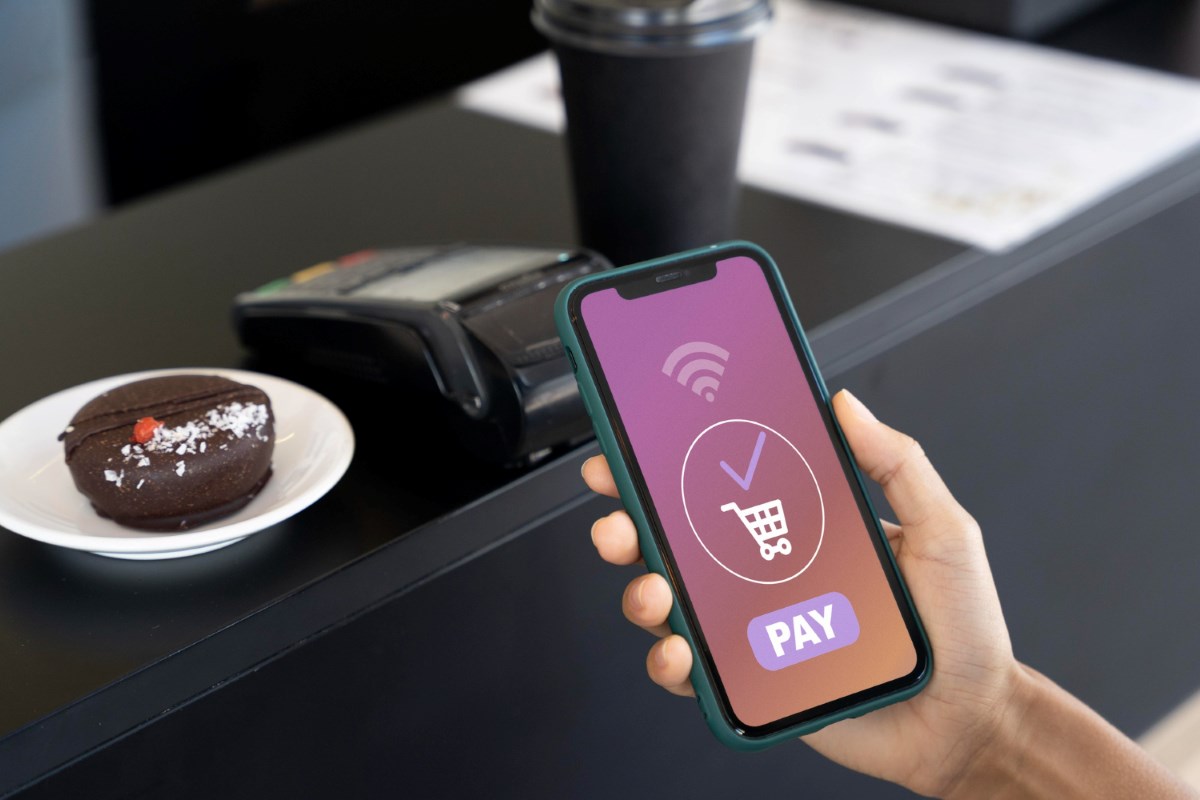
If you choose Google Pay (or Google Wallet) as your primary payment method, you'll need to spend a few minutes setting it up properly. To begin, Download or update Google Wallet from the Play Store and open it on your Xiaomi device. with the Google account you usually use.
Within the application, the next step is to add your cards. You can scan the card with your mobile phone's camera to automatically fill in the basic information. (card number, expiry date, etc.), or enter them manually if you prefer.
Once the card is added, your bank may request additional verification steps. Most often, you'll receive codes via SMS, notifications in the bank's app, or email messages. which you will need to confirm to fully activate the card in Google Pay.
Once the card is verified, you can set it as the primary payment method within Google Wallet. From that moment on, whenever you bring your Xiaomi close to the card reader with the screen on and NFC activeThe terminal will attempt to process the payment through Google Pay, asking for confirmation if necessary.
It is also advisable to review some security settings. Many users prefer to require unlocking via PIN, pattern or fingerprint to authorize certain amountsso that no one can use NFC to pay if they do not have access to the unlocked phone.
Use your bank's app as an alternative to Google Pay
Although Google Pay is convenient and widely used, it doesn't always work for everyone. Some apps may be blacklisted by Google Wallet, causing the system to block payments for security reasons. If your Xiaomi device has any apps installed that Google considers risky, you may encounter unexpected crashes. when trying to pay.
In those cases, or if you simply prefer not to rely on the Google ecosystem, you can use your own bank's app as your primary NFC payment method. To do this, first make sure you've already enabled the HCE option in your Xiaomi's NFC settings. With HCE enabled, the banking app can directly manage card emulation. and the contactless payment process.
Next, go to the "Tap & pay" or "Contactless payments" menu, and choose the "Use default app" option. Your bank's app should appear in the list of compatible applications.Select it to be the one used by default in transactions.
The next step is to enter the bank's own app and look for the corresponding section, which is usually called something like "Mobile Payment", "Digital Cards", "Wallet" or similar. There you will need to activate the mobile payment service and link your credit or debit card following the assistant offered by the application.
Once this is done, when you bring the Xiaomi close to a contactless terminal, the system will directly use the bank's app to process the transaction. Depending on the entity, it may ask you for confirmation from within the app itself, using a code, fingerprint, or biometric system.or that works automatically for small amounts.
Important adjustments to the banking app for NFC to work properly

If you choose your bank's app as your primary payment method, it's a good idea to review a few details to avoid errors at the checkout. First, Log into your bank and check sections such as "Settings", "Payments", "Cards" or "Security", where the switches that activate or block contactless payment are usually located.
In some entities, cards may have limited NFC use or require specific activation. You may find options such as "Activate mobile payments", "Allow contactless payments" or "Bank wallet" that you need to turn on for everything to work properly.
Don't forget to also check your card's daily spending limits. If the payment limit is too low, the transaction may be declined even if the NFC and the app are configured correctly.which leads to the mistaken belief that the problem lies with the mobile phone.
Another point to consider is the card's status. Some institutions temporarily deactivate cards due to lack of use, security measures, or suspected fraud. If you haven't paid with that card for a while, you may need to reactivate it in the app, often in sections like "Temporary Block" or "Usage Control"..
Finally, make sure you have your bank's app updated to the latest version available on the Play Store. Many security improvements and NFC payment compatibility features come in the form of an app update.Using an older version can cause payment failures or rejections.
NFC on Android vs. iOS: Key Differences
For those coming from an iPhone or switching between both systems, it's worth noting an important difference. On Android, and therefore on Xiaomi devices, The user has control to activate or deactivate NFC whenever they want and decide which app uses it.whether it's Google Pay, the bank's app, or another compatible tool.
In iPhones, although they also have an NFC chip, Apple has long limited its use. Traditionally, NFC on iOS has been reserved almost exclusively for Apple Pay and a few very specific functions., without allowing the user to freely manage settings as in Android.
This means that, if you're used to iOS, you'll be surprised by the number of settings available on a Xiaomi. On Android, you can enable or disable NFC from settings or quick access, or switch your main payment app. and even switch between SIM or HCE wallet depending on your needs.
In any case, the key is that with your Xiaomi you have room to decide how you want to use NFC and what level of control you want to have over your payments and virtual cards. If you're not convinced by an app or it gives you problems, you can always try another alternative. and reconfigure it from the menus we have seen.
Ultimately, mastering NFC on your Xiaomi comes down to three basic ideas: checking that your phone has an NFC chip, learning how to turn it on and off from the Control Center or Settings, and properly configuring the payment app you want to use, whether it's Google Pay or your bank's app. With these clear steps, you can get the most out of contactless payments and virtual cards without complicating your life. every time you go through the checkout or need to use your mobile phone as if it were a physical card.
Index
- 1 What is NFC and what is it used for on a Xiaomi device?
- 2 How to tell if your Xiaomi has NFC and where to activate it
- 3 Activate and deactivate NFC from the Xiaomi Control Center
- 4 Configure NFC from Settings in MIUI
- 5 Enable NFC on Xiaomi with HyperOS
- 6 Advanced NFC settings on Xiaomi: SIM Wallet and HCE
- 7 Choosing the default payment app on Xiaomi
- 8 Set up Google Pay to pay with NFC on Xiaomi
- 9 Use your bank's app as an alternative to Google Pay
- 10 Important adjustments to the banking app for NFC to work properly
- 11 NFC on Android vs. iOS: Key Differences
