- Timestamps allow you to start a YouTube video at a specific second, improving navigation and user experience.
- They can be added from the browser, by editing the URL with ?t= or &t=, and turning descriptions into well-structured chapters.
- Online AI tools generate automatic transcripts and timestamps, speeding up the creation of chapters and notes.
- Using secure web solutions instead of downloadable software reduces risks and makes it easier to work with links and timestamps.

¿How do I add a timestamp to a YouTube link? If you've ever wanted a friend to see a specific moment from a YouTube video without watching the entire videoYou need to learn how to use timestamps. They're the easiest way to make a video play at the exact second you want, without any fuss or explanations like "start watching from 3 minutes and 27 seconds."
Furthermore, if you are a creator, student, or researcher, timestamps are not just for sharing funny clips: They help you organize your content, improve user experience, and gain SEO points on YouTube and Google.In this guide you will see, step by step, how to add a timestamp to a YouTube link on desktop, mobile, in video descriptions (chapters), and how to use online and AI tools to automate much of the work.
What is a YouTube timestamp and why should you use it?
A timestamp on YouTube is, basically, a link that makes the video start playing from a specific second instead of starting from the beginning. That starting point is encoded in the URL using a timestamp.
When you use timestamps, the viewer doesn't have to drag the progress bar to find the exact point. With just one click, jump to the part of the video that really interests you.: a key explanation, a specific joke, a fragment of an interview, a product demonstration, or any other relevant moment.
For those watching the video, these brands function as a kind of interactive index or table of contentsIn descriptions and comments, YouTube automatically converts times in the format 0:00, 2:45, 1:05:30, etc., into clickable links that take you directly to that moment in the video.
For content creators, timestamps are pure gold: They improve navigation, reduce frustration, increase viewing time, and multiply the chances of specific snippets being shared.Furthermore, when you use them as chapters, search engines better understand the video's structure and can display "key moments" directly in the results.
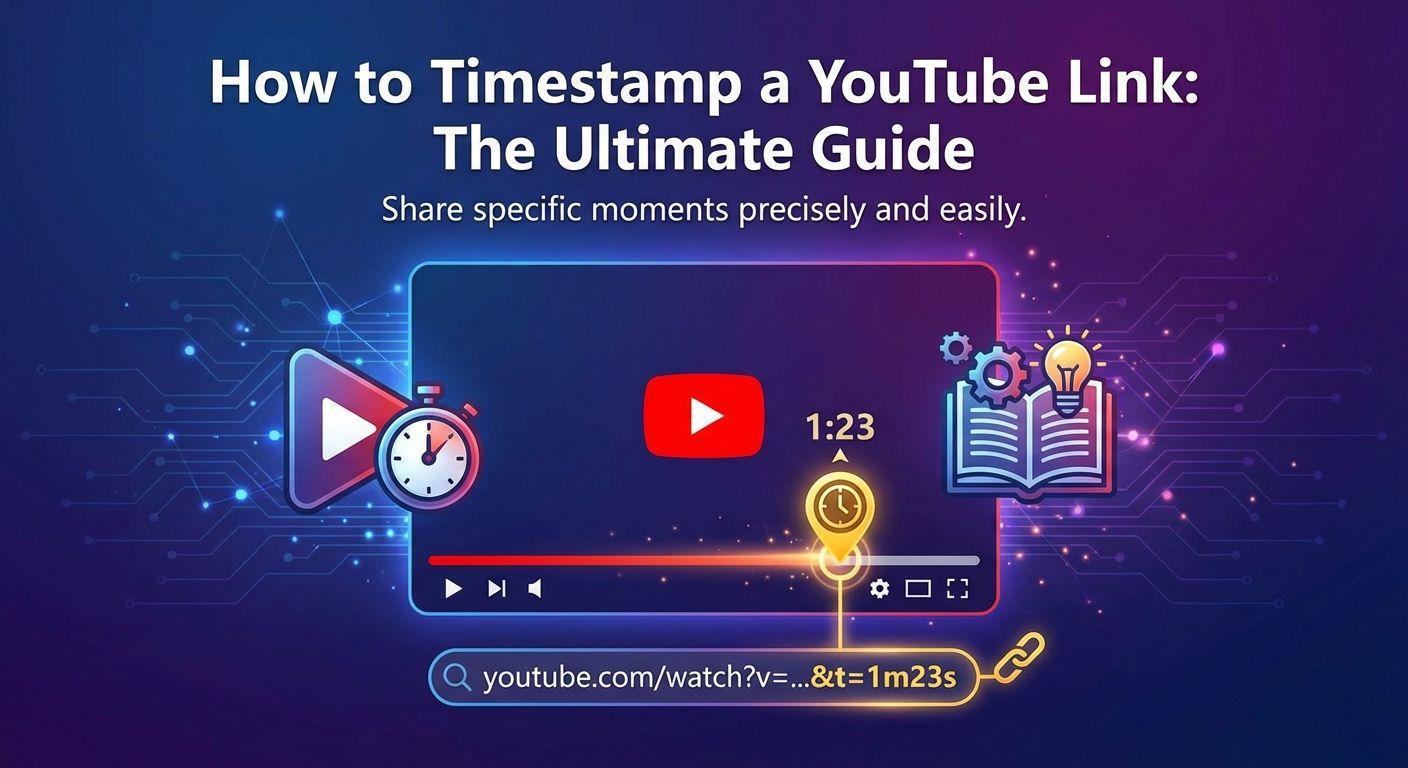
Benefits of timestamps for viewers and creators
From the viewer's point of view, the timestamps are the most convenient way to selectively consume long videosNot everyone has the time or the inclination to watch an entire hour to find a specific phrase or piece of information.
With a well-made list of times, the user can go directly to the section you are looking for: the specific step in a tutorial, the review of a product within a larger video, the moment when an interview begins, or the fragment of a talk where a specific topic is mentioned.
Furthermore, those marks can copy and share easilyAnyone can take a specific time from the description or a comment, generate a timestamp link, and send it via WhatsApp, email, Discord, or wherever they want, so that another viewer can go directly to that point.
For the creator, the benefit goes beyond user convenience. Well-designed timestamps increase engagement and retentionbecause they allow people to revisit the parts they liked the most or want to review later.
They are also a very powerful SEO tool on YouTube: Each chapter, with its name and time, provides semantic context.It helps the algorithm understand what each part of the video is about and improves the chances of appearing in both YouTube suggestions and Google, showing highlighted segments as "Key Moments" on the results page.
How to prepare your video before creating timestamps
For timestamps to be truly useful, ideally the video should have a minimally clear structure. It's not about setting time limits haphazardly, but about marking sections that add value. and that the user can identify instantly.
The first thing you should do is Watch the full video from beginning to endDuring that review, pay attention to the rhythm, the transitions between topics, and the exact moment when each important block begins: introduction, central sections, changes of topic, and closing.
Next, identify and write down the key moments you want to turn into chapters or jump cutsFor example, in a typical tutorial you could mark: introduction, explanation of previous concepts, step-by-step demonstration, resolution of common errors, and conclusion or call to action.
Once you have those sections clear, note down the times with HH:MM:SS format (hours, minutes, seconds). Even if your video is under an hour long, using this format helps maintain consistency and avoids errors. These timestamps will likely become clickable links when you copy them to your YouTube description.
This advance planning saves you time later, especially if you're going to use automated tools to generate transcripts or timestamps. An organized video lends itself much better to creating clean, clear, and easy-to-follow chaptersAnd the algorithm notices that too.
How to add a timestamp to a YouTube link from your browser
If you're on a computer, YouTube offers two very simple ways to generate links that start at a specific time: through the “Share” button and by right-clicking on the player.
The first method is the most visual. You just have to Play the video and stop it at the exact moment you want it to start.Once paused, click on the "Share" button that appears below the player, usually identified by an arrow icon.
In the pop-up window, you'll see the video link and below it, a box labeled “Start at” along with the current timestampIf you check that box, YouTube will automatically adjust the URL to include the time parameter.
From there, you just have to click on “Copy” and paste that link wherever you want: When the other person clicks, the video will skip the entire previous part. and it will start right at the second you marked.
The second option is even faster for advanced users: with the video paused at the right moment, do Right-click on the player and select “Copy the current video URL”This saves a modified link with a timestamp to your clipboard, ready to share without any extra steps.
How to manually add ?t= or &t= to a YouTube URL
In addition to the options above, you can create timestamped links manually editing the URLThis is especially useful when you're on mobile or when you want complete control over the time format (hours, minutes, and seconds).
The idea is simple: you add a time parameter to the end of the normal video URL. That parameter is expressed as t= followed by the number of hours, minutes, and seconds that you want them to skip before starting playback.
For example, if you copy a link like https://www.youtube.com/watch?v=ABC123, you can modify it to start at 2 hours, 45 minutes, and 3 seconds by adding &t=2h45m3s In the end, it ended up like this: https://www.youtube.com/watch?v=ABC123&t=2h45m3s.
The key is understanding the syntax: YouTube accepts times in seconds (t=90s), in minutes and seconds (t=1m30s) or in hours, minutes and seconds (t=1h5m20s)Always use whole numbers; decimals, if included, are ignored.
Depending on the type of link, you will need to use either a question mark (?) or an ampersand (&). If the URL doesn't yet have parameters (for example, short links like youtu.be), you'll use ?t=If the URL already contains a ?, as in long links with v=ID, then you will need to add &t= for everything to work correctly.
How to add a timestamp to a YouTube link on mobile (iOS and Android)
There is one major limitation in the YouTube mobile app: The "Start in" box that you see in the desktop browser is not present.When you tap share on your mobile device, the link you copy always takes you to the beginning of the video.
The solution is to do it manually. First, open the video in the app, tap the “Share” button, and then tap “Copy link.” Paste that URL into the chat, email, or note wherever you want to use it, but don't send it yet..
Now comes the trick: Add the correct formatted time parameter to the end of the URLFor example, if you want the video to start at 1 minute and 30 seconds, you should add ?t=1m30s or &t=1m30s depending on the type of link you have.
If the link is short, like https://youtu.be/IDDELVIDEO, it will usually not have any parameters, so Will you use ?t=It would look something like this: https://youtu.be/IDDELVIDEO?t=1m30s.
If the link comes in long format from the mobile browser and already contains a question mark (for example, https://m.youtube.com/watch?v=IDDELVIDEO), then you will have to add &t= instead of ?t=, resulting in: https://m.youtube.com/watch?v=IDDELVIDEO&t=1m30s.
Create YouTube chapters by adding timestamps to the description
When you're a creator, it's not enough to share a single moment: Ideally, the video should be divided into complete chapters within the description.This gives the user a visual map of all the content and also activates the chapters in the progress bar.
To have YouTube automatically recognize those episodes, you need to follow these steps. very specific formatting rulesThe first is that the timestamp list must start at 0:00 (or 00:00); if your first time is, for example, 0:15, the system will not activate the chapters.
The second rule is that there must be at least three distinct timestampsIf you only add one or two timestamps, YouTube will interpret that as not being a real index and will simply leave the timestamps as isolated links without showing the segmented bar.
Finally, each chapter must last, at a minimum, about 10 secondsIf you create extremely short segments, the platform may ignore them when building automatic chapters and leave the video without that advanced navigation.
The recommended format is very simple: a timestamp per line, followed by a hyphen and a clear title. For example:
0:00 – Introduction
1:45 – Step 1: Prepare data
4:20 – Step 2: Configuration
8:15 – Closing and next steps
How to add timestamps to a video that has already been published or during the upload

If you already have a video published and want to add chapters, just go to YouTube Studio and edit the description. Go to your channel, open the Creator Studio panel, go to “Content” and click on the title or thumbnail of the video you're interested in.
As you scroll down, you'll see the description box. That's where you need to go. Paste the list of timestamps on separate lines, respecting the format and rules we have discussed (start at 0:00, minimum three, etc.).
When you finish typing or pasting the list, click on “Save”. From that moment on, If you refresh the video page, you'll see the chapters marked on the progress bar. and the timestamps in the description will have been converted into links that lead to each section.
If you haven't uploaded the video yet, you can get a head start. During the upload workflow in YouTube Studio, on the details screen, Use the description field to enter the timestamps now. following the same structure. So, as soon as you publish, the chapters will be active from the first minute.
Then complete the rest of the information (title, thumbnail, tags, visibility…) and click on “Publish” or “Schedule”. This ensures that your video is optimized from the start., both in terms of user experience and positioning.
Best practices for creating truly useful timestamps
To prevent timestamps from becoming noise, it's advisable to apply certain best practices. The first is to use clear, direct labels that are easy to understand at a glanceThe user should know what they are going to find before clicking.
Instead of long sentences like “Here’s how I set up my camera for the session,” it’s much more efficient to write something like “Set up your camera”Keep the text brief, but descriptive enough to identify the section.
It is also important to maintain a consistent format across all your videosFor example, you can decide that you will always put the topic tag right after the time, separated by a hyphen, and maintain the same style in each new piece of content.
Don't fall into the temptation of adding a timestamp every few seconds. More isn't always better.For a video of about 10 minutes, 3 to 7 well-placed tags are usually sufficient. Otherwise, the description ends up being an endless list that's impossible to scan.
Consider using timestamps to highlight the really important sectionsProduct demos, key tutorial steps, relevant ads, Q&A sections, or final recaps are all good examples. And, highly recommended, check your audience's comments from time to time: if many users ask where you explain "X," you might want to create a specific timestamp for that section.
Use AI tools to generate timestamps and transcripts
If you post frequently or work with long videos, doing all this manually can become a real ordeal. That's where they come in. Artificial intelligence-based tools that generate automatic transcripts and timestamps.
One of the most interesting options is to use an online YouTube transcript generator, such as Lynote. These tools extract the audio from the video directly from the URL and produce a complete text with each phrase associated with a timestamp. (for example, [04:15]).
In the case of Lynote, basic use is usually very simple: you copy the video link, paste it into the box on the website and click "Generate". In a matter of seconds, you get the entire video transcript, sorted and with timestamps. on the left or at the beginning of each line.
From there, you can click on any timestamp to check the exact moment within YouTube, or simply Copy the relevant parts with their timings and paste them into your notes, your script, or your video description. to build chapters ultra-fast.
These types of tools are especially useful for students, researchers, podcasters, and creators who need to extract direct quotes, program notes, or structured summaries without having to watch the entire video several times or stop it every time.
Other AI tools and timestamped link generators
In addition to transcript generators, there are other online utilities designed simply for format the URL with the time parameterThey usually work like small calculators: you enter the YouTube URL, indicate the minute and second it starts, and they return the modified link.
The advantage of these “generic” tools is that they are Very simple if you already know the exact time From whichever you want to start. You don't need to remember the syntax of ?t= or &t=; the website itself takes care of building the correct URL for you.
The downside is that They don't provide any context or text.They're not useful for searching through video content or intelligently locating important moments. You have to find the point manually, note the time, and then enter it into the tool.
In contrast, with a Lynote-type generator or similar, You have the option to navigate through the transcript, locate specific phrases, and view the associated timestamp.This drastically accelerates the creation of indexes, scripts, and chapters for long videos.
Some solutions, such as Tactiq, even allow Upload a video or audio file to generate a full transcript with timestamps.or connect to meeting platforms (Zoom, Google Meet, Microsoft Teams) to capture live notes and timings, ideal if you then want to reuse those recordings as content for YouTube.
Security: Avoid suspicious software and unnecessary extensions
When you search for YouTube tools online, it's easy to find websites that offer them. Download executable programs (.exe or others) to extract data from videosFor something as simple as generating timestamps or transcripts, this is completely unnecessary and can pose a risk.
Many of those downloads come loaded with bloatware, intrusive advertising, or, in the worst case, malwareTo work with YouTube links, you shouldn't need to install anything on your computer other than your own browser.
For that reason, it is much more advisable opt for cloud-based toolsthat work directly in the browser. In this model, you simply paste the video link, the service's servers process the information and return the transcript or timestamp list to you.
It's also wise to be cautious with some browser extensions. Although they are very convenient, they often require permissions to function. “Read and modify all your data on the sites you visit”This isn't always worth it if you're only going to generate a timestamp occasionally.
Whenever possible, try to use Web tools that only see the URL you paste And that's it. This reduces the impact on your privacy and prevents you from giving unnecessary access to your passwords, browsing history, or sensitive information.
Frequently asked questions about timestamps on YouTube
A fairly common question is why The "Start on" box does not appear on the mobile deviceThe answer is simple: for now, YouTube has only implemented that feature in the desktop version, so on your phone you have to resort to the manual trick of adding ?t= or &t= to the URL.
Another common question is whether You can add a timestamp to a commentThe answer is yes: if you write something like 2:45 or 01:15:30 in a comment or description, YouTube usually automatically transforms that code into a clickable link that jumps to the corresponding second.
Those who work with podcasts or very long videos often wonder how Extract all timestamps without spending hours in front of the screenIn these cases, the most practical thing to do is to use a transcription tool with timestamps (such as Lynote or Tactiq), so you can search by text and locate the key moments in seconds.
Finally, many people get confused by the difference between ?ty &t. The rule is simple: If the URL doesn't already have a question mark, use ?t=If it already has it (for example, with v=IDDELVIDEO), add &t=. This ensures that the browser correctly interprets all the parameters.
Mastering timestamps on YouTube, both in links and descriptions, makes a huge difference between a video that's difficult to navigate and content that's convenient, reusable, and easy to share. With a little practice, you'll be able to link to the exact second you want, structure your videos into clear chapters, and rely on AI tools to generate transcripts and timings in a matter of minutes., avoiding headaches and offering a much more polished experience to your audience.

Passionate about technology since he was little. I love being up to date in the sector and, above all, communicating it. That is why I have been dedicated to communication on technology and video game websites for many years. You can find me writing about Android, Windows, MacOS, iOS, Nintendo or any other related topic that comes to mind.