- The print queue is essential for managing documents and avoiding crashes when printing in Windows.
- There are simple and advanced methods to view, cancel, or delete jobs from the current queue.
- Managing your print history increases privacy and helps you organize your workflow.

Learning how to check current print jobs in the Windows queue not only helps you resolve print jams or delete documents you don't want to print, but it's also a fundamental tool for detecting errors, improving security, and ensuring a much more efficient user experience. In this comprehensive article, we'll explain in detail, using user-friendly language. How to view, manage, and delete print queue jobs in Windows, as well as other advanced tips and tricks you may not have known about.
Why is it essential to control the print queue in Windows?
La print queue It's one of those Windows services that often goes unnoticed when everything is working fine. However, it's a key component: it's responsible for managing all the jobs we send to print, temporarily storing them and sending them to the printer in the requested order.
When several people use the same printer, or when you send several documents in a row, the queue is what ensures that conflicts don't arise. However, if the queue is blocked, becomes corrupted or a job gets stuck, the entire printing process may stop, and sometimes you won't even be able to delete the waiting documents normally.
Therefore, have control over the print queue It is essential for:
- Avoid traffic jams and blockages preventing a defective document from preventing further printing.
- Delete confidential documents or incorrect before they reach print, protecting your privacy or that of your company.
- Troubleshooting connection problems or communication between Windows and your printer.
- Keep accurate records of printed documents, useful for both individuals and administration or IT departments.
How to view the print queue and current jobs in Windows
Accessing the print queue is very simple and only takes a few seconds. Windows offers several ways to view it, both from the system itself and through additional tools. Let's look at the main options, focusing on Windows 10 and Windows 11, although most are valid in previous versions.
Quick access from Settings
- Click on the Start menu and select Configuration.
- Enter Devices and then in Printers and scanners.
- Select your printer and click the button Open queueA window will open showing pending documents, those in process, and those already sent to print.
This window is very intuitive: here you can see the Document name, the user who sent it, the size and the status (queued, printing, held, etc.). If there are no documents, you will see the queue empty.
From the classic Control Panel
- Open the control Panel and head to Devices and printers.
- Find your printer icon, double-click it, or choose "See what's printing."
- The same queue window will be displayed with the list of pending jobs.
Using Windows shortcuts
- Click on the printer icon which usually appears in the system tray, next to the clock, when there are jobs pending printing.
- From here you can also quickly open the queue and check current activity.
Advanced management: pause, cancel, and delete jobs from the print queue
It may happen that a document gets stuck in the queue, preventing the rest from printing correctly. It is possible cancel one or all jobs directly from the queue window:
- Right click on the job you want to delete and select Cancel.
- To delete the entire queue at once, go to the menu Printer and then press on Cancel all documentsConfirm the action when prompted.
If after this step there are still jobs in the "canceling" status that do not disappear, the print service may be blocked. It is important to act in this case to solve the problem manually. and ensure that the printer is working properly again.
Solutions when the print queue is blocked
Restart the print spooler service
A simple and effective way to resolve blockages is to restart the service that manages the queue (called Print Spooler or "Print Queue"). Follow these steps:
- Press the keys Windows + R to open the Run window.
- Writes services.msc and press Enter.
- In the list, locate the service Print queue (or “Print Spooler”). Double-click on it.
- Click on Arrest, wait a few seconds and then click on Start to restart it.
This simple trick usually clears blockages and leaves the queue ready for future printing. If you prefer, you can also restart your computer to restart the service automatically.
Manually delete files stuck in the queue
When even restarting the service fails to delete the documents, there is a more advanced method:
- Stop the service Print queue as we have taught you above.
- Open the Run window again and enter the path %WINDIR%\System32\spool\PRINTERS
- The folder where Windows temporarily stores print jobs will open. Delete all files you find inside (remember, they should be empty if everything is correct).
- Please restart the print spooler service.
With this, you will have completely cleared the queue, deleting any "ghost" documents that prevent printing.
What is impression history and how do I manage it?
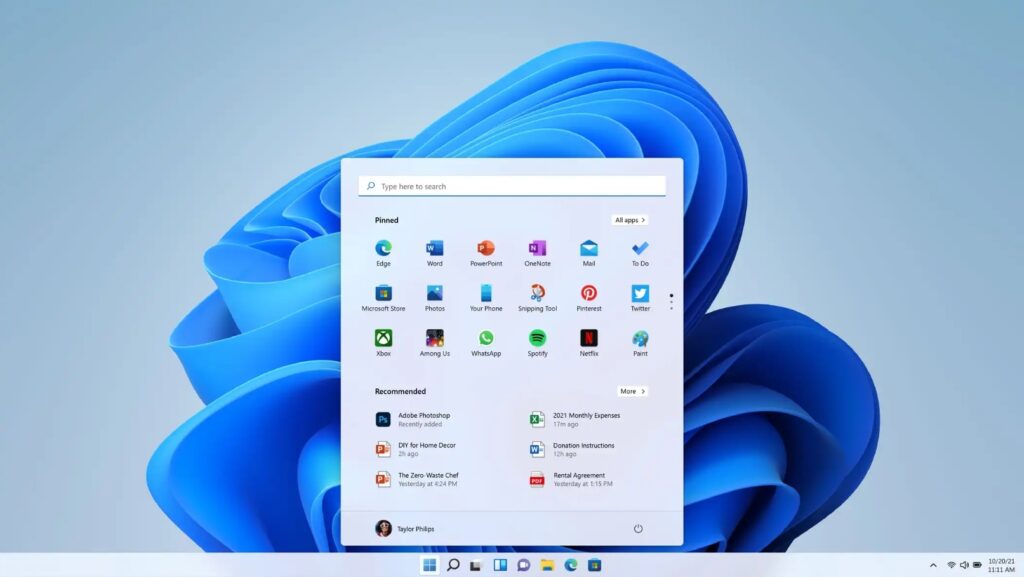
In addition to the jobs in the current queue, Windows can maintain a print history, which allows complete tracking of all printed output, both completed and pending or canceled output. This makes it easier to monitor usage and detect potential errors or mistakes when managing print jobs.
Turn on print history in Windows 10 and 11
By default, Windows only reports jobs in progress. To enable logging of all print jobs, follow these steps:
- Open the Event Viewer searching for that name in the menu or taskbar.
- Access Application registration, unfolds Microsoft > Windows > PrintService.
- Right-click on Operation and select Properties.
- Select the option Enable registration and select whether you want events to be automatically overwritten or kept.
View history from printer settings
- Enter Configuration > Devices > Printers and scanners.
- Select your printer and open it. line.
- En Properties o Advanced options, activate the option to Preserve printed documents, if available.
This step allows you to closely monitor which documents have been sent to print on that computer or on the network, maintaining a complete record.
Privacy: How to clear or disable your print history
In environments where confidentiality is key, it may be advisable to periodically clear the print history or disable the logging feature. This can be achieved through the Event Viewer options or by modifying the printer properties to not save documents after printing.
Troubleshooting common print queue issues
Not everything is so simple sometimes. The print queue can be quite a headache if you don't know how to act. Here are the most common problems and their solutions:
The document does not print and you cannot cancel the job.
- Try cancel the job from the queue window. If it appears as "Canceling" and doesn't go away, try restarting the print spooler service.
- Delete files from the folder spool/printers as we explained before.
- Restart your computer if the problem persists.
The printer appears as “Paused” or “Use printer offline”
- From the queue window, check that the option is not checked Use offline printer. If so, uncheck it.
- Check the status of the printer and that the cables or Wi-Fi connection are in good condition.
Driver or service errors
- Reinstall or update the printer drivers by downloading them from the manufacturer's official website or using Windows Update.
- In extreme cases, remove the printer and reinstall it from scratch.
How to print a test page
Once you have resolved any blockages, it is helpful to print a test page:
- From Devices and printers, right click on your printer and go to Printer properties.
- On the tab General you will see the option Print test page. This way you will check that everything is working correctly.
Efficient management and privacy in printer use
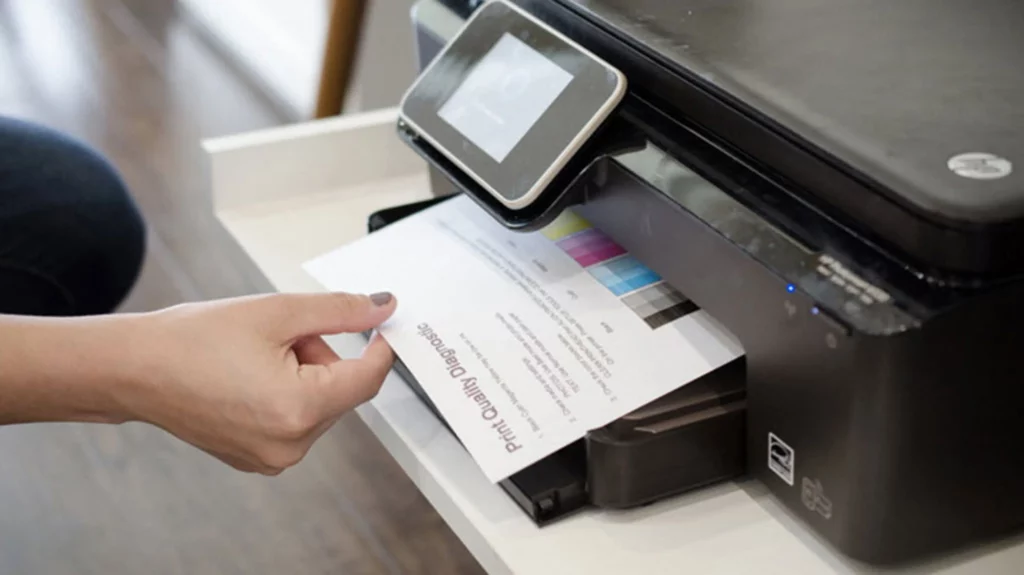
El print log It can be a valuable tool for keeping track of tasks performed, detecting potential errors, and better managing resources. However, it can also be a carries privacy risks whether other users can access that information. Therefore, in sensitive environments, it's advisable to manage its activation and deactivation carefully.
Automation: Scripts and Shortcuts to Clean the Queue
For those who face recurring problems, creating a BAT script Automatically clearing the queue can be very useful. An example of this content would be:
net stop spooler of "%SYSTEMROOT%/System32/spool/printers/*.*" /q /f net start spooler
Saving this to a .bat file and running it as administrator will make it easier to quickly clean up the queue.
As you have seen, Manage the print queue in Windows It's much more important than it seems at first glance. Controlling pending jobs, knowing how to remove blocks, reviewing your print history, and protecting your privacy will make the difference between wasting time or making printer management a smooth, streamlined task. Whether you're a home user or work in an office with multiple computers, these tools and tricks will give you complete control over your printing and prevent those frustrating issues we've all experienced. For any related issues, we'll leave you with the official Windows supportWe hope you've learned how to check the current print jobs in the queue in Windows.

Passionate about technology since he was little. I love being up to date in the sector and, above all, communicating it. That is why I have been dedicated to communication on technology and video game websites for many years. You can find me writing about Android, Windows, MacOS, iOS, Nintendo or any other related topic that comes to mind.