- Configure the visibility of photo, info, status, last seen, and read receipts to limit what others see about you.
- Activate advanced features such as two-step verification, advanced chat privacy, and chat locking with biometrics or a code.
- Control who can add you to groups, what downloads are done automatically, and encrypt cloud backups.
- Complement the app settings with good practices: block annoying contacts, be careful what you show in video calls, and keep WhatsApp updated.
WhatsApp has become the main communication channel For millions of people in Spain: family groups, work, school, bureaucratic procedures, medical appointments… practically everything goes through there. Precisely for that reason, if you don't carefully review the settings, it's easy for your photo, your status, your last seen time, or even copies of your chats to end up more exposed than you'd like.
The good news is that you can protect your privacy quite well. without sacrificing key features like groups, video calls, or read receipts. You just need to spend a few minutes reviewing the privacy, security, and storage options, and consult a digital hygiene guideand learn about some new features such as Advanced chat privacy or blocking conversations with biometrics or a secret code. Let's get started with a guide on How to configure WhatsApp for maximum privacy without giving up key features.
Basic privacy: what your profile shows and who sees it
The first privacy filter on WhatsApp is your public profile: photo, info (the classic status message), and who can see your status updates. From the menu of Settings> Privacy You can prevent strangers from seeing more of your data than your account allows.
In the Profile Picture section you can choose You can choose to show your profile picture to "Everyone," "My contacts," "My contacts except…," or "Nobody" (depending on the version). The most sensible option for most users is to limit it to contacts or contacts with exceptions. This prevents anyone who has your number from seeing your face and drawing conclusions about you.
The Info section (your phrase under the name) It works the same way: you can decide if everyone, only your contacts, or no one can see it. Many people use it to store sensitive information (work, city, availability, etc.), so it's best to treat it like any other personal data and restrict who can access it.
With Status (WhatsApp's "stories") you have even finer controlYou can configure them as "My contacts," "My contacts except…" to hide them from specific people, or "Only share with…" so that only a small, select group sees those posts. This is ideal if you want to upload more personal content that you don't want everyone to see.
Remember that these options do not affect how you chatThey only control who can view your public "showcase" within the app, which is key to distancing yourself from people you barely know or with whom you only have occasional contact.
Monitor the last connection time, "online" status, and blue ticks
One of the biggest headaches on WhatsApp is the feeling of being watched.Who sees when you're online, how long it takes you to reply, or if you've read a message and haven't responded. To reduce this pressure, the app offers several controls in Settings > Privacy > Last Seen & Online.
In the "Last seen" section you can choose You can choose whether everyone sees it, only your contacts, only some contacts (thanks to "My contacts, except…"), or no one. If you're bothered by certain people waiting to see when you log on, the easiest thing to do is use "My contacts, except…" and filter out bosses, difficult clients, or any contact you'd rather keep your distance from.
Just below you'll see the "Who can see when I'm online" setting.You can set it to "Same as last seen," so that the same people you're hiding your last seen time from won't know when you're online in real time either. It's the closest thing to an "invisible mode" while still allowing you to use the app normally.
Another key element is read receipts.the famous double blue ticks. If you disable this option in Settings > Privacy > Read ReceiptsYour contacts will no longer see when you've read their messages in individual chats (reading will remain visible in group chats), but you also won't see if they've read yours. It's a double-edged sword, but it greatly helps to lower expectations of immediate responses.
In practice, this combines hiding the last seen time, online status, and blue ticks. It allows you to manage your time without feeling constantly monitored. You still receive and send messages as usual, only others lose the ability to "control" your activity.
Who can add you to groups and how your presence is managed
Groups are one of WhatsApp's most useful, yet also most intrusive, features.Anyone who has your number can try to add you to a group without asking permission, which is not only annoying, but can also expose you to strangers, spam, or even fraud attempts.
To control this, go to Settings > Privacy > GroupsThere you can decide if anyone can add you, only your contacts, or "My contacts, except…". The most balanced recommendation is to limit it to your contacts and, if necessary, exclude those people or companies that abuse groups.
This setting is key to preventing you from being added to massive groups. where suspicious links are shared, aggressive advertising is displayed, or where people who don't know each other are mixed together. It also saves you the unpleasant experience of suddenly appearing in a chat with strangers who already see your number and, in many cases, your profile picture.
Even if you end up in a group that doesn't convince youDon't hesitate to leave, mute notifications, or even block the administrator if they engage in abusive behavior. Joining a group isn't mandatory, and your peace of mind comes first.
Advanced chat privacy: prevent your content from being shared and used with AI
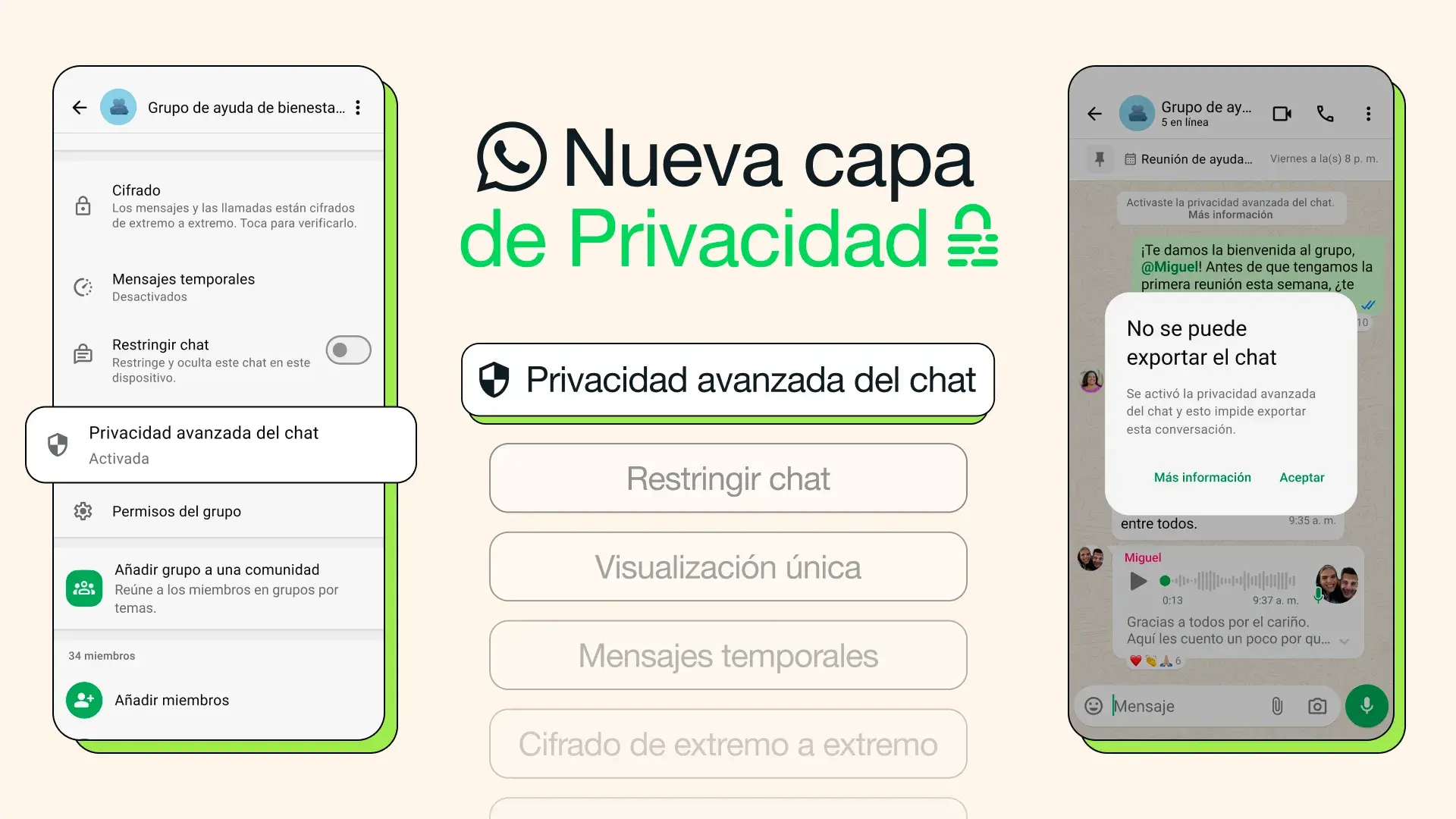
WhatsApp has introduced an extra layer called “Advanced Chat Privacy”, designed for when you want to ensure that what is said in a conversation is not easily replicated outside of it or used for certain artificial intelligence functions.
This setting is activated at the individual or group chat levelIt's not a one-to-one setting for the entire account, so you'll have to go into each sensitive conversation and configure it manually. It's ideal for groups that discuss sensitive topics, such as health, finances, family matters, or internal work debates.
To activate it on iOS (when it is fully available) the process is simpleTo change this setting, enter the chat, tap on the person's or group's name, tap on "Advanced Chat Privacy," and toggle the switch on or off. Any chat participant can change this setting, not just the administrator.
On Android, it works similarly.Open the chat, tap the three-dot icon, select "View contact" or group settings, access "Advanced chat privacy," and enable the option. Again, you'll need to repeat this process for each conversation or group where you want this added level of protection.
When Advanced Chat Privacy is enabled, three major restrictions apply.The option to export chats is no longer available, media files are no longer automatically downloaded to participants' phones, and messages from that chat cannot be used in AI functions (such as mentioning Meta AI within that conversation).
The relationship between AI and enhanced privacy: what it does and what it doesn't do
In recent weeks, viral messages have circulated claiming The claim that if you don't activate advanced chat privacy, "any artificial intelligence" can enter your conversations, see your phone numbers, and steal your personal information is false and creates unnecessary alarm. However, real threats like the Trojan horse do exist. Sturnus, who spies on WhatsApp on Android, so it's important to be vigilant and keep your device secure.
Artificial intelligence cannot infiltrate your WhatsApp chats on its own. and read it all as if it were a large open file. Personal messages and calls are protected by end-to-end encryption: only you and the person you're talking to can see or hear them.
What is certain is that there are two ways in which chat content can end up in an AIThe first option is for you, or someone in the group, to manually share messages with an AI bot (ChatGPT in WhatsApp, Meta AI, or other systems integrated into the app). The second option, specific to Meta AI, is to mention it within a chat or group to request its intervention.
When you turn on Advanced Chat Privacy, that interaction is limited.On one hand, sharing messages directly from the chat to others, including an AI, is prevented. On the other hand, if this feature is active, Meta AI cannot be used within that specific chat, thus losing access to the content in real time while you are conversing there.
This does not mean that WhatsApp or Meta cannot process certain data in aggregate form. or that there are no additional adjustments on how the information is used to train AI models. But it does cut off those two specific paths: sharing chat content with an AI and using Meta AI directly within that conversation.
Chat blocking and biometric access: conversations just for your eyes
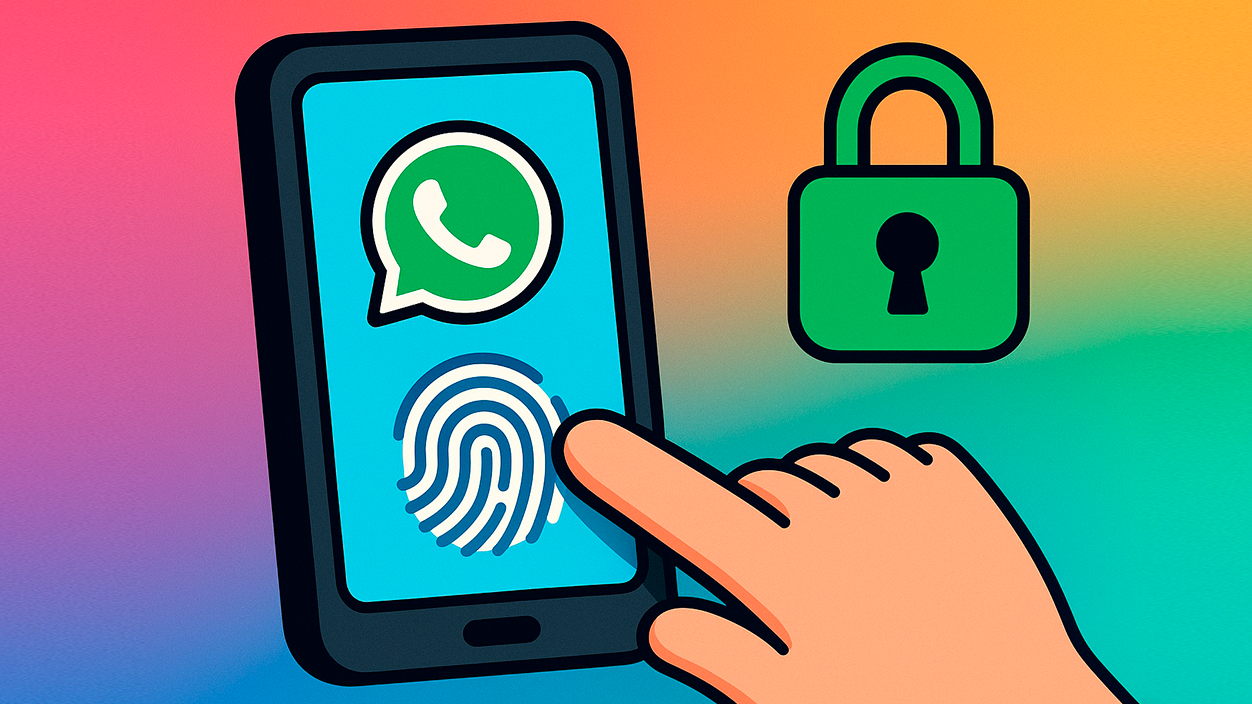
In addition to configuring the overall visibility of your account, you can hide specific chats. behind a biometric system (fingerprint, face) or a secret code different from the phone's. It's a feature designed for particularly sensitive conversations that you don't want to be visible to the naked eye.
The process is very simpleTo protect a chat, press and hold the chat you want to lock, select the "Lock chat" option or similar from the context menu, and confirm the lock method you already have configured on your phone (fingerprint, Face ID, PIN, etc.). Once activated, that conversation disappears from the main chat list and moves to a private section within WhatsApp.
On iOS, you can also use a secret code different from the one on your phone. To unlock those hidden chats, you need an additional code, which adds another layer of discretion. So, even if someone has temporary access to your unlocked phone, they won't be able to enter those conversations without knowing that extra code.
This feature does not change how your messages are encrypted.But it does improve physical privacy: it protects your conversations from prying eyes if you leave your phone on the table, someone lends it to you, or you simply don't want others to see which chats you have open, and, if you suspect something, it teaches you how to detect stalkerware on Android or iPhone.
Contact blocking, real-time location tracking, and video call control
Another key element for your privacy is knowing how to manage annoying contacts. or downright dangerous. If someone sends you spam, unwanted messages, strange links, or inappropriate content, the sensible thing to do is block them without hesitation.
Blocking someone is as simple as entering the chat.Tap their name and select the "Block" option. From the "Blocked Contacts" section itself in Settings> Privacy You can also add to or review the list, and unblock anyone you deem necessary if circumstances change.
Real-time location is another very useful but delicate featureIt appears at the end of the privacy options and tells you if you are sharing your location with any contacts or groups; also check that Your router is not filtering your location When you use this feature, turn it on, and turn it off when you no longer need it.
Video calls are also end-to-end encryptedBut it's wise to use common sense: avoid sharing documents with personal information (bills, ID cards, official letters) or intimate content. A screenshot or recording made without your consent can end up where you least expect it, with risks such as sextortion or identity theft.
If someone uses video calls to harass you, pressure you, or ask you for strange thingsCut off communication, block contact, and, if serious, save evidence and consult with the authorities or specialized cybersecurity support services.
Security options: code notifications and two-step verification
Beyond what others see in you, protecting your own account is key. To protect against theft or identity theft, WhatsApp includes several security settings. Settings > Account which is well worth activating as soon as possible. Furthermore, there have been WhatsApp security flaws which remind us of the importance of activating all available protections.
Within the “Security” section you can enable code change notificationsEach encrypted chat has a unique security code that can change when you or your contact reinstall the app or switch devices. If you enable these alerts, WhatsApp will notify you when a contact's code changes, helping to detect potential spoofing attempts.
The jewel in the crown is two-step verificationA six-digit PIN that you will be asked for periodically and when someone tries to register your number on another mobile phone. It is set up in Settings > Account > Two-Step Verification by clicking on "Activate" and choosing your code.
This PIN can be changed at any time From the same section, it's also recommended to link a recovery email address. If you forget it, WhatsApp will send you an email with a link to reset it. If you don't follow this process, your account may be locked for several days as a security measure.
Enabling two-step verification makes life much more difficult for cybercriminals. They try to steal accounts using social engineering or SMS verification codes. Even if they figure out the code you receive via SMS, without your six-digit PIN, it's much harder for them.
Transparency tools: request your account details
If you want to know exactly what information WhatsApp has about your accountYou can use the "Request my account info" option in Settings > AccountIt doesn't download your chats, but it does generate a report with configuration data and metadata.
When requesting the report, WhatsApp collects information such as the associated phone number, name, privacy settings, groups you belong to, linked devices, operating system, IP address of the last connection, and other technical details.
The process is not immediateIt usually takes around three days to be ready. When the report is available, you can download it for a limited time and calmly review what data the platform holds about you.
This tool is useful if you want to have a global snapshot of your footprint within WhatsApp. Or if, for legal or privacy reasons, you need to demonstrate what information the company holds about your account.
Storage, automatic downloads, and encrypted backups
WhatsApp can fill your phone with photos, videos, and documents without you even realizing it.And furthermore, if you don't manage backups properly, some of that information can end up in the cloud without the appropriate level of protection.
In the “Storage and data” section of Settings you can control What is downloaded automatically depending on the connection: mobile data, Wi-Fi, or roaming. To avoid risks and save data, it's recommended to disable automatic video downloads and limit the download of photos and documents.
Regarding backups, go to Settings > Chats > BackupThere you can enable end-to-end encryption for backups uploaded to Google Drive (Android) or iCloud (iOS). You'll need to create a password or encryption key that only you know.
By encrypting backups, even if someone gains access to your Google or Apple account, your backups will remain secure.You won't be able to read the chat content without that key. This is an important step, because many people think that encryption only protects messages in transit, but cloud backups are also vulnerable if not properly secured.
Don't forget that disappearing messages don't delete what's already been downloaded.If you or your contact have downloaded a photo or file, it will remain on the device even if the message disappears from the chat. Therefore, it's vital to complement disappearing messages with good storage management and backups, and to review them as needed. Detect and remove spyware on Android if you see strange activity.
Temporary messages and management of sensitive conversations
Temporary messages are an interesting tool for reducing your digital footprint. They save your conversations, but they're not a magic solution. When you activate them in a chat, messages are automatically deleted after a period (for example, seven days), although downloaded files remain on your devices.
To activate them, enter the conversation, tap the name of the contact or group. Then look for the "Disappearing Messages" option. Tap "Continue" and then "Enabled." From then on, any new messages sent will follow that expiration rule.
It is important to understand its limits well.Someone can take screenshots, forward messages while they're visible, or manually save the files. Disappearing messages don't guarantee complete deletion, but they do reduce the amount of history directly available within the chat.
The best strategy is to combine temporary messages with advanced chat privacy.Blocking problematic contacts and using common sense when sharing intimate content are also important. For truly sensitive matters, consider whether it's even worth sending via messaging.
Thinking before you send, although it sounds cliché, is still the best security measure that exists: no app setting can undo someone's decision to forward something they shouldn't.
Keep WhatsApp updated and use cybersecurity help resources
All these privacy and security features depend on having the app up to date.Each WhatsApp update includes security patches, encryption improvements, new privacy options, and bug fixes that could be exploited by attackers.
Make sure you have automatic updates enabled. on Google Play (Android) or App Store (iOS), or check back occasionally to see if a new version is available. It's not just about having new features, but also about patching potential security vulnerabilities.
If at any time you suspect that someone has tried to steal your account, or that someone is spying on you If you receive strange messages asking for codes or personal information, stop and be suspicious. These are usually scams. Never share verification codes or PINs with anyone, even if they claim to be technical support.
In Spain you have access to cybersecurity support services where you can ask questions confidentially and free of charge, as well as consult guides and resources to improve the protection of your devices and communications. Taking advantage of these resources can make all the difference in the event of a serious problem.
Using WhatsApp comfortably without sacrificing your privacy is entirely possible If you take some time to properly adjust your profile's privacy settings, the visibility of your activity, what others can do with your content, and how you protect your account against impersonation, you'll have a much more peaceful experience without losing any of the features that make the app useful. By combining options like two-step verification, advanced chat privacy, contact blocking, backup encryption, and sensible management of what you share, you can achieve this.

Passionate about technology since he was little. I love being up to date in the sector and, above all, communicating it. That is why I have been dedicated to communication on technology and video game websites for many years. You can find me writing about Android, Windows, MacOS, iOS, Nintendo or any other related topic that comes to mind.