- Windows 11 automatically adjusts the text color of icons based on the background; switch to a light or dark background to force black or white.
- Contrast Themes allow you to customize text colors, hyperlinks, background, and more, affecting your entire system.
- The contrast editor includes a selector and brightness; save your theme with a name and apply it for optimal readability.
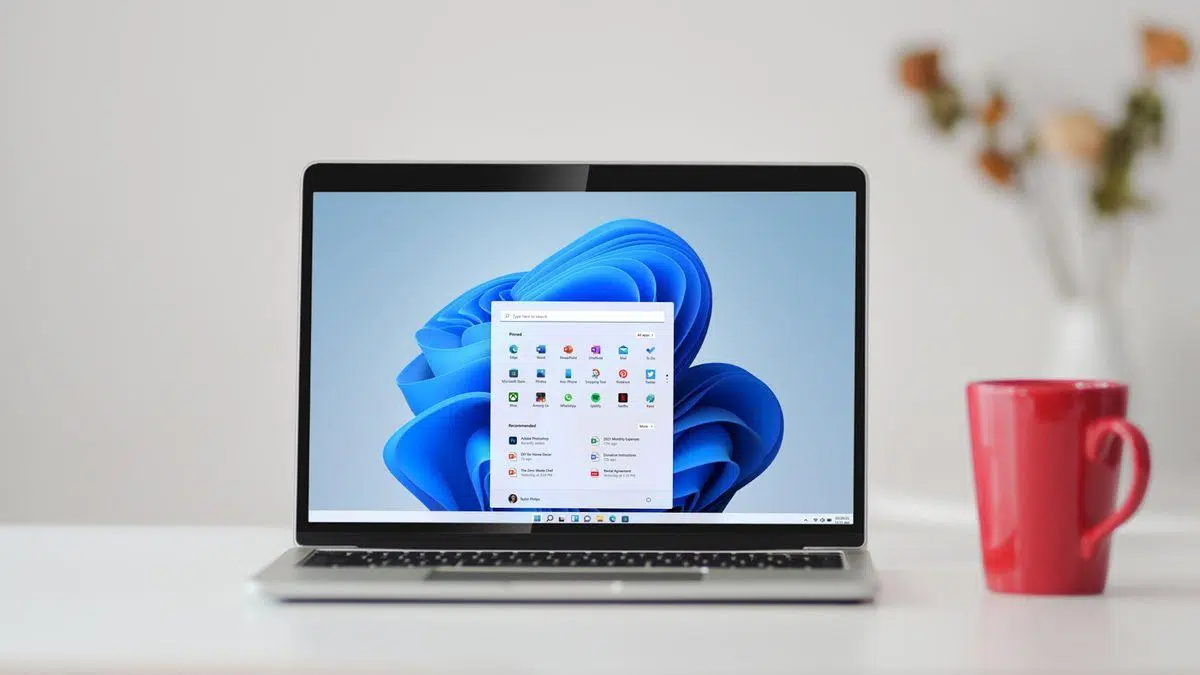
¿How to configure the color and contrast of desktop icons in Windows 11? Controlling how desktop shortcut names appear isn't as straightforward as many might expect in Windows 11. The system automatically chooses light or dark text to ensure contrast. depending on the background, and there's no specific button that says "change icon text color." Still, there are several ways to adjust the color, and if you need to, go further with high-contrast themes.
In this guide we round up all the ways to improve readability and customize the look, from the quick trick to force white or black letters to creating a high contrast theme totally tailored to youYou'll also see color, accent, and transparency settings to make your desktop and the rest of your system just the way you like it, with helpful tips and important warnings.
The Essentials: How Windows 11 Decides Icon Text Color
Before you touch anything, it's a good idea to understand what the system does. Windows 11 detects the dominant color of your desktop background and automatically chooses white or black text. for icon names, always aiming for maximum legibility. For this reason, a simple background change may be enough to display the text as you want.
This automatic logic has one advantage: It ensures adequate contrast without you having to adjust anything every time you change the wallpaper.The downside is clear: there's no manual icon font color selector. If you want complete precision or specific colors, the recommended option is to use Contrast Themes.
Quick Method: Force Black or White Text by Changing the Background
If all you're looking for is a black or white icon font, you can take advantage of the system's smart behavior. Choose a light background to force black text or a dark background to force white textIt is simple and requires no external tools.
- Open Settings with Windows + I.
- Go to Personalization > Background.
- Under “Customize Background,” select “Solid Color” (or choose a very light or dark image).
- Choose a light color if you want black text, or a dark one if you prefer white text.
This method is limited: only alternates between black and white, without allowing you to use intermediate or custom tones. In return, it's fast, reversible, and doesn't change the rest of the system's interface.
Additional setting: Enable or disable shadow of icon names
In addition to color, readability can be improved by altering the shadow under the icon text. The “Use shadows for desktop icon names” option can make a difference depending on the background you use.
- Press Windows + R, type sysdm.cpl and confirm with Enter.
- Go to Advanced > Performance > Settings.
- Under Visual Effects, find “Use shadows for desktop icon names.”
- Try checking or unchecking the box, apply it and see which option improves the most. reading the names.
You won't always notice a huge difference, but on highly textured or highly detailed backgrounds, The shadow helps separate the text from the background and prevents it from getting lost.
Contrast Themes: The Powerful Solution for Customizing Colors
If you need to control colors granularly (icon text, hyperlinks, background, etc.), the way to go is to activate a Contrast themeThis accessibility feature not only increases contrast, but also allows you to customize the colors of many visual elements of the system.
To turn them on: Open Settings > Accessibility > Contrast Themes. You'll find four default themes Highly defined, designed to make reading easier for people with visual impairments. When applied, the effect extends to compatible menus, applications, and web pages.
A popular example is the topic “Night Sky”. When enabled, you'll see vibrant colors with clear separations between elements. Windows enhances borders and outlines and adjusts title bars so that everything is more distinguishable. This logic doesn't require each app to "adapt"; the system applies the contrast scheme across the board.
How to edit and create your own contrast theme
If none of the standard themes suit you, you can build your own. The contrast theme editor lets you change the colors of multiple elements key, which includes the text you'll also see on your desktop icons.
- Go to Settings > Accessibility > Contrast Themes.
- In the "Contrast Themes" drop-down, select a base theme and click on Edit (in some versions you can directly select one of the “Choose a theme” rectangles).
- Customize the colors of the available elements. You can modify:
- Text: virtually all text that appears in Windows and on many web pages.
- Hyperlinks: links within the system and the browser.
- Text disabled: Dimmed labels when an option is not available.
- Selected text: Highlighted menus and options, such as active alignment on the Word ribbon.
- Button text: the typography inside buttons with text.
- Background: surface behind most text on Windows and websites.
- Choose new colors with the picker and adjust the glow using the slider located under the palette.
- Confirm with “Done” or similar when you finish each color.
Upon completion, you have two possible flows depending on your version of Windows 11: either “Save As” to name your new theme, then “Save & Apply”, or apply directly with "Apply" If the editor allows it at that point. In either case, you'll have a custom theme in the list for you to activate whenever you want.
What changes when you activate high contrast
It's important to keep this in mind: a contrast theme affects the entire system, not just the desktop icons. Menus, apps, Explorer, and multiple surfaces adopt your colors, and the edges or contours are usually more marked to improve the perception of each element.
This is ideal if legibility is your priority, or if you have some form of color blindness and want to "swap" the colors of things you have trouble distinguishing. Accessibility is the main objective of these topics, although they also serve to personalize the visual experience as much as possible.
If you just want the icon names to appear in a specific color without affecting the rest of the system, the background method may be sufficient. High contrast is a powerful tool that transforms the entire look and it is advisable to use it knowing that you will notice changes everywhere.
Practical tips when creating your contrasting theme
When customizing, try to maintain high contrast ratios between text and background. Intense and distinct colors speed up reading and reduce eye strain, especially during long sessions.
Make sure hyperlinks and normal text have colors distinguishable with the naked eyeOn sites with blue links on dark backgrounds, clear color separation prevents confusion and makes navigation easier.
Play with the brightness slider on the selector to fine-tune the tone. A small change in brightness can make a big difference. in readability without sacrificing your preferred aesthetics.
Modes, accent colors, and transparency in Windows 11
In addition to high contrast, Windows 11 lets you tweak the overall palette using Light, Dark, or Custom modes. These modes globally change the appearance of the system., including the Start menu and taskbar.
To adjust this, go to Personalization > Colors. From there you can choose the mode, turn it on or off. the effects of transparency (which give that translucent touch to some panels) and define an accent color.
The accent color can be applied to Start, the taskbar, title bars, and window borders. Check the boxes to display accent color where appropriate. to reinforce your visual scheme.
Light mode works well during the day in bright environments, while Dark mode reduces overall brightness and can be more comfortable in low-light environments. With Custom mode you can mix preferences for system and applications separately.
Complete themes and other customization settings
If you want a complete change, check out the Themes section (Customization > Themes). A theme combines background, sounds, cursor and colors to apply a coherent aesthetic in one fell swoop.
From the same page you can customize each element separately. Desktop background supports image, solid color, slideshow, or Windows Highlight, with automatic saving of changes.
To complete the visual experience, you can also tap the lock screen. Under Personalization > Lock screen, choose Windows Spotlight (rotating images), Still Image or Slideshow with your own photo folders.
If you like to update your wallpaper often, consider third-party options. Apps like Bing Wallpaper rotate daily images automatically (note that your installer may offer to change the search engine) and there are alternatives such as Lively Wallpaper with interactive backgrounds.
Taskbar: small tweaks that add up
The taskbar also offers useful visual adjustments. You can align the icons to the left or keep them centered, and control various behaviors from Taskbar Settings.
Among the available options you will find: automatically hide the bar, display notification badges, highlight with blinking when there is news, replicate it on multiple monitors, or decide how apps are displayed in multi-monitor configurations.
In addition, there is quick access to show desktop when right click from the bar, and in some scenarios you can share windows directly from their icons when the app allows it.
Who is high contrast ideal for?
High contrast themes are primarily intended for users with low vision or visual impairments. Solid, distinct colors make it easy to identify buttons, links, and text. throughout the system, and the effect extends to much of the software.
That said, they are also a powerful customization tool. If you want a unique and very marked style, creating your own theme with your favorite combinations can give you just the look you're looking for.
If you need a quick guide, here's the condensed one. For black or white text without touching the rest: Change the background to a light or dark shade in Personalization > Background > Solid Color.
- Improve readability with text shadow in Performance Options (sysdm.cpl > Performance > Visual Effects).
- For complete control, use Accessibility > Contrast Themes and edit each color with the picker and its brightness slider.
- Save your theme with a name and apply it ("Save & Apply" or "Apply", depending on the version).
Remember: Contrast Themes change the entire systemIf that transformation is too much for you, the background trick is your minimalist solution.
Mastering these options will allow you to achieve a legible and distinctive desktop. Whether with quick background adjustment or a custom contrast themeWindows 11 gives you enough tools to see better and work more comfortably without sacrificing style. Now you know How to configure the color and contrast of desktop icons in Windows 11. But if you want to know even more about Windows 11, we have guides like this one here: Windows 11 not detecting HDMI: Causes, Tests, and Real-World Solutions. In Tecnobits we have hundreds!

Passionate about technology since he was little. I love being up to date in the sector and, above all, communicating it. That is why I have been dedicated to communication on technology and video game websites for many years. You can find me writing about Android, Windows, MacOS, iOS, Nintendo or any other related topic that comes to mind.