
Do you have a headset with a microphone and a single plug, but your computer has two separate ports? This is a very common problem with desktop computers. In this guide, we'll see how to connect a headset with a microphone and a single plug to a PC with two jacks. using a splitter adapter or an external USB sound cardDiscover how to easily connect them and start using them right away.
Why is it a problem to connect a headset with a microphone and a single plug to a PC with two jacks?
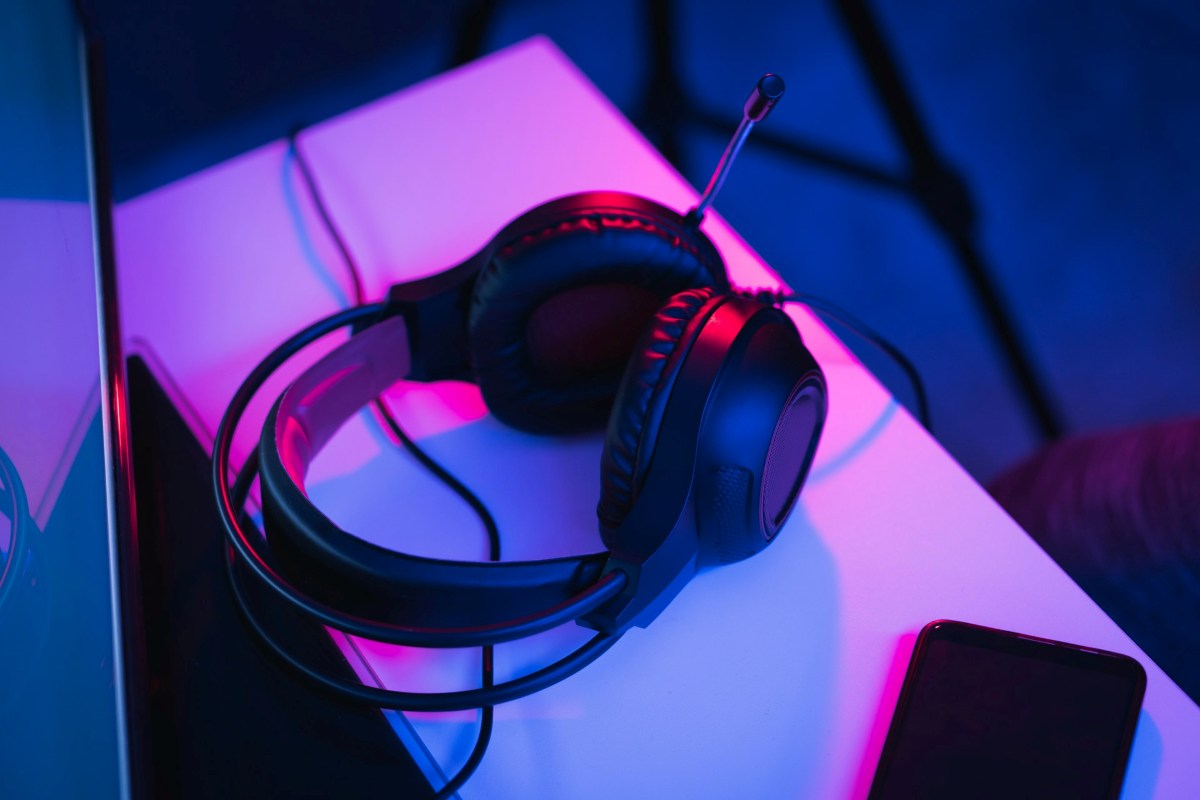
To begin with, why is it so difficult to connect headphones with a microphone and a single plug to a PC with two jacks? Simple: because the vast majority of modern headphones integrate both the audio output and microphone input into a single 3.5 mm connector. But Many desktop PCs still use two separate power outlets: one green for the headphones and one pink for the microphone.
As a result, Either you hear the audio but you don't have a microphone, or the system recognizes the microphone but it doesn't emit any sound.This is because your headset has a single 4-pin (TRRS) connector, while your PC splits those signals into two separate 3-pin (TRS) connectors. Connecting a four-pin connector to a three-pin jack causes the signals to mix incorrectly, preventing the operating system from properly separating the microphone and audio signals.
Put more simply, when connecting a headset with a microphone and a single plug to a PC with two jacks, two things can happen: you connect the headset to the green output and the PC interprets it as only speakers, or you connect it to the pink jack and it only detects voice input. but without soundThe good news is that neither your headphones nor your PC are damaged; it's just a matter of a physical incompatibility that has a simple and inexpensive solutionLet's see what it is.
How to connect a single-plug headset with a microphone to a PC with two jacks
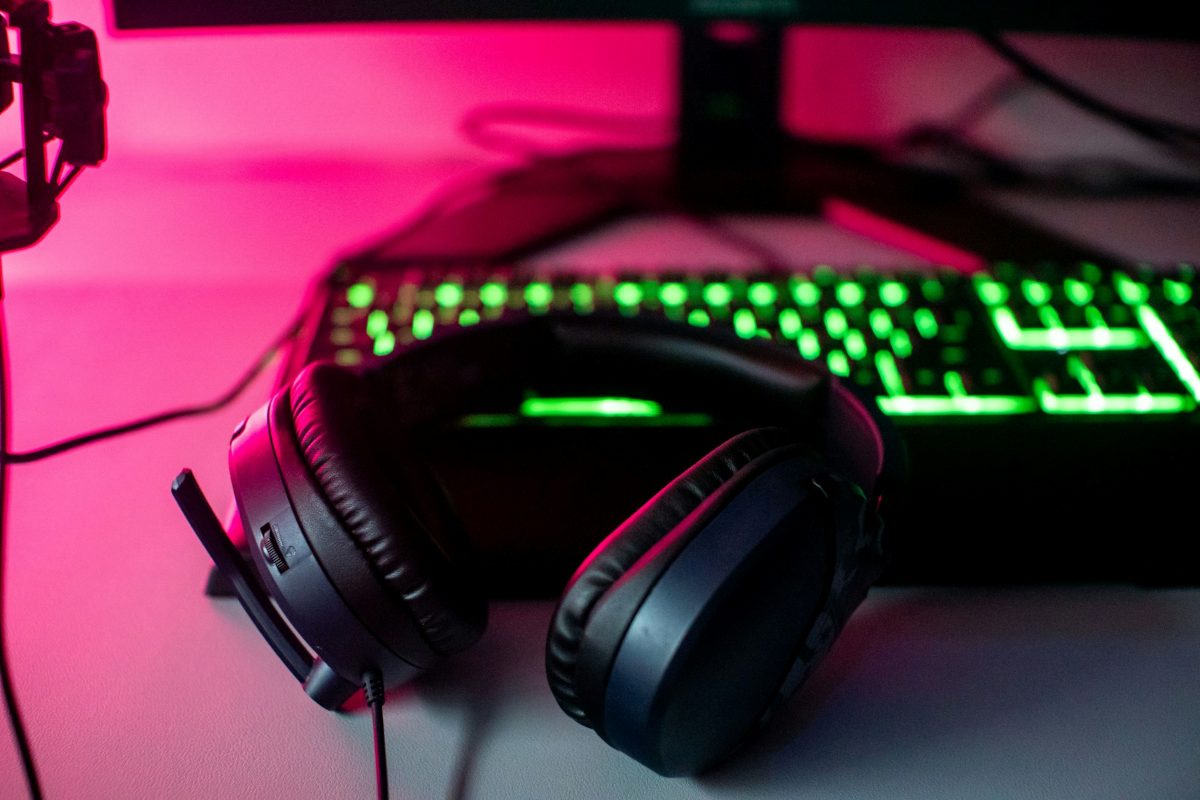
To connect a headset with a microphone and a single plug to a PC with two jacks, you need a cable splitter adapter Audio and microphone splitter (from 1 female TRRS to 2 male 3.5 mm TRS) or a external USB sound cardThese are the easiest and cheapest options to solve the problem. Let's see how to take advantage of each one.
The quickest and cheapest solution: a splitter adapter
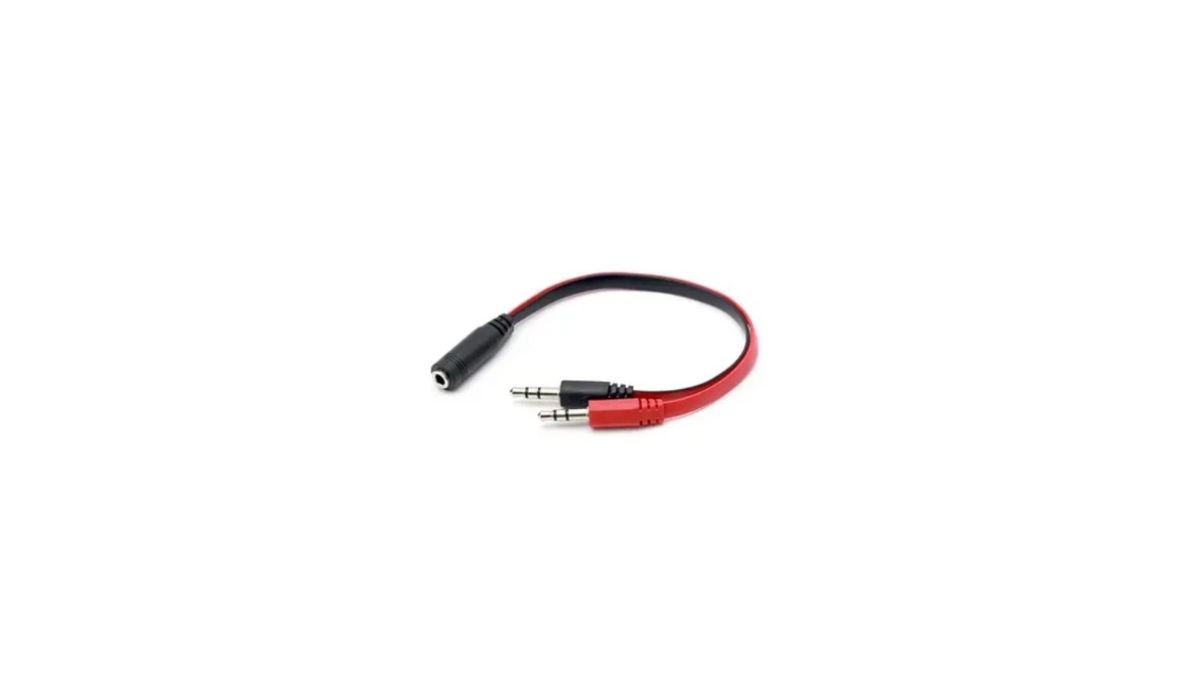
The splitter adapter is The most direct, economical solution that requires no additional configurationThis little cable has a 3.5 mm female connector (where you plug in your single-plug headphones) and two 3.5 mm male connectors that plug into the two jacks on your PC. However, it's crucial to make sure the adapter is specifically designed for headphones and a microphone, and not for audio duplication.
Once you have the adapter that separates the audio and voice signals, follow these steps. Steps to connect a headset with a microphone and a single plug to a PC with two jacks:
- Connect the male connector labeled “Headphones" (or a headset icon) in the green socket of your PC.
- Connect the male connector labeled “Microphone" (or a microphone icon) in the pink socket of your PC.
- Plug your single-plug headset into the adapter's female connector. That's it; Windows should automatically recognize the new configuration.
A second alternative: an external USB sound card
The second option you have for connecting a single-plug headset with a microphone to a PC with two jacks is to use an external sound card. Clean, portable solution that requires no additional wiringIt is a small device that connects to a USB port and has a single 3.5 mm jack (there are also versions with two jacks integrated into the same device).
These cards often include dedicated audio chips that offer superior sound quality. We could say that Using an external sound card offers the following advantages:
- High compatibility: Windows quickly recognizes it as a new, generic device.
- Quality: Many cheap models offer more than acceptable performance for calls and gaming.
- Versatility: Even if your PC has only one combo port, this adapter also allows you to use two-pin headphones on it.
Windows settings
Most of the time, using an adapter or sound card to connect a single-plug headset with a microphone to a PC with two jacks is sufficient. However, In some cases, you will need to check your system settings. If the microphone is not recognized or the audio is not playing, do the following:
- Right-click the speaker icon in the taskbar and select Open sound settings.
- En Entrance, Make sure the selected device is your headphone microphone (sometimes it appears as Microphone or «Realtek High Definition Audio"). If it's not there, check the Sound Control Panel to make sure it's not disabled.
- En Exit, Select your headphones. The system should automatically detect that you've plugged something into the green jack, but if it doesn't, your PC may require you to manually select "Headphones" in the audio manager.
The last option: wireless headphones
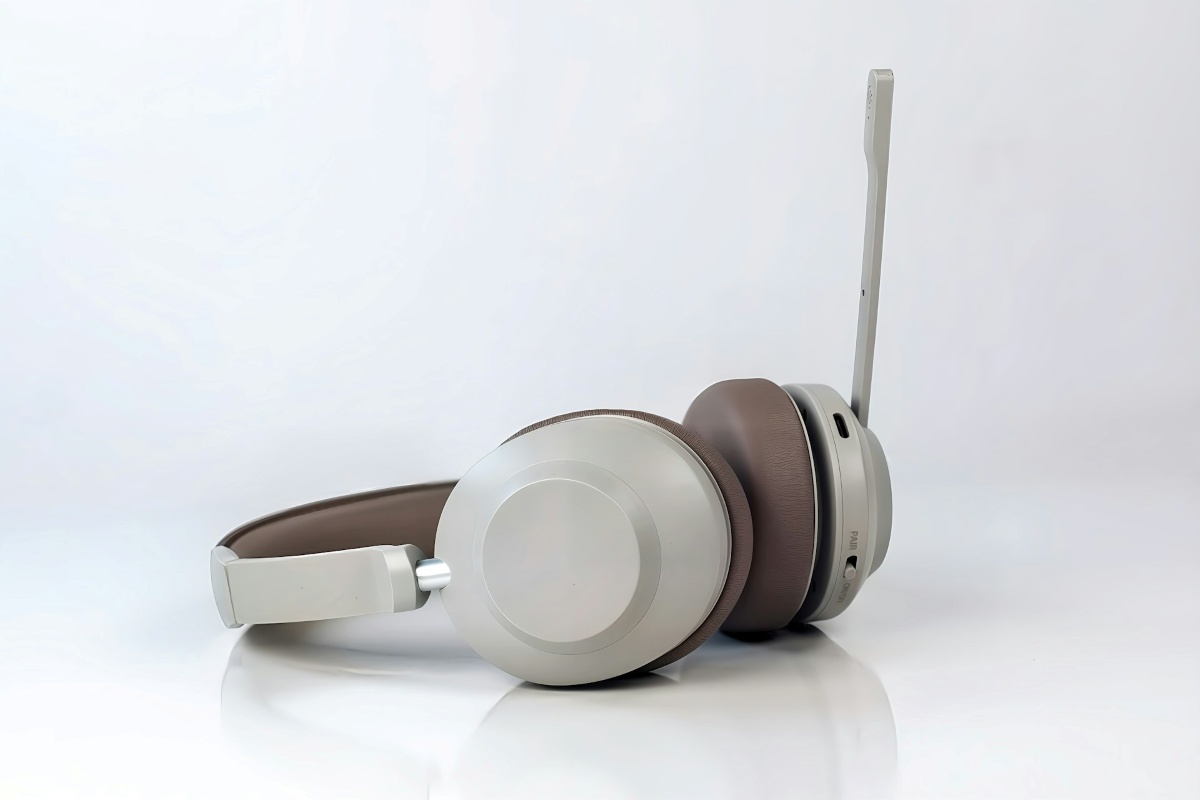
If none of the above options work for connecting a single-plug headset with a microphone to a PC with two jacks, you can always opt for Bluetooth headphonesAlmost all PCs have this type of connection, but if yours is very old and doesn't have it, there are inexpensive USB Bluetooth adapters available. This is the last option that might work for you.
In conclusion, connecting a single-plug headset with a microphone to a PC with two jacks is no longer a problem. If you buy a 3.5 mm splitter adapter (single female to two male) or a USB sound card, you'll be able to connect a headset with a microphone.You can unify audio and microphone in just a few secondsThis way, you can use your headphones on your PC without any problems.
Index
