- Configure the aspect ratio using the Design tab to adapt the presentation to the monitor.
- Differences between the options to maximize and ensure the fit when changing the content scale.
- Technical limitations when trying to convert manual designs into master slides.

How do you copy a slide to another PowerPoint presentation without changing the design? I'm sure it's happened to you before: you finish your presentation with all the care in the world, but when it comes time to project it, The content doesn't fit. The screen appears blurry or with black bars on the sides. This usually happens because we haven't considered whether the monitor is an older, square model or a modern widescreen one.
To avoid these last-minute scares, it's essential to know how to manage design and size of the slides. It's not just about moving things around, but about understanding how PowerPoint handles proportions so that your work doesn't fall apart when you switch computers.
How to adjust the aspect ratio of your slides
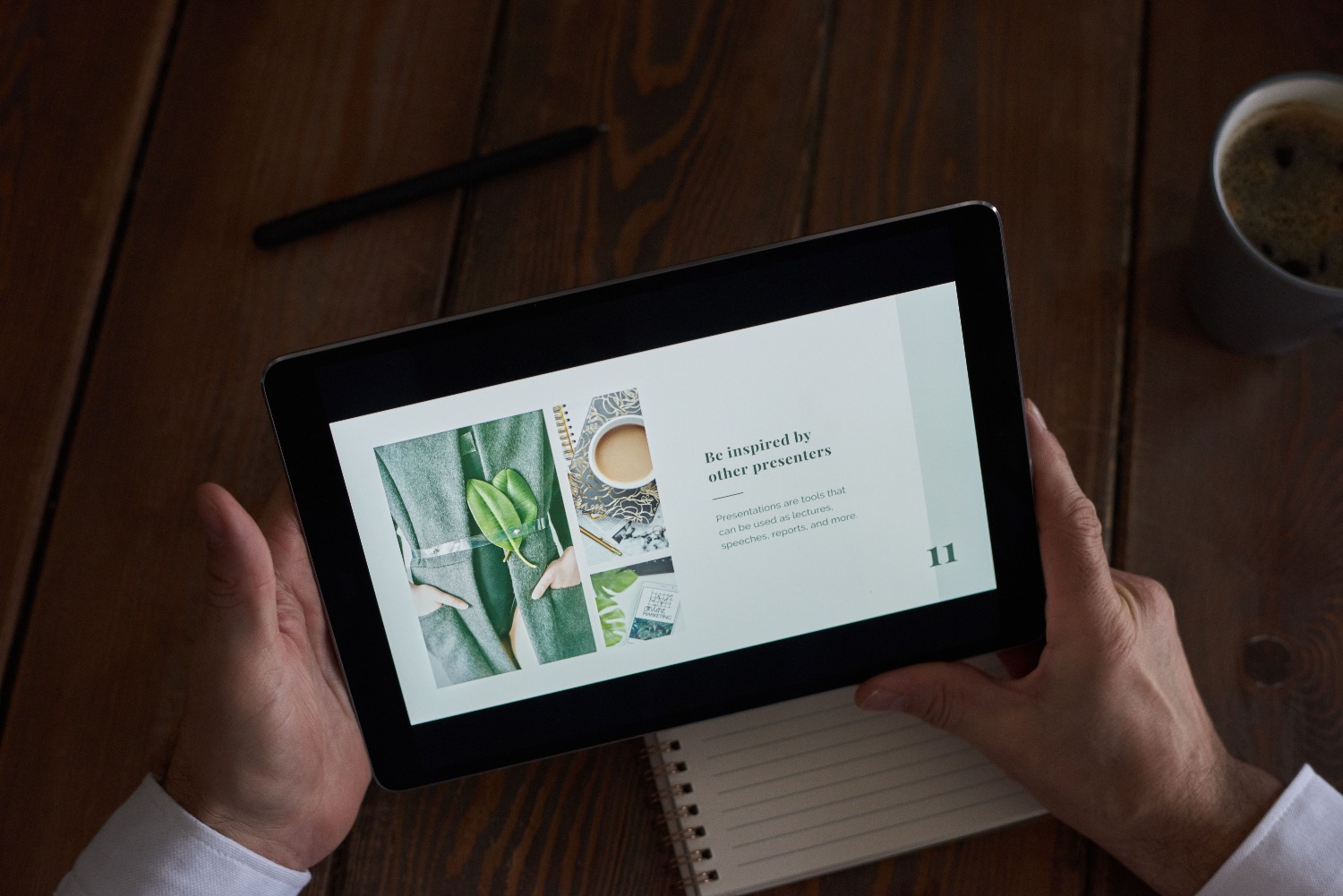
If you need your presentation to fit a specific format, go to the Design tab at the top. There you'll find the Customize group, where you can expand the option to Slide sizeFrom this menu, you can choose between the standard 4:3 or the widescreen 16:9, and even configure measurements entirely to your liking if you need something very specific.
The problem arises when you already have an advanced design and decide to resize it. At that point, PowerPoint will give you a choice between two paths to scale the content automatically:
- Maximize: This option enlarges elements when you switch to a larger format, although you run the risk of some objects being redistributed and having to reposition the images.
- Ensure the fit: Here the program reduces the size of the elements to fit in a smaller space, which can make everything look smaller and force you to rescale manually.
It's important to emphasize that if you've designed everything without using base templates, any change in proportion will cause the elements to shift, forcing you to adjust one by one Text boxes and images, either directly on the slide or through master pages.
The dilemma of master slides and design
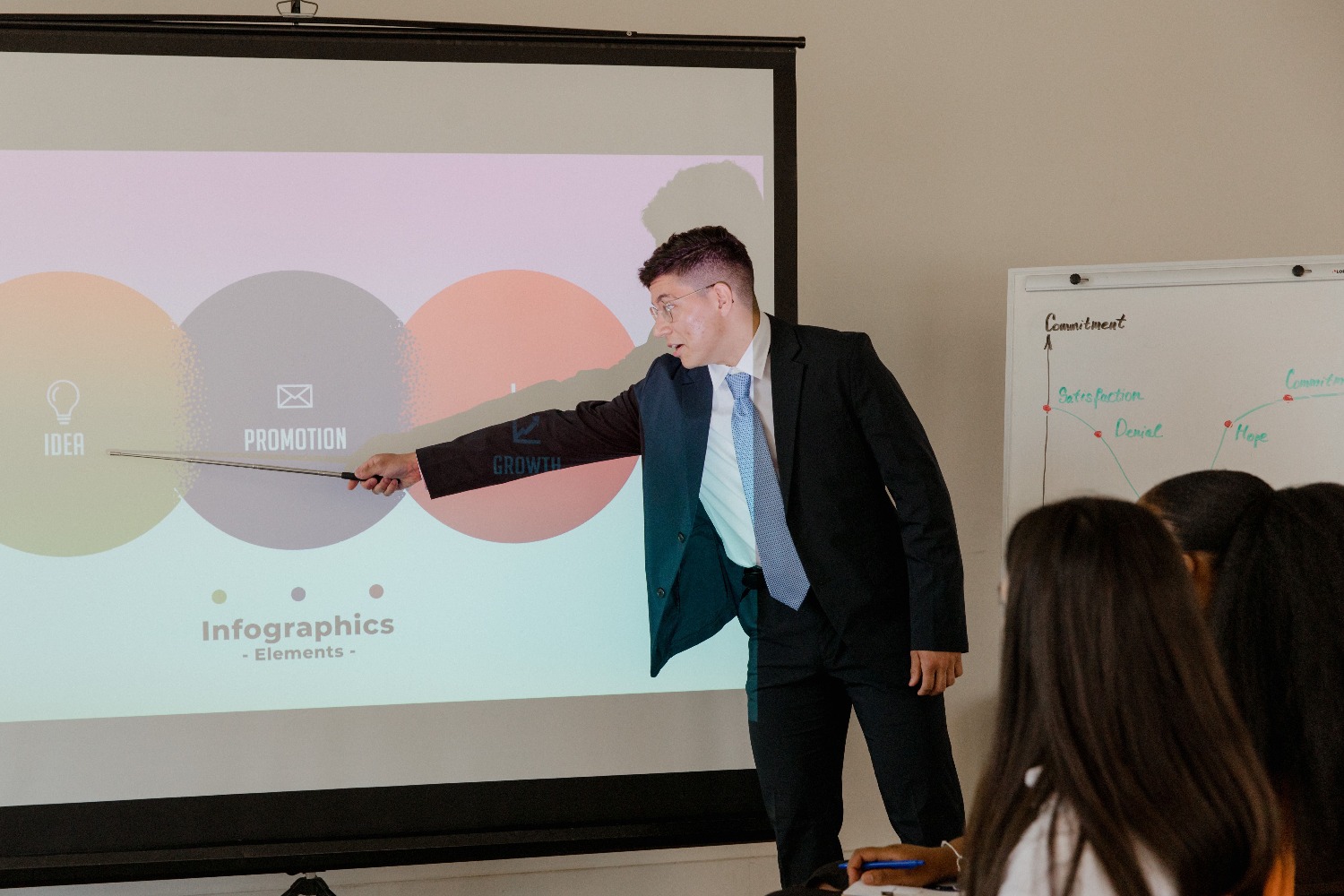
Many users encounter the headache of having created an incredibly detailed slide without using the master function and suddenly needing to... turn it into a master slideUnfortunately, there is no magic button that will automatically transform a hand-drawn design into a placeholder without performing major surgery on the file.
If you try to force this process, you will have to... convert each text box Manually placing elements in a placeholder is a rather tedious task on both Windows and macOS. This is because the structure of a regular slide differs from the hierarchy of a master slide, making the migration of elements not straightforward.

On the other hand, there are built-in design tools that suggest automatic layouts. While these are very helpful, they can sometimes be frustrating because they do not allow reversing the arrangement of the elements (such as moving the dividing line or the position of the image and text) in a simple way, limiting the user's creativity to the schemes predefined by the software.
Mastering slide size and understanding the difference between manual layout and the master template is the only way to prevent the format from breaking when transferring content or changing screens, ensuring that the presentation looks professional on any device.
Frequently Asked Questions
How do I prevent elements from moving when resizing the slide?
You need to choose between maximizing or ensuring the fit in the slide size menu, although you will probably need to manually readjust any elements that have shifted.
Can a regular slide be automatically converted into a master slide?
There is no automatic function for this, so it is mandatory to manually transform each text box into a placeholder.
Where do I change the screen aspect ratio in PowerPoint?
The settings are located on the Design tab, within the Customize group, by selecting the Slide Size option.
What is the difference between maximizing and ensuring fit?
Maximizing increases the size of the content by moving it to a larger format, while ensuring a tight fit reduces the elements to fit in a smaller space.
Is it possible to reverse the elements of automated design tools?
The suggested design system does not allow inverting structural elements such as dividing lines, limiting it to moving only images and text.
Index
