- Reusing an old tablet as a fixed panel allows you to centralize lights, plugs, cameras and home automation routines without investing in new hardware.
- Google Home, Apple Home and its web version facilitate unified control of devices, even on computers with very outdated operating systems.
- The use of voice assistants, widgets, gestures, and shortcuts turns the screen into an intuitive and accessible remote control for the whole family.
- By integrating cloud services and data dashboards, the tablet goes from a simple remote control to a true smart home control panel.
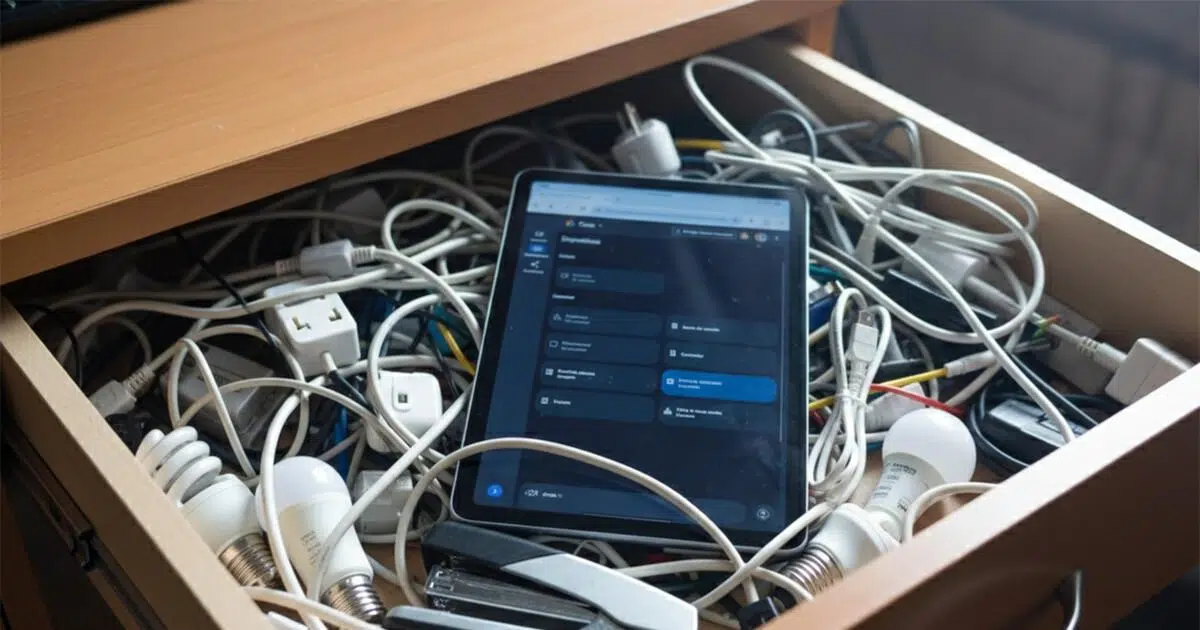
¿How to create a home control panel on an old tablet? You probably have a tablet lying forgotten in a drawer, gathering dust for years. Well, that supposed electronic junk can be transformed into... nerve center of your smart homea kind of giant remote control from which to control lights, plugs, speakers, cameras and much more.
The idea is to make the most of that old hardware to transform it into a home control panel always accessibleMounted on the wall or placed on a stand, it's ready to control your home automation system, interact with your voice assistant, view useful information, and even display photos. And the best part? You don't need a powerful or cutting-edge model; as long as it runs the browser and a few basic apps, you're already well on your way.
Preparing the old tablet: cleaning, updates, and limits
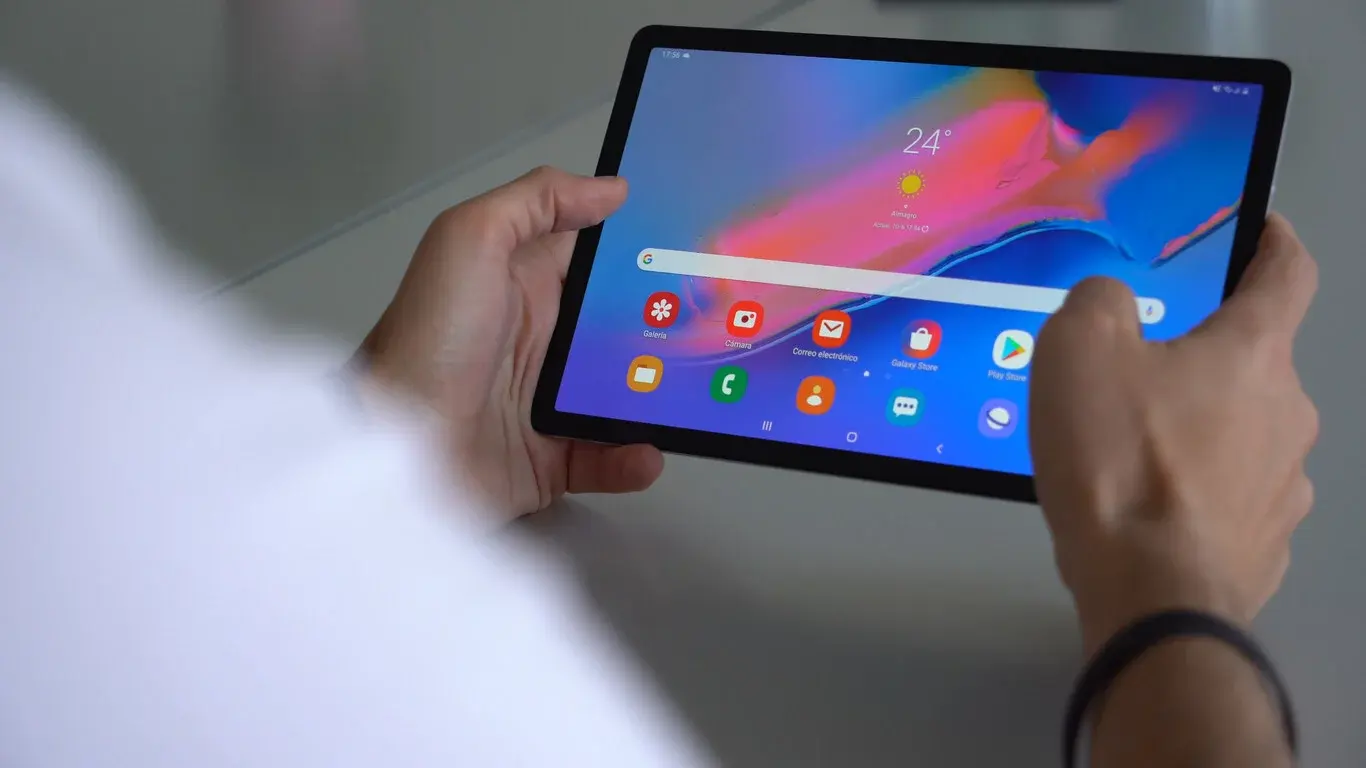
First of all, it's best to restore the tablet to its original state as much as possible: delete anything unnecessary, update the system as far as it allows, and make sure it runs at least somewhat smoothly. Even if it's a 2010 device with Android 4.2.2 or similar may still be useful as a fixed screen if you're realistic about what you can ask of it.
On very old devices, the app store often no longer allows the installation of modern apps like Google Home or recent smart home services. In those cases, you can sometimes resort to... older versions of the apps or the web interface in the browserwhich is often a fantastic way to revive devices that seemed completely obsolete.
If your tablet is still receiving minimal security updates or patches, install them. It's not just about performance, but also about reduce security risks by connecting it to your home networkAlso, take the opportunity to uninstall old games, apps that no longer work, and bloatware that only takes up memory.
In these initial steps, it's also a good idea to define what you really expect from the panel: you might want something basic for Turn on lights, check cameras, and check the weatherOr perhaps you'd like to go a little further and create "dashboard" type views with energy consumption, scenes, or automation flows.
Configure the voice assistant: Hey Google and Siri at your service
One of the great advantages of a fixed control panel is being able to talk to it like a smart speaker. If your tablet allows it, you can leave voice recognition enabled so it responds to your commands. “Hey Google” or “Hey Siri” without touching anythingOr you can opt for a more manual approach, activating the assistant with a button or a gesture.
Voice recognition on Android tablets
On a modern or relatively recent Android tablet, the goal is to ensure the device is listening for the wake-up command. To do this, open the Google app and go to Settings > Google Assistant > Hey Google and Voice MatchWithin this menu:
- Turn on the “Hey Google” switch so that the system can begin listening to the voice command.
- Check if it can detect voice with the screen off or only when it is on.
- Check what conditions it needs to be constantly listening while charging.
Over time, especially if multiple people use the same account on that tablet, the voice model may become less accurate. If you notice that the assistant It stops understanding you correctly or it activates when someone else is speaking.Look for the "Retrain a Voice Match model" option and repeat the training process with your voice.
On very old tablets, continuous voice detection may not exist or may only work with the screen on. In that case, you have two options: keep the tablet with the screen active (and charging) or settle for launching the assistant via an icon or a gesture, giving up the permanent “Hey Google”.
Training Siri on an iPad
If your control panel is going to be an iPad, Siri will be the star. Settings > Siri & Search You can manage voice activation options. A useful trick to help Siri understand you better is to turn off "Listen, Hey Siri" and then turn it back on, which forces it to retrain.
During this training, clearly pronounce the phrases the system asks you to and try to do so in the environment where you will use the panel, since Ambient noise and distance influence the quality of recognitionIf your iPad is very old and doesn't have a reliable constant listening mode, you can always leave a large shortcut to Siri or use a long press of the Home or side button.
Always-on display or ambient mode?
To make the tablet feel like a fixed hub, it makes sense to keep the screen on most of the time. But this needs to be done judiciously to avoid screen burn-in, excessive power consumption, or overheating. Android and voice assistants incorporate features such as Google Assistant Ambient Modethat can help you.
Google Assistant Ambient Mode
On some Android tablets (especially older ones), you'll find a section called "Ambient Mode" within the Google app, in the settings menu. This feature is becoming less common, but it still appears on many older devices. It allows the assistant to display basic information, photos and cards while the device is charging and at the same time it is listening.
What's interesting about this mode is that it acts as a screen protector: the content is constantly being updated and moved, preventing static elements from remaining fixed which could burn out the panel over time. In addition, the brightness is usually reduced so it's not bothersome, which is very convenient if you have the tablet in the hallway, living room, or even the kitchen.
Another option within ambient mode is to use Google Photos albums as a "screensaver," turning the control panel into a digital photo frame when you're not touching itThis way you not only control the house, but also give your family photos a new lease on life.
Screen timeout settings and apps like Caffeine
If your tablet doesn't have Ambient Mode, you can always go to the system settings and adjust the screen timeout. Some models have an option for this. keep the screen on indefinitely while connected to the power supply, something ideal for a fixed panel.
In other cases, the system limits the maximum time (for example, 30 minutes). When this happens, there are utilities like Caffeine and similar apps that prevent the screen from turning off while they are active. These are simple tools that, basically, They trick the system into thinking you're still using the tablet..
Even with these features, nothing prevents you from managing the screen manually: you can leave it on while you're at home and Turn it off with the physical button when you leave or when you go to bed, thus extending the lifespan of the panel and saving some energy.
Support, placement and power: where and how to install the tablet
Your control panel isn't just about software. A key point is How and where are you going to place the tablet? To make it truly comfortable to use, it's usually mounted on the wall or placed on a stand on a surface, always with the charger connected so it doesn't run out of battery right away.
Wall brackets
If your idea is to hang it on a wall, the market is full of solutions: from very simple screw-in brackets, to articulated arms or magnetic systems These allow you to move the tablet as needed. They usually cost around 20-30 euros for the most basic models, going up a bit more if you want something very robust or with a more refined design.
When choosing a wall mount, consider several practical details: that it leaves room for the charging cable, that it doesn't block the volume or power buttons, and that it offers a comfortable viewing angle when you pass byIt's not the same to have it at eye level in the living room as it is to have it next to the front door.
Desktop stands and recycling of accessories
If you prefer something less permanent, desktop stands are even more varied and cheaper. Many stands designed for mobile phones work perfectly well for small or medium-sized tablets, so you might not even need to buy anything new. reusing an accessory you already had at home.
Prices range from around €10-12 for simple stands to €60-70 for heavy metal bases with articulation, swivel, or even integrated charging. The important thing is that the tablet is stable, at a comfortable angle, and that Do not disturb the power cord while handling it..
Continuous power supply and safety
Since your panel will be plugged in most of the time, it's best to use a charger in good condition and, if possible, of decent quality. Avoid flimsy adapters or those with frayed wires, because in addition to being a hazard, they can cause overheating or unstable behavior in the tablet.
Position the power supply so it doesn't get in the way or create a tangle of dangling cables. If you're going for a "nice" wall installation, you might want to run the cable through a channel or conduit. Use nearby electrical outlets to get it cleanAlthough it may seem like a minor detail, a good installation makes the panel more comfortable to use and gives it a much more integrated look in the house.
Centralize everything in Google Home or Apple Home
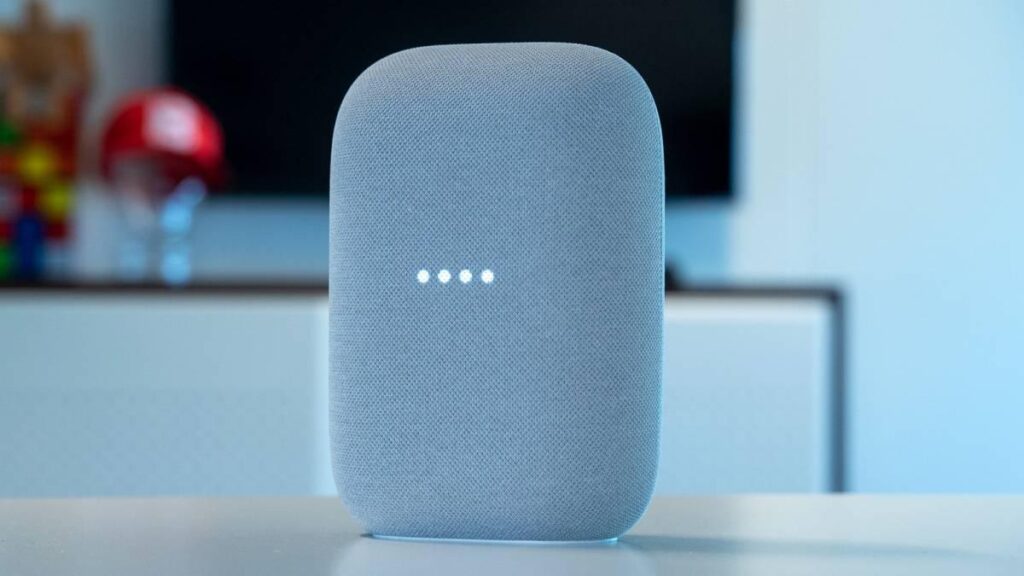
Once the physical setup and basic adjustments are sorted, the heart of the experience arrives: unifying the control of your gadgets. Ideally, the tablet should be the place where you tap a single icon and have access to... all the lights, plugs, cameras, thermostats, and other smart deviceswithout jumping from app to app.
Add devices to Google Home
In the Google ecosystem, the Google Home app is the star. It's compatible with Matter devices, Nest products, and a huge list of other devices. Brands that integrate with Google HomeAlthough the manufacturer's official app often allows for more advanced control, Google Home gives you a unified view for basic functions: turning on, turning off, changing modes, activating scenes, etc.
On the tablet that will act as the panel, sign in with your Google account and make sure all your compatible devices are linked. You'll be able to organize them by room (living room, bedroom, kitchen, etc.), rename them with clear titles, and determine which ones are your favorites so they appear firstIt is also useful to know How many devices can your router support?.
Apple Home on iPad and cross-compatibility
If your control panel is an iPad, Apple's Home app will be the central hub. It works similarly to Google Home: you organize accessories by room, create scenes to turn on multiple things at once, and You control everything with a single touch panel or via Siri.
If you have devices that aren't compatible with Apple Home but are compatible with Google Home, you can install Google Home from the App Store, provided your iPadOS version supports it. This way, the same tablet can serve as a... hybrid panel for several different ecosystems, although you may lose some native integration.
What to do when a device doesn't integrate
You won't always be able to integrate all your devices into the same app. Some brands are still tied to their own systems and don't allow full integration with Google Home or Apple Home. If this happens to you, there's still a solution: Place shortcuts to the necessary apps on the main screen of the panel.
This way, even if you have to open another app to control a specific device, at least it will be just a tap away, instead of having to search through menus. And in many cases, these apps also have widgets that you can pin to your home screen for easier access. More direct control without opening the full application.
Browser control: Google Home Web and very old tablets
One of the big recent developments is that Google Home no longer lives only in the mobile app: it also has a web interface accessible from the browserThis is pure gold when your old tablet or mobile no longer supports the Google Home app, because all you have to do is go to the official website and log in with your Google account.
What is the Google Home web interface like?
The web version of Google Home offers a clean and very similar view to what you find on mobile. Once inside, you'll see:
- Side navigation with your rooms and spaces organized.
- View of devices by roomwith icons for lights, plugs, cameras, etc.
- Access to live cameras, automations, and device lists.
- Home selector at the top, in case you manage more than one property.
Although it still has limitations, it's becoming increasingly possible to manage more types of devices from the browser. Not everything is at the same level as the app, but for a Domestic use and daily monitoring is usually sufficient., provided that the network stabilityespecially on a fixed panel where you won't be pairing new devices all the time.
What you still can't do from the web
Google is reserving some advanced features for the mobile app: for now, you can't add new devices, change names, or rearrange rooms from the web. You also don't have access to all the automation features or some experimental ones, which aren't even available yet. More recent things like Gemini-linked home services.
Even so, for an old tablet that you only need as a universal remote, the web interface is a real lifesaver: open the browser, pin the tab or create a shortcut to the page on the desktop and you'll have it. a functional Google Home panel without relying on the app.
Shortcuts, widgets, and action buttons
A well-designed control panel isn't limited to opening a single application. The most convenient approach is to combine a central app (Google Home, Apple Home, or similar) with shortcuts, widgets and “buttons” on the home screen to perform the actions you use most often without having to tap a thousand times.
Widgets and Action Blocks on Android
On Android, you have several very useful tools for this. For one, Google Home widgets allow you to place direct controls for some of your devices or groups of lights on your home screen, so that You can turn things on or off without opening the full application..
On the other hand, there are the old Action Blocks, which act as visual shortcuts to specific Google Assistant requestsFor example, you can create a block that, when touched, plays music on a specific speaker, another to announce "dinner is ready" to all the Nest devices in the house, or one that activates a routine with various changes to lights and plugs.
Each Action Block can be customized with your own photos or icons, so your home screen becomes a grid of large, very clear buttonsPerfect for the whole family. It's a great way to avoid having to talk to the assistant if you don't feel like it or if it doesn't always understand you the first time.
Custom gestures and launchers
If you want to go a little further, you can use launchers like Nova Launcher to define gestures that trigger concrete actions. For example:
- Double-tap the home screen to launch Google Assistant.
- Swipe up to open Google Home.
- Swipe down to open the Xiaomi or Philips Hue smart home app.
These types of gestures make daily use faster and allow your panel to adapt to your habits. If you prefer a more minimalist approach, you can simply... a few large, well-placed iconsBut having the gestures prepared is a very convenient bonus.
Beyond control: information, AI, and data visualization
A wall-mounted tablet can do much more than just turn things on and off. You can use it to display relevant information about your home, your habits, or even your energy consumption, integrating data analytics applications or custom web dashboards.
Use of cloud services and security
If you already use services like AWS, Azure, or other cloud platforms, you can centralize sensor, camera, or consumption measurement logs and then view them on your tablet. Even Business Intelligence tools like Power BI allow you to do this. generate interactive panels accessible from the browser, perfect for getting an overview of how your home behaves.
However, when opening your home to the internet, you must strengthen cybersecurity: protect your WiFi network well with strong passwords, avoid opening ports unnecessarily, and Keep your cloud service accounts secure with two-step authenticationYour tablet may be old, but the information it displays and the actions it performs are very current.
AI, assistants, and smart routines
AI-powered assistants have been around for a while now, and when properly configured, they can lighten many household chores. You can program them from your control panel. routines or scenes that group several actions: lower blinds, turn off lights, adjust the heating or launch a specific playlist depending on the time or context.
In addition to Google Assistant and Siri, there are increasingly more integrations with AI agents that learn from your habits. Without getting into paid features or anything too advanced, it's already possible for the system to... adapts to your habits and suggests automatic actions depending on the day of the week or your presence at home.
Data panel: energy consumption and household status
If you have smart plugs that measure consumption, motion sensors, connected thermostats, or even cameras, you can display basic graphs and indicators on your tablet: how much you're spending, which lights are on right now, or if there is an open window with an activated sensor.
With a little extra work, your tablet goes from being a glorified remote control to becoming a real one control panel of your smart homehelping you reduce consumption, improve security, and detect anomalies at a glance.
Giving a second life to old mobile phones as mini hubs
Although the tablet is the main focus, the same idea can be applied to that old mobile phone that's also lying around the house. An old Android smartphone can function as reduced version of the main panelPerhaps for the bedside table, the kitchen, or the office.
The process is very similar: you set up Hey Google and Voice Match, adjust the screen timeout or Ambient Mode, install Google Home and the apps on your devices, and add Key widgets and shortcuts to the home screenThe difference lies in the screen size, but for quick functions it can be even more convenient.
Furthermore, the old mobile phone can be transformed into a "homemade Google Home": with the Google app open, you can talk to the assistant, play music, request recipes, check traffic, or send content to other connected devices in the home, such as televisions or speakers.
By combining a tablet and a mobile phone, you can have a large fixed panel in a central location in the home and small control points distributed throughout, all of which... repurposing technology you had forgotten about without needing to invest in new smart speakers or displays.
Ultimately, turning an old tablet into a home control panel is a simple and inexpensive way to get into home automation: you reuse devices, centralize the management of your home, rely on voice assistants, and, if you want, add layers of data and AI that multiply what that seemingly obsolete device can do for you every day.


Passionate about technology since he was little. I love being up to date in the sector and, above all, communicating it. That is why I have been dedicated to communication on technology and video game websites for many years. You can find me writing about Android, Windows, MacOS, iOS, Nintendo or any other related topic that comes to mind.