- Ability to nest tasks by swiping sideways to the right.
- Marking automation where main tasks and subtasks are synchronized with each other.
- Customizing the order in which new items are inserted from the settings.
- Full synchronization of structured lists across all compatible devices.
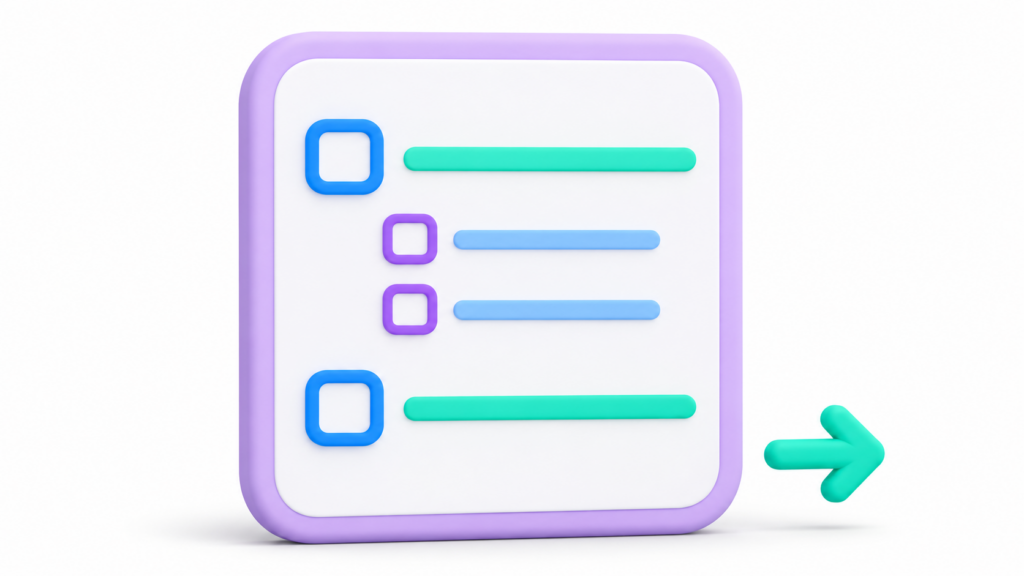
If you've ever felt that your notes in Google Keep fall a little short because everything is just a flat list, you're not alone. For a long time, users missed the ability to organize tasks within other tasks, something we already saw in other productivity tools, but which has now finally arrived in our favorite note-taking app.
The truth is that being able to structure the information into levels It completely changes the way we use the app, allowing us to go from simple reminders to detailed action plans without having to fill the desktop with loose notes that we then don't know where they are.
How to create sublists and subtasks in Google Keep
The magic happens thanks to a very intuitive sliding system. When you're working on a checklist, notice that to the left of each checkbox there's a small slider. To turn an item into a subtask, simply... slide the element to the right.
If you make a mistake or decide that item should become a primary task again, that's fine; you just have to slide it back to the left to remove the indentation and return it to its original position. This system is ideal for grouping specific steps that are part of a larger objective, making the organization much more visual and clear.
Intelligent management of checkboxes
One of the most useful things about this system is how the main tasks interact with their sublists. If you have a group of secondary actions, you'll see that once you Mark all subtasks as completedThe main task will be automatically completed. Similarly, if you're in a hurry and mark the main task, Google Keep will automatically complete it. will mark all subtasks at once associated with it, saving you unnecessary clicks.
Furthermore, this functionality is perfect for those who prefer to have multiple shopping lists on one notethus avoiding the chaos of creating ten different notes to organize the supermarket, the hardware store and the pharmacy.
Tips for organizing the order of your items

Sometimes, the workflow isn't always linear, and we prefer new things to appear at the top. To address this, you can access the Google Keep settings From your computer, find the "Notes and Lists" section and experiment with the option to add new elements at the endIf you uncheck it, everything you type will be placed at the top of the list, which is a lifesaver for avoiding endless scrolling.
It's also important to remember that, although we can play with indentation to create hierarchies, You cannot indent the first element of a list, since this always acts as the anchor or title of the group of tasks that follow.
Full synchronization and accessibility
The best part is that Keep isn't limited to your PC. Everything you organize, from color-coded labels to complex sublists, is automatically transferred to your computer. Syncs instantly between devicesWhether you use a phone, a tablet, or even a Wear OS device, your thoughts and tasks are always at hand.
For those seeking extreme productivity, remember that it is possible set specific reminders so that the list appears right when you need it, making day-to-day management much smoother and less stressful.
Thanks to its ability to nest tasks, manage the order in which items are entered, and sync everything to the cloud, Google Keep has become a robust tool for those seeking simplicity but with advanced organization options to keep your ideas and pending tasks under control.
Frequently Asked Questions
How do I create a subtask in Google Keep?
To create a subtask, you must slide the list item to the right using the slider that appears next to the checkbox.
Is it possible to remove the indent from a sublist?
Yes, simply slide the item to the left to make it a main task again and remove the indentation.
What happens if I select the main task that has sublists?
When you mark a main task, the system will automatically mark all subtasks associated with it as completed.
Can I indent the first item in my list?
It is not possible to indent the first item in the list because it must always function as the root task.
Where do I change the position of the new items in the list?
This option is found in the Settings menu, within the Notes and Lists section, by activating or deactivating the checkbox to add items at the end.
Do the sublists sync between mobile and computer?
All changes to the list structure are automatically synchronized in real time between the computer, tablet, and smartphone.
Index
