Jan AI is one of the more user-friendly applications for using large language models locallyHave you tried it? In this post, we'll tell you about the different ways to download and run models in Jan AI. We'll also delve into the settings you can apply to further refine the response generation.
How to download and run models in Jan AI
Downloading and running models in Jan AI is a fairly simple process. In fact, this application stands out for having a user-friendly and easy interface It's easy to use, even for those with little experience. But don't underestimate it! It's also a powerful tool with professional and technical integration capabilities.
Jan is nothing more than a Open-source AI assistant that works 100% offlineThis means that all the models you run will do so on your own machine, using your RAM and processing power. This ensures that your data never leaves your computer: completely private!
The tool manages models in GGUF format through Llama.cpp, making it compatible with a wide range of hardware, from Mac to Windows and Linux. Furthermore, it offers a An intuitive interface that simplifies the download and management of these modelsand it connects directly to Hugging Face's vast catalog. Let's take a closer look at how it works.
Method 1: Download from Jan's Hub
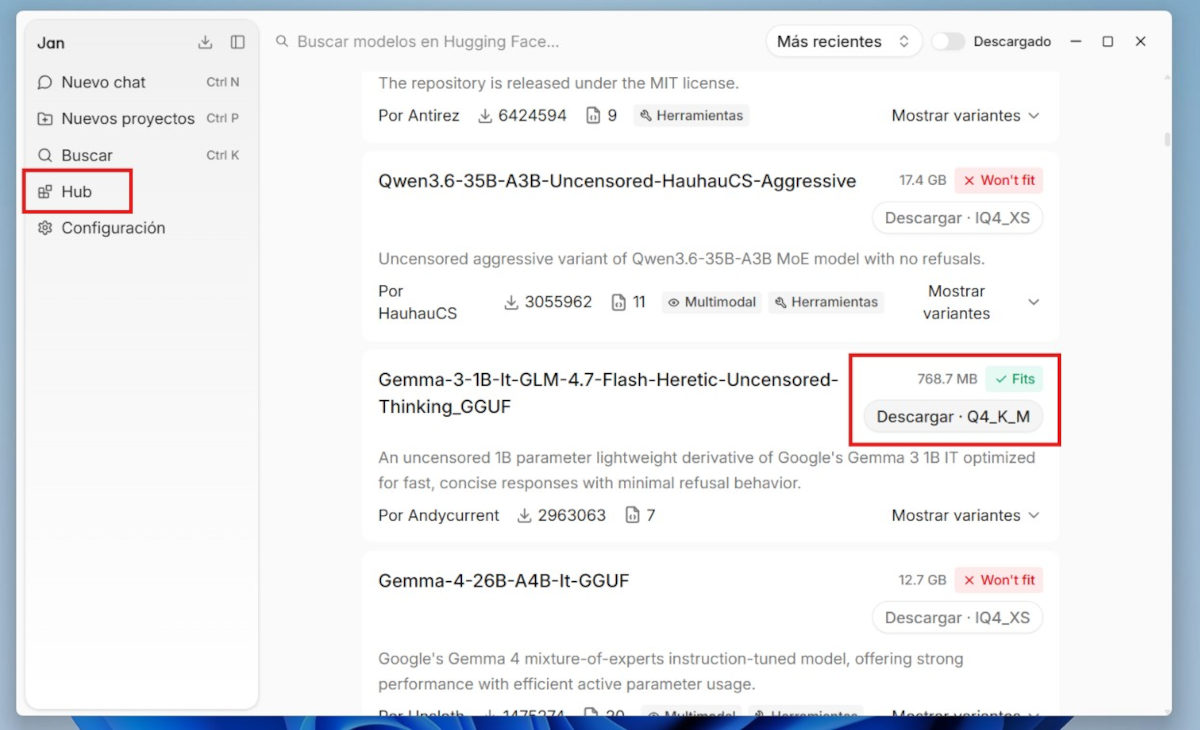
If you're new to Jan or looking for the smoothest experience, the easiest and most direct way to download and run models in Jan AI is through the Jan Hub. The application features a Integrated Hub which acts as a window into the world of Hugging Face models.
In case you didn't know, Hugging Face is the global platform and community The most important place where developers and companies share and test open-source AI models. This space is to the world of artificial intelligence what GitHub is to the world of programming.
Through Jan you can explore the enormous diversity of open source models available at Hugging Face.
- To do this, open Jan AI and click on the Hub tab, identified by a four-square icon in the sidebar.
- There you can browse the list of models Available. Click on any of them to see details such as its size, parameters, and a brief description.
- One of the most useful features of the Hub is that it tells you if a model "Fits," "May be slow," or "Does not fit" your hardware. This helps you to choose models that will work properly on your team without having to guess.
- You will also see labels quantization, such as "Small", "Balanced" or "Large", with a "Recommended" label for the default option.
As we mentioned, downloading and running models in Jan AI is a simple process. The tool makes it very easy: when you find the right model, you just click the button. Discharge. The download process will be displayed in the top bar, and you can cancel it at any time if you wish.
Method 2: Import a model directly from Hugging Face
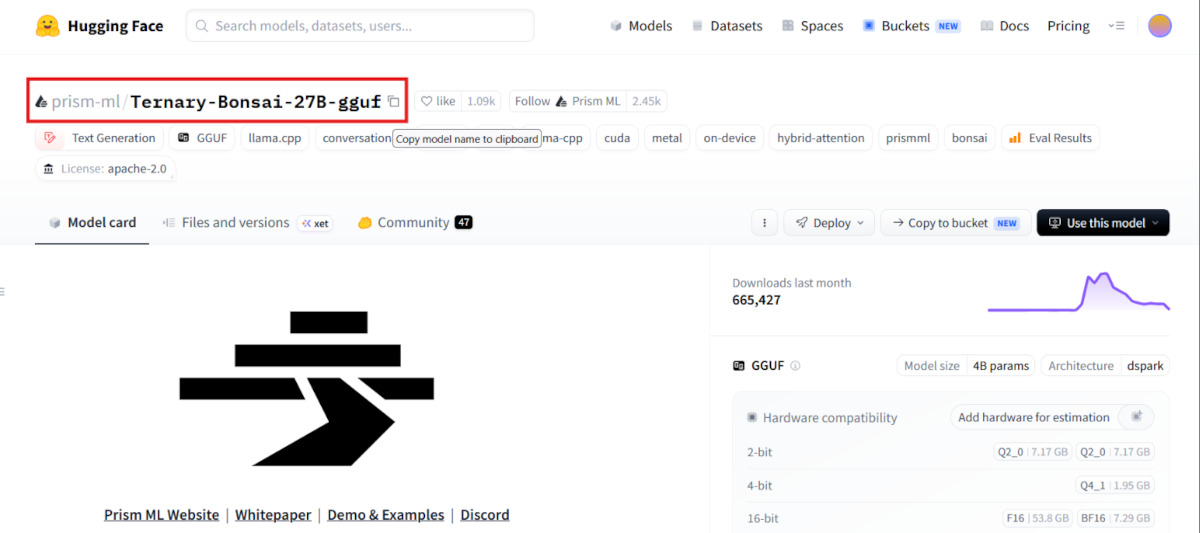
This is another way to download and run models in Jan AI, especially useful if the model you have in mind isn't listed in the Hub. In that case, you can Go directly to the Hugging Face websiteSearch for the model in question there and finally import it. Let's see how to do it step by step:
- Go to the Hugging Face website and find the model you're interested in. Make sure it's in stock. GGUF format to make it compatible with Jan.
- Copy the model ID, For example prism-ml/Ternary-Bonsai-27B-gguf
- Now go back to the Jan app, go to the Hub tab, and paste the model ID into the search bar. Jan will search for the model on Hugging Face and offer you the option to download it.
- If the model has multiple quantized versionsYou can choose the one that best suits your hardware. For example, a Q4_K_M file usually offers a good balance between performance and quality. To see the different versions, click on the Show Variants tab in the Jan Hub.
Method 3: Use the "Use this model" button in Hugging Face
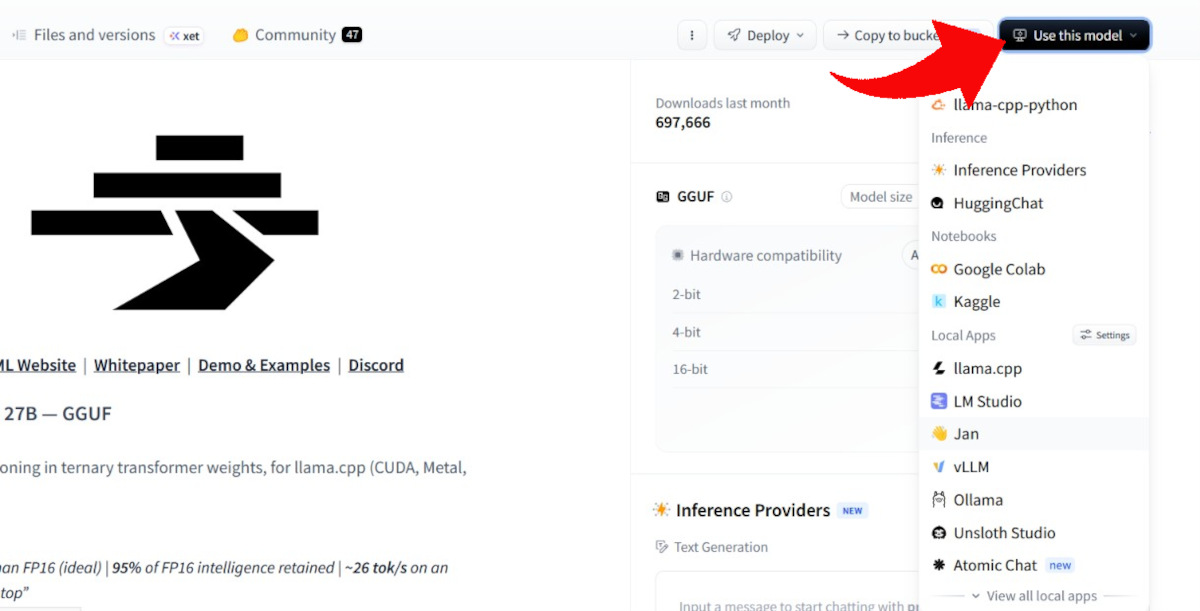
Let's look at a third way to download and run models in Jan AI, this time directly from the Hugging Face platform. The website has integrated Jan as one of its local applications These are the tools you can use to open a model. It's the fastest way:
- Go to the model's page on Hugging Face.
- Find and click on the "Use this model" button.
- In the drop-down menu, under the "Local Apps" section, select Jan. This should trigger the download directly in your app.
One detail: for Hugging Face to show Jan among the local applications, First, log in to Hugging Face with your email and password.With this, there are now three methods available for downloading and running models in Jan AI. But now let's see how to run and use the model once it's downloaded.
How do I run and use the model once it's downloaded?
Once the model is on your computer, running it is simple. You can interact with it directly in Jan's chat interface. To select it, Go to the chat and expand the tab at the topThere you'll find all the downloaded models and the different entries to activate models using API Key.
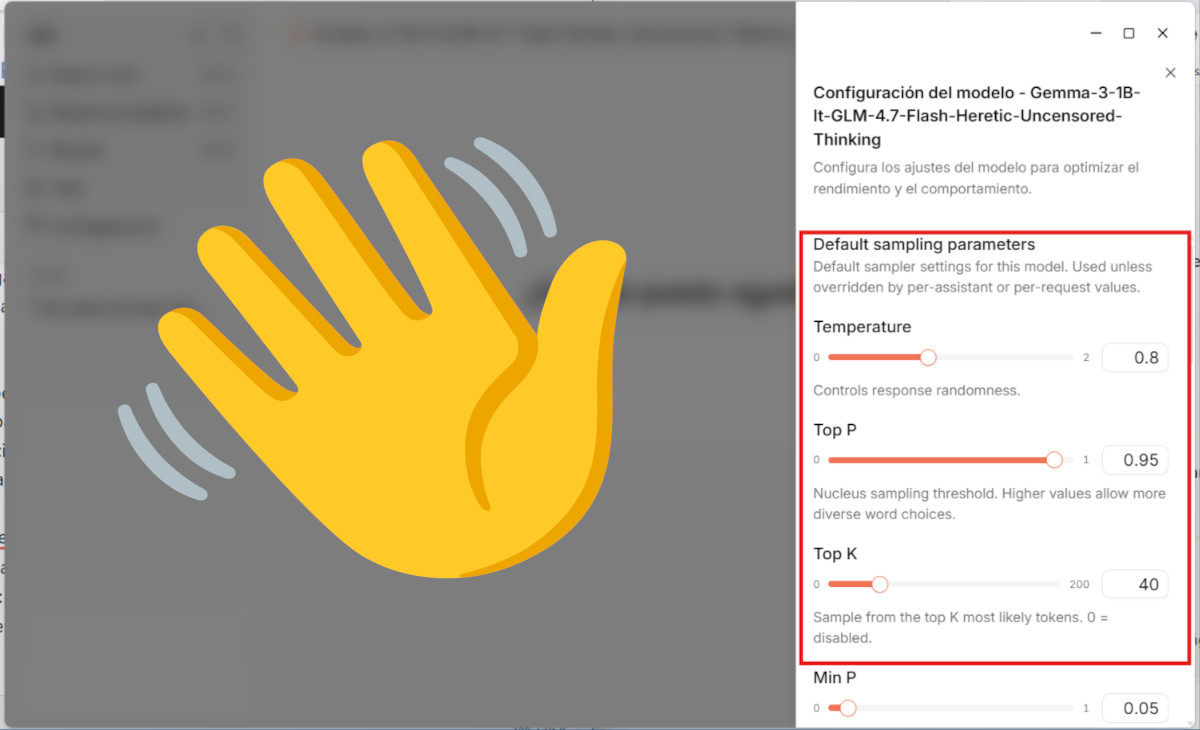
Another super useful aspect of downloading and running models in Jan AI is that you can adjust various performance parametersThis allows you to fine-tune the quality or speed at which the model generates responses. Simply click on the gear icon next to the model, and you'll see options such as:
- Temperature: It controls creativity.
- Top-p: adjusts the diversity of words.
- Max tokens: defines the maximum length of the response.
- Context size: determines how much information the model can remember.
So, If you want precision, lower the temperature. If you want creativity, raise it.And for technical analysis, it increases the context. Playing with these options allows you to define the type of response you'll get after each query.
And there you have it! Downloading and running models in Jan AI is a surprisingly accessible process. Just be careful to Choose models that perform flawlessly on your computerTake advantage of Jan AI's various configuration options and unleash the potential of local artificial intelligence.
Index
