- Identify the pattern: voicemeeterpro.exe and WpnUserService together go up ~6% and restarting the audio engine eliminates it.
- Unifies frequency to 48 kHz, uses WDM and increases buffers to stabilize the audio path under load.
- Reduce interference: Disable notifications, overlays, USB saving, and aggressive affinity settings.
- Tweak Discord/gaming and RDP to minimize endpoint switching and extra processing that causes micro-hitches.
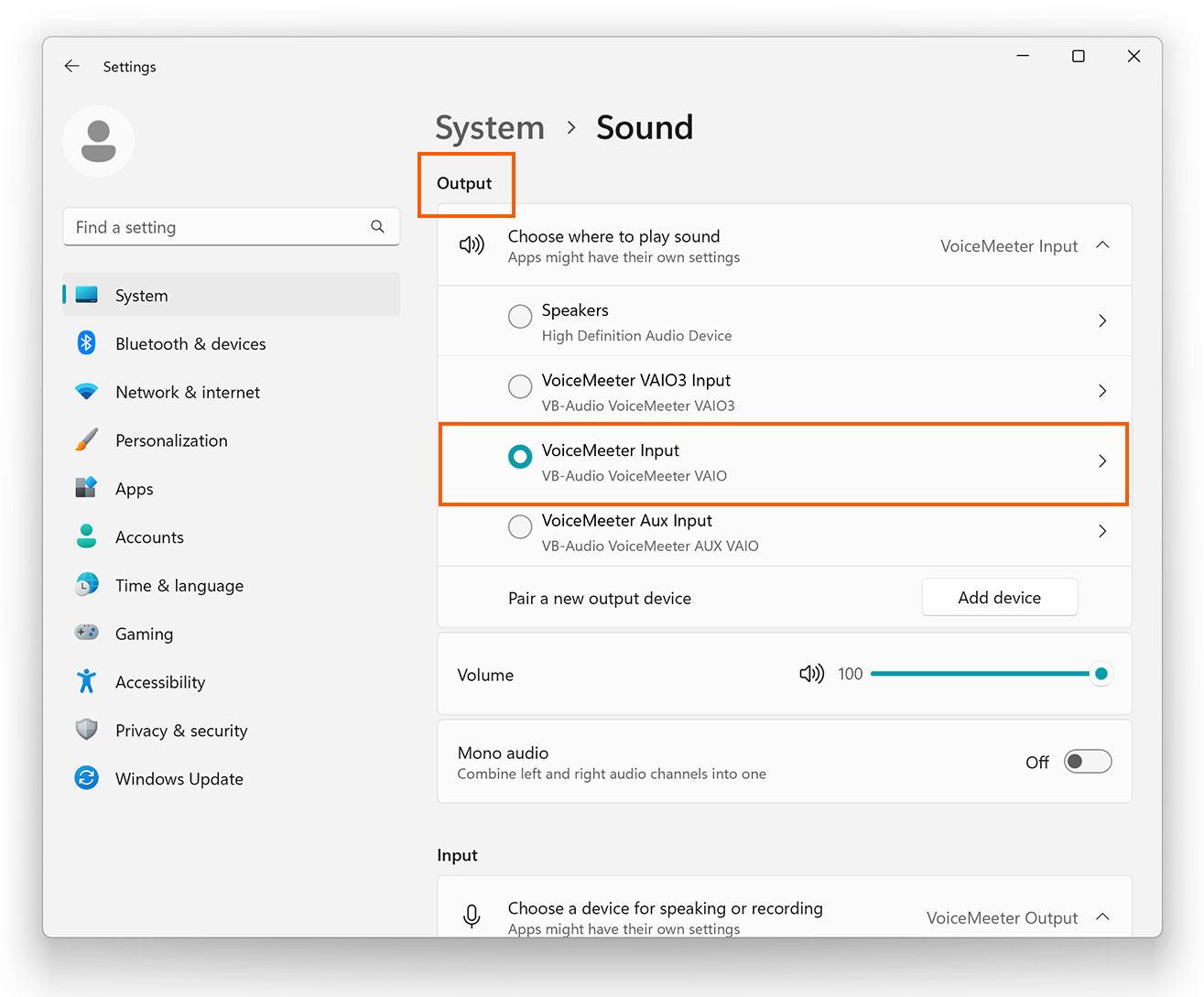
¿How to fix Voicemeeter high CPU usage on Windows? If you're using Voicemeeter to mix audio on Windows and have noticed unusually high CPU usage, you're not alone: some users are experiencing processes like voicemeeterpro.exe and svchost.exe linked to Windows services, which have negative effects on performance and latency. This phenomenon can cause loss of fluidity, drops in benchmarks and stutters in remote applications or games., and although its origin is not always obvious, there are adjustments that reliably mitigate it.
In real-world scenarios, it has been observed that voicemeeterpro.exe and svchost.exe (specifically WpnUserService_xxxxx) together load the CPU by around 6% on a sustained basis, as if they shared the processor usage equally. Although 6% may seem like little, on CPUs with 16 threads it is a constant bite that aggravates latency. And it shows: from drops in the WinRAR benchmark to subtle delays in Remote Desktop (RDP) sessions, to intermittent audio dropouts in games and Discord.
Symptoms and signs that reveal the problem
A clear clue is to see how voicemeeterpro.exe and svchost.exe (WpnUserService_XXXX) rise to ~6% CPU at a timeThis situation is not normal at rest and often coincides with minor sound instabilities.
Other measurable symptom: WinRAR benchmark drops from 44.000–45.000 KB/s to 27.000–35.000 KB/s while maintaining that CPU usage, reflecting that there is resource contention or interrupt latencies that impact overall performance.
Remotely, the RDP experience also suffers: Lag is perceived even with a good connectionInterestingly, closing the RDP session doesn't typically lower CPU usage, so it's not a unique trigger but rather an aggravating factor.
A practical tip: Restarting the Voicemeeter audio engine usually returns CPU usage to 0.If you do this while the problematic session is still active, the effect is immediately noticeable, suggesting an audio stream conflict that is resolved by restarting the application's sound stack.
There are cases where, after reinstalling Windows 11 and Voicemeeter Potato and importing the configuration by XML, emerge random audio cuts. Increasing AudioDG priority and limiting its affinity to a single core, setting all sources to 48 kHz (and then 44 kHz), increasing buffers step by step, or switching headphones have all been tried, without consistent success. The dropouts occur mostly when playing games. Apex Legends or RuneScape, while recordings in tools like Medal sound normal, an indication that the issue affects real-time feedback/monitoring rather than the stream being recorded.
Why it happens: Interaction between Voicemeeter, WpnUserService and the audio stack
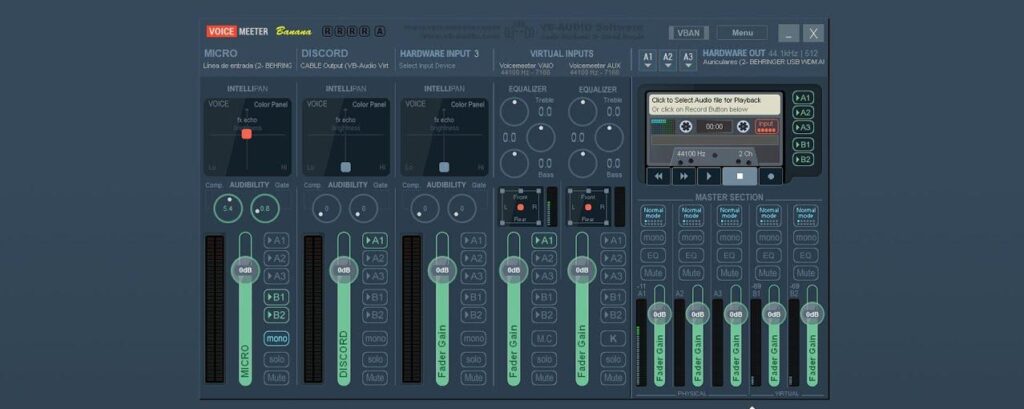
The WpnUserService (Windows Push Notification User Service) service runs inside svchost.exe and manage app notifications and eventsOn certain machines, their wake-ups coincide with the audio engine, causing DPC/ISR latencies or scheduling changes in the MMCSS threads, which causes svchost.exe and voicemeeterpro.exe to crash. appear “paired” by consuming CPU.
Priority management also plays a role. Forcing audiodg.exe to a specific core (affinity) or raise it to high priority indiscriminately can break the thread distribution in real time that Windows does, especially if other low-latency tasks (such as Voicemeeter's audio queue) are competing for the same core.
The sample rate desynchronizations cause constant resampling. If some sources are at 48 kHz and others at 44,1 kHz in shared mode, Windows has to convert audio on the fly, and VoiceMeeter compensates for the clock and buffers, increasing the load when the system is running at a premium.
There is also a global load component: heavy games (and their anti-cheat systems, overlays and filters) activate GPU/CPU queues, and with the GPU at 100%—as Microsoft Community support points out regarding demanding titles—pressure on the scheduler increases. This is where micro-cuts and spikes in audio processes emerge.
With RDP, audio redirection creates virtual devices and hot-swap endpointsIf the session creates/destroys devices or alters the default route, Voicemeeter may reconfigure itself in the background, leaving some threads hanging until you restart the engine.
Quick fixes that have already worked
The most effective thing in the short term is what you have already proven: restart the Voicemeeter audio engineThis clears intermediate states, renegotiates buffers, and in many cases, instantly lowers conflicting CPU usage.
- Set up a shortcut a Restart Audio Engine in the Voicemeeter menu to activate it at the first symptom.
- Consider using MacroButtons from Voicemeeter to automate restart if you detect jitter or a hotkey.
- If you use RDP often, apply the reboot as soon as you connect to stabilize the session before starting.
This “reset” is a useful palliative, but it is advisable attack the root cause with tweaks in Voicemeeter and Windows to reduce the likelihood of it reappearing.
Configure Voicemeeter stably
In Voicemeeter, open System Settings/Options and make sure the entire chain is working at the same frequency. In general, 48 kHz is the most compatible choice with games, Discord and modern capture cards.
For hardware devices (A1, A2, A3), select drivers WDM whenever possible and adjust the latency. Start with 256–384 samples; if clicks persist, increase to 512 or 768. Avoid MME except for testing, and use KS/ASIO only if your interface supports it and there are no conflicts.
Unifies the frequencies and formats. Set all Windows playback/recording devices to 48 kHz (and 24-bit if available) and disable “Allow applications to take exclusive control” to reduce shared/exclusive mode switching during gameplay.
Increases buffers Voicemeeter If the cuts appear under load. In the options you can tap WDM Buffering; higher values sacrifice some latency in exchange for robustness. Check the “safe mode” options if available.
If you use multiple physical devices (e.g. USB DAC and USB microphone), enable buffering mechanisms. clock synchronization/offset and avoid mixing endpoints with very different clocks when playing.
Key settings in Windows: audio, power, and services
Undo aggressive affinity changes. Do not pin audiodg.exe to a single core; let MMCSS distribute the threads. Increasing priority can help, but only if it doesn't take away time from other Voicemeeter real-time threads.
In Windows Sound Properties, disable exclusive mode when not essential and equal to 48 kHz all default devicesThis reduces resampling and opening/closing streams that force Voicemeeter to readjust.
The power plan should be set to High Performance or Balanced with minimums at 100% when gaming. Disable USB power saving (Selective Suspend) and the hub where you connect your DAC/headphones. Keep your audio drivers and chipset up to date.
For WpnUserService, try temporarily turning off notifications (Settings > System > Notifications) and stop the notification service For diagnostic purposes only. If doing so removes the 6% shared with voicemeeterpro.exe, you've identified the trigger; in that case, disable notifications during critical sessions or find out which app triggers the most events.
Avoid overlaps and features that add load: Disable Game Bar, GPU overlays, and background capture while you play if they are not essential to you.
Discord and Gaming: How to Minimize Crashes
Discord adds processing (Krisp, echo cancellation, normalization) that sometimes hinders Voicemeeter's path. The more direct the flow, the fewer jumps you will see. under load.
- In Discord > Voice & Video, select as input/output device the Voicemeeter endpoint correct (VAIO/ AUX).
- Turn off Krisp, echo cancellation, noise reduction and Attenuation for stability testing.
- Turn off Hardware acceleration and overlays if you notice stutters coinciding with GPU peaks.
In games like Apex or RuneScape, limit FPS, enable V-Sync or Frame Rate Target to reduce GPU/CPU spikes. Reduce sustained 100% GPU frees up the scheduler and smooths out the audio queue.
If Medal records “clean” audio but you hear it with cuts, the problem is probably in the output monitoring (headphones) or at the final endpoint. Try other USB ports, another DAC, or change device A1 in Voicemeeter to isolate the offending segment.
RDP and remote scenarios: avoiding interference
Before connecting via Remote Desktop, open Remote Desktop Connection > Local Resources and, under Remote Sound, check “Play on this device” or disable remote audio entirely as needed. Avoid switching endpoints during the session.
If you use RDP often, keep the audio path stable: choose a single output device in Voicemeeter and avoid moving the system default while logged in. If you notice the 6% share after logging in, restart the audio engine at that time.
Disable unnecessary captures/sharing in RDP (clipboard, printers, etc.) to reduce noise from services in the background that could reactivate WpnUserService.
Diagnosis: check, measure and confirm
Open Task Manager and Resource Monitor to monitor voicemeeterpro.exe and svchost.exe (WpnUserService_XXXX). If they go up and down at the same time, confirms that you are facing the described pattern.
Pass LatencyMon during a game/Discord session to detect high-latency DPC/ISR driversBad network, GPU, or USB drivers could be the crux of the matter.
Check the Event Viewer (Windows Logs > System and Application) for Audio errors, device reboots, or endpoint changes matching the cuts.
Reproduce the issue in a controlled manner: start Discord, the game, RDP (if applicable) and change one variable at a time (buffers, frequency, disable notifications) to identify what reduces the phenomenon.
Have basic data on hand as recommended in the Microsoft Community: Computer make/model, CPU, RAM, GPU, Windows version, and gaming platformWith this information, you can fine-tune solutions and request more effective help if you need it.
If nothing works: alternative routes and scaling
If your interface allows it, try it. ASIO with VB-Audio ASIO Bridge to isolate the audio stream from Windows Shared Mode. Sometimes it completely eliminates dropouts under heavy load.
Update or reinstall audio drivers (Realtek, USB DAC, interfaces), chipset and GPU. A conflicting USB or network driver may be the actual source of the audio jitter.
Perform a clean boot of Windows (msconfig) by disabling startup programs to detect if some third-party app triggers WpnUserService or interferes with the audio engine.
Avoid importing old settings when reinstalling: create your Voicemeeter profile from scratch. XMLs drag subtle adjustments which do not always fit with a fresh installation or new drivers.
If you need developer support, please open a ticket on VB-Audio providing Logs, Voicemeeter version, configuration XML, and steps to reproduce. Their Discord is also helpful, but it details the 6% pattern and the tests they performed.
Voicemeeter can be kept running smoothly even with games and RDP: Unifies frequencies, raises buffers, avoids forced affinities, reduces notifications and overlays, and keep the engine restart handy as a safety net. By stabilizing the environment, the shared 6% and the micro-cuts that were ruining your sessions disappear.


Passionate about technology since he was little. I love being up to date in the sector and, above all, communicating it. That is why I have been dedicated to communication on technology and video game websites for many years. You can find me writing about Android, Windows, MacOS, iOS, Nintendo or any other related topic that comes to mind.