MicroSD cards have been a great help over the years. Thanks to them, we can carry our information from one place to another very easily. However, it must be admitted that many times they stop working and we don't even know why. In this case, We will see why they get damaged and how to fix a microSD card that does not work..
Fortunately, in most cases the problem can be solved. On the one hand, you can try another reader or another device. Also, You can use the CHKDSK command to evaluate and solve the problems. card. Another method is to take advantage of the disk repair tool. And, if none of this helps, you can always format to fix a microSD card that is not working.
Most common reasons why a microSD card stops working
For a start, Is it possible to fix a microSD card that is not working? The short answer is yes. Of course, this depends on the reason why the card isn't working. And what are the signs that the microSD isn't working as expected? For example, maybe your phone or PC doesn't always detect it, recent items get deleted, the capacity is displayed as different than the card's, etc.
So, What are the most common reasons why a microSD card does not work? If your devices are unable to read the microSD card, it may be due to the following reasons:
- Incorrect connection.
- Outdated drivers.
- Corrupted file system.
- The drive letter is missing.
How to fix a microSD card that is not working?
Once you've identified the signs that your microSD card is faulty, it's time to get down to business. There are different methods you can try to fix a microSD card. that doesn't work.
Here we will mainly highlight the solutions that do not involve losing the information on the cardHowever, if none of these work, we will also teach you how to format it.
Try the microSD card in another reader or device
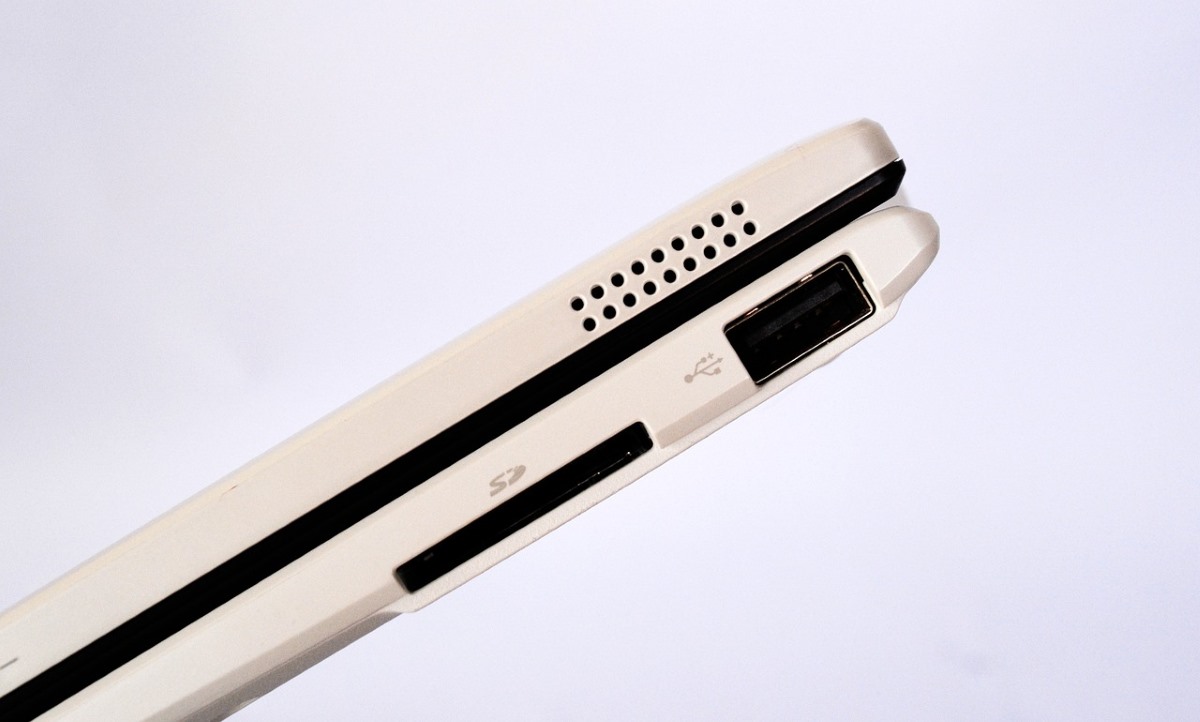
The first thing you should do is Check that the card reader you are using is working, either on your phone or on your PC. To do this, insert the microSD card into another port on your PC or another phone. If it works normally, then it means that the problem is not with the card, but with the reader.
Another option is change the card adapter. Sometimes these adapters fail or suffer physical damage. So, the card may be in perfect condition, but the adapter you are using is not. So, in these cases, it is best to replace it.
Change the drive letter of the card
If you are sure that both your card and adapter are working properly, but your device still does not detect the microSD, the solution may be to assign a new drive letter. How do you do this? Here are the steps to follow. Steps to change the drive letter to fix a microSD card that is not working:
- Press Windows key + X.
- Select Disk Management.
- Right click on the SD card partition.
- Now tap on “Change drive letter and paths”.
- In the pop-up window, click “Add” to assign a new letter.
- Add the new letter, tap “OK” and you’re done.
Try running the CHKDSK command
Now, what happens if your computer or device does detect the card, but it still doesn't work or gives you an error? In that case, Log in as Windows administrator and run the chkdsk command. This will help you automatically locate and fix any issues with your microSD card.
The first thing you need to do is insert the microSD card with its adapter into your PC. Next, you need to look at the letter that your PC associates with the card. Once you have the card letter in mind, do the following to fix a not working SD card:
- Press Windows key + R.
- In the box, type CMD to start as administrator.
- Now write the command chkdsk H: / f replacing the letter “H” with the letter associated with your card.
- Done. This command will scan your card and fix any issues it may have.
Update or reinstall the card drivers
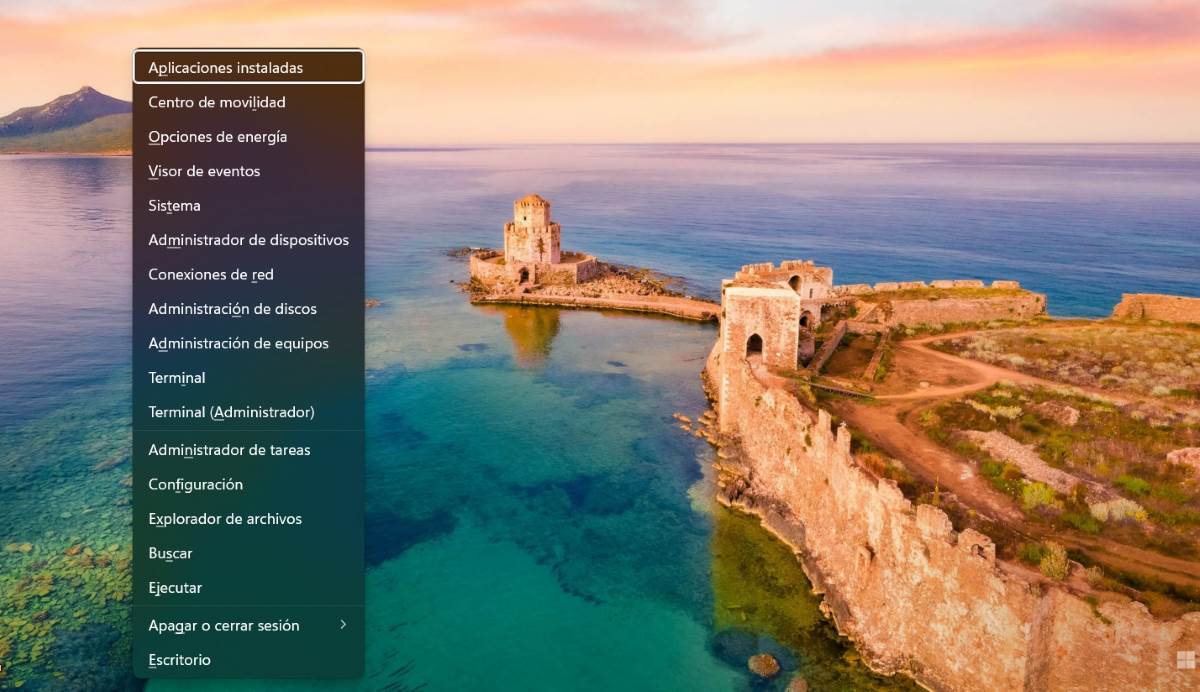
If your SD card drivers have expired, your PC is probably unable to read the card. In this case, What you need to do is update these driversHow do you update drivers to fix a microSD card that is not working? To do so, follow these steps:
- Press Windows key + X.
- Click Device Management.
- Expand the Disk Drives option.
- Right click on the SD card driver.
- Now, tap on the “Update driver” option.
- This way, the system will search for the necessary drivers to update them and that's it.
Use an antivirus
Using an antivirus can also help you fix a microSD card that is not working. Why? Because Maybe the problem is due to a virus that got into the cardThe solution in this case is to install an antivirus to scan, identify and correct the virus on your SD card.
Use the Windows Repair Tool
Fortunately, both in Windows 10 as in Windows 11 There is a file repair tool that we can use to fix a microSD card that is not working.. Similar to the work of an antivirus, this tool is responsible for locating and correcting errors in the file system. To use it, do the following:
- Go to File Manager.
- Right click on the SD card and tap Show more options – Properties.
- Click on Tools and select the Check option under Error checking.
- Then tap on Scan and repair drive.
- Done. This way we will leave the repair in the hands of the Windows system.
Format the card
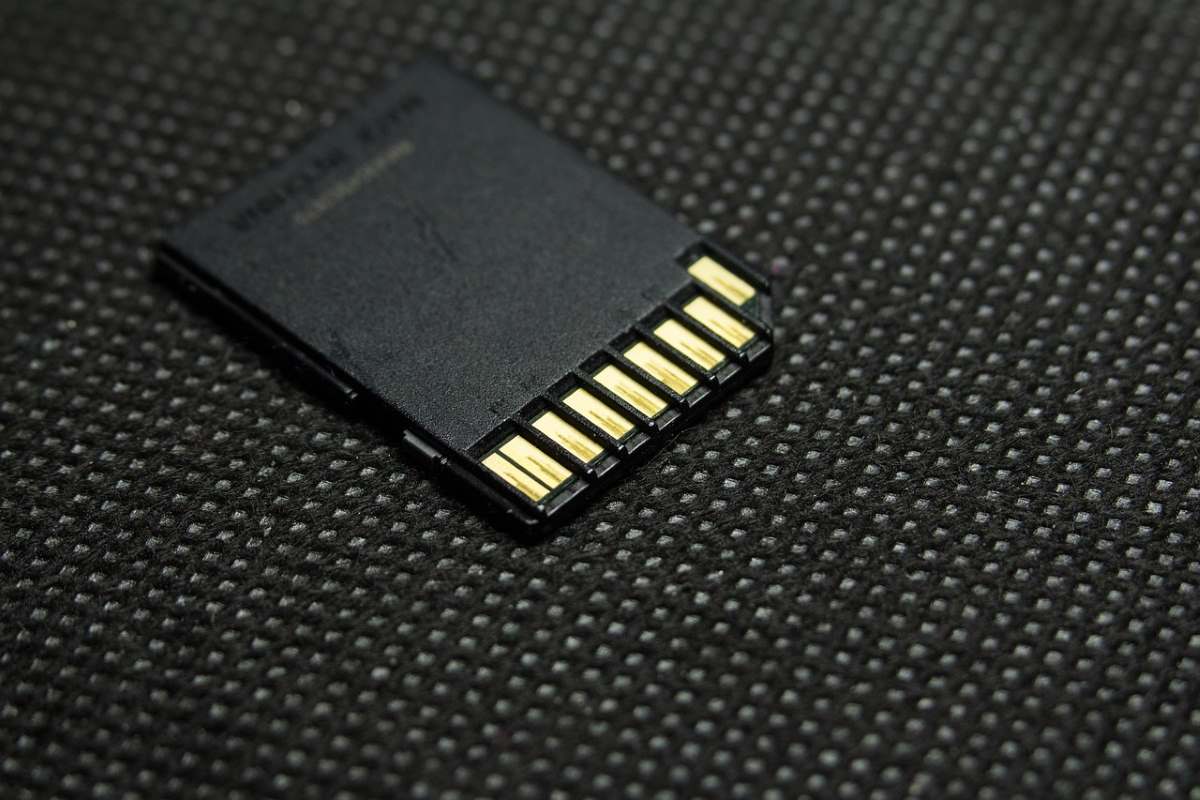
What if none of the above solutions work? The last thing left to do is to format to fix a microSD card that is not working. However, keep in mind that doing so will erase all the data that was stored there. To format a microSD using your PC, you just need to Right click on it in File Manager, click Format and you're done.

From a young age, I've been fascinated by all things scientific and technological, especially those advancements that make our lives easier and more enjoyable. I love staying up-to-date on the latest news and trends, and sharing my experiences, opinions, and tips about the devices and gadgets I use. This led me to become a web writer a little over five years ago, focusing primarily on Android devices and Windows operating systems. I've learned to explain complex concepts in simple terms so my readers can easily understand them.