
Android Auto is an indispensable tool for those who want to use their mobile safely while driving. However, some users face a common inconvenience: their phone restarts unexpectedly when connecting the application. Learn more How to fix phone restart issue on Android Auto and avoid interruptions in your driving experience.
Causes of phone reboot in Android Auto
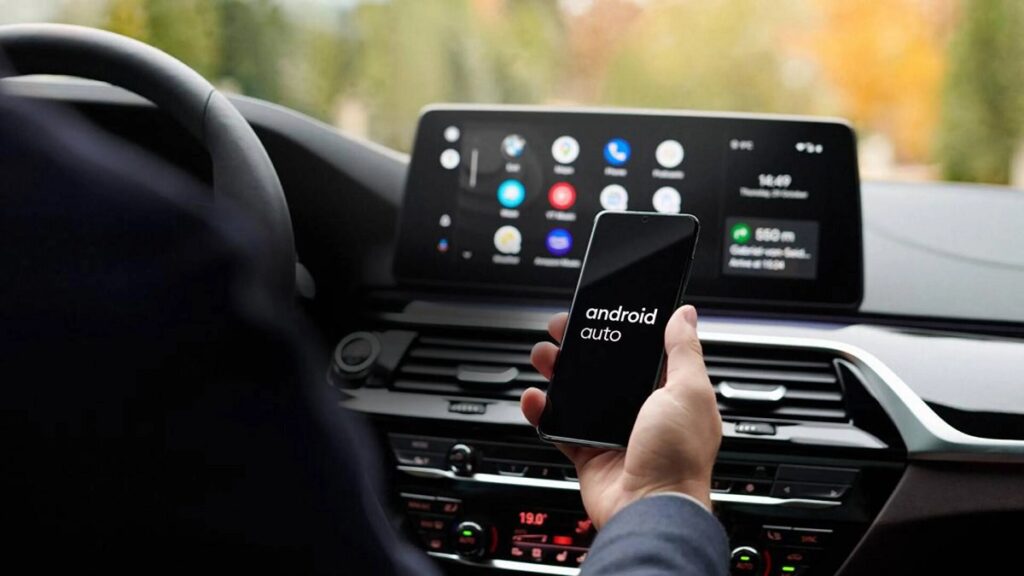
There are several reasons why a device may restart when using Android Auto. Identifying the cause of the problem is the first step to effectively troubleshooting it. Some of the most common reasons include:
- USB cable incompatibility: A damaged or low-quality cable can cause disconnections and communication failures between the mobile phone and the vehicle.
- Application errors: Outdated or buggy versions may cause unexpected reboots.
- Conflicts with other applications: Some third-party apps may interfere with the operation of Android Auto.
- Problems in the operating system: An outdated version of Android may cause incompatibilities with the application.
- Car system faults:Some vehicle models have firmware that may require an update to work properly with Android Auto.
- Device overheating: If the phone gets too hot, it may restart as a protective measure.
And now that we have arrived here, let's go with how to solve the problem of restarting the phone in Android Auto. Of course, wait a moment, because before continuing and as we recommend in each article, in Tecnobits We have experience in almost everything related to technology and Android Auto is no less. That is why we have many other articles such as this one about Here's what to do if wireless Android Auto won't connect.
Methods to fix phone keeps restarting on Android Auto
To prevent your device from rebooting when connecting the app, follow these practical solutions.
- Use a high-quality USB cable
The cable you use to connect your phone to your car directly affects the stability of the connection. To avoid failures:
- Use a certified USB cable by your phone manufacturer.
- Avoid long or frayed cables.
- Try another USB port on your car if the problem persists.
- Update Android Auto and the operating system
Older versions may contain bugs that cause crashes. Make sure both Android Auto and your phone's system are up to date:
- Open Google Play Store and search Android Auto.
- If an update is available, install it.
- Go to Settings > System > Software Update and check that your Android is on the latest version.
- Clear cache and data on Android Auto
Sometimes temporary files can affect the operation of the application. To reset the settings, follow these steps:
- Go to Settings > Apps > Android Auto.
- Select Storage and cache.
- Click on Clear cache and then in Delete data.
- Restart your phone and try again.
- Review app permissions
If Android Auto doesn't have the correct permissions, it can cause unexpected errors. To set them up, do the following:
- Go to Settings > Apps > Android Auto > Permissions.
- Active Location, Phone, Messages and Files.
- Make sure the app has permission to run in the background.
- Uninstall applications that cause conflicts
Some apps may interfere with Android Auto, especially those that handle notifications or accessibility. To rule out conflicts:
- Try disabling third-party apps like battery managers or VPNs.
- If the problem goes away, consider removing or looking for alternatives to those apps.
- Reset connection preferences
If there are errors in your Bluetooth or USB settings, resetting the connection options may help:
- Go to Settings > System > Reset options.
- Touch Reset WiFi, mobile data and Bluetooth.
- Restart your device and reconnect Android Auto.
- Check the car firmware version
Some cars require updates to their infotainment system to be fully compatible with Android Auto. To check this, do the following:
- Please refer to your vehicle manual for information on how to update the system software.
- Check the manufacturer's website for newer versions.
- Take the car to the dealer if updates are not available online.
- Prevent your phone from overheating
Excessive heat may cause the device to reset as a protective measure. To avoid this, do the following:
- Avoid placing your mobile phone in direct sunlight while driving.
- Use ventilated mounts to keep your phone cool.
- Close unnecessary applications to reduce processor load.
- Reset Android Auto to factory settings
If none of the solutions work, you can reset the app settings:
- Open Settings > Apps > Android Auto.
- Press on Reset to default settings.
- Restart your phone and set up the app again.
Here we go with the final part of the article on How to fix phone reboot issue on Android Auto. Now a few tips.
Additional tips to improve your Android Auto experience
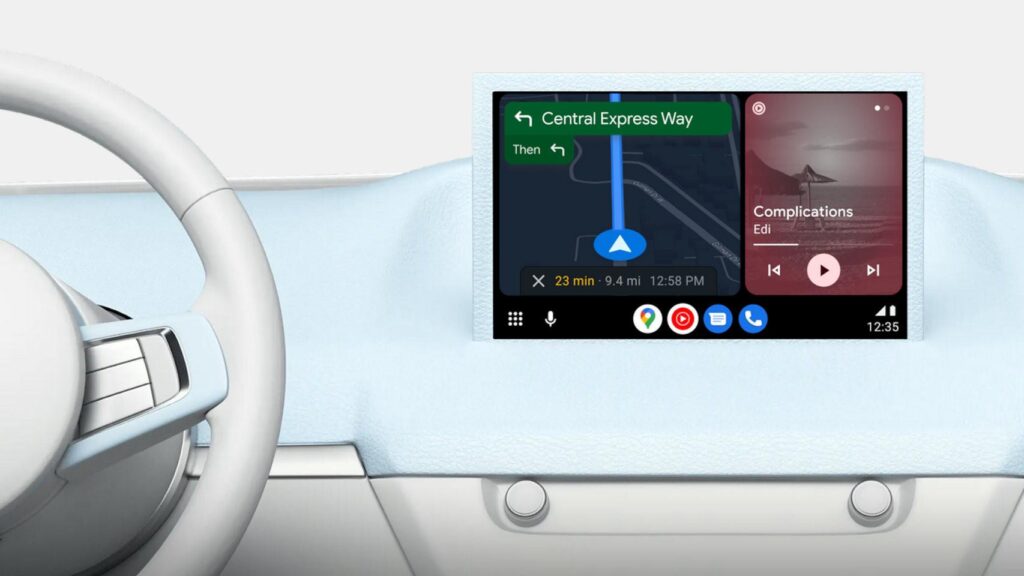
As we said, before finishing this article on how to fix the phone restarting problem in Android Auto, we are going to give you a few tips, because they are all good, we guarantee it. Specifically, to optimize the use of the application and avoid future inconvenient recommendations, follow these:
- Use a stable connection: Avoid low-quality cables or adapters.
- Clean the USB port regularly: Dirt can affect the connection.
- Disable power saving in Android Auto- This will prevent the application from closing unexpectedly.
- Check car compatibility: Some models may require specific adjustments to function properly.
Now that you know how to fix the Android Auto phone keeps restarting issue, you can apply these solutions to improve connection stability and avoid interruptions in your driving.
Making sure you use a proper cable, keep your system and app updated, and check permissions will help prevent future issues with Android Auto. Also, optimize the connection settings and monitor the temperature of the device to prevent the problem from happening again. We hope you now know how to fix the phone restarting issue on Android Auto. See you in the next article! Tecnobits!

Passionate about technology since he was little. I love being up to date in the sector and, above all, communicating it. That is why I have been dedicated to communication on technology and video game websites for many years. You can find me writing about Android, Windows, MacOS, iOS, Nintendo or any other related topic that comes to mind.