
In this post we're going to explain How to install SSH on UbuntuThe importance of this well-known network protocol lies in the fact that it provides a secure connection between a client and a server. In addition, all communication is encrypted, which is essential to prevent data theft and other types of attacks.
SSH server does not come installed on Ubuntu by default, but many users make the decision to install and enable it on their own. Before explaining the steps to follow for the installation, let's briefly explain what exactly it is SSH.
What is SSH?
SSH (Secure Shell) it's a cryptographic network protocol which is used to establish secure connections to a server over an insecure network, such as the Internet. It is a solution that allows remote access to the command line and its execution, as well as the secure transfer of files between devices, thanks to the encryption resource.

The SSH protocol, which came to replace other less secure ones such as rlogin o rsh, consists of three main components:
- SSH Client: The software that we use on our local device to connect to the remote server.
- SSH server: The remote server software.
- Ports: Port 22 is normally used for these connections.
Secure Shell uses authentication using password or cryptographic keys so that only authorized users can access the remote server. On the other hand, All traffic between the client and the server is encrypted and protected. The protocol also allows for the creation of secure tunnels to redirect connections to other ports or services.
Once you get past the hurdle of complexity that some users may encounter, the advantages of using SSH are considerable. Some of its more practical uses include remote administration of Linux/Unix servers, secure file transfers, or remote system development.
Install SSH in Ubuntu step by step
Let's see below what are the steps to follow to install SSH on Ubuntu (specifically, Install SSH on Ubuntu 22.04). To start this process, it is necessary login as root user or a user with sudo privileges to run the commands detailed below.
Update system packages
As you should always do before installing any software, the first thing is ensure that all system packages are properly updateds. To verify this point, we open the terminal and execute the following command:
sudo apt update && sudo apt upgrade
Install SSH on Ubuntu
OpenSSH It is the set of applications that, through the SSH protocol, allows us They allow encrypted communications to be made over a network. Since OpenSSH is not pre-installed on the system, as we have explained before, it will be necessary to install it manually. To do this, enter the following command in the terminal:
sudo apt install openssh-server
The installation may take a few minutes to complete. Throughout the process, you will need to answer “Yes” to all the questions the system asks you until all the necessary components are finally installed.
openssh-server It is the module that allows our computer to respond to any incoming connection request from other remote systems.
Check SSH server status
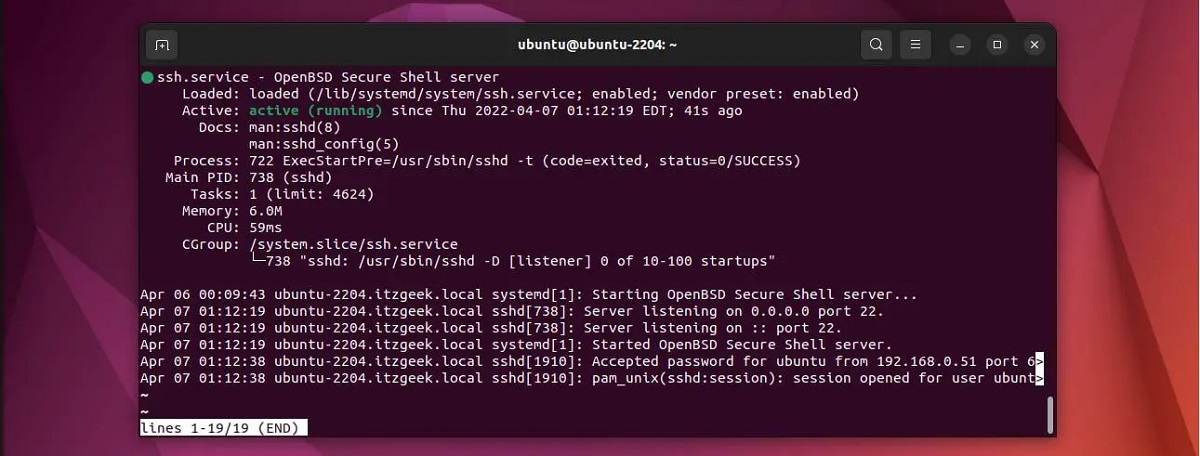
Once the installation is complete, we need to make sure that the SSH service is running. To do so, we will use the following command:
sudo systemctl status ssh
If SSH on Ubuntu works as it should, an image similar to the one shown above will appear on the screen, with the legend Active: running. Otherwise, that is, if the server remains down, we can start it manually using this command:
sudo systemctl start ssh
Connect to SSH server
Now that the SSH server is up and running, it is possible to Establish connection from another device using SSH clientTo do this we have to open another terminal and enter the following command:
ssh user@server_ip
Obviously, the part of the command after the “@” symbol has to be followed by the IP address of the server that corresponds in each case.
Some additional configuration options

In addition to the steps explained in the previous section to install SSH on Ubuntu, there are some optional commands that we will be able to use to configure the protocol and adapt it better to our own tastes and needs.
For example, to change the connection port, use key authentication, disable password access, or any other aspect, we will use this command:
sudo nano /etc/ssh/sshd_config
Then, once the configuration changes have been made, it is necessary to restart the service:
sudo systemctl restart ssh
Finally, if for whatever reason we no longer want to continue using this connection protocol, we can stop it and even disable it with the following commands:
sudo systemctl stop ssh
sudo systemctl disable ssh
Conclusion
Now that we know how to install SSH on Ubuntu, it will be possible to perform administration activities through the terminal. We can also configure authentication based on this SSH protocol to be able to log in to the system without having to enter a password.

Editor specialized in technology and internet issues with more than ten years of experience in different digital media. I have worked as an editor and content creator for e-commerce, communication, online marketing and advertising companies. I have also written on economics, finance and other sectors websites. My work is also my passion. Now, through my articles in Tecnobits, I try to explore all the news and new opportunities that the world of technology offers us every day to improve our lives.