- macOS configuration to open documents in tabs within compatible applications.
- Differences between opening PDFs in tabs and grouping images in Preview windows.
- Keyboard shortcuts to switch tabs and locate open documents more quickly.
- Options to reorder tabs, separate them into independent windows, or merge application windows.
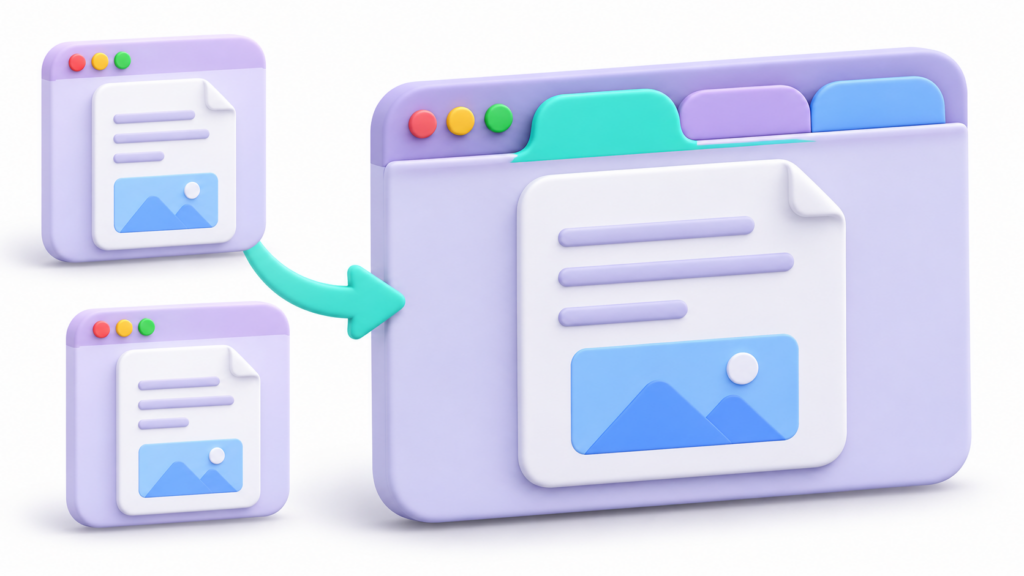
Whether you're new to the Apple ecosystem or have been using your computer for a while but feel you have too many open windows Floating across the entire screen, you'll most likely need to master the tab system. This feature is a real lifesaver for keeping your desktop clean and avoiding the frustration of searching for a PDF or image amidst a sea of identical windows.
The truth is that, although it seems simple, macOS has a couple of hidden settings These settings determine whether files are opened separately or grouped together. Configuring the overall system behavior is not the same as tweaking the preferences of a specific application, so let's see how to get everything set up so you can work much more comfortably.
General Mac system settings for opening and managing documents in tabs
To stop your Mac from opening each document in a new window and start using tabs automatically, you need to access the global settings. Go to the Apple menu, then to System Configuration and look for the section on Desk and DockIf you have an older version of macOS, this might be in System Preferences > General.
Once there, scroll down until you find the Windows section. You'll see a drop-down menu called Prefer tabs when opening documentsThis is where the magic happens: select the option AlwaysBy doing this, the system will try to group most of the documents you open into a single window, preventing your desktop from becoming cluttered with duplicate boxes.
Specific settings in Preview
Sometimes, even with the system configured globally, some apps can be stubborn. The most common example is Preview. To ensure that PDFs and images don't get scattered, open the application and go to its settings. internal preferencesIn the "When opening files" tab, you must check the box that says Open all files in a single window.
It's important to mention that if after making these changes you notice that the files are still opening separately, you may need to restart the application or check that there are no issues. version conflicts on your macOS, as the exact menu path may vary slightly between Monterey and more recent versions.
Opening multiple PDFs in tabs keeps the documents separate. If you need to combine their pages into a single file, see [link to relevant documentation]. How to merge two PDF files.

Once you have everything grouped, it's ideal to be able to move around quickly. You don't need to click on each tab with the mouse; you can use the keyboard to go faster. By pressing Control + Tab You will jump to the next tab, while Control + Shift + Tab It will take you back to the previous one.
If you have so many tabs open that you can no longer see the titles, there's a very useful trick. Go to the menu of View and select Show all tabsThis will display a series of thumbnails that allow you to locate the exact document you want at a glance. To return to the normal view, simply select Exit tab summary from the same menu.
Advanced management and customization
Organizing your workspace is essential to stay on track with what you're doing. If a tab bothers you or you no longer need it, you just have to... press the x (×) that appears when you hover the cursor over it. If you want to restructure the order, simply drag the tab To the left or right to place it wherever you prefer.
Additionally, if for any reason you need to move a document out of the group and into a separate window, you can use the Window menuFrom there you have the option to move a tab to its own window or, conversely, combine all the loose windows you have open into a single tab interface, which is ideal for cleaning up your desktop in a second.
Mastering these configuration options and navigation shortcuts transforms the Mac user experience, turning it from a chaotic jumble of overlapping windows into a organized workflow and efficient, where all files are just a click or keystroke away. If you also want to organize windows from different applications, you can complement the tabs with Stage Manager on Macwhich allows you to group the windows you work with.
Frequently Asked Questions
How do I get PDFs to open in tabs on Mac?
You need to go to System Settings, enter Desktop & Dock and select Always in the Prefer tabs when opening documents option.
What to do if Preview keeps opening files in separate windows?
You need to go into the Preview preferences and enable the option to open all files in a single window.
What is the keyboard shortcut to switch between tabs in macOS?
The key combination Control + Tab is used to move forward and Control + Shift + Tab to move backward between open documents.
Is there a way to see all open tabs at once?
Yes, through the View menu you can select the Show all tabs option to see thumbnails of each document.
How can I move a tab to a separate window?
This action is performed by accessing the Window menu, where you can choose to move a specific tab to its own window.
Can you reorder the tabs in a document on a Mac?
You can change the order of the documents simply by clicking on the tab and dragging it to the desired position.
Index
