- WhatsApp is replacing the native Windows UWP app with a new, heavier, RAM-intensive Chromium-based client.
- It is possible to temporarily delay the update by disabling automatic updates from the Microsoft Store and controlling other system options.
- The old version will continue to work only as long as Meta does not block it at the server level, so these solutions are not permanent.
- It is advisable to combine these measures with background execution control and consider alternatives for slow computers or older users.
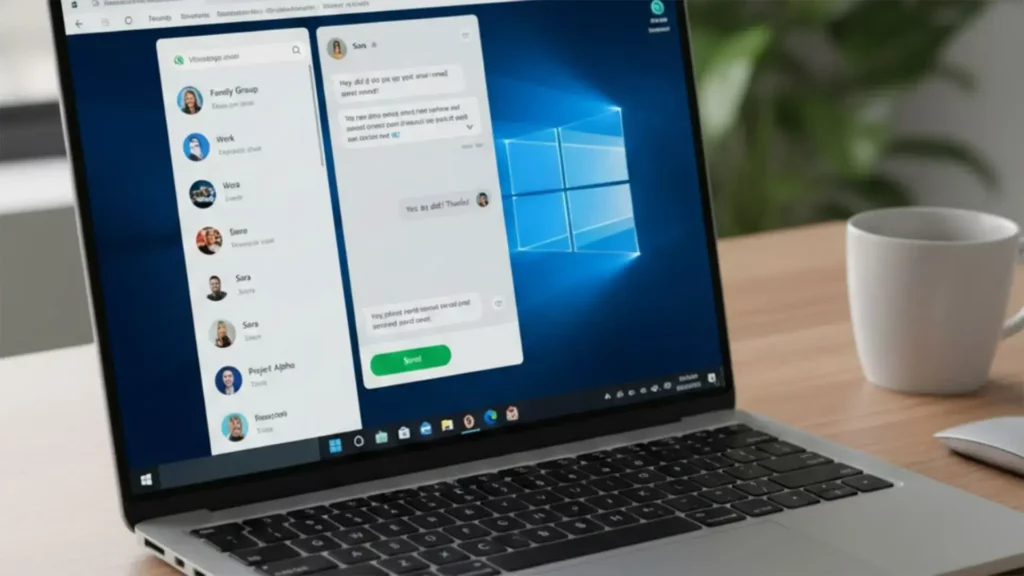
If you use WhatsApp on your Windows computerYou've probably already encountered the persistent message forcing you to update the app. For many users, this is just a nuisance, but for others, it can become a real headache: skyrocketing RAM usage, worsened performance, and session crashes that force you to restart everything from your phone.How can I prevent WhatsApp from constantly updating on Windows?
In this article, we explain how to do it, as long as Meta continues to allow it. We also review what the switch to the new Chromium-based version entails, why your PC might run slower with this app, and what options you have if you use WhatsApp with elderly people or on devices with limited resources.
What's happening with WhatsApp for Windows?
For months now, Meta has been undergoing a quiet but steady transition: the old native UWP WhatsApp app for Windows (the one that was very well optimized and consumed very little RAM) is being replaced by a new version based on web technology (WebView2 / Chromium)This change primarily affects Windows 10 users and, especially, Windows 11 users.
The company has begun to show notifications within the desktop application itself The notification states that the session will be closed and that it will be necessary to log in again to complete the update. Many users already saw an initial notification at the end of October, and now a second notification is being rolled out to more people who were still using the old version.
These messages usually appear near the box of “Search or start a new chat” on the desktop client. The text indicates that, with the next update, the current session will be closed and the new client will be installed. Furthermore, clicking on the link... “More information” A pop-up window opens explaining the changes and new features of the new version.
According to Meta itself, this update introduces features such as Channels, improvements in States and in Communitiesalong with other visual and functional adjustments. However, this entire "improvement package" comes at a very high cost: Resource consumption skyrockets And the experience, on many devices, is worse than with the original UWP app.

Differences between the UWP app and the new Chromium-based WhatsApp
The key to this whole mess lies in how each application is built. WhatsApp UWP version for Windows It was a native app, integrated into the system and optimized to use very little RAM. In practice, it was lightweight, started up quickly, and ran quite smoothly even on older computers.
The new version, however, is based on WebView2, Microsoft's technology that allows embedding Chromium (the engine of many browsers) within applications. In other words, the WhatsApp app is now essentially a kind of Chromium browser embedded within a window, with all its associated processes and memory consumption.
The evidence that has been published shows that the The RAM usage of the new WhatsApp can be between 7 and 10 times higher to that of the native app. They're talking about very typical consumption of around 600 MB as soon as the application is opened, easily rising to about 1 GB when you scroll through chats or have multiple active conversations.
In addition to memory consumption, many users have reported that Switching between chats is slowerthat the app takes It takes between 10 and 20 seconds to load all the chats when you open it. After a PC restart, the overall feeling is one of sluggishness. This is especially noticeable on low-end or older computers, where every megabyte of RAM and every second of waiting counts.
In summary, although the new version offers new features and a unified approach with the web version and other clients, The user experience clearly worsens in terms of performance for a large portion of Windows users.
Is it still possible to use the old version of WhatsApp on Windows?
To date, the official answer is that Yes, you can still keep the old version.…but with important nuances. Meta has already sent at least two rounds of in-app notifications, reminding users that the session is about to close and that it's time to update to continue using the desktop client.
At the moment, the company has not reached the point of completely block the UWP versionBut everything suggests this scenario could unfold in the not-too-distant future. It's a very typical strategy: first "friendly" warnings, then insistent warnings, later session closure, and finally, complete blocking of the outdated version.
That's why, although Today it is still possible to avoid the updateIt's important to understand that this is a temporary solution. A day may come when, even if the app isn't updated from the Microsoft Store, WhatsApp's servers will stop accepting connections from the old version due to compatibility or security reasons.
Even so, many users prefer to continue getting as much out of the native app as possible. forgoing new features such as Channels or Communitiesin exchange for maintaining a lighter, faster, and more stable application on their computers.

How to prevent WhatsApp from updating on Windows via the Microsoft Store
Although Meta is pushing hard towards the new version, there is still a relatively simple way to Temporarily stop automatic WhatsApp updates on Windows: disable automatic updates from the Microsoft Store.
The WhatsApp app for Windows is distributed through the Microsoft Store, so if you prevent the store from updating apps on its own, You will prevent the new client from being downloaded and installed. without your authorization. The process is quick and doesn't require touching anything "unusual" in the system.
The general mechanism consists of opening the Microsoft Store, access your user profile and go into the settings section. Within that menu you will see an option related to the automatic application updatesBy disabling it, the store stops silently updating installed software, including WhatsApp.
However, it's important to keep in mind that, by doing so, You will also stop receiving automatic updates from other apps that you installed from the Microsoft Store. If any of them include critical security patches, you'll need to manually check the store from time to time to decide what to update and what not to.
As long as Meta doesn't block the old version of WhatsApp at the server level, this is the one The most direct solution to continue using the UWP app for as long as possible.But it's important to remember that this is a temporary "patch": sooner or later, an update might be inevitable.
Other ways to control updates in Windows (useful context)
Beyond WhatsApp, many users are tired of the fact that Windows 10 and Windows 11 will update on their own.Sometimes at the worst possible times. That's why it's worth reviewing some of the tools the system itself offers to have more control over updates, both for the system and applications.
One option, designed primarily for laptops and devices connected via WiFi, is to mark the network as “metered usage connection”By doing so, Windows interprets that you are on a limited connection (for example, mobile data shared from your phone) and, by default, reduces or postpones large downloads, including many updates.
To activate this mode, you usually go to the WiFi network settings, enter the advanced connection options and check the "metered connection" box. Note: this technique doesn't usually work as well if the computer is connected via Ethernet cable, where Windows almost always assumes you have sufficient bandwidth.
Another, more radical approach involves disable the Windows Update service To prevent it from starting automatically with the system, you can access the Windows Services Manager (services.msc), locate the Windows Update service, and change its startup type to "Disabled." After restarting, the system will no longer automatically search for and install updates.
If at any point you regret it, simply repeat the process and Restore the startup type to “Automatic”However, it should be noted that this measure means no longer receiving security patches and other critical improvements, so it is something that should be done with full awareness of the reasons why.
Users of Windows 10 Pro and Enterprise They also have the possibility of using the Local Group Policy Editor This allows for finer control over how and when updates are downloaded and installed. From there, you can modify the "Configure automatic updates" policy and set the system to only notify you, but not download or install anything without your permission.
In parallel, Microsoft introduced a specific option in one of the cumulative patches for Windows 10 to Disable automatic updates for Microsoft Store appsThis is very useful when you want to continue receiving system patches, but don't want certain apps (like WhatsApp) to change without notice.
Control WhatsApp background activity and notifications
Another aspect that often goes unnoticed is that, even if you close the WhatsApp window on your desktop, The application can continue running in the background Thanks to Windows services, this results in notifications appearing out of nowhere, calls popping up even when the app is "closed," and processes that remain active.
Some users have found that, even with WhatsApp's internal option marked as “Do not show notifications if the application is closed.They continued to receive incoming call alerts and various notifications on their PC. Looking at the Task Manager, processes such as RuntimeBroker associated with WhatsAppwhich indicates that the app maintains some background activity.
In these cases, an effective solution involves using Windows' own application options, or reviewing how disable the Game Bar overlayFrom the Start menu, you can search for the entry of In WhatsApp, right-click and select 'Application settings'Within that panel, the "Allow the application to run in the background" switch appears.
By changing that setting to "Never"This prevents WhatsApp from remaining active when the window is closed, which helps reduce resource consumption and eliminates many of those annoying notifications that appear even when the app is not seemingly open.
This measure does not directly prevent the application from updating, but it does serve to to have more real control over when it's working and when it's notThis is very useful if you only want to use it occasionally and not have it always there, "spying" on calls or messages.
Meta's limitations and possible future decisions
It is important to be very clear that all the techniques discussed so far are conditioned by what Meta decides at any given timeAlthough you can still maintain the old version of WhatsApp for Windows using these tricks today, nothing prevents the company from changing the rules of the game tomorrow.
It is quite likely that, at some point, The company will stop allowing access from the old UWP app.Whether for security reasons, compatibility with new features (such as Channels, Communities or others that may arrive), or simply because they want a single unified client based on web technology.
In that scenario, even if you keep the update blocked in the Microsoft Store, You might encounter error messages when trying to connector direct warnings that "this version of WhatsApp is no longer supported" and that it is necessary to install the new one to continue using the service.
Therefore, it is important that you understand these solutions as a a way to gain time and decide when to make the change, rather than as a definitive trick to keep the lightweight version of WhatsApp on Windows "forever".
In the meantime, you can consider alternatives: using WhatsApp Web From the browser instead of the desktop client, use other lighter video calling applications for older people, or combine several services according to the needs of each family member.
It is still possible today Prevent WhatsApp from updating automatically on Windows Playing around with the Microsoft Store settings and some Windows options, but everything points to the future being the Chromium-based version, with its higher RAM usage and new features. The better you understand these tools and limitations, the easier it will be to decide when to upgrade, how to minimize problems on slower computers, and how to help those who rely on a simple and stable app for daily communication.


Editor specialized in technology and internet issues with more than ten years of experience in different digital media. I have worked as an editor and content creator for e-commerce, communication, online marketing and advertising companies. I have also written on economics, finance and other sectors websites. My work is also my passion. Now, through my articles in Tecnobits, I try to explore all the news and new opportunities that the world of technology offers us every day to improve our lives.