- Controlling sharing in Windows involves reviewing shared folders, permissions, and synchronization between devices.
- It is possible to prevent file sharing but maintain resources such as printers or network inventory applications.
- Hiding, locking, and encrypting folders strengthens security against local access, physical theft, or cloud errors.
- Proper privilege management in cloud services prevents information leaks when sharing links or sensitive documents.
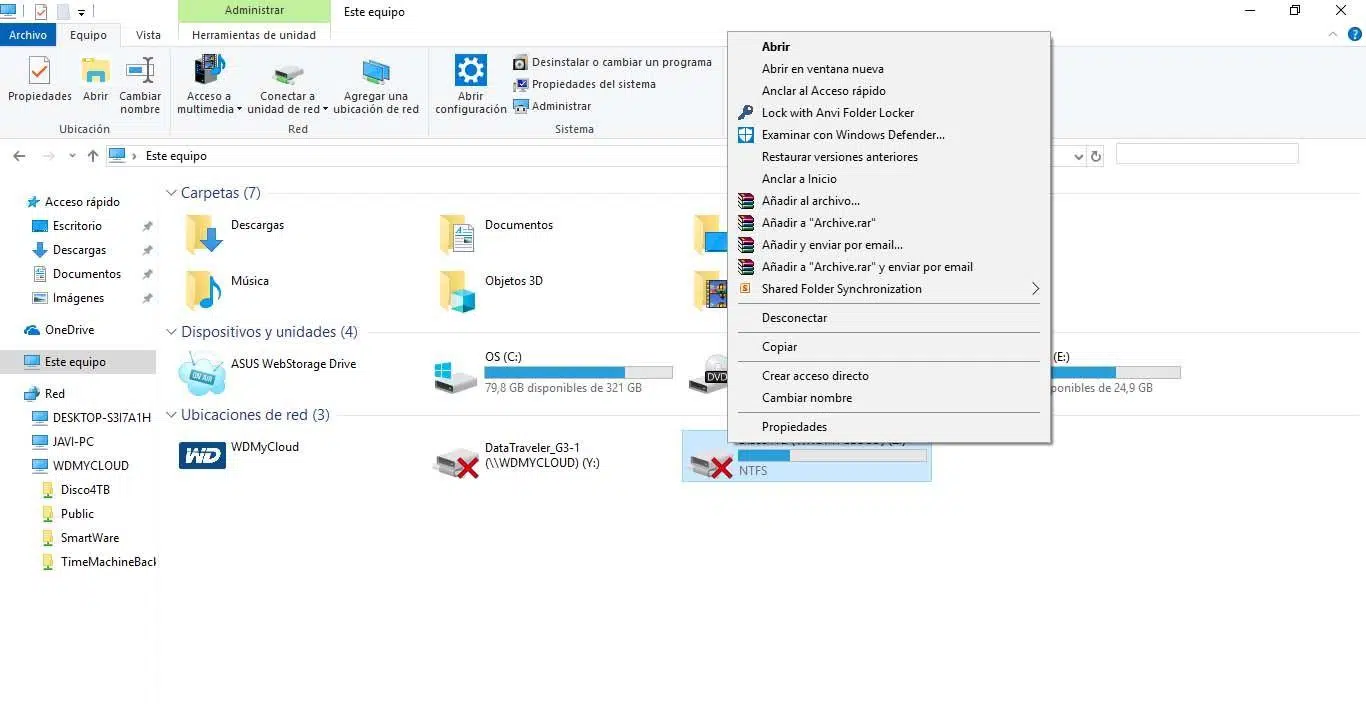
¿How to prevent Windows from sharing files over a network? When two computers with Windows starts sharing files without you asking.The feeling is one of utter chaos: shortcuts appearing and disappearing on multiple computers, desktops cluttered with unwanted items everywhere, and a general sense of losing control. This is very common when you use the same Microsoft account on a personal PC and another for work or studies.
The good news is that You can prevent Windows from sharing files over a network. (or synchronize certain elements between devices) and leave each computer completely independent, whether at home, in the office, or on a corporate network. In this article, we'll look in detail at the different ways to block file sharing, adjust permissions, strengthen security, and work peacefully without surprises.
Why Windows shares files and shortcuts between your computers
The first thing is to understand what's happening when you see that Shortcuts from one desktop appear on anotherIf two devices are linked to the same Microsoft account and have sync enabled, Windows can share things like themes, settings, and even certain desktop elements via the cloud (for example, OneDrive and its organization). This isn't a bug, but rather a feature designed to ensure everything is consistent across your different devices.
In addition to synchronization, Windows allows the sharing of files and folders on a local network so that other computers in your home or office can see certain resources. Although Microsoft removed the old HomeGroup in Windows 10, the sharing function is still very much alive: you can do it from File Explorer, from the system's sharing panel, or through cloud services like OneDrive.
The problem arises when You no longer need that sharing And you want each team to be "its own world" again. Or when, in work environments, you're asked to disable file sharing, but keep other network resources, such as a label printer or an inventory system connected to the LAN.
In summary: Deleting shortcuts or folders is not enough.Because that gets synced and deleted on both devices. The problem needs to be addressed at its root: sync settings, network sharing, permissions, and, in more advanced environments, policies or registry settings.
Stop sharing files and folders over a network in Windows
If your goal is that no other computer on the network can see your foldersThe first step is to disable sharing for those specific folders. Windows offers several tools for managing this, the most practical being File Explorer and the Computer Management console.
Stop file sharing from File Explorer
Probably the quickest way is to use the File explorer to remove shared access Folder by folder. It's as simple as locating the folder you're already sharing and revoking that access.
To do this, open the File Explorer Navigate to the folder you know is shared (for example, a Documents or Work folder that others can see on the network). Right-click on it and look for the sharing option, which usually appears in the context menu as "Give access to" or something similar, depending on your version of Windows.
Within that menu, select the option that allows you to Remove access (for example, "Remove access" or "Stop sharing"). When you confirm, That folder will no longer be accessible from the network.Any other user who tries to enter will no longer be able to see or open it, as if it had never been shared.
This method is very useful when only Do you want to stop sharing a few folders?, without touching anything else in the system, and you don't need additional security measures such as encryption or advanced permission changes.
Stop sharing from Device Management
If you want to have a more global view of all the folders that are being shared on your PCThe Team Management tool is much clearer. From there you can review all shared resources and disable them with a couple of clicks.
Go to the Start menu and search "Equipment Management"Once the console opens, you'll see several sections on the left; expand the one labeled "Shared Folders." Then, select the "Shared" section to see the complete list of shared resources on your machine.
When you locate a folder that you no longer want on the network, right-click on it and choose the option "Stop sharing"The system will ask for confirmation (usually with a "Yes" button); upon acceptance, that resource will no longer be available on the local network.
With this approach you can Review all active shares at a glance and make sure that nothing is left exposed without you noticing, something very common in computers that have been in use for a long time and have accumulated shared folders over the years.
Controlling who can access: permissions and privileges in shared folders
In many cases you don't want to completely disable sharing, but limit it to certain trusted people or teamsThat's where Windows permissions come into play, allowing you to decide who can view, modify, or delete files in a shared folder.
Adjusting permissions for a shared folder in Windows
Once you have created a shared folder, Windows allows you to modify its permissions to define exactly who can enterThis is very useful to prevent "anyone" on the local network from reading or copying your data.
To change permissions, open "This PC" or "Computer" and locate the shared folder. Right-click on it and select "Options." "Sharing" or "Sharing and security"Depending on your system version, you'll see the "Permissions" option there, where you manage who has access.
A highly recommended practice is Remove the "Everyone" group from the permissionsThat group grants access to any user on the network, even those you hadn't considered. Removing it completely prevents unauthorized third-party access.
Then you can add specific users with whom you actually want to share the information. From the selection window, choose only the relevant accounts (for example, teammates or service accounts) and configure for each one whether they can only read or also modify the content.
In more advanced settings you can use the button "Advanced options" To search for users, adjust object types, and further refine permissions. This way, only those you authorize will see the folder on the network and will have an access level according to what you want to allow them (read, write, full control, etc.).
Restrict folders to specific users on the same PC
In other cases, you're not so worried about the network but rather You don't want a user on the same computer to see certain foldersFor example, you have an administrator user (for yourself) and a standard user for someone else, and you want to protect your private documents.
To do this, open Windows Explorer, right-click on the folder you want to protect, and enter "Properties"Go to the "Security" tab and look in the "Group or user names" list for the user or group you want to deny access to (for example, the standard user or the "Users" group).
Click the "Edit" button and, in the permissions window, Check the boxes in the "Deny" column To revoke all permissions for that user, accept the changes and repeat the process for all private folders you want to protect.
In this way, Only the administrator user will be able to view and open those foldersFor everyone else, it will be as if they don't exist, or they will see an access denied message. If you also want them to be hidden from folder lists, you can check the "Hidden" box in the "General" tab of the properties.
Keep in mind that if you ever change your operating system or reinstall Windows, it's advisable have a backup Back up all your important data (on an external drive or in the cloud) before making any changes, so you don't lose your data when applying major changes.
Prevent file sharing but maintain other network resources
In business environments, the typical request is something like this: «It disables file sharing, but allows the network printer to continue working. and the inventory program." In other words, they want to reduce the attack surface, but without disrupting daily operations.
For these more advanced scenarios, it is common to resort to group policies or registry settings that disable some network functions for standard users, while administrators retain full control over the configuration.
A practical example is modifying certain registry keys under HKEY_LOCAL_MACHINE\SOFTWARE\Microsoft\Windows\CurrentVersion\PoliciesThere you can adjust settings related to Explorer, Control Panel, or network sharing (for example, options that control whether file or printer sharing is allowed).
There are values like "NoFileSharing" or "NoPrintSharing" that indicate whether The system does or does not allow file and printer sharing.Setting "NoFileSharing" to "1" while leaving "NoPrintSharing" at "0" is a way to prevent folder sharing without disabling network printers, although these changes should be made carefully and with full awareness of what you are doing.
Another common measure is Hide or disable the Network and Sharing Center This applies to all users who are not local administrators. This prevents users with limited technical knowledge from activating or changing sharing options without authorization. This can be done via Group Policy Objects (GPOs) or by combining registry settings with Control Panel restrictions.
When the environment allows, some companies choose to use the kiosk mode Windows on shared computers, so that only one or a few specific applications (such as an inventory system) are running and the user does not have access to the rest of the settings, including everything related to file sharing.
Hide, lock, and encrypt folders: more security for your data
If your main concern is that no one can see or touch certain sensitive filesIn addition to disabling sharing, it is advisable to add layers of security: hide folders, password-protect them, or encrypt their contents so that they are unreadable without the appropriate key.
Hide and lock folders with batch scripts
Windows allows you to create small scripts (files .cmd or .bat) that They hide and block folders Playing with system attributes and special naming tricks. While not the most professional method, it can serve as basic protection against non-technical users.
A classic example is a batch file that creates a folder called "Private," and when run again, renames it to a Control Panel identifier and applies system and hidden attributes. To access it, you have to run the script again, enter a password that is validated within the file itself, and if it is correct, The folder is unhidden and renamed again to be able to enter.
If you want to adapt this type of method, you must customize the password in the file itselfReplace the example password with a secure one that only you know. Then, each time you run the script, you can lock or unlock the Private folder where you store your sensitive documents.
There is also the variant of temporarily convert a folder into a special Windows object (such as access to the Security Control Panel) by renaming it with a specific identifier. To lock, a first batch file is used that renames the original folder to that special name; to unlock, another batch file is used that reverts the change and returns the folder to its normal name.
However, if you leave the unlock file in an accessible location, Anyone could run it and open the folderTherefore, it is essential to save that second script in a secure location, and even edit it to point to the exact path where your protected folder is located, thus further reinforcing security.
Encrypt drives and folders to prevent data leaks
If you need a serious level of protection, beyond just hiding icons, it's advisable to use... drive or file encryptionWith encryption, even if someone physically copies your disks or intercepts data, they will not be able to read them without the key.
In the Windows environment, full disk encryption (for example, with technologies like BitLocker in supported editions) allows all drives are encryptedEven if your hard drive or laptop is stolen, they won't be able to access the contents without the password or the configured unlock method.
Encryption not only prevents external theft, it also helps to control who can see or modify sensitive informationYou can grant and revoke permissions to internal users without having to resend documents repeatedly; simply adjust access to the encrypted volume or folder.
In file servers and local network environments, encrypting critical drives adds another layer of security. an intruder who gains physical or logical access It cannot capture clear text. Combined with good password and permissions policies, it becomes a fundamental pillar of security.
Security on servers and shared folders on a local network
In many networks, the most vulnerable point is not the home PC, but the file server connected to the entire officeIt's where backups, customer data, or company projects reside; if someone enters there without permission, the damage can be enormous.Pass-the-Hash attacks).
The first thing to take care of is the physical server securitySetting up a thousand passwords is pointless if anyone can walk into the room, unplug the equipment, and walk away with it, or worse, cause a serious accident. Physical access should be restricted to authorized personnel and, if possible, with additional controls.
A good practice is to configure the system so that can only boot from the internal diskThis prevents anyone from booting another system from a USB drive or DVD to bypass permissions. Furthermore, the BIOS and boot loader should be protected with strong passwords—not trivial keys that anyone can guess in a minute.
In terms of software, it is essential to have a enterprise-level antivirus or endpoint solution on the file server. Most of these products allow virus signature updates from an internal server or from other clients on the network, thus maintaining constant protection without relying so heavily on an internet connection.
Some security vendors offer endpoint solutions capable of automatically detect and remove malicious programsMonitor the behavior of your devices and respond in real time to threats. Integrating these types of tools into the server where your shared folders reside greatly reduces the risk of infection or ransomware.
Another point to consider is that many local network servers They don't need to be connected to the internet all the timeThe less exposed they are, the lower the risk. You can use a firewall or security server to limit access from outside the LAN, allowing only strictly necessary connections.
Cloud sharing: how to prevent your information from falling into the wrong hands

Today almost everyone works with shared folders in the cloudWe send Dropbox links, share work documents, give editing or read-only permissions… It's convenient and very powerful, but if not properly controlled, it's also a source of information leaks.
The major advantages of cloud sharing are clear: real-time collaborative work, access from anywhere, and sharing of large files without needing to attach them to emails. The problem arises when links are left open, permissions are poorly managed, or folders are accessible to more people than they should be.
That's why it's best to start with the file encryptionSome storage services already encrypt data internally, but if your provider doesn't, you can encrypt sensitive documents yourself before uploading them. This way, even if someone gains access to the file in the cloud, they won't be able to read it without your key.
Just as important as encryption is control access privilegesIt's important to review who can view, who can edit, and who last modified a document. In companies, it's advisable to designate a person responsible for managing permissions instead of allowing any user to grant access indiscriminately.
In services like Dropbox, for example, it is possible Protect shared links with a passwordThe process usually involves logging in, selecting the file or folder, accessing the link settings, checking the box that only those with the password can access it, and setting a password. Sometimes you can even set an expiration date so that, after a certain time, the link will automatically stop working.
These types of measures help ensure that, even if you share a folder with several people, Access is limited in time and protected by a password.reducing the risk of the link circulating unchecked and ending up in the wrong hands.
Applying best practices in the cloud not only protects against cybercriminals; it also prevents Well-intentioned but clueless colleagues or contacts, cause an information leak by mistake when forwarding a link or downloading documents to an unsecured device.
By combining a good Windows configuration (disabling synchronization and sharing where unnecessary), well-thought-out permissions, encryption, and a bit of common sense with cloud links, you can keep each computer completely separate while still sharing only what's essential. This allows you to keep your personal PC, your work laptop, or the office computers separate. coexist on the network without mixing or putting your files at risk.

Index
- 1 Why Windows shares files and shortcuts between your computers
- 2 Stop sharing files and folders over a network in Windows
- 3 Controlling who can access: permissions and privileges in shared folders
- 4 Prevent file sharing but maintain other network resources
- 5 Hide, lock, and encrypt folders: more security for your data
- 6 Security on servers and shared folders on a local network
- 7 Cloud sharing: how to prevent your information from falling into the wrong hands
