- Syncthing's versioning system acts as a lifeline by moving deleted or modified files to a hidden folder called .stversions.
- There are various recovery strategies, from a basic recycle bin to tiered systems that optimize disk space.
- Proper versioning configuration is vital to prevent bidirectional synchronization from accidentally deleting data on all devices.

I'm sure it's happened to you before: you're syncing your stuff between your PC and your mobile, you think you have everything under control and, suddenly, boom! A file disappears or is overwritten, leaving you shaken.It's a typical scare with synchronization tools, where an error in one device spreads like wildfire to the rest of the network.
To prevent you from panicking, Syncthing has an ace up its sleeve called file versioningBasically, it's a mechanism that, instead of permanently deleting a file when someone removes it from the network, He keeps it in a secret corner so you can rescue it if things get bad.Let's take a closer look. how it works and how to configure it so it doesn't happen to you again.
The key concept: the .stversions folder
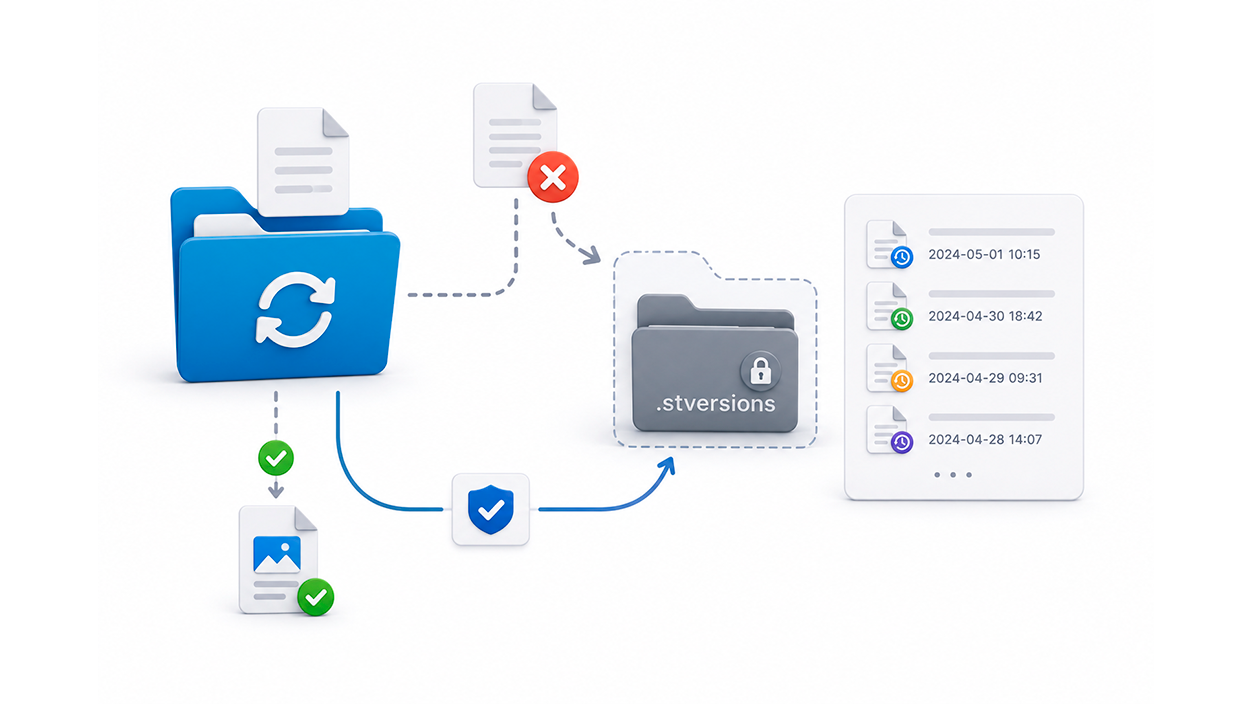
When you enable versioning, Syncthing stops deleting files outright. Instead, it moves the old copy to a special directory called .stversionswhich is located within the folder you're sharing. If you don't change the default path, that's where all your recoverable files will end up.
Note one important detail: if you decide to set a custom path for these backups, make sure it's in the same partition or file system than the original folder. If you put it on a different drive, the file transfer might fail and you'd lose your copy.
Available versioning strategies
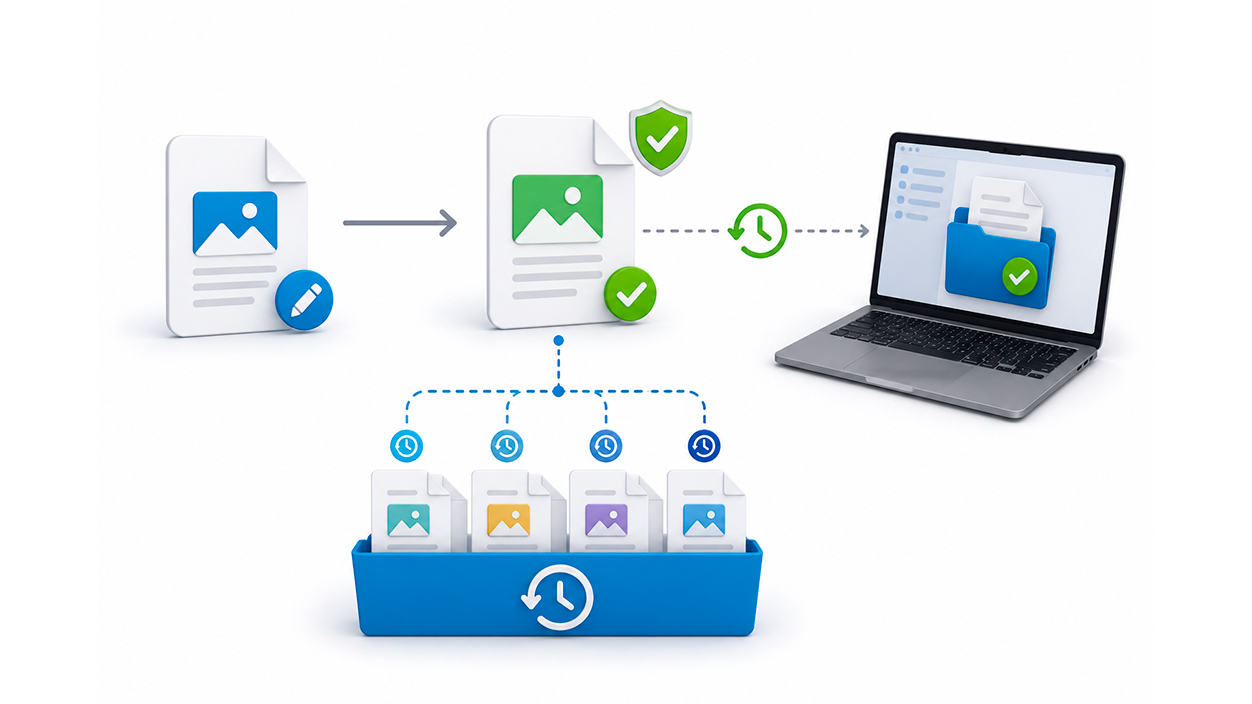
Not everyone needs the same level of protection, so the program offers several ways to manage these copies:
- Recycling bin (Trash Can): It's the simplest option. It mimics the Windows or Linux Recycle Bin; if a file is deleted or changed, it's moved to .stversions. If there was already a version with the same name, the new one overwrites it. You can configure it to clean up files after a a certain number of days or reset it to zero so they stay there forever.
- Simple Versioning: Very similar to the previous one, but here you can tell the software exactly what you want to do. How many old versions you want to keep. For example, if you set it to save 5 versions, you'll see up to five copies with different timestamps for the same file.
- Staggered Versioning: This is the smartest way to avoid filling up your hard drive. Files are deleted as they age, following this schedule: the first hour, a copy is saved every 30 seconds; the first day, one every hour; the first 30 days, one daily; and then one weekly until the end. maximum age configured.
- External Versioning: For more advanced users who prefer to send the file to a custom script or programSyncthing executes the command you specify just before replacing the file, allowing you, for example, to compress them or send them to an external backup.

Setup and practical tips
To get this up and running, you need to go to the shared folder settings in the web interface or GTK, and enter the tab of File Versioning and choose the strategy you prefer. If you want a balance between safety and space, the staggered mode with a maximum age of 90 days is usually the best option. best choice for most.
If you use Windows, remember that there is also the File history of the operating system. Although it's different from Syncthing, it allows you to recover previous versions by right-clicking on a folder and selecting Restore previous versionswhich is an ideal complement to have an extra layer of security.
Risks of bidirectional synchronization
It's crucial to understand that Syncthing is not backup software, but synchronization software. If you have a folder configured to send and receive data across all nodes, any Accidental deletion will be replicated on all your devices. To prevent a device (like your phone) from deleting things on your computer, you can configure that specific folder in safe mode. Send Only (Send only). This way, the computer will receive the changes, but the mobile device will not be able to force deletions on the main server.
For those who manage remote servers via SSH, a very useful trick is to do a SSH tunnel To bring port 8384 of the web interface to localhost. This allows you to manage versioning and folders from your browser without exposing the interface to the entire internet.
Index
