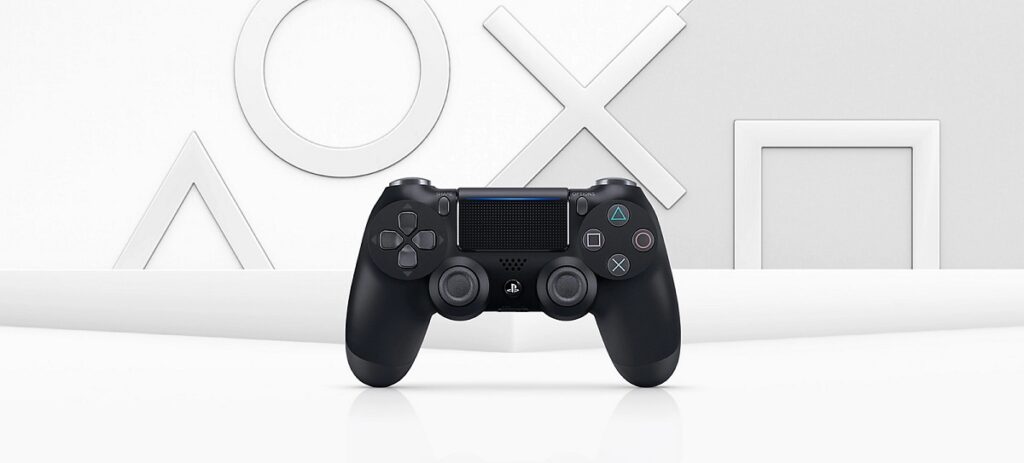
It is true that the DualShock 4 controllers of the PlayStation 4 They are highly valued by users for many reasons: good performance, ergonomic design, advanced functions… However, sometimes errors occur that prevent us from using them correctly. In this article we are going to see How to reset a PS4 controller.
PlayStation controller malfunctions are easy to spot: Suddenly, connection problems arise or we start to notice failures with the buttonsIn situations like these, a reset is one of the most effective solutions.
By resetting a PS4 controller we will be able to resolve situations such as when the controller does not connect correctly to the console, making synchronization impossible. We will also be able to solve those uncomfortable fallos on buttons or joystick sensitivity.
On the other hand, resetting a PS4 controller is also a good resource to avoid problems when connecting it to a new console or deviceIn the following paragraphs we explain how to carry out this operation in a simple and safe manner.
Soft Reset or Hard Reset?
But before we get into the details, it is necessary to determine what type of reset to perform. There are two ways to reset a PS4 controller:
- Soft Reset or soft reset. This is the most suitable method for solving minor problems, as it does not involve restoring the controller to its default settings.
- Hard Reset or full reset, which consists of returning the remote to its original factory state. This deletes any user-customised settings. It should be used in case of more serious operating problems.
Reset a PS4 controller (Soft Reset)
To perform a soft reset on our PlayStation 4 controller and thus solve minor operating problems, this is what we must do:
- To begin, we must turn off the console by pressing the power button until the device turns off completely. The power cord must also be disconnected.
- After We connect the controller to the USB port of the console (with the original cable or a compatible one).
- Finally, we press the PS button on the controller so that it synchronizes with the console again.
Once the console is turned on and the controller is connected, all that remains is to check that everything is working normally again. If not, we will have to try a complete reset.
Reset a PS4 controller (Hard Reset)

When the Soft Reset does not help us to solve the problems that affect our PS4 controller, there is no choice but to perform a complete reset. The Hard Reset is a more drastic reset through which We will reset the remote to its original settingsThese are the steps to follow.
- The first thing to do is locate the reset button. It is a small hole located on the back of the controller, near the L2 button.
- Then we have to Turn off the console and disconnect the controller of any cable.
- Next we look for a long, thin object (a paper clip, a wooden stick, etc.) that we must insert into the reset hole. We hold it pressed for at least 5 seconds.
- After this time, we connect the controller to the console via the USB cable. We turn it on and we press the PS button on the controller to sync again.
In most cases, resetting a PS4 controller (Hard Reset) will fix the problems with your controller. But if it still doesn't work properly, you'll need to try other solutions.
What to do when the problem persists?
There are less frequent, but likely, situations where resetting a PS4 controller does not give the results we expect. This is when we need to consider other things. alternative solutions such as the ones we present below:
- Update the controller's firmware. To do this, we need to connect the controller to the console using a USB cable and then access the Settings menu. There, we first select “Devices” and then “Bluetooth Devices”, where we can check if there are any updates available.
- Replace the battery, which may be damaged or exhausted. Sometimes, it is enough to put in a new battery to get the remote working normally again.
- Clean the remote control. Another simple solution that can be effective in many cases. Sometimes, dirt that accumulates on the buttons or joysticks is the reason why the controller does not respond as it should. To clean it, we only need a soft cloth and a few drops of isopropyl alcohol.
Ultimately, if none of the solutions we've tried work, we can always contact PlayStation Support.
Ultimately, resetting a PS4 controller is the easiest way to fix most common issues, such as button failures or connection errors. Choosing between a soft reset or a hard reset will depend on the severity of each case.

Editor specialized in technology and internet issues with more than ten years of experience in different digital media. I have worked as an editor and content creator for e-commerce, communication, online marketing and advertising companies. I have also written on economics, finance and other sectors websites. My work is also my passion. Now, through my articles in Tecnobits, I try to explore all the news and new opportunities that the world of technology offers us every day to improve our lives.