
Maintaining control over your privacy on Windows is crucial in this digital age. Microsoft collects information about your system usage to optimize its performance and ensure available updates. But You have the right to monitor and delete these recordsIn this guide, you will learn how to review and delete diagnostic data sent to Microsoft using official tools.
How to review and delete diagnostic data sent to Microsoft
If you want to review and delete the diagnostic data sent to Microsoft, that's completely understandable. By doing so, you can limit what Microsoft knows about your PC usageFortunately, Windows itself offers tools to find out exactly what is being sent and to delete that history.
Of course, not all the information Windows collects about your PC is a violation of your privacy. Much of that data They allow the operating system to offer you its own updates for your specific PC model. And, on the other hand, with that information they can show you tools and advertising tailored to your daily activities.
Yet, It is possible to review and delete diagnostic data sent to MicrosoftBelow, we show you the steps to reclaim some of your privacyFirst, we'll show you how to view your diagnostic data. Then, we'll see how to delete it, and finally, we'll discuss how you can limit its future transmission.
This is how you can view your diagnostic data (Diagnostic Data Viewer)
Before you proceed to delete the diagnostic data, you might be curious to know what's there. Microsoft doesn't let you see it in a simple text input. For that, you need a small tool that you can download from the Microsoft Store called Diagnostic data viewer.
Follow these Steps to review diagnostic data sent to Microsoft:
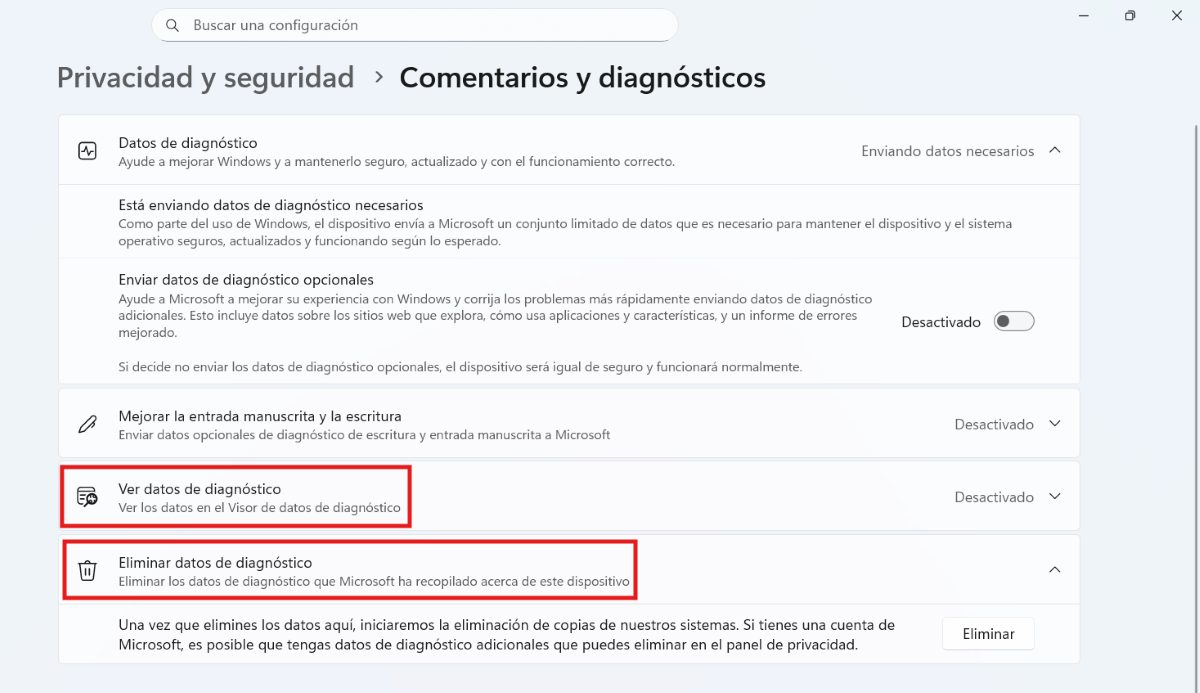
- Go to Configuration (Click the Windows key + I.)
- Enter Privacy and security (If you have Windows 10, go to Privacy).
- Select Comments and diagnoses.
- Look for the option View diagnostic data and make sure it's turned on.
- Click the button Open diagnostic data viewerThis will take you to the Microsoft Store to download a free app that lets you read the logs in real time.
This Microsoft tool is designed for transparency. It transforms the complex binary files that the system sends into a readable format so you can inspect them. Once inside, The interface is divided into two parts:
- Left columnThere you will be able to see a list of all the diagnostic events that have occurred recently.
- central panelHere you'll find the detailed code for the selected event. You'll be able to see things like what version of Windows you're using, what applications you've opened, or a specific error in a driver.
How to delete diagnostic data
If you've already seen enough data and still want to clean things up, follow these steps. Steps to delete diagnostic data sent to Microsoft:
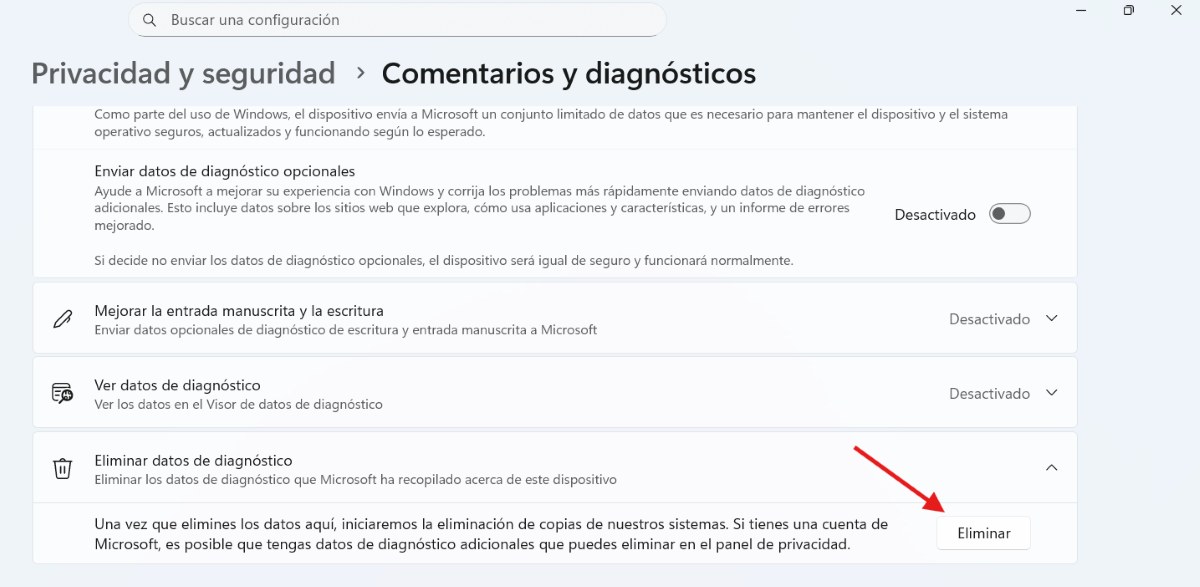
- On the same Comments and Diagnostics screen, scroll down until you find the Delete Diagnostic Data section.
- Click the Delete button.
- Note: This will delete the copy of data that Microsoft has associated with that specific device.
However, there is an extra step you can take in this regard. Sometimes, The data is not only stored on your PC, but also linked to your cloud account.To delete them all at once from the website, do the following:
- Go to Microsoft Privacy Dashboard.
- Log in with your account.
- There you will see sessions such as “Activity History”, “Location History” and “Exploration”.
Limit future shipments
Well, if you don't want to constantly review and delete diagnostic data, the best thing to do is tackle the problem at its root. To do this, you can limit future data transmission. In the Comments and Diagnostics section, you'll find the entry "Diagnostic Data." There you can choose what type of data you send to MicrosoftYou have these two options:
- Diagnostic data requiredThis option sends basic information about the device and errors. You can leave it enabled if you only want to send the bare minimum.
- Optional diagnostic dataThis is where you send data such as the websites you visit and how you use apps. If you want more privacy, it's best to disable this.
Reasons to review and delete diagnostic data sent to Microsoft
But why would anyone want to review and delete diagnostic data sent to Microsoft if it's supposed to offer benefits to the user? There are some compelling reasons why a user might decide to delete them. or at least limit their shipment. These are some of the main motivations:
Personal privacy
The most common reason for reviewing and deleting diagnostic data is personal privacy. Optional diagnostic data may include the websites you visit, how you use your apps, and, in some cases, information about stylus or handwriting usage. By deleting this data, You reduce the digital footprint you leave on Microsoft servers.
Performance and resources
It is true that the process of collecting, encrypting, and sending data packets has a minimal impact on the performance and resources of a powerful PC. However, this process can consume more bandwidthwhich is especially annoying if you have a metered connection or use mobile data.
Furthermore, if you have a very old computer, any extra background processes directly affect system performance. So, if you want save performance and resources on your PCYou might want to seriously consider reviewing and deleting the diagnostic data sent to Microsoft.
Control and security
One more reason why someone might decide to review and delete diagnostic data is feel more secure and have control of your informationOn the one hand, less stored data means less risk in the event of a security breach. On the other hand, many users simply prefer to have complete control over their data. They don't particularly like the idea of an operating system monitoring their daily habits.
In conclusion, taking control of your privacy in Windows is a simple but necessary process. By reviewing and deleting the diagnostic data sent, Not only do you protect your personal information, but you also regain control over your systemConfigure your device today to enjoy a more transparent and secure digital experience.

From a young age, I've been fascinated by all things scientific and technological, especially those advancements that make our lives easier and more enjoyable. I love staying up-to-date on the latest news and trends, and sharing my experiences, opinions, and tips about the devices and gadgets I use. This led me to become a web writer a little over five years ago, focusing primarily on Android devices and Windows operating systems. I've learned to explain complex concepts in simple terms so my readers can easily understand them.