Does Instagram get stuck on the logo when opened in Google, Edge, Firefox, or any other browser? Some users reported in mid-January 2026 that They could not access their Instagram accounts from any web browserHowever, they worked perfectly fine from the desktop and mobile versions. What's the reason? What can be done to fix the problem? Let's see.
Instagram gets stuck on the logo when opened in Google, Edge, Firefox: what's going on
Indeed, there is a widespread error reported by some users in recent days: Instagram gets stuck on the logo when opened in Google, Edge, Firefox, etc. The problem affected the web version of InstagramNot the mobile version or the desktop application. What's causing this problem?
It's not a problem with the PC or the internet connection; rather, it's due to a bug in the way Instagram processes login or linking to Meta accounts in browsersThis left many users "stuck" on the Instagram logo or in an infinite loading loop.
Temporary solutions to the problem
Since Meta has not yet commented on the matter (as it did in the case of the password reset emails), many have found Tricks to access your Instagram accounts from your browserIf you're currently experiencing this issue, here are some temporary solutions you can try to bypass the blocked logo and log back into your account via the web version.
The "One Touch" link
If Instagram gets stuck on the logo when you try to open it from your browser, there is a temporary solution to the problem: the one-touch linkThis is the solution that has been most successful for some photo users, such as RedditTo open it, follow these simple steps:
- Open a new tab in your browser and go directly to https://www.instagram.com/accounts/onetap/
- If your account appears, Do not click on any answer such as Yes or No.
- Instead, simply Click on the Instagram logo which appears in the upper left corner. This usually forces entry into the main feed, bypassing the block.
Modify the URL
Manually changing the URL can also help fix the issue of Instagram getting stuck on the logo. If your browser redirects you to a long URL that ends with something like: ?next=%2F, Try any of the following options:
- In the address bar, manually change the end of the URL to ?next=/. (by adding the period at the end).
- O, Delete everything after .com and press Enter several times. This is a classic trick to bypass the browser cache and certain redirect blocks.
Disconnect from Meta (in extremely necessary cases)
Since this error has primarily affected accounts linked to the Meta Account Center, some users have chosen to unlink their Meta account when they urgently need to access it via a web browser. You can do this from the mobile version of the app by going to Configuration – Account center and separating their Instagram account from their Facebook or Meta accounts.
Instagram gets stuck on the logo when opened in browsers: other solutions
Now, it's possible that you can log into your account normally right now and haven't even noticed what happened. But what can you do if Instagram gets stuck on the logo when you open it in a browser in the future? If the problem persists in multiple browsers at the same time, here's what you need to do. Other solutions you can try to fix it.
Clear cache and cookies
Culprit number 1: cache and cookies. Sometimes, a corrupted file in the browser's temporary memory prevents the page from finishing loading. To clear the cache, do the following::
- Press Ctrl + Shift + Delete.
- Select a time range: “All the time” or “Since forever”.
- Make sure to also check “Cookies” and “Cached files and images”.
- Restart your browser and try logging into your Instagram account again.
Try in Incognito mode
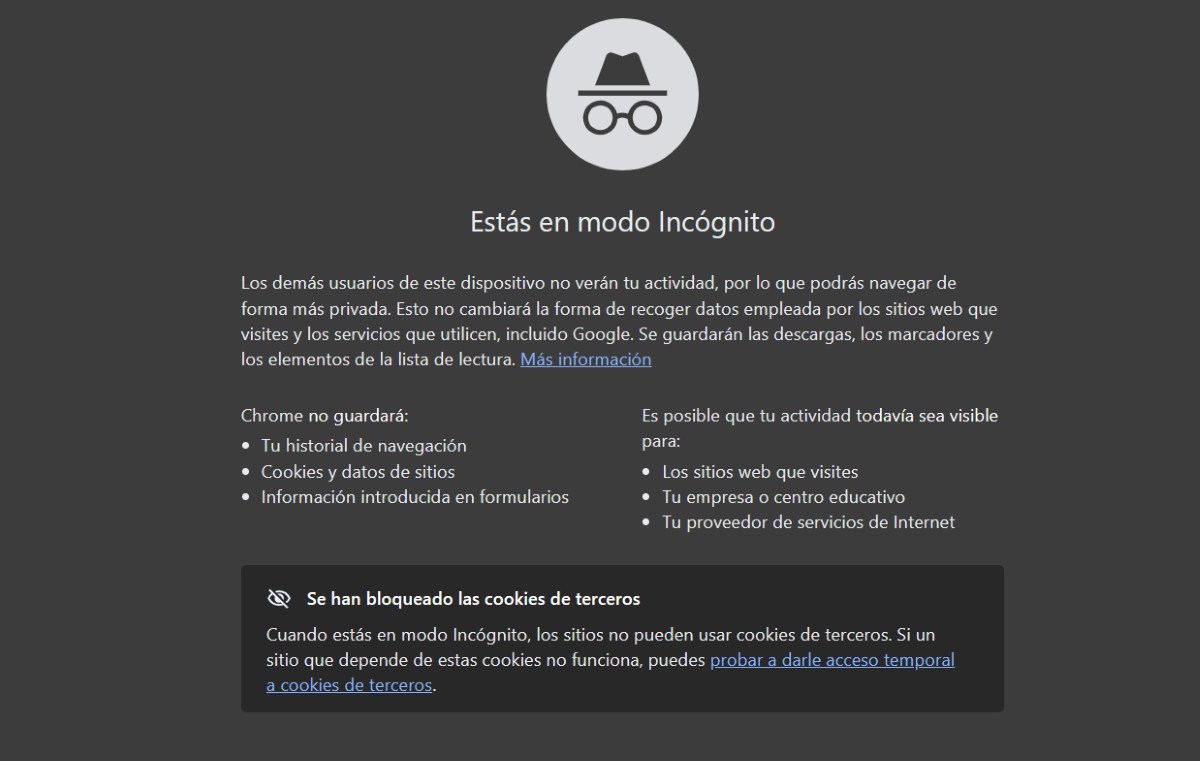
Incognito mode is ideal for finding out if Instagram gets stuck on the logo because There is a problem with browser extensions...such as ad blockers. To log in this way, do the following:
- If you are using Chrome or Edge, Press Ctrl + Shift + N.
- If you use Firefox, Press Ctrl + Shift + P.
- Try to log in instagram.com
If it works, it means that One of your extensions is blocking Instagram from loading correctly.You have to disable them one by one to identify which one it is. It's usually an ad blocker or VPN.
Disable Hardware Acceleration
Another possible reason why Instagram gets stuck on the logo when opened in a browser is the way the browser uses your graphics cardIf not done correctly, this generates visual errors that freeze the interface and display the easiest thing to load: the logo. To fix this, try the following options:
- Chrome or EdgeGo to Settings – System. Turn off “Use hardware acceleration when available”.
- In FirefoxGo to Settings – General – Performance. There, uncheck the “Use recommended performance settings” option and then uncheck “Use hardware acceleration when available”.
- Finally, restart your browser and try accessing Instagram from there again.
Check the system time
Checking your system time when Instagram gets stuck on the logo when you open it in your browser? While it might seem like a minor detail, if your computer's time doesn't match the actual time, Instagram's SSL security certificates (responsible for online security) will fail, and the page won't load as a precaution. Therefore, Make sure it's set to "Set time automatically"..
In conclusion, if Instagram gets stuck on the logo when you open it in your browser, it doesn't mean your account is corrupted or that your PC is broken. It's a common error that has affected some usersTo fix it, try the solutions we discussed in this article or simply use other versions of the application while it's being repaired.

From a young age, I've been fascinated by all things scientific and technological, especially those advancements that make our lives easier and more enjoyable. I love staying up-to-date on the latest news and trends, and sharing my experiences, opinions, and tips about the devices and gadgets I use. This led me to become a web writer a little over five years ago, focusing primarily on Android devices and Windows operating systems. I've learned to explain complex concepts in simple terms so my readers can easily understand them.