- The error when copying large files is usually due to the FAT32 file system, which limits each individual file to 4 GB, even if there is plenty of free space on the drive.
- To handle large files, it is preferable to use NTFS or exFAT, which eliminate that limit and allow you to take full advantage of the capacity of the USB drive or external hard drive.
- Windows may require additional temporary space on your system drive when copying from a network, VPN, or between disks, so it's a good idea to keep some free space and clean up temporary files.
- If you cannot change the drive format, you can split the file into smaller parts or use partition management and conversion tools to avoid data loss.

If you've ever tried to copy a a 4K movie, a Windows ISO image, or a huge backup to a USB drive, an external hard drive, or even between internal drives of your PC, or when you try send large files And you've encountered space errors… don't worry, you're not alone. It's very common for Windows to display warnings like "not enough space," "the file is too large for the destination file system," or for the copy to hang when, in theory, there was still plenty of space.
These types of errors are disconcerting because they seem contradict what you see in File ExplorerThe drive shows more than enough free space, but Windows refuses to copy a large file or uses much more space than expected. Behind these problems there are usually two main culprits: file system format (FAT32, exFAT, NTFS…) and how Windows manages copying, temporary space, and fragmentation. Let's look, step by step and calmly, at what's happening and how to fix it permanently.
Why can't I copy large files even though there seems to be enough space?
The first thing to understand is that, even if a drive shows tens or hundreds of gigabytes of free space, the file system can impose limitations. limits on the size of each individual fileIn other words, the total capacity of the device is one thing, and the maximum size allowed for a single file is quite another. This distinction is what causes most errors when copying large files.
Furthermore, Windows doesn't always copy in such a "streaming" manner as we might imagine. In certain situations, during the copy process, it may need to... additional temporary space in the origin or destination unit (or even on the system drive), which explains absurd errors like "no space on C:" when you're moving data to D:, or an SSD seeming to consume almost twice the size of the copied data.
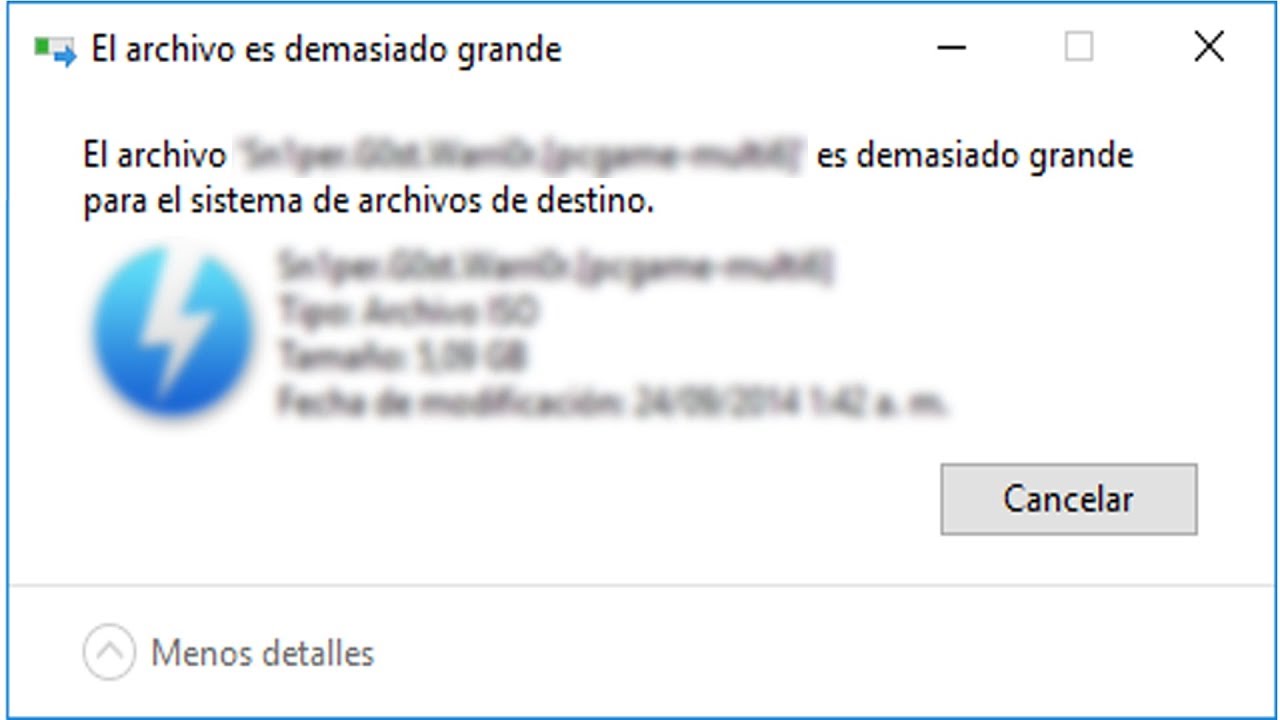
Typical error: "The file is too large for the destination file system"
One of the most frequent messages when copying large files to USB drives or external hard drives is the warning that "The file is too large for the destination file system"This usually happens with files of several gigabytes: Windows ISOs, system backups, high-resolution personal videos, etc., even when you see that the USB drive has 16 GB, 32 GB, 64 GB or more available.
The explanation lies in the usual format of these drives: most USB drives come from the factory in FAT32FAT32 is very compatible (it's read by Windows, macOS, many Smart TVs, consoles, etc.), but it has a very clear limitation: no single file can exceed 4 GBThe volume can store up to 2 TB in total (or whatever the drive physically allows), but each individual file cannot exceed 4 GB.
If your drive is formatted as FAT16, the situation is even worse: The maximum file size is 2 GBThat's why, even though the free space bar in Explorer is almost empty (there's plenty of room), when you try to copy a single large file, the system warns you that the operation cannot be completed.
FAT32 Limits and Why It Causes So Many Problems with Large Files
When FAT32 was designed at the time of Windows 95Back then, nobody imagined that a home user would want to move 20, 30, or 50 GB files on a pocket-sized USB drive. In that context, a 4 GB limit per file seemed more than enough. Over time, high-definition videos, full backups, virtual machines, and so on arrived, and that limit became insufficient.
In practice, this means that on a FAT32 drive you can have, for example, 200 GB of free space and still can't copy an 8 GB ISOThe file system simply doesn't know how to handle such large individual files. That's why, even though you see plenty of free space on the screen, the system gives you the error "file too large" or "not enough space on the drive."
Although FAT32 has the great advantage of its almost universal compatibility (Windows, macOS, Linux, TVs, players, etc.), that 4 GB limit means that It may not be suitable for storing long, high-quality movies, system images, full backups, or large games.That's where more modern file systems come into play.

Which file systems allow copying large files
If you want to forget about the 4GB file limit, you need to use a different file system on your driveIn Windows, the most common ones are:
- NTFSThis is the native file system of modern Windows. It has virtually no file size limits for the average user (it accepts very large files), and offers advanced permissions, encryption, compression, and more. It's ideal for internal and external hard drives that you'll only use with Windows.
- exFATIt's designed for large flash memory devices (USB drives, SD cards, external SSDs) and removes the 4GB limit. Compatible with Windows and macOS It's natively supported, and many current devices support it. It's the best option if you're going to use the drive on multiple systems.
- FAT32It still makes sense if you need maximum compatibility with very old devices or devices that don't read exFAT/NTFS (older players, older consoles, etc.). But for large files, it's the bottleneck.
The trick is to adapt the file system to what you're going to do. If your priority is to be able to Copying large files hassle-freeYou will need to consider converting or formatting the drive to NTFS or exFAT.
Errors when moving files between C: and D: despite having free space
Another fairly common case is that of someone who has the drive C: almost full (e.g., 5 GB free) and another drive D: with hundreds of GB availableWhen trying to move files from C: to D: to free up space, Windows displays a message stating that there is not enough space on C: to complete the operation. Logically, moving data from C: to D: should free up space, not require additional space.
The issue is that, depending on the copy/move method and the file type, Windows may use temporary files, caches, or even restore points These processes consume additional space. Functions such as indexing, compression, the recycle bin, and even antivirus software that create temporary copies also play a role. If the C: drive is at its limit, any need for extra space will trigger these types of errors.
In many cases, emptying temporary folders (%temp% and temp), clearing the Windows Update cache, deleting old restore points, and reducing or emptying the Recycle Bin usually helps. However, there are situations where, despite these measures, the problem persists. free up 10, 15 or even more GB on C:Windows keeps asking for a few extra gigabytes when copying a large file from a network or another drive, as if it were never enough.
Copying large files from a network or VPN: why it asks for so much space
When you copy a very large file from a shared network resource or through a VPNThings get even more complicated. Some users, with more than 70 GB free on their local disk, when copying a 40 GB file from a remote server, see the copy reach 90-95%, stop, and display a "not enough space" error requesting that several more gigabytes be freed up.
In these cases, in addition to the factors mentioned above, things like the following come into play: network cache, buffering operations, and temporary files created during the transferWindows may need to keep blocks of data in memory and on disk to ensure the integrity of the copy, especially when the connection is slow or unstable (as is often the case with some VPNs), and if you need to migrate large files without downloading them, you can see how. migrate your data without downloading it.
If you add to this the possibility that other applications may be consuming space at the same time (logs, browser temporary files, incomplete downloads, etc.), the system starts to demand a additional safety margin before continuing with the copy. That's why, even if you see that you have tens of gigabytes to spare, Windows keeps insisting that you need to free up another 2 or 3 GB to finish.
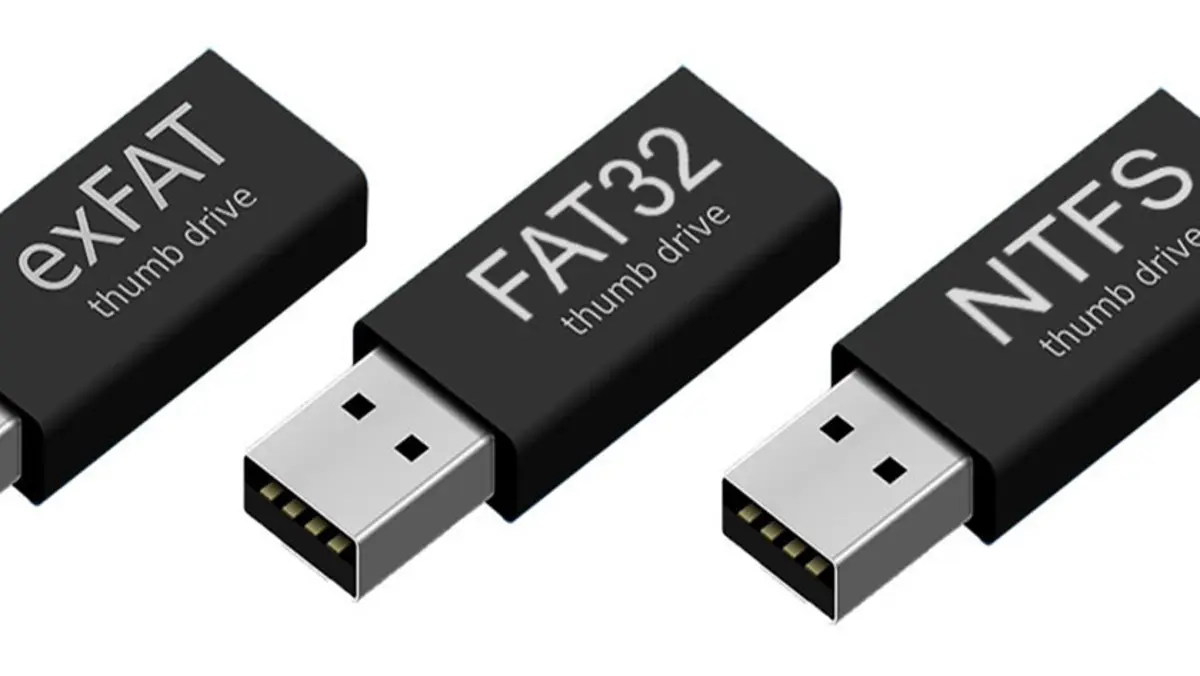
How to check if your drive is formatted as FAT32, exFAT, or NTFS
Before you start formatting or converting anything, it's a good idea to check What file system is the drive actually formatted in? which is giving you problems. In Windows it's very simple:
- Connect the USB drive, external hard drive, or card you are using.
- Open the File Explorer and locate the unit.
- Right-click on the drive and enter "Properties".
- On the "General" tab you will see a field called "File system" where it will indicate FAT32, exFAT, NTFS, etc.
If you see that it says FAT32 and you're trying to copy individual files larger than 4 GB, you've already identified the exact reason for the errorFrom here, your decision will be: change your file system or look for alternatives such as splitting files.
Format a pendrive or external disk to NTFS or exFAT
The simplest and fastest way to copy large files is format the drive with a file system that doesn't have the 4 GB limit. You can do it from within Windows itself in a few seconds, but you should be aware that formatting erase all data from the driveSo first, back up anything you care about.
In Windows, the basic steps to format a USB drive or external hard drive are:
- Connect the drive to the computer and wait for it to appear in the Explorer.
- Right-click on the drive and select "Format…".
- In "File system", choose NTFS (if you will only use it on Windows) or exFAT (if you also want compatibility with macOS and other modern devices).
- Select the option to "Quick Format" If you want it to take less time, unless you suspect there are damaged sectors and prefer a complete format.
- Click on "Start" and confirm the warning that all data will be deleted.
After formatting, the same drive will still appear with its usual letter, but now with NTFS or exFAT file system And you can copy files of 5, 10 or 50 GB without any problem, as long as there is enough total space.
Convert FAT32 to NTFS without losing data
If your USB drive or external hard drive already contains data you don't want to delete, formatting might not be a convenient option. In that case, you can opt for Convert FAT32 to NTFS without data lossIn Windows there is a command-line tool that allows this:
1. Open the "Run" dialog box by pressing Windows + R, writes cmd and press Enter to open the Command Prompt.
2. In the window, run the command convert X: /fs:ntfs, replacing X with the letter of the unit you want to convert.
This command attempts to transform the file system structure from FAT32 to NTFS keeping existing filesIt's a good solution when you have nowhere to make a backup, although, as with any operation of this type, it never hurts to have a prior backup of important things in case something goes wrong.
The main limitation is that the conversion is unidirectionalIf in the future you need to convert from NTFS to FAT32, you will no longer be able to do so with convert.exe and you will be forced to format (erasing everything), or use third-party tools that attempt to reconvert without data loss.
In addition to the native command, there are partition management programs that offer graphical wizards for converting between FAT32 and NTFS without formatting. Some, such as EaseUS Partition Master or AOMEI Partition Assistant, include additional features such as clone disks, resize partitions, migrate the operating system to an SSD, split large partitions or even convert from NTFS to FAT32 while preserving the content.
Alternatives when you can't change the file system
There are scenarios in which you are obliged to maintain FAT32For example, if the drive needs to be read by a very old device, a console that only recognizes FAT32, or an industrial appliance. In these cases, even if you want to copy an 8 or 10 GB file, you can't format it to NTFS or exFAT without losing compatibility.
When you can't change the file system, the most reasonable option is split the large file into several parts of less than 4 GBThis can be done with compression programs like 7-Zip, WinRAR, or with advanced file managers that have tools to "split" and "join" files.
The procedure is simple: you generate several fragments (for example, 2 GB chunks each) that fit perfectly in FAT32. You copy all the parts to the USB drive, take it to the other computer, and there, you use the corresponding function ("join," "merge," or "extract," depending on the program) to reconstruct the original file. This solution is useful for transporting large files.but not to run them directly from the FAT32 drive, as the system will still not support the entire file within the volume.
Some encryption programs, such as solutions that create NTFS encrypted virtual disks within a FAT32 driveThey offer another intermediate solution: they maintain the physical surface of the device in FAT32, but mount an NTFS container inside. This breaks the 4 GB limit within the container and adds password protection, although the configuration is somewhat more advanced.
Best practices to avoid errors when copying large files
Beyond the file system, it's advisable to follow a series of recommendations to minimize errors and wasted time when working with very large files:
- always keep a ample free space margin on the system drive (C:), especially if you are copying from a network or VPN.
- Check and clean them regularly. temporary folders, caches, and recycle bin.
- Check the health status of the discs (including USB drives) and run chkdsk if you suspect errors.
- Avoid using many applications that generate large temporary files (video editors, virtual machines, multiple downloads) at the same time when you are moving huge files.
- If a USB drive exhibits unusual behavior (suddenly fills up, shows 0 free bytes for no reason), save the data, Format to exFAT or NTFS and try again.
By applying these guidelines and correctly choosing the file system on each device, it is possible almost completely eliminate space errors When copying large files, truly take advantage of your drives' capacity and save yourself many hours of frustration staring at the progress bar.


Editor specialized in technology and internet issues with more than ten years of experience in different digital media. I have worked as an editor and content creator for e-commerce, communication, online marketing and advertising companies. I have also written on economics, finance and other sectors websites. My work is also my passion. Now, through my articles in Tecnobits, I try to explore all the news and new opportunities that the world of technology offers us every day to improve our lives.