Do you have notifications that don't sound after updating Android? If you're used to having your phone on high volume, you're probably It is annoying that it does not sound when a notification arrivesIn this article, we'll look at the possible reasons why this may be happening. And, of course, we'll also give you the solution to this problem. Let's get started.
Notifications not sounding after Android update: the reason
If you're not getting notifications after updating Android, it's normal to feel impatient. Especially if you were receiving them normally before the update. However, keep in mind that When we update our mobile phone, many functions and tools change.Some of these changes improve the user experience, but others are a bit uncomfortable.
This means that after updating your Android device, your notification settings may have changed. And, although this isn't common, Maybe notifications for a specific app were turned off., the volume has been lowered, or the tone has changed. Additionally, another device may be connected to your phone, which is why you're not receiving notifications.
As you can see, there's no single reason why notifications aren't playing after updating Android. It could be due to many factors. Therefore, below, We will give you a series of ideas and solutions To make your notifications sound like they did before you updated your phone:
- Restart your mobile phone
- Check the volume
- Take a look at notification tones
- Check that Do Not Disturb and Focus Mode are disabled
- Review notifications for each app
- Update the apps
Solution to notifications not sounding after updating Android
Whatever the reason for missing notifications after updating Android, now you have to start testing the solutionsAnd these range from the most basic, like restarting your phone, to checking your internal notification and app settings. Below, we'll explain how to tick off each of the available solutions.
Restart your phone
Did you know that the solution to notifications not sounding after updating Android can be fixed with a simple restart? Sometimes, A simple restart of the mobile phone can solve the problems. configuration that you acquired through an update. Try this option and then check that the notifications sound as usual.
Check the volume
Although it may seem like an obvious solution, if your mobile alerts are not sounding, it is very likely that the volume is locked or set to minimumSince most Android phones have physical volume up and down buttons, you may have accidentally touched the volume down button, and that's the problem. Simply turning up the volume will make notifications audible again.
Check the volume of notifications
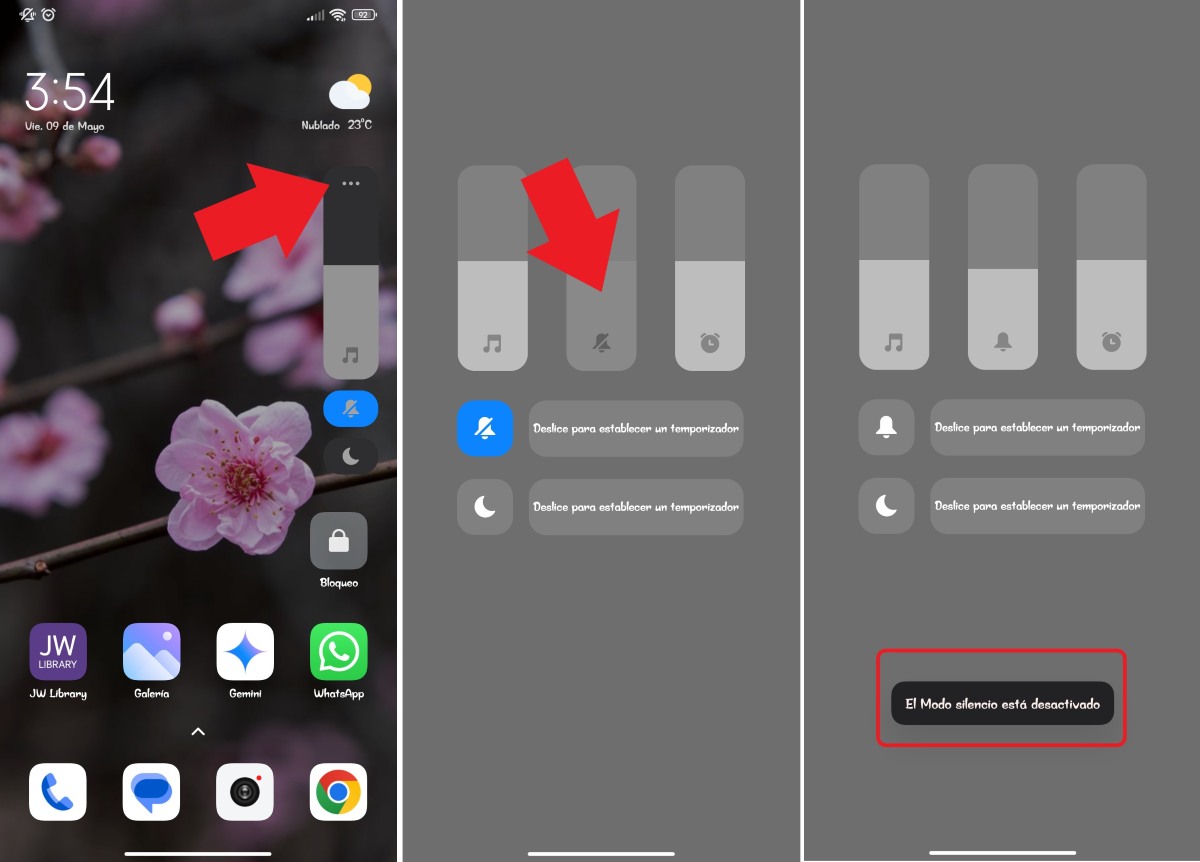
Now, turning up the volume was probably the first thing you did when you realized your notifications weren't going off after updating Android. But, Did you know that notifications have a volume independent of the rest of the system? To check, do the following:
- Press any of the physical volume buttons.
- Tap the three dots at the top of the volume bar.
- Right in the middle, you'll see a little bell icon. These are notifications. If this option is disabled or set to very low, that's why your notifications aren't ringing.
- Turn the volume up to the desired level.
- Finally, check that the notifications are heard again and that's it.
Will it be Do Not Disturb or Focus Mode?
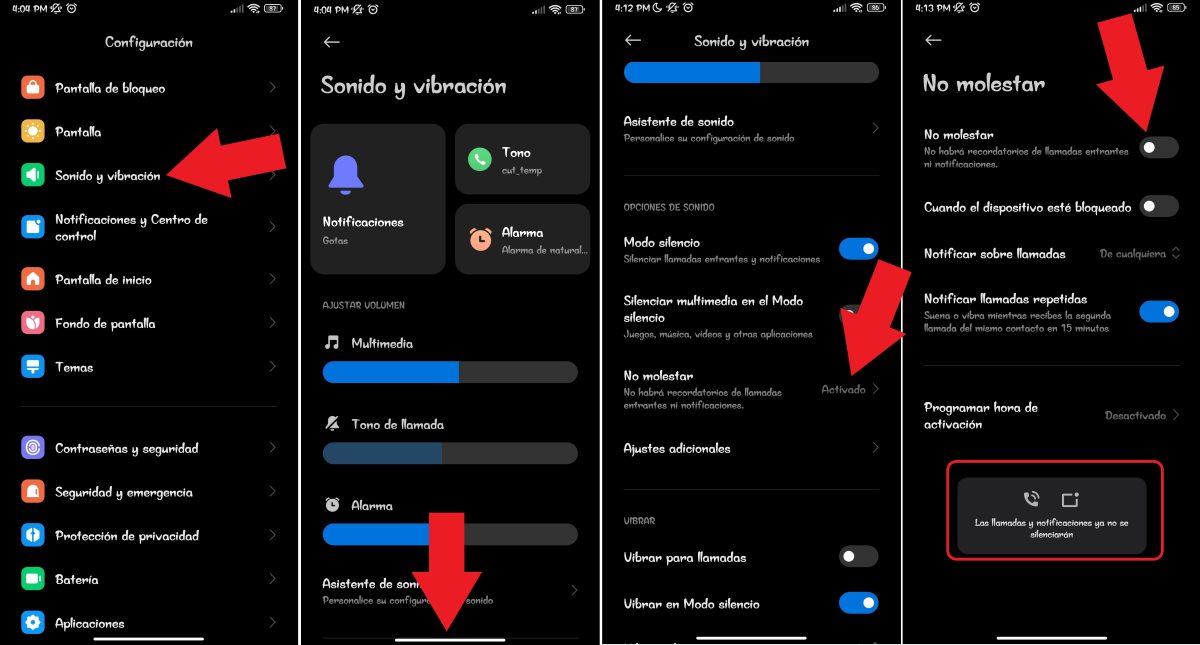
If the problem persists, there are still other options available to you. If notifications don't sound after updating Android, It is possible that other (useful) tools have been activated by mistakeOne of them is "Do Not Disturb." When this feature is active, you won't receive call reminders or notifications. How can you tell if it's activated? Follow these steps:
- Go to Settings.
- Select Sound and vibration.
- Swipe until you find the Do Not Disturb option.
- If it's enabled, tap on it and slide the switch to the right to disable it.
- Done. Check that the notifications are playing again and the problem is solved.
Another possible reason is that the Distraction-free mode is activeOn some phones, like Redmi, you'll find this option under the Digital Wellbeing and Parental Controls tool. If this mode is enabled for some apps, they'll be blocked and notifications will be hidden. To disable it, uncheck the apps and you're done.
Check the notifications of each application
If there are still notifications that do not sound after updating Android, but It only happens with some applications, so It is possible that notifications for that specific app are disabledTo make notifications from major apps play again on your phone, do the following:
- Go to Settings.
- Select Notifications and Control Center.
- Now, tap on App Notifications.
- Take a look at which notifications are active and which are not. Notifications may have been disabled for the apps you use most.
- Turn on notifications for the apps you want and you're done.
Update the app that doesn't sound notifications
It's possible that after trying all the solutions above, you're still experiencing notifications that aren't playing after updating Android. What else can be done in this case? Update system applications or from the app storeDoing this may resolve any issues you may have encountered while updating your phone's operating system.
Finally, you can't rule out a problem with the phone's hardwareIn this regard, it's a good idea to check that your phone's speakers are working normally. For example, you can try playing any audio. If it still doesn't work, then it could be a problem that can be solved by having the affected part replaced by a technician.
Now, in case none of the above options work, your mobile speakers are working properly and there are still notifications that do not sound after updating Android, then the only thing left is wait for a new updateIf the bugs came with it, they can likely be fixed in a new OS update.

From a young age, I've been fascinated by all things scientific and technological, especially those advancements that make our lives easier and more enjoyable. I love staying up-to-date on the latest news and trends, and sharing my experiences, opinions, and tips about the devices and gadgets I use. This led me to become a web writer a little over five years ago, focusing primarily on Android devices and Windows operating systems. I've learned to explain complex concepts in simple terms so my readers can easily understand them.