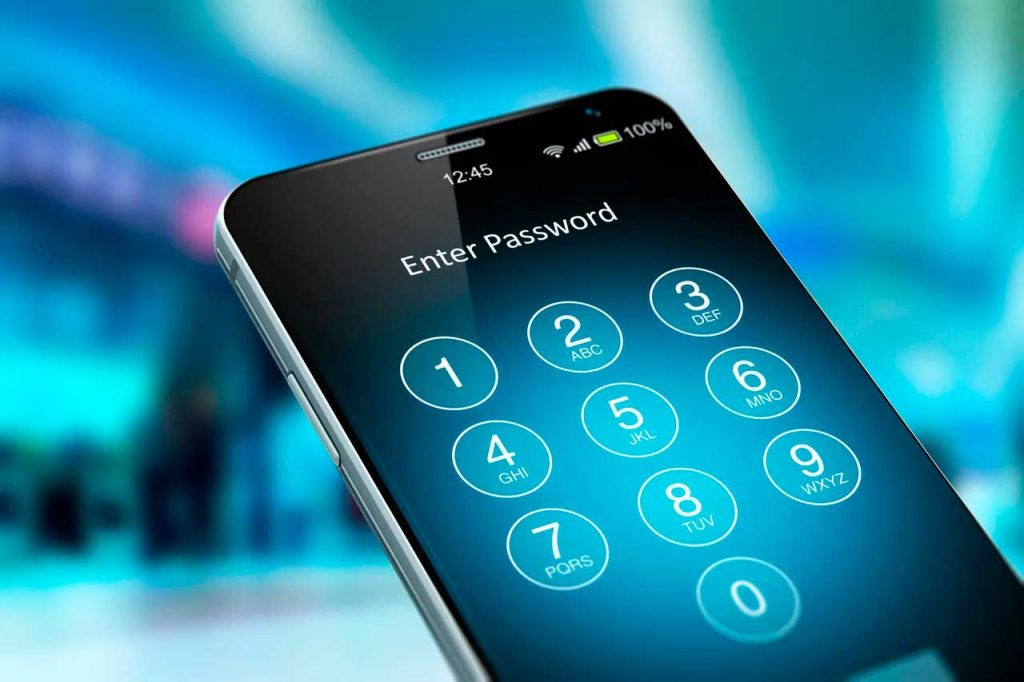
Secure your Android apps with a password
Android devices offer various alternatives to protect access to specific applications using passwordsHere are the steps to follow:
- Access the Google Play Store and look for APP blocking applications, such as AppLock o Smart AppLock.
- Download and install the APP blocking application of your choice.
- Open the lock app and set a password or security pattern that you will use to access the protected APPs.
- Select the apps you want to password protect from the list provided by the lock APP.
- Activate protection for the selected applications.
Once these steps are completed, every time you try to access one of the protected applications, you will be prompted to enter the established password or security pattern.
Protecting applications on iOS with passwords
For iOS devices, such as iPhones and iPads, Apple offers a built-in feature called Screen Time that allows you to restrict access to specific apps. Follow these steps to configure it:
- Go to "Adjustments" on your iOS device and select "Usage time".
- Touch «APP restrictions» and activate the option «Limit APP time».
- Establish a access code for time of use restrictions.
- Select the apps you want to protect and set a 1 minute usage time limit. This will require the access code every time you try to access the APP.
- Save the settings and close the “Use Time” settings.
From this moment on, every time you try to open one of the protected applications, the access code established in the "Time of Screen" settings will be requested.
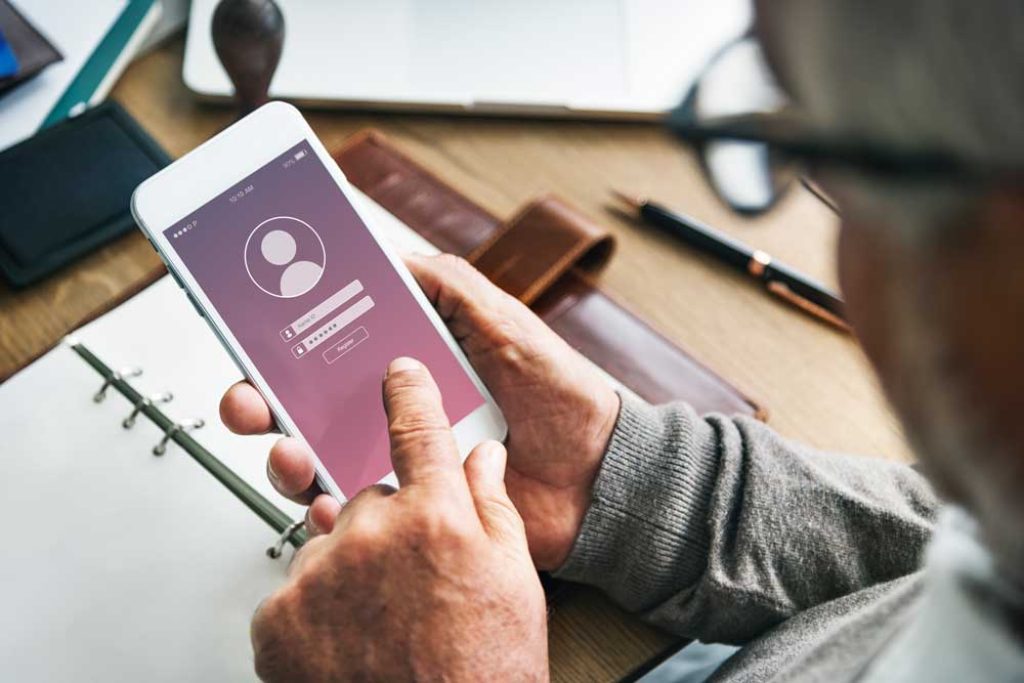
How to add passwords from internal settings
Applications to protect your APPs with passwords
If the built-in options don't meet your security needs or if some of your favorite apps lack these features, the third-party app marketplace offers robust and reliable solutions.
Norton App Lock
Norton App Lock, developed by security giant Norton, has been widely adopted with more than 5 million downloads and high ratings for its effectiveness. The application allows Block access to your apps using PIN, password or unlock pattern, providing an additional layer of security to your device.
Security Master
Security Master transcends the standard functionality of an app locker by integrating security features such as antivirus, cache cleaner, RAM booster, and battery manager. This app not only protects your apps but also improves the overall performance of your Android device.
Lock (AppLock)
AppLock – Lock It is positioned as an essential security solution. This app not only protects your applications with a virtual lock, but also includes proactive security measures. For example, if someone tries to access your device and fails, AppLock will take a photo automatically, helping you identify the intruder.
Advantages of protecting APPs with a password
Setting individual passwords for specific applications offers several benefits, including:
- Greater privacy: Prevent unauthorized people from accessing confidential information stored in your APPs.
- Additional security: Provides an extra layer of security in case your device is lost or stolen.
- Parental Control: Allows parents to restrict children's access to inappropriate apps or limit their usage time.
Implementing passwords for specific APPs on Android or iOS devices is a fundamental security measure. Whether using your device's built-in features or turning to specialized applications, don't hesitate to take advantage of these tools to keep your private information safe from prying eyes. With a few simple steps, you can enjoy a safer and more secure mobile experience.

I am Sebastián Vidal, a computer engineer passionate about technology and DIY. Furthermore, I am the creator of tecnobits.com, where I share tutorials to make technology more accessible and understandable for everyone.