- EXIF metadata may include sensitive data such as GPS location in addition to technical parameters.
- macOS allows you to view and clean EXIF with native tools and batch process with free apps.
- Controlling geolocation when capturing and sharing prevents exposing personal information.

Photos store much more than meets the eye: camera model, shooting parameters, and often the exact location where they were taken. Therefore, Removing metadata from an image on macOS becomes a matter of basic security..
In this practical guide we show you How to view, delete, and manage EXIF metadata from your images on Mac with native tools like Preview, Finder, and Terminal, plus a quick way to process multiple photos at once with ImageOptim. You'll also learn how to handle geolocation from the Photos app and how to avoid sharing your location when sending images.
What is an image's EXIF metadata and why does it matter?
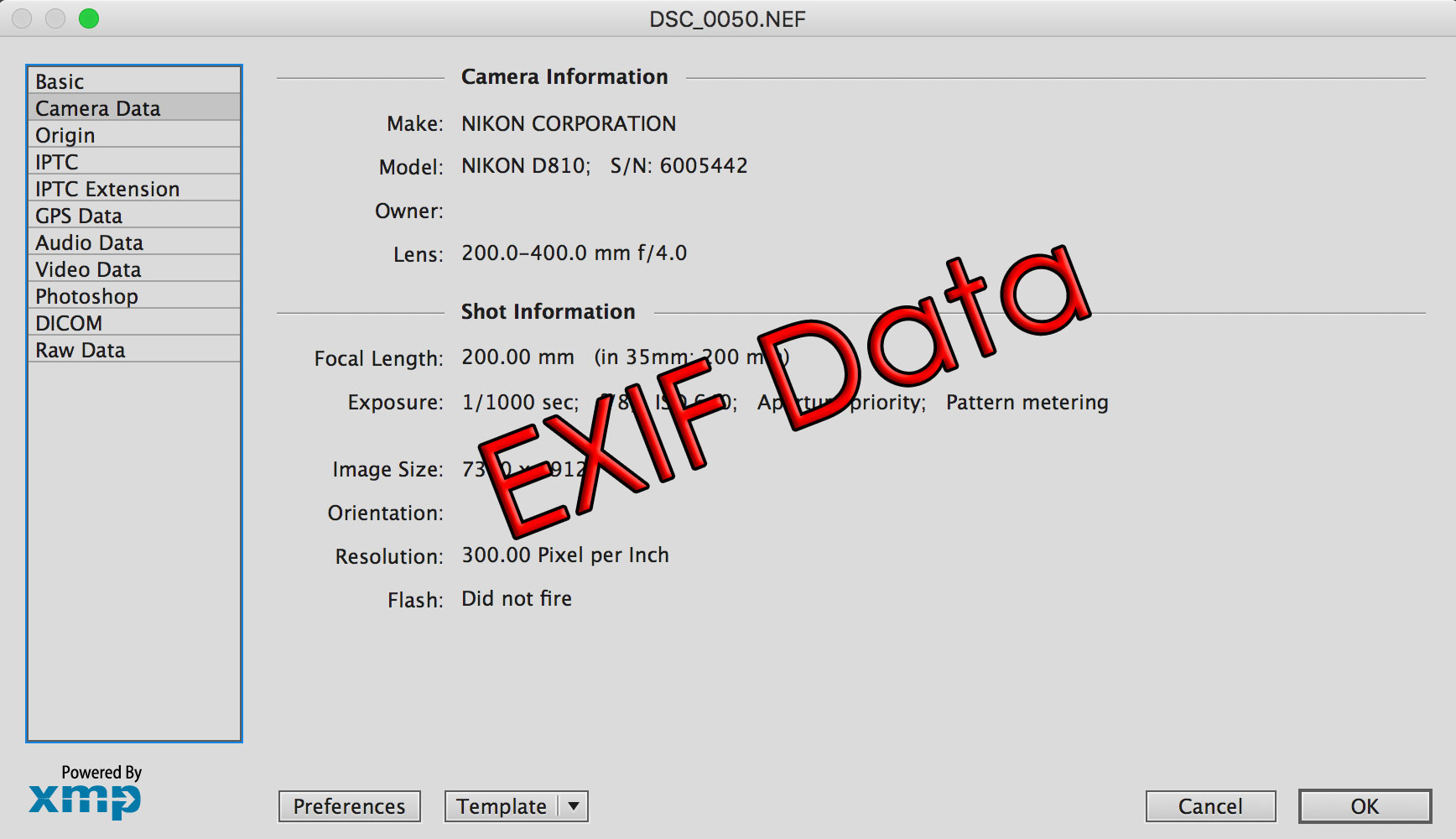
EXIF metadata is data embedded within the photo file These files describe how, with what, and under what conditions the image was captured. They appear in virtually all common formats, from JPG to RAW, as well as in the images you take with your mobile phone.
Among the most common information, this metadata shows The model and brand of the camera or mobile phone, the aperture, speed, ISO sensitivity, focal length and whether it was shot with or without flashIf the device had active geolocation, the latitude, longitude, and altitude of the exact location of the shot may also be displayed.
That doesn't mean that the metadata are always a problem: They have useful uses, such as organizing albums by location, tagging locations on social networks, or maintaining an organized photography workflow. The key is deciding when to keep them and when to delete them.
How to view a photo's metadata on macOS
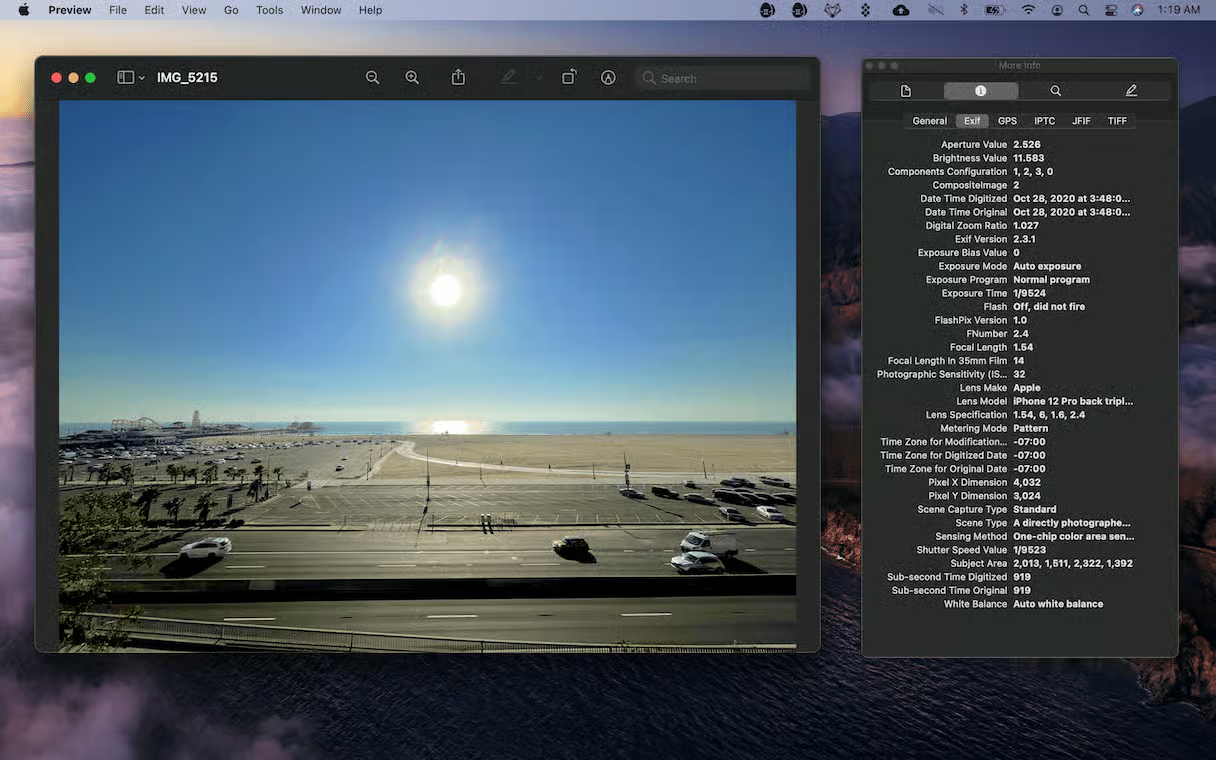
Before deleting, it is good to know what's inside your imagesOn macOS, you can inspect metadata using Preview, the Finder's Info panel, or from Terminal if you need more technical details.
View EXIF and location with Preview
Preview is The most direct way to check EXIF and GPS.
- Open the image with Preview (double click, or right click).
- Select "Open with".
- Go to Preview.app.
- In the top bar, go to Tools and choose Show Inspector.
A window with several tabs will openIn EXIF, you'll find the capture information (camera, settings, etc.). If the GPS tab appears, you'll see a map with the geographic location associated with the photo.
View quick metadata from Finder
With the information panel of the Finder you can see the essentials without opening the image.
- Select the file and press Command + I.
- You'll see a General section (type, size, dates) and More Info, which displays images of dimensions, color profiles, and other basic details.
This panel is perfect for quick checks, although it does not display as exhaustive a listing as an EXIF inspector or a command line tool.
List complete metadata with Terminal (mdls)
If you need a full reading of system-level metadataTerminal offers the mdls command. Open it, type mdls followed by a space, and drag the image into the Terminal window to paste its path. Press Enter to list all available keys and values.
The results show keys with a kMDItem prefix. (for example, kMDItemPixelWidth, kMDItemPixelHeight, or kMDItemContentModificationDate) joined to their values with the = sign. If you're interested in just one key, use mdls -name KEY FILEPATH to get it in isolation.
For images, there are especially useful keys such as kMDItemProfileName, kMDItemOrientation, kMDItemResolutionWidthDPI, or kMDItemResolutionHeightDPI, in addition to pixel dimensions and other content data that helps verify what accompanies the file.
Remove metadata from an image on macOS with Preview (quick method)
If you want one Native, free, and very fast solution for a single photoPreview allows you to "reconstruct" the image as a new file without the original EXIF data. It's a nimble trick you can perform almost without looking at the keyboard.
- Open the image in Preview. This way you'll have the photo ready in the window.
- Press Command + A (⌘A) to select the entire image in the window.
- Press Command + C (⌘C) to copy that selection to the clipboard.
- Create a new file with Command + N (⌘N): Preview will generate a document with the copied content.
- Save with Command + S (⌘S), choose the format (for example, JPG or PNG) and the destination location.
- Check with Command + I (⌘I) in the Preview inspector that EXIF is not present and that there is no GPS tab in case of geolocation.
This process creates a “flat” file without the original EXIF block, which will remove your camera history and location. If you need to repeat this process on many images, this manual method can be time-consuming.
Keep in mind that Exporting alone does not always remove metadata; That's why the trick of copying and creating a new document is especially useful to ensure that the new image is created without the previous EXIF.
Remove EXIF metadata from multiple photos at once with ImageOptim
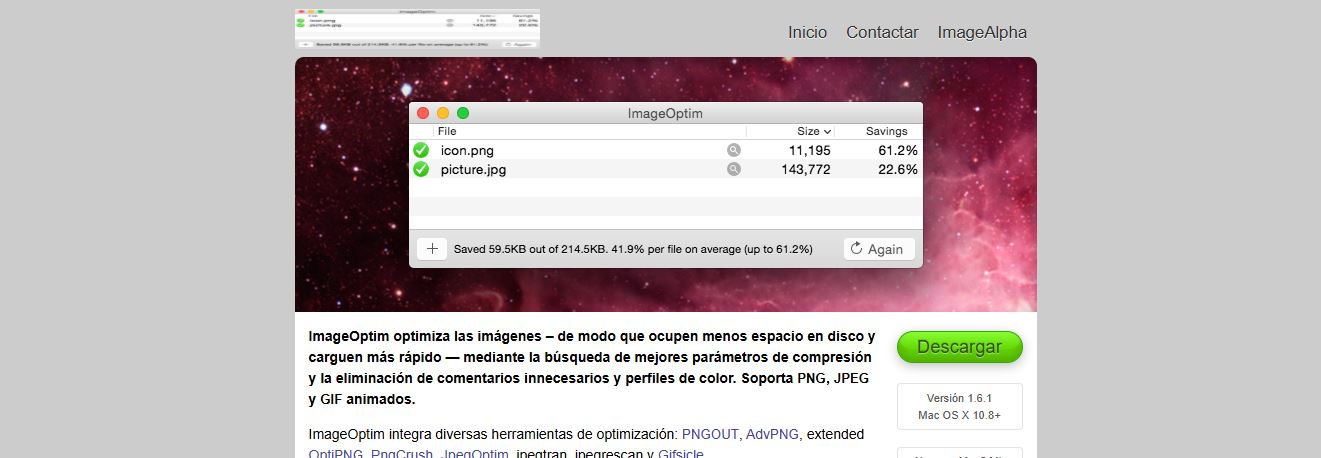
For large batches, the most convenient thing is to use a free app like ImageOptim, which cleans metadata from a set of images by dragging and dropping, without uploading anything to the cloud and without installing additional plugins. You can download and install ImageOptim from their official website. When you open it, you'll see an empty window ready to process files by dragging and dropping.
- Before you upload your photos, go to Preferences (gear icon at the bottom right) and, in the General tab, make sure you have the option to remove EXIF markers or metadata enabled. This ensures that it will not only optimize but also remove embedded information.
- Drag your images into the ImageOptim window and the application will do its “magic” automatically, applying the changes and cleaning metadata in the background on each file.
- When you're done, drag them back to a destination folder. (if you want to separate the optimized ones from the original ones) and check in Preview with the inspector (⌘I) that the EXIF and, if there were any, the GPS data are no longer there.
ImageOptim It can also reduce file size without any perceptible loss., but that part is optional and you can just clear EXIF if you're only interested in privacy.
Manage and delete location (GPS) metadata in the Photos app and when sharing
When location is enabled on the camera, the coordinates are embedded in the photo using mobile networks, Wi-Fi, GPS, and Bluetooth. This allows you to sort your memories by location in the Photos app, but sharing can also reveal where the capture was taken.
If you are concerned about privacy, there are two aspects to act on:
- Clean up existing metadata.
- Limit futures, removing the location of photos you already have and, in addition, preventing them from being added from now on on your mobile devices.
Remove location in Photos for macOS
On Mac, The Photos app allows you to delete the location of one or more imagesSelect the photo or group of photos, go to the Image > Location menu, and choose Remove Location. You can also open a photo's info panel to view the map and confirm that the location is no longer displayed.
To check which photos have a location, select an image and open the information. If a map with a marker appears, that photo had GPS metadata. After removing it, the map should no longer be associated with that item.
Control location from iPhone or iPad
If you take photos with your mobile phone and then transfer them to your Mac, remember that you can prevent the location from being recorded at the source in this way:
- Open Settings.
- Access Privacy and Security.
- Select Location.
- Under the Camera option, choose Never or When using the app, depending on your preference.
When sharing from your iPhone or iPad, you can exclude location in each upload. In the share sheet, tap Options and turn off Location before uploading. This way, you'll share the image without GPS data, even if the original photo has it.
Good practices and privacy considerations
- Think about the context before sharingIf the photo shows your home, your workplace, or your children's routine, removing the location is a sensible option. Keeping the EXIF data (aperture, ISO, etc.) may not be a problem if the geolocation is clear.
- Always validate the resultAfter clearing metadata with Preview or ImageOptim, check the Preview inspector or Finder's Info panel to make sure no unwanted GPS or EXIF fields remain.
- Centralize the flow if you work with many imagesFor large sessions, integrate ImageOptim into your routine: drag, clean, and go. This way, you can avoid occasional oversights that could leave sensitive metadata exposed.
- Remember that some platforms already remove EXIF, but not all of them do this, nor in all scenarios (e.g., when sending via messaging versus posting). It's better not to rely on third parties and clean up at the source when privacy is important.

Editor specialized in technology and internet issues with more than ten years of experience in different digital media. I have worked as an editor and content creator for e-commerce, communication, online marketing and advertising companies. I have also written on economics, finance and other sectors websites. My work is also my passion. Now, through my articles in Tecnobits, I try to explore all the news and new opportunities that the world of technology offers us every day to improve our lives.