
Need to share a copy of a Google Sheets tab without showing the others? You've probably looked for a built-in way to do this, but haven't found one: there isn't one. However, there are workarounds. Smart solutions to this problem that preserve the security of your private tabsWe'll tell you about them below.
How to share a copy of one Google Sheets tab without showing the others
Many of us use Google Sheets in collaborative environments for editing books, spreadsheets, and other types of files. It's an extraordinary tool, but with some limitations that sooner or later become apparent. For example, when sharing a file, Permissions cannot be applied to individual tabs, only to the entire file..
This means you can't share a copy of one Google Sheets tab without showing the others. If you share a spreadsheet with a client or colleague, that person will also see the other tabs. You will have access to the entire book, including the tabs you don't want to show.And the worst part is that there isn't a native button that says "share only this tab" or something similar.
This deficiency is a real security and confidentiality problemImagine you're a project manager and you only need to send a supplier the inventory tab. But in the same file, you have other tabs with the company's profit margins and employee personal data.
Another example: you manage the grades of several students and want to share only their child's grade sheet with each family, without revealing the complete class list. In both scenarios, Sharing the entire file is not a viable option.You need to share a copy of one tab in Google Sheets without showing the others. But how?
Method 1: Copy the tab to a new file (the safest)
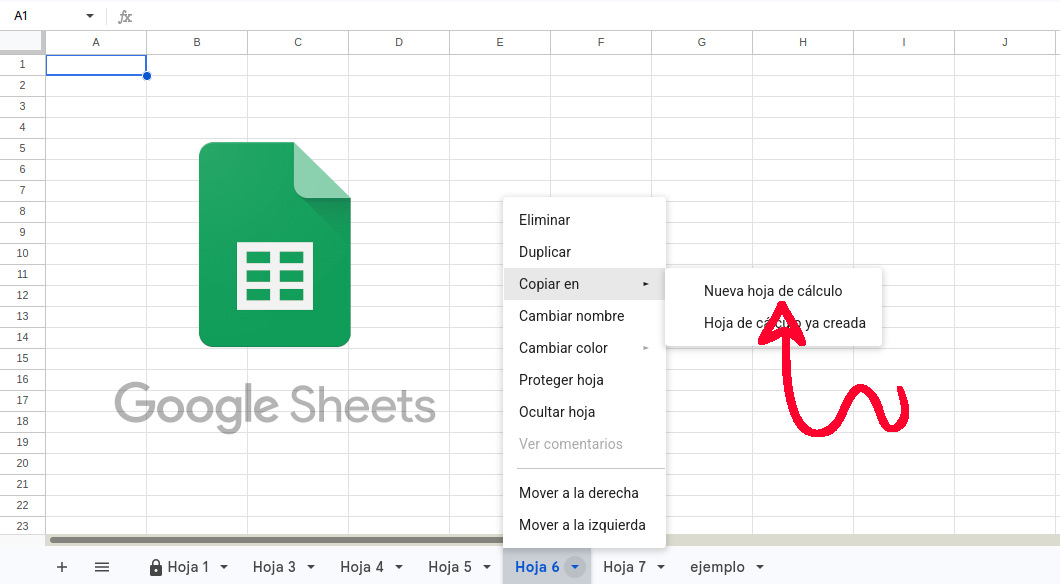
This is the safest way to share a copy of one Google Sheets tab without showing the others. What you do is send a snapshot of the current tab data so that the other person can review or work on them without affecting the original file. This doesn't require complicated formulas or third-party plugins: simply physically isolate the tab in a new, separate document.
And the process is simple. Open the master spreadsheet and find the tab you want to share in the bottom bar. Then, do Right-click on the tab name Select the "Copy to" option and then "New spreadsheet". This will create a new file in Google Sheets containing only that tab, with its data, formulas, and original formatting.
Once the new file has been created, you can use the standard “Share» to grant Reader, Commenter, or Editor permissions to whomever you choose. Simple and secure! The great advantage of this method is that the original file is never sharedso the other tabs remain completely private.
However, doing this to share a copy of one Google Sheets tab without showing the others has a significant limitation. The copy is static, so any changes you make to the original file are not reflected in it.If the data changes frequently, you will need to repeat the copy process and send the updated file each time.
Method 2: Use IMPORTRANGE for a live view
Use the function IMPORTRANGE This is the best way to share a copy of a Google Sheets tab without showing the others, and in a dynamic way. With this method, You ensure that the other person always sees the most up-to-date information. without you having to manually send copies. This formula extracts the data from the original spreadsheet to the copy using a link that updates automatically.
Is this your solution? The procedure requires two filesYour master (private) sheet and a new file that you will share. Follow these steps:
- Open a new, empty spreadsheet.
- In cell A1, enter the formula
=IMPORTRANGE(“URL_DE_TU_HOJA_MAESTRA”, “NombreDeLaPestaña!rango”You must note the URL of your original file and the tab name with the exact name of the sheet you want to import. - Press Enter and you'll see an error
#REF!This is normal. Click the blue "Allow access" button that will appear above the cell to authorize the connection between the two files. - Once this is done, the data will flow from your master sheet to the new file.
With this, you can now share a copy of one Google Sheets tab without showing the others. Ideally, you should share it with Reader permissionsIf you grant editing permissions, anyone could write their own formula. IMPORTRANGE and extract data from other tabs in your original file. With Reader permissions, the other person will be able to see the changes, but not make them.
Method 3: Publish on the web (only for public and read-only data)
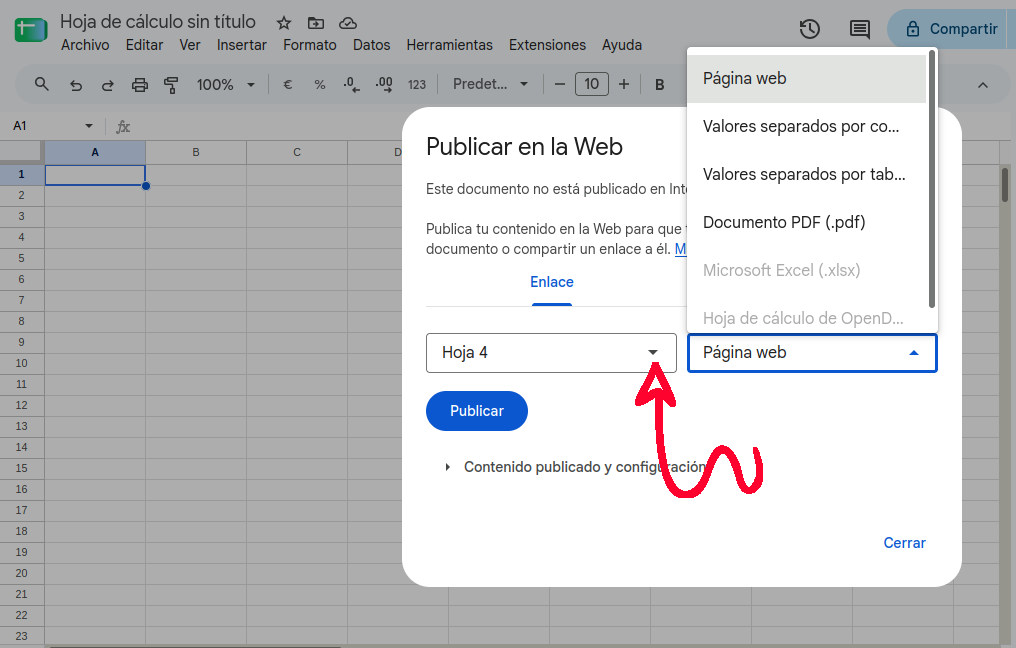
Let's look at a third way to share a copy of a Google Sheets tab without showing the others. This involves the "Publish to the web" feature, which Generates a static web page with the data from the selected tabIt is ideal for distributing non-confidential information to users who do not have a Google account.
The procedure is also simple. Go to Archive – Share – Publish on the webIn the dialog box, you'll see a drop-down menu that defaults to "Full Document." Open it and select the specific tab you want to publish. You can also choose the format, such as web page, CSV, or even PDFFinally, click Publish and Google will provide you with a public link that you can send to anyone.
Sharing a copy of one Google Sheets tab without showing the others: what not to do
We've already seen the three safest methods for sharing a copy of a Google Sheets tab without revealing the others. However, there are options that shouldn't be used if confidentiality is your priority. Such is the case with the option... Hide tabs remaining and of Protect a sheet or a range of cells.
The first option hides the other tabs, and the second blocks editing them. But in both cases, anyone can easily view them with a couple of clicks. Therefore, it's best to select one of the methods discussed to Share a Google Sheets document without compromising the privacy of the entire file.

Index