- Shizuku acts as an intermediary to grant advanced permissions to apps without the need for root, taking advantage of ADB's capabilities.
- It allows you to activate customization and system functions, especially in conjunction with SystemUI Tuner, without constantly depending on a PC.
- Its effectiveness depends on the Android version and the manufacturer's layer, and it only works fully with applications adapted to Shizuku.

If you like to squeeze more performance out of Android beyond what normal settings allow But you don't want to root your phone, Shizuku It has become one of those essential tools that is increasingly discussed in forums and communities. It allows other apps to obtain very powerful permissions without modifying the system or excessively compromising the device's security or warranty.
Many of the most advanced customization, automation, or system management applications already support Shizuku and use it to Activate advanced features that previously required root access or ADB commands from the PCThroughout this guide you will see exactly what Shizuku is, how it works, how to configure it step by step according to your Android version, and what kind of settings you can unlock in combination with tools like SystemUI Tuner.
What is Shizuku and why is he so talked about?
Shizuku is, in essence, a intermediary service that grants special permissions to other Android applications without needing to root the device. It acts as a kind of "bridge" between normal apps and system APIs that could normally only be used with root access or through ADB commands.
Instead of modifying the operating system or patching the boot partition, Shizuku relies on Android Debug Bridge (ADB) to start a process with elevated privilegesOnce this process is underway, it allows compatible applications to request access to perform advanced actions such as writing to secure settings, managing special permissions, or accessing settings that Android hides from the average user.
On a practical level, Shizuku has been positioning herself as a A lightweight alternative to root when you only need ADB permissionsIn other words, everything you used to do by connecting your mobile phone to your computer and executing commands one by one, you can now do through this service and the apps that support it, without constantly depending on a PC.
However, it's important to keep one key point in mind: Not everything that root allows can be replicated with ShizukuRoot access still grants full system access, while Shizuku is limited to what can be achieved through APIs and advanced permissions exposed by Android. For many advanced users, this is more than enough, but it doesn't completely replace traditional root access.
From the perspective of the average user, the recommendation is clear: You only need to install Shizuku if a specific app asks you to, or if you know beforehand that you're going to use it.For now, the number of applications that depend on it is not huge, although the list is growing and it is becoming increasingly common to see it as a requirement in personalization, automation or permission management projects.
Advantages over the root and its relationship with SafetyNet
One of Shizuku's strengths is that It does not alter the integrity of the system and should not affect checks such as SafetyNetThis means that, in principle, sensitive applications such as Google Pay, banking apps, or certain games should not stop working simply because Shizuku is installed and active.
Now, to get Shizuku up and running, it is necessary Enable developer options and USB or wireless debuggingAnd some apps do complain when they detect that these options are enabled. This isn't Shizuku's fault per se, but rather the security policies of those services, so it's worth keeping this in mind if you use particularly restrictive apps.
Compared to the classic root, Shizuku's approach is much more prudent: It does not unlock the bootloader, install system modules, or modify partitions.It simply launches a service with elevated privileges using ADB, and from there, allows other apps to connect to it. It's a way to enjoy "superpowers" on Android with fewer legal, warranty, and security risks.
In addition, Shizuku offers a granular control system similar to that of root managers like Magisk Manager or the old SuperSU: Each time an app wants to use its capabilities, you must explicitly authorize it.This adds an extra layer of protection, because not everything you install will be able to do whatever it wants on the system without your approval.
How to install and activate Shizuku according to your Android version
The process for setting up Shizuku varies slightly depending on your Android version. The main difference lies in whether or not you have... wireless debugging (present from Android 11 onwards), since this feature greatly simplifies the initial setup.
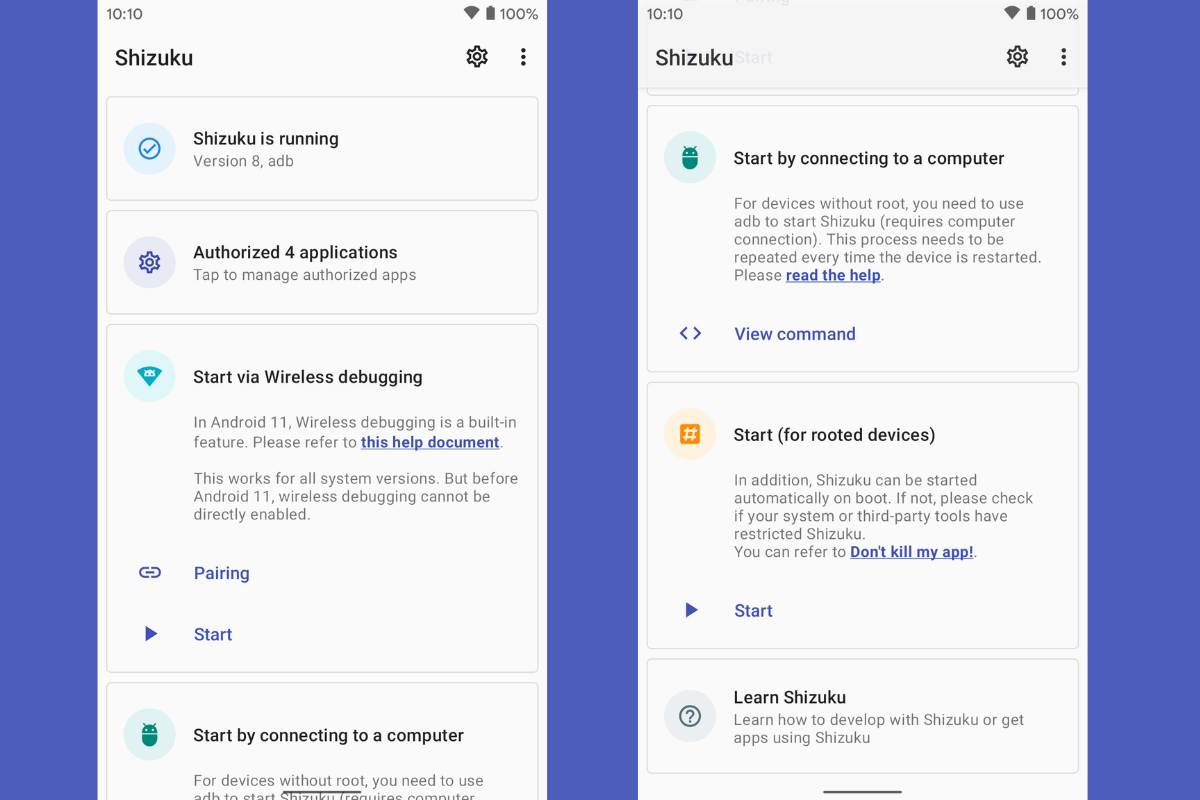
In all cases, the first step is the same: Download Shizuku from the Google Play Store and install it like any other app.Once opened for the first time, the application itself will guide you through the necessary sections, but it's a good idea to review the steps carefully.
Configure Shizuku on Android 11 or higher (wireless debugging)
On Android 11 and later versions you can start Shizuku using Wireless ADB directly from the phone itselfWithout cables or a computer. To do this, you first need to enable the system's developer options, which is still as simple as going to the device information and tapping the build number several times.
Once you have the developer menu available, enter Shizuku and scroll down to the section on wireless debug startupYou will see a Pairing option: when you tap it, the app will generate a persistent notification that you will use a little later to enter the pairing code with the system's ADB service.
Next, go to the Android developer menu and enable both the main switch and the option to Wireless debuggingIn that same submenu, select Link device with sync code so that the system shows you a six-digit PIN that will be active for a short period.
With the pairing code in view, you just have to Expand the notifications and tap Shizuku's notification. related to pairing. A text box will open where you will enter those six digits, thus closing the pairing process between Shizuku and the phone's wireless ADB service.
Once pairing is complete, return to the Shizuku app and press the button. StartThe app will internally display the commands running in the background, but the important thing to check is the top of the main screen. If you see the message "Shizuku is active" or something similar, it means the service has launched successfully and compatible apps can now request access.
Install Shizuku on Android 10 or earlier versions (using a PC and cable)
If your phone runs Android 10 or an earlier version, you can still take advantage of Shizuku, although the process is somewhat more traditional: You will need a computer with ADB installed and a USB cableIt's not complicated, but it does involve taking a few more steps.
First, enable developer options and USB debugging on your phone, just like in the previous case. Then, connect your device to your computer with a data cable and Configure the ADB binaries on your PCeither by installing the official SDK Platform Tools or a minimal ADB package.
With everything installed, open a command window (CMD or PowerShell on Windows, terminal on macOS or Linux) in the folder where ADB is located and run to adb devices to check that the mobile phone is detected correctlyA dialog box will appear on the phone asking to authorize the PC's fingerprint; accept so that ADB can communicate without problems.
The next step is to go to Shizuku and look for the option to See the required ADB command according to your Android version and the app itself. and copy it. The application usually includes a "View Command" button followed by a "Copy" button, so you can send that line of text to your computer by whatever means you prefer.
Once you have the command on your PC, paste it into the ADB window and run it. This command will start the Shizuku service and assign it the necessary permissions, so that You won't have to press any "Start" button in the app In this mode of use, the startup is performed from the ADB command itself.
How Shizuku works internally and what permissions she has
From a technical point of view, Shizuku initiates a process with extended privileges that can invoke internal system APIs on behalf of other applications. That is, it creates a kind of privileged session, similar to a shell with elevated permissions, but framed within Android's security standards.
Apps that want to take advantage of Shizuku implement support to communicate with that service, so that when they need to access a secure setting or execute certain methods, They don't ask the system for permission directly, but Shizuku.The user receives an authorization request and decides whether or not to grant that access, much like how root permissions are handled.
Among the permissions and capabilities that are usually managed through Shizuku, some stand out as particularly sensitive, such as WRITE_SECURE_SETTINGS, access to internal statistics, package management, reading of certain logs and other advanced operations. All of this is aimed at enabling features that are normally reserved for developers or rooted devices.
The system also includes an official utility called rishwhich takes advantage of the same privileged process that Shizuku maintains. Thanks to rish, it's possible to launch high-level commands as if you were in an ADB shell, but directly from the device itself or from automation appsprovided they know how to integrate it.
For example, you can use rish to execute commands like “whoami”, reboot your phone with a simple command, or launch more complex scripts, all without connecting a cable to your PC each time. Combined with tools like Tasker or MacroDroid, it opens the door to very powerful automations. that were previously reserved for root users.
Shizuku as an advanced permissions manager
In practice, Shizuku behaves like a centralized manager of special permissions for AndroidInstead of each application having to request access to accessibility services, ADB commands, or even administrator permissions on its own, Shizuku acts as an intermediary and channels those requests in a unified way.
This is somewhat reminiscent of what utilities like SuperSU or Magisk Manager used to do, but adapted to the world of non-rooted devices. Once you have granted Shizuku the necessary access (either by rooting, or by starting the service with ADB), the rest of the compatible apps simply ask it for what they need.
One of the great advantages of this approach is that It prevents each application from abusing accessibility permissions or forcing you to manually run ADB commands. Each time you want to activate an advanced function, you authorize Shizuku only once, and from then on, everything goes through that common filter.
For example, if you want to enable advanced battery logging, modify hidden interface settings, or grant "App Ops" permissions without messing with ADB, Shizuku acts as the master key to open those doors.Always, of course, within the limits of what Android allows through its APIs and without reaching the maximum depth that a full root would offer.
The only significant drawback is that, for all of this to work, Application developers must explicitly integrate support for ShizukuIt's not enough to simply install it and expect all apps to magically gain advanced access: each project has to adapt and use its API. They're not the majority yet, but the number is growing, and there are already some well-known examples.
SystemUI Tuner and Shizuku: combination to squeeze Android without root
Among the tools that benefit most from Shizuku are SystemUI Tuneran application designed for Uncover and modify hidden Android interface optionsIts goal is to recover and expand the old "System Interface Settings" menu that Google gradually buried over time and that many manufacturers have simply disabled.
SystemUI Tuner doesn't require root access on its own, but to unlock its full potential, it needs certain advanced permissions via ADB, such as the ability to write to Settings.Secure or access internal display and notification parameters. This is where Shizuku comes in, allowing it to grant those permissions directly from your mobile devicewithout turning on the computer.
Once configured, the Shizuku + SystemUI Tuner combination allows you to adjust elements such as the status bar, the order and number of icons in Quick Settings, Immersive Mode, or the speed of animationsalways within the limitations set by your customization layer and your Android version.
The developer of SystemUI Tuner also offers a specific add-on to write to Settings.System without root or ShizukuTaking advantage of the fact that it's declared as a test-only app and points to an older API (Android 5.1), Play Store rules prevent this plugin from being distributed directly through the store. It must be installed using special options, typically with ADB and the `-to` flag, to install a Shizuku-compatible app.
Thanks to these combinations, users who previously depended on root access to make interface changes can now tweak many of those settings with relatively little riskKnowing also that if something goes wrong it is possible to revert, remove problematic keys or reset configurations from ADB commands or from the app itself.
Main functions and sections of SystemUI Tuner using Shizuku
SystemUI Tuner organizes its settings into various categories To avoid overwhelming you, many of them take advantage of the enhanced permissions they receive thanks to Shizuku. In each section, you'll find warnings when a change is sensitive or might behave strangely with certain brands.
In the part of status bar and notificationsFor example, you can change which icons are displayed (mobile data, Wi-Fi, alarm, etc.), force the battery percentage to appear, add seconds to the clock, or tweak Demo Mode for cleaner screenshots. Depending on the Android skin (AOSP, One UI, MIUI, EMUI, etc.), not all of these options will work the same way.
The section of animations and visual effects It allows you to modify the speed at which windows open and close, transitions, and other interface movements, in much greater detail than typical developer settings. Reducing these animations can give the impression of greater fluidity, while increasing them is for those who prefer a more striking effect.
In the category of Interactions and UI This section contains options related to navigation gestures, the position and behavior of the notification shade, how Quick Settings are managed, and the configuration of "Do Not Disturb" in conjunction with the volume. Here you can, for example, configure the notification shade to display certain icons before others or activate more aggressive full-screen modes.
The area of Network and connectivity It focuses on details related to mobile data, Wi-Fi, and airplane mode. You can modify which radios are turned off when you activate airplane mode (Bluetooth, NFC, Wi-Fi, etc.), adjust SMS and data settings, or attempt to bypass certain tethering limits imposed by some carriers, always within the limitations of your firmware.
Lastly, the section advanced options It's designed for highly experienced users who know which system keys they want to modify. From here, you can force internal variables, expose settings hidden by the manufacturer, and experiment with less documented changes. It's obviously the place where you should proceed with the utmost caution and take notes on everything you change.
Real limitations: manufacturers, layers, and compatibility
Although Shizuku and SystemUI Tuner offer a very wide range of possibilities, it must be clear that They cannot bypass the restrictions imposed by each manufacturer or customization layerIf your ROM has removed or patched a system setting, there's no magic that will work: neither ADB nor Shizuku will be able to modify it.
On devices with Android AOSP or less intrusive skins, most functions usually behave well, but on highly customized ROMs like MIUI/HyperOS, EMUI or some Samsung implementations, Several options may do nothing, work partially, or directly cause problemsThere are extreme cases, such as certain older versions of TouchWiz where SystemUI Tuner can barely operate.
A much-discussed example in forums is the inability to hide the battery icon and only display the percentage in the status bar. In many current firmwares, the text and the pictogram are tied to the same switch; if you remove one, both disappear. In these cases, even if you try SystemUI Tuner, Shizuku, or ADB commands, the result will be the same, because it's a limitation of the manufacturer's own SystemUI.
There are also delicate settings like night mode or certain screen modes that, when activated, can cause curious glitches, from from black screens to erratic interface behaviorThe developer usually provides emergency ADB commands to reverse these situations, for example by removing specific keys from Settings.Secure.
In any case, uninstalling SystemUI Tuner or stopping the use of Shizuku does not always automatically revert all changes, especially on older versions of Android. It's advisable to write down somewhere what you're changing. and even export settings when the app allows it, in case you need to revert later.
With everything we've seen, Shizuku has become a kind of Swiss Army knife for advanced Android users: It allows you to activate deep functions, manage sensitive permissions, and get the most out of tools like SystemUI Tuner. By keeping the system relatively intact, avoiding rooting in many cases, and reducing risks with sensitive apps, if used wisely, taking note of the changes and respecting the limitations of each manufacturer, it is probably the most convenient and safe way to take your mobile a step ahead of what the stock configuration offers.

Editor specialized in technology and internet issues with more than ten years of experience in different digital media. I have worked as an editor and content creator for e-commerce, communication, online marketing and advertising companies. I have also written on economics, finance and other sectors websites. My work is also my passion. Now, through my articles in Tecnobits, I try to explore all the news and new opportunities that the world of technology offers us every day to improve our lives.