- It distinguishes whether the application is crashing, a specific device is slow, or only a routine is failing.
- Updating SmartThings and clearing its cache can help, but it doesn't guarantee a specific response time.
- Do not remove all automations or attribute plugin warnings to the DNS without verifying it.
- Review the service status and report persistent failures with models, versions, and steps to reproduce them.
Si SmartThings takes a while to respondThe first step is to determine what's going wrong. It's not the same if the app freezes when opening a device as it is if you press a button and wait several seconds until a light, TV, or plug executes the command.
The problem could be with the mobile device, the accessory's connection, its integration with SmartThings, or a service issue. To find it, it's best to follow a specific order of checks and change only one thing at a time. This way, you can identify what improves performance without dismantling a system that, in other respects, is still working correctly.
Identify what takes time to respond in SmartThings
Before deleting settings, note when the delay occurs. These checks can help guide the diagnosis, although none of them alone confirms a cause.
- The entire application runs slowly: Check if it's also difficult to navigate between its sections or open different devices.
- Only one accessory is faulty: Try another device from the same mobile phone. If it responds normally, focus the troubleshooting on the affected device and its connection.
- Manual control works, but a routine doesn't: Review the conditions and actions of that automation.
- The buttons are not responding: It distinguishes whether the screen is locked or whether the command is sent but the computer does not execute it.
See also the official SmartThings status pageIf an issue arises affecting your region or the service you're using, monitor its progress before making any changes to your setup. Hub maintenance may also cause a temporary outage.
What to do if the app is slow or freezes
When the problem affects the interface, start with the app and the phone. Follow these steps and check the result after each one:
- Check for SmartThings updates in the store from which you installed the app. Also check for available updates for your mobile operating system.
- Close SmartThings completely and reopen it. If the freeze persists, restart your phone and repeat the same operation.
- On Android, try clearing the cache. On a Samsung Galaxy, the usual path is Settings > Apps > SmartThings > Storage > Clear cache. The names may vary depending on the manufacturer and Android version.
- Try the affected device again. Check both the opening of your screen and the execution of a simple command.
Clearing cache and clearing data are different operations. The first deletes temporary files. The second resets the application's local state and may require you to sign in and retrieve settings. Don't use them interchangeably.
There's also no guaranteed response time after clearing the cache. If you can test from another phone that already has authorized access to the same installation, the comparison can help determine if the issue is limited to one phone.
Don't delete all automations as a generic solution. If you suspect that a routine is sending repeated or contradictory commands, review that specific automation and note its configuration before modifying it.
What to check when the device takes a long time to execute commands
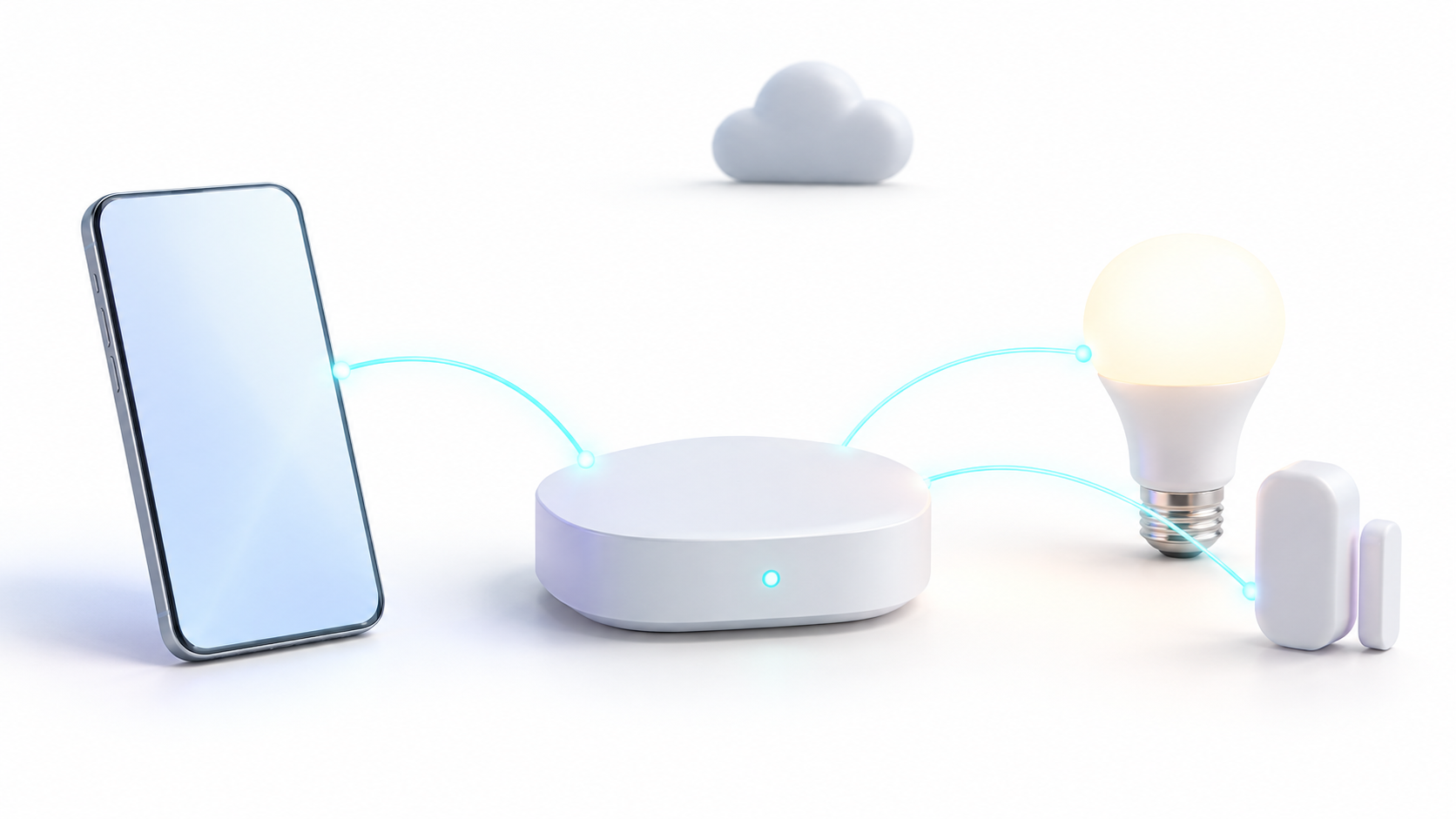
If the app responds well, but an accessory is slow to react or appears disconnected, check its power supply, coverage, and connection method:
- Check the equipment status. Check its power, battery, and indicators. If it's installing an update, wait for it to finish before restarting.
- Check the relevant coverage. A Wi-Fi device relies on its connection to the access point; a Zigbee or Z-Wave device needs to communicate correctly with the hub and its compatible network.
- Avoid interference near the hub. Do not place it on top of the router or next to other wireless equipment.
- Try the manufacturer's app, if one exists. If it also responds poorly, broaden the troubleshooting to include the accessory itself and its connection. If it works correctly, you can focus your investigation on its integration with SmartThings.
- Check for device updates. Follow your manufacturer's procedure and check if there is a pending firmware update.
If you're using a guest network or a separate network for home automation, make sure its rules allow the necessary communication. Separating devices can be helpful, but it can also prevent your mobile device from discovering or controlling certain devices.
When the problem is recurring across several wireless accessories, it's also advisable to check the home automation connection problems, instead of attributing all the delays to the application.
If the problem is the initial registration of a Samsung televisionCheck the specific requirements for that model. Samsung states that for Wi-Fi pairing, the mobile device and the TV must share the same network and Samsung account. Some Bluetooth-compatible TVs use BLE to facilitate discovery and setup, but this doesn't make Bluetooth a general solution to slow performance.
Plugin warnings and issues with filtered DNS
SmartThings may request the download of additional modules during the setup of certain devices. If a notification like this appears repeatedly, please check with your system. DA Device PluginNote the exact text, the appliance model, and the time it appears. The message alone does not identify the cause of the problem.
If you use AdGuard DNS, AdGuard Home, or another filtering system, you can check if it interferes by performing a controlled test:
- Replay the error and note the time. This allows it to be linked to the recorded network queries.
- Check the filter log, if available. Look for blocked requests from the corresponding device during that interval.
- Try temporarily removing the filter you're investigating. Repeat the same operation without changing other settings at the same time.
- Restore the settings and compare. If the problem appears and disappears reproducibly when that setting is changed, investigate the applications involved. If it persists, continue troubleshooting.
The documentation of AdGuard DNS explains how to check requests and their status.Use that information to study specific blocks; do not authorize domains en bloc without checking which ones are involved.
The fact that the notification disappears later does not prove that it originated on Samsung's servers. If it reappears, keep the details of the incident and report it to product support.
Review the permissions required for each function.
Permissions should be reviewed based on the function that is failing. Searching for nearby devices, scanning QR codes, or location-based automations may require different access levels, depending on the operating system and device.
On Android, go to Settings > Apps > SmartThings > Permissions and check which accesses are allowed or denied. If a function requests a necessary permission, review its explanation before deciding whether to grant it.
For example, if a routine depends on you arriving home, check the location permissions it requires. In contrast, indiscriminately removing permissions is not a way to speed up the app and may leave features unavailable.
How to report the problem if SmartThings continues to respond incorrectly
If you can reproduce the problem after troubleshooting, please submit a report with specific details. Samsung provides options for reporting errors and attaching application logs.
- Reproduce the error and note the approximate time, the action performed, and the result.
- It compiles the models and versions. Include the phone, its operating system, the SmartThings version, and the affected device.
- Look for the help or contact option within SmartThings. Depending on the version and region, it may appear in Menu > Contact Us > Bug Reports.
- Describe how to repeat it Attach a screenshot or recording if it helps illustrate the issue. Check the option to send system logs to facilitate diagnosis.
If those options don't appear, contact Samsung support for your region. Also, explain what tests you've already performed and whether the problem affects a single device, all control screens, or only certain routines.

I am a technology enthusiast who has turned his "geek" interests into a profession. I have spent more than 10 years of my life using cutting-edge technology and tinkering with all kinds of programs out of pure curiosity. Now I have specialized in computer technology and video games. This is because for more than 5 years I have been writing for various websites on technology and video games, creating articles that seek to give you the information you need in a language that is understandable to everyone.
If you have any questions, my knowledge ranges from everything related to the Windows operating system as well as Android for mobile phones. And my commitment is to you, I am always willing to spend a few minutes and help you resolve any questions you may have in this internet world.