- Hidden files, corruption, and viruses are common causes of Recycle Bin failure.
- Commands, clearing temporary files, and antivirus scans usually resolve the issue.
- Regular maintenance prevents recurrence and frees up real disk space.

Solution: The Windows Recycle Bin appears full, but it doesn't contain anything. This is what we're bringing you in this article. It's probably happened to you more than once: you try to empty the Recycle Bin on your Windows computer, but the icon still shows that it's full, even though when you open it, there's no trace of any files.. This problem is more common than it seems and can be quite frustrating, especially if you're trying to free up space on your hard drive and can't understand why the system keeps saying the trash is full when, at first glance, there's nothing inside.
In this article we will We'll break down the most common causes of this error in depth, explain why it occurs, and guide you step-by-step so you can fix it yourself effectively, safely, and without losing important information. We'll take a simple and practical approach, covering all possibilities, from the simplest to the most complex, so your trash can works as it should again and you can take advantage of all the available storage space.
Why does the recycle bin appear full even though it is empty?
The situation in which The trash can icon appears full, but when you open it, it doesn't show any files. It can be due to several factors. Before looking at solutions, it's key to understand what's happening in the system:
- Hidden or protected files: Windows, by default, hides some system files or temporary files that may be in the trash and are not visible to the normal user.
- Corruption in the recycling bin: The file system may have become corrupted or damaged, leading to a mismatch between what Windows interprets and what is actually in the Recycle Bin.
- Errors caused by viruses or malware: Various types of malware can affect the visibility or behavior of the Recycle Bin, generating ghost files or blocking its normal operation.
- Problems with system configuration: Restore points, temporary or old files may remain in the trash, even if they are not visible to the user.
- Additional partitions or multiple usersIf you have multiple partitions (more than one drive on your computer) or different users, the Recycle Bin may contain 'invisible' files belonging to other profiles or disks.
Getting Started: Check the Basics

Before getting into the technical details, there are some simple actions that can resolve the problem in many cases:
- Restart the computer. Sometimes a simple restart updates the icon and syncs the actual state of the trash.
- Refresh the viewRight-click on the desktop and select "Refresh" (or press F5) to see if the icon is corrected.
- Empty the trash manually. Right-click the trash icon and select “Empty Recycle Bin.”
Show hidden files and folders in the trash
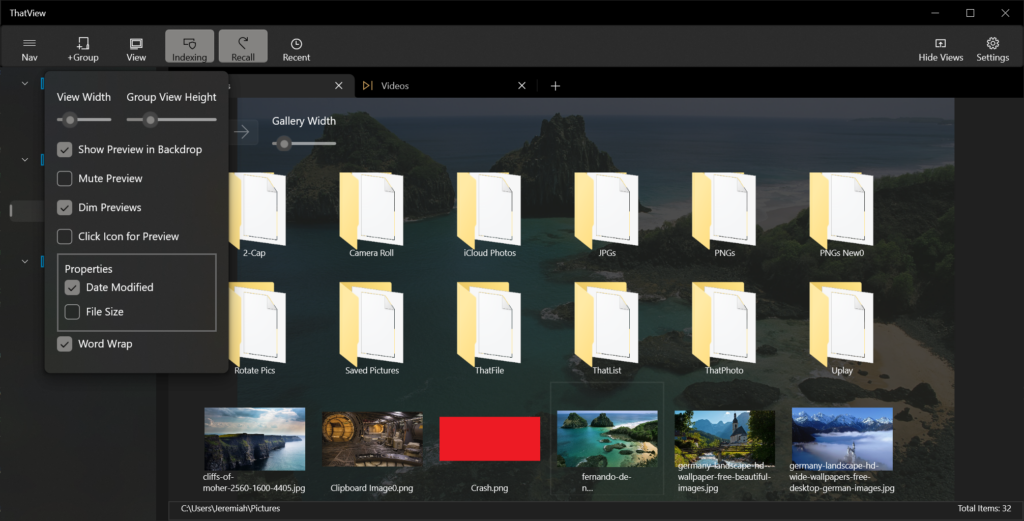
One of the most common reasons why the trash can appears full is that There are hidden files inside the trash folder that are not visible from the usual interfaceTo check and remove them:
- Access folder options:
- Open the Control Panel and go to File Explorer Options.
- Click the "View" tab and select the "Show hidden files, folders, and drives" option.
- Uncheck the “Hide protected operating system files” box. A warning may appear; click “Yes.”
- Scan the trash manually:
- Open File Explorer and go to the root of each drive (C:, D:, etc.).
- Look for the folder $Recycle.Bin (Windows 10/11) or RECYCLER (Older Windows) This is where deleted files are actually stored.
- Go into the folder and if you see files that don't appear in the normal interface, delete them manually.
Remember! If you have multiple partitions (C:, D:, E:), check the trash on each one, as each disk maintains its own recycle bin.
Delete corrupt or inaccessible files from the trash using commands
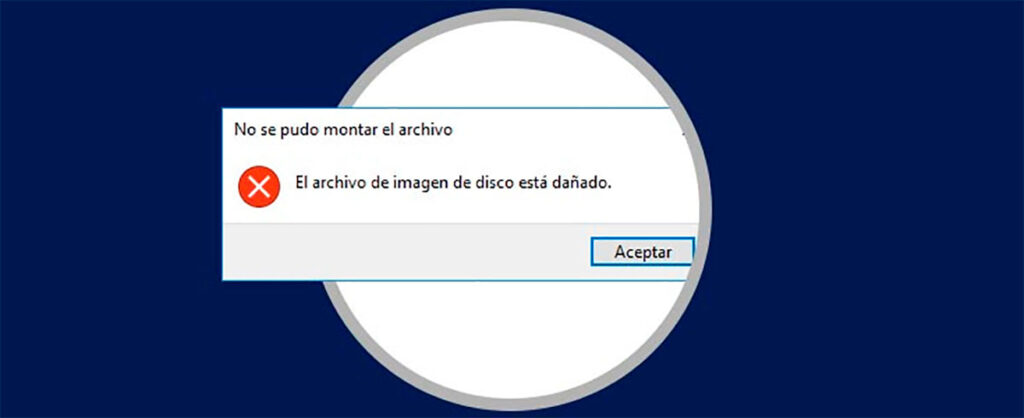
If none of the above actions work, the recycle bin may have corrupted or locked files. In this case, it's best to Reset the Recycle Bin from the command line:
- Right-click the Start button and select “Command Prompt (Admin)” or “Windows PowerShell (Admin).”
- Once inside, run the following command to delete the recycle bin and force it to be recreated:
rd /s /q C:\$Recycle.bin
- Do this on each disk (replace the letter with the corresponding drive letter).
- Restart your computer. Windows will create a new, clean recycle bin on each drive.
Warning: This process will remove permanently any files that were in the trash. Only do this if you've tried to recover them before.
Check and repair disk errors
Corruption in the Recycle Bin or file system is another common cause of the error. Windows integrates tools to check and repair hard drive errors:
- Open a command window as administrator.
- Type the command:
chkdsk C: /f /r /x
Replace the letter with the one that corresponds to your disk or partition.
- The system will scan the disk for errors and attempt to automatically correct them. If prompted to restart, accept.
This process is useful If you suspect that there are corrupt files masquerading as trash or bad sectors on the disk that block its operation.
Is your hard drive still full after emptying the trash?
A common problem is that even if you empty the trash, the free space does not increase. This may be due to hidden files, system junk, restore points, or even malware infectionsHere are a few key steps to effectively free up space:
Delete temporary files and system junk
- Press Windows + R, writes %temp% and press Enter. Delete everything in that folder.
- Do the same with the folder prefetch (Windows + R, type prefetch and press enter) and delete the temporary files.
- You can use specialized tools like Windows Disk Cleanup or reliable third-party applications to clean up system and temporary files.
Delete restore points and old backups
- Open the Control Panel and go to System and Security > System > System Protection.
- Select your disk and click “Configure.”
- Reduce the allowed usage for restoration copies and delete any that you don't need.
Unhide hidden files and folders
If after showing all hidden files and cleaning temporary files there is still little space left, check the main folders on the disk to see if there are any large files that went unnoticedThird-party programs like WizTree can help you quickly see what's taking up the most space on your PC.
Suspected viruses and malware: How to check and fix them
Some infections manage to leave invisible files in the Recycle Bin or on the system, taking up phantom space. Here's the most effective procedure:
- Do an analysis comprehensive with your usual antivirus and with an additional one such as Malwarebytes.
- Remove any detected threats and repeat the scan to confirm that the system is clean.
- If the Recycle Bin still displays the error after disinfecting your computer, repeat the steps to empty it and restart it from commands.
Special cases: Hidden folders that appear empty but have content
It's not just the trash can that can suffer from this type of problem: Sometimes certain folders appear empty even though they actually have files inside.This happens because:
- Hidden or read-only file attributes applied by viruses.
- File system corruption (USB, external drives, etc.).
- Errors after system updates or improper shutdowns.
To show these hidden files, you can use the command prompt:
attrib -h -r -s /s /d X:\*.*
Replace the letter X with the corresponding letter of the affected drive/folder. This will restore visibility to files that were accidentally hidden.
Use recovery software for serious cases
When the file system is damaged, Some data recovery tools can help you rescue files that seem to have disappeared.Programs like EaseUS Data Recovery Wizard or similar allow you to scan your drive, find deleted or invisible files, and recover them before emptying or formatting the Recycle Bin.
What to do if the trash won't empty because it's "in use"
When you try to manually delete the trash from the $Recycle.Bin folder, the system may indicate that it's in use and prevent you from deleting it. In this case, follow these steps:
- Close all open programs and try again.
- If it still won't let you, restart in Safe Mode (Safe Mode) and repeat the deletion from the explorer or command line.
- If that doesn't work either, try doing it from another administrator user account.
- As a last resort, use partition management software to force the deletion.
Prevent it from happening again: maintenance and good practices
The best solution is preventionTo prevent the Recycle Bin from becoming unsynced again or your disk from filling up with invisible files, keep these recommendations in mind:
- Clean the recycling bin regularly.
- Perform monthly system maintenance (cleaning temporary files, full antivirus scan, checking restore points). You can also check out our guide on reinstall Windows if necessary.
- Keep Windows and your programs up to date to avoid known bugs.
- Properly disconnect external and USB drives to avoid file system corruption.
- Never force the equipment to shut down unless strictly necessary.
Sometimes what seems like a serious Windows error is actually a series of small details: hidden files, forgotten temporary files, old restore points, mischievous viruses, or a simple trash corruption. If you follow the steps above patiently, you'll be able to leave your recycle bin as good as new and your hard drive with real free space. Don't just rely on what you see at first glance and always check the hidden file options. This way, your computer will run smoother and without annoying errors. We hope you already know everything you need to know about "Solution: Windows Trash appears full, but contains nothing" thanks to this article. If not, we encourage you to check out the page. Microsoft support.

Passionate about technology since he was little. I love being up to date in the sector and, above all, communicating it. That is why I have been dedicated to communication on technology and video game websites for many years. You can find me writing about Android, Windows, MacOS, iOS, Nintendo or any other related topic that comes to mind.