- Error 0x800705b4 usually indicates timeout problems in Windows Update, Windows Defender, or system activation, often due to blocked services or corrupted files.
- Solutions include temporarily disabling antivirus and firewall, restarting and completely resetting Windows Update components, and repairing system files with DISM, SFC, and chkdsk.
- In Azure environments and after major hardware changes, the failure is related to Windows activation, making it key to check the connectivity with the KMS server and the validity of the license.
- To prevent the error from recurring, it is essential to keep Windows and drivers updated, shut down the computer properly, and protect the system against power outages and malware.
El error 0x800705b4 Windows errors are one of those glitches that appear when you least expect them: during updates, system activation, or even when using Windows Defender. Although the message is often unclear, there's almost always an underlying problem. timeout, blocked services, or corrupted files that prevent Windows from completing a critical task.
If you're stuck with this code and have already tried the typical “Restart your PC"If you haven't succeeded, don't worry: in this guide you'll find All the common causes of error 0x800705b4 and the most complete solutionsThese are ordered from the simplest to the most advanced. We'll see what they mean exactly, why they appear in Windows Update, in Windows activation (including Azure virtual machines), and what to do step by step to leave the system clean and functional.
What exactly is error 0x800705b4?
The code 0x800705b4 is a timeout error. This is the error message that Windows displays when an important process doesn't respond within the expected time. It's usually seen when trying to install updates, accompanied by a message like: “There were problems installing some updates, but we'll try again later… here's the error code: 0x800705b4”. In these cases, what happens is that One or more system components stop responding during Windows Update and the system itself cuts off the process to prevent further damage.
In other scenarios, error 0x800705b4 may be directly related to Windows Defender or with the Windows activation systemFor example, when trying to activate a license on a virtual machine or after a major hardware change, the system fails to complete the operation on time due to network, DNS, or service blocking issues and throws the same error code.
The causes are varied: overly aggressive third-party antivirusThe causes could include the Windows firewall itself, outdated drivers, disks with bad sectors, corrupted registry keys, internet connection failures, or even configuration errors in Azure virtual machines. While the source may change, the result is the same: Windows cannot complete a critical task and leaves updates or activation incomplete., with the consequent risk of instability or data loss if it is prolonged over time.
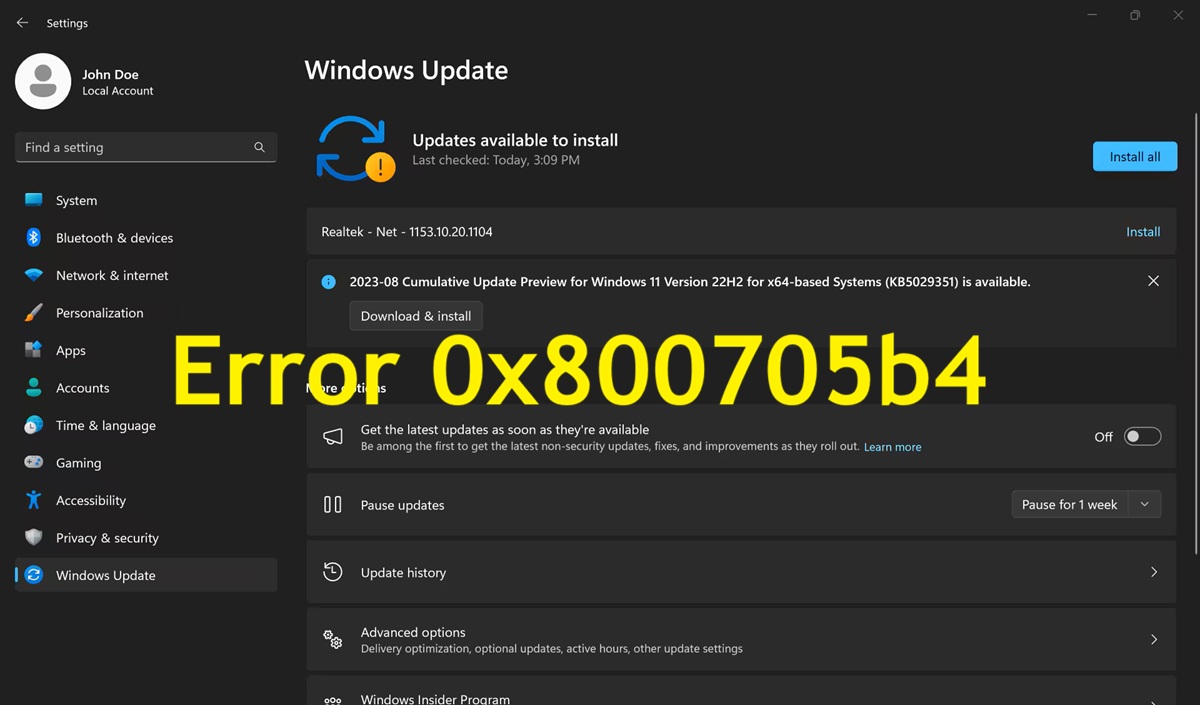
Main causes of error 0x800705b4 in Windows Update
In the context of Windows Update, error 0x800705b4 is often particularly annoying because blocks the installation of important patchesThere are several common reasons that you should know before starting repairs blindly.
One of the most common causes is Invalid or duplicate registry keys related to Windows UpdateWhen these entries are corrupted, the system may have trouble communicating correctly with Microsoft servers or managing download and installation queues, which eventually triggers the error after several retries.
Another classic origin is the damaged hard drives or with defective sectorsIf the system attempts to read or write essential operating system files to a corrupted area of the disk, those files may become inaccessible or damaged. Because many of these files are necessary to complete updates, Windows displays error code 0x800705b4 when it cannot process them in time.
The following also have a significant influence Internet connection problemsA sudden network outage while patches are being downloaded or applied can corrupt the contents of the update folder. At that point, Windows attempts to work with incomplete or inconsistent files, and the process hangs until it times out.
Nor should we forget the outdated graphics drivers or other driversAlthough they may seem unrelated to updates, drivers incompatible with the version of Windows being installed can cause internal conflicts, errors in system services, and consequently, the infamous 0x800705b4 error in the middle of the process.
Temporarily disable antivirus and firewall
In many problematic installations, the culprit is a third-party antivirus that interferes with Windows UpdateThese programs sometimes block temporary files, modify network traffic, or monitor system processes so closely that they slow down or prevent the update from completing. Therefore, a reasonable first attempt is Disable your antivirus and firewall for the required time. that the update lasts.
The idea is simple: completely close your third-party security suite and restart the update search. If it still fails, you can go a step further and temporarily disable Windows Defender FirewallFrom the Control Panel, by going to "System and Security" and then "Windows Defender Firewall," you can select the option "Turn Windows Defender Firewall on or off" and check the box to disable it for both private and public networks. Once the changes are applied, repeat the patch installation.
Regardless of the outcome, it is essential that Reactivate your firewall and antivirus as soon as the update attempt is complete.It's a diagnostic measure, not a permanent solution. Working without protection for an extended period can leave your computer vulnerable to malware, remote attacks, or data corruption from external devices.
Restart and reset Windows Update
When error 0x800705b4 persists, a very effective resource is Restart Windows Update services and internal componentsSometimes, simply disabling certain advanced options and restarting the main service is enough to unlock the system and allow it to download everything correctly again.
From the Settings app, under “Update & Security”, you can access the advanced Windows Update options and disable the option that allows you to get updates for other Microsoft products when updating Windows. This simple change prevents some conflicts in download cycles, especially in environments where other Microsoft components are involved.
The next step is usually Stop and restart the wuauserv servicewuauserv is responsible for managing updates. From a command prompt or PowerShell console with administrator privileges, you can run the command “net stop wuauserv” to stop it and then “net start wuauserv” to restart it. This brief internal restart helps clear any stuck states, as Windows re-enters the system from scratch.
Using the Windows Update troubleshooter
Microsoft includes a fairly handy tool for update failures: the Windows Update troubleshooterAlthough it's not miraculous, it is able to detect and correct many of the most common problems automatically, without the user having to touch advanced commands or the registry.
From Windows settings, in the "Update & Security" section, you'll find the "Troubleshoot" option. There you can run the... A specific wizard for Windows UpdateThis tool scans services, folder paths, permissions, and other internal settings. If it detects known conflicts, it repairs them without manual intervention.
This process usually takes a few minutes. When finished, the assistant itself indicates whether or not it has applied corrections. Ideally, Restart your computer and check for updates again. After using this tool, check if the 0x800705b4 code has disappeared and the system can now download and install patches normally.
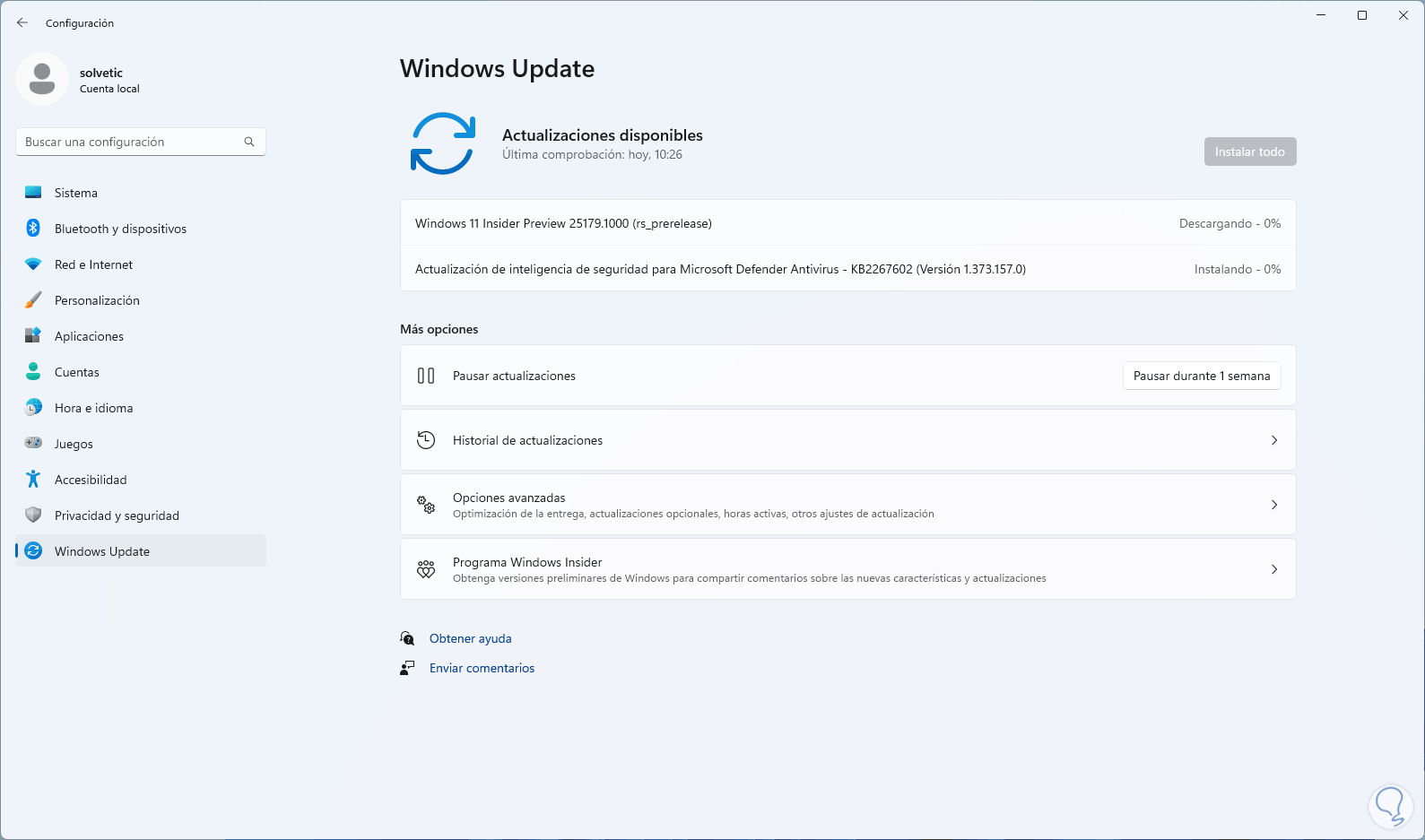
Complete guide: advanced steps to repair Windows Update
When quick fixes don't work, it's advisable to follow a more complete sequence of maintenance steps These solutions not only resolve Windows Update errors but also correct potential damage to the operating system itself. This set of actions increases in complexity, so it's best to try them in order.
- Make sure the system date, time, and time zone are correct. An incorrect clock can cause secure connection failures with Microsoft servers, certificate validation errors, and problems activating or updating Windows. Adjusting this information to your location is a simple but crucial detail.
- Temporarily disable your antivirus software Check that it's not from Microsoft or that its real-time protection features aren't blocking Windows Update. Sometimes, simply disabling certain web protection or behavior analysis features is enough to allow downloads to proceed without interference.
- Resorting to Microsoft offers a specific Windows Update troubleshooter for download. in executable format (for example, via the short address aka.ms/wudiag). This external wizard performs additional checks, clears update caches, and adjusts permissions. Running it and following the prompts can resolve some issues without manual intervention.
Cleaning temporary files and performing a clean boot
A frequent source of conflict is... accumulated temporary files These programs can become locked or corrupted, as can startup programs that load with Windows and can be introduced through update processes. Therefore, the next step involves cleaning and performing a clean boot.
To delete basic temporary files, you can open the “Run” window with the Windows + R combination, type “temp” and delete all the contents of the folder that opensNext, the same process is repeated with “%temp%”, which points to the current user's temporary files folder. Although some files may be in use and cannot be deleted, removing as many as possible helps to clean up remnants of failed installations.
Next, it is highly recommended to perform a clean boot of the systemThis involves configuring Windows to start by loading only essential Microsoft services and drivers, disabling all other programs and third-party services. From the System Configuration utility (msconfig), you can uncheck non-essential services and disable startup items, then restart your computer. With this minimal boot mode, it's much easier to determine if error 0x800705b4 is caused by an external application.
Deep reset of Windows Update components
If the problem persists even after all of the above, it's time to apply a thorough reset of the internal components of Windows UpdateThis procedure is more technical, but very effective when there are seriously damaged files, folders, or update services.
The usual method involves creating a batch file (with the .bat extension) from Notepad, pasting into it a series of commands that will be executed automatically. These commands are responsible for Stop key services such as BITS, wuauserv, appidsvc, and cryptsvcRemove download queues, rename critical folders such as “SoftwareDistribution” and “catroot2” so that Windows regenerates them clean, and readjust update service permissions.
In addition, the script usually includes a good number of DLL library records related to Windows Update, Internet Explorer, XML, and security componentsUsing regsvr32 with the silent /s switch. This bulk registry helps recover associations and functions that may have broken over time, after several problematic updates or software installations.
At the end of the process, commands such as “netsh winsock reset” and “netsh winhttp reset proxy” are also executed to Restore the network stack and proxy settingsThe stopped services (wuauserv, bits, cryptsvc, appidsvc) are restarted, and the file system is configured to automatically reset resources with "fsutil resource setautoreset true C:\". After restarting the computer, Windows Update usually behaves as if it were newly installed.
Disk checks and system file repair
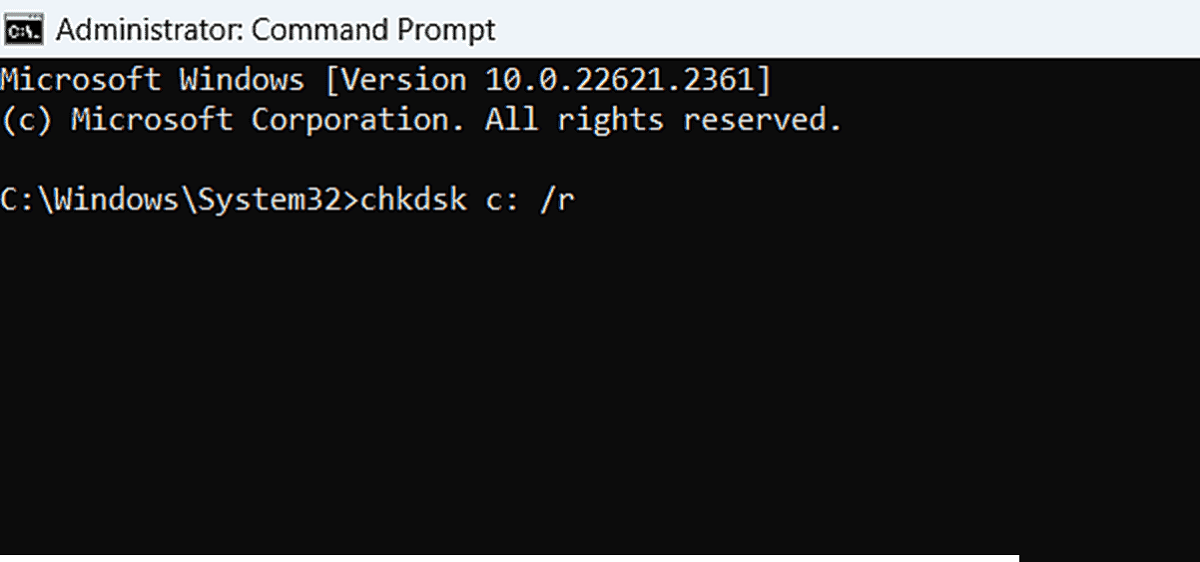
If errors continue to appear despite everything, it's best to go directly to the system's base and check disk status and Windows filesTo achieve this, several powerful integrated tools are available which, when used correctly, solve many hidden problems.
On one hand, there is the analysis with chkdskThis command allows you to locate and, in many cases, repair bad sectors and logical errors on the disk. From an administrator console, you can run “chkdsk /f X:” replacing X with your system drive (usually C:). The command typically asks for permission to schedule the check for the next startup, as it needs to run without the system fully loaded.
On the other hand, it is highly recommended to use a partner DISM and CFSDISM (Deployment Imaging Service and Management Tool) works on the Windows image and allows you to check its integrity with commands such as “Dism.exe /Online /Cleanup-Image /ScanHealth” and “/CheckHealth”, as well as repair damaged files with “/RestoreHealth” and clean components with “/StartComponentCleanup”. These operations can take a while, but they help recover original files from internal repositories or from Windows Update.
Once DISM has finished, you usually run “SFC /Scannow”, which Analyzes the entire Windows installation for modified or corrupted system files and replaces them with the correct versions. When finished, it reports whether it has found and fixed any problems. A subsequent restart is practically mandatory before attempting updates again.
Create a new account and upgrade in-place
When the failure persists to an extreme degree, the problem may be related to current user profileCorrupted configurations, inherited permissions, remnants of old software… In these cases, creating a new local or Microsoft account, clean and without history, and testing updates from there can reveal whether 0x800705b4 is a user or system problem.
If even that doesn't work, performing a in-place upgradeThis process reinstalls the Windows version over itself, rewriting essential components and services without deleting personal files or many settings. In practice, it's a deep repair of the operating system that restores much of the damaged internal structure without requiring a complete format.
Tips to prevent error 0x800705b4 from appearing again
Once the 0x800705b4 error is resolved, it's worth taking care of some habits to reduce the likelihood of the failure recurringMany of these errors develop gradually through careless use of the system or small oversights that, when added together, take their toll. Here are our tips:
- Shut down the computer properly from the start menuAvoid holding down the physical power button except in emergencies. Abrupt shutdowns, as well as sudden power outages, can corrupt system files and damage components that are critical for updates.
- Protect yourself against power outages with uninterruptible power supply (UPS) systemsThis is especially true for systems applying critical updates or those used in professional environments. A power outage at the worst possible time can leave Windows in an unstable state and trigger subsequent errors every time patches are installed.
- Having a Use a good antivirus program and scan external devices regularly.Some malware focuses on modifying internal settings, altering system files, or manipulating key services like Windows Update or Windows Defender. Keeping your system clean greatly reduces the risk of silent damage that later manifests as error codes like 0x800705b4.
- Keep both the operating system and drivers up to date, especially graphics and chipset drivers.Outdated versions are more likely to cause compatibility conflicts with newer versions of Windows, and these clashes are a perfect breeding ground for update and activation errors.
This entire set of techniques, from the simplest to the most advanced, allows you to attack error 0x800705b4 from all angles: antivirus and firewall, internal Windows Update services, temporary files, system image, disk status, activation on physical and virtual machines, and network configuration. If you Follow the steps calmly and in order.Normally, the system will update and activate normally again, and Windows will regain the stability it should have by default.


Editor specialized in technology and internet issues with more than ten years of experience in different digital media. I have worked as an editor and content creator for e-commerce, communication, online marketing and advertising companies. I have also written on economics, finance and other sectors websites. My work is also my passion. Now, through my articles in Tecnobits, I try to explore all the news and new opportunities that the world of technology offers us every day to improve our lives.