- Recovering the arrow using Ctrl+A and configuring the pointer visible during the presentation.
- Differences between auto-hide, stylus and laser pointer for highlighting content.
- Check the mouse, touchpad, and screen used before checking drivers.
- Visibility settings in Windows and Office repair when the error persists.

Si The pointer disappears during a PowerPoint presentationStart by moving the mouse. If it doesn't reappear, press Ctrl+A During the presentation, use the shortcut to switch to the arrow. This shortcut applies to the desktop version of PowerPoint for Windows and can be helpful if you had activated another tool or hidden the pointer.
PowerPoint may automatically hide the cursor when you stop moving the mouse, so its disappearance doesn't necessarily mean there's a problem. It's best to first check the presentation settings and review your device or Windows installation if the problem also occurs outside of PowerPoint.
How to show the pointer during a PowerPoint presentation

During the presentation, you can choose whether the arrow remains visible or is hidden. To review its behavior in PowerPoint for Windows:
- The presentation begins and move the mouse about the slide.
- Right-click and enter Pointer options.
- Open Arrow options and select Visible to keep the arrow on screen.
The mode Automatic The pointer hides after a few seconds of inactivity and reappears when you move it. The option to hide it keeps it out of view. Menu names and layout may vary depending on the version.
Remember also that Ctrl+H hides the arrow y Ctrl+A selects it againUse these shortcuts with the presentation active, as they may have other functions while you are editing the slides.
Distinguish between the arrow, the pencil, and the laser pointer
PowerPoint offers various tools for pointing or writing on a slide. If you've activated the pen tool, its appearance may be less visible on certain backgrounds. You can Return to the arrow with Ctrl+A or select another tool from the pointer options.
To indicate a fact without drawing, use the laser pointerIn PowerPoint for Windows, you can hold down the key Ctrl along with the left mouse button while you move it across the slide.
If the laser doesn't stand out, change its color from Slideshow > Set up slideshow > Laser pointer colorChoose the one that best contrasts with the content. This setting modifies the laser, not the color of the Windows arrow.
Check if the mouse works outside of PowerPoint
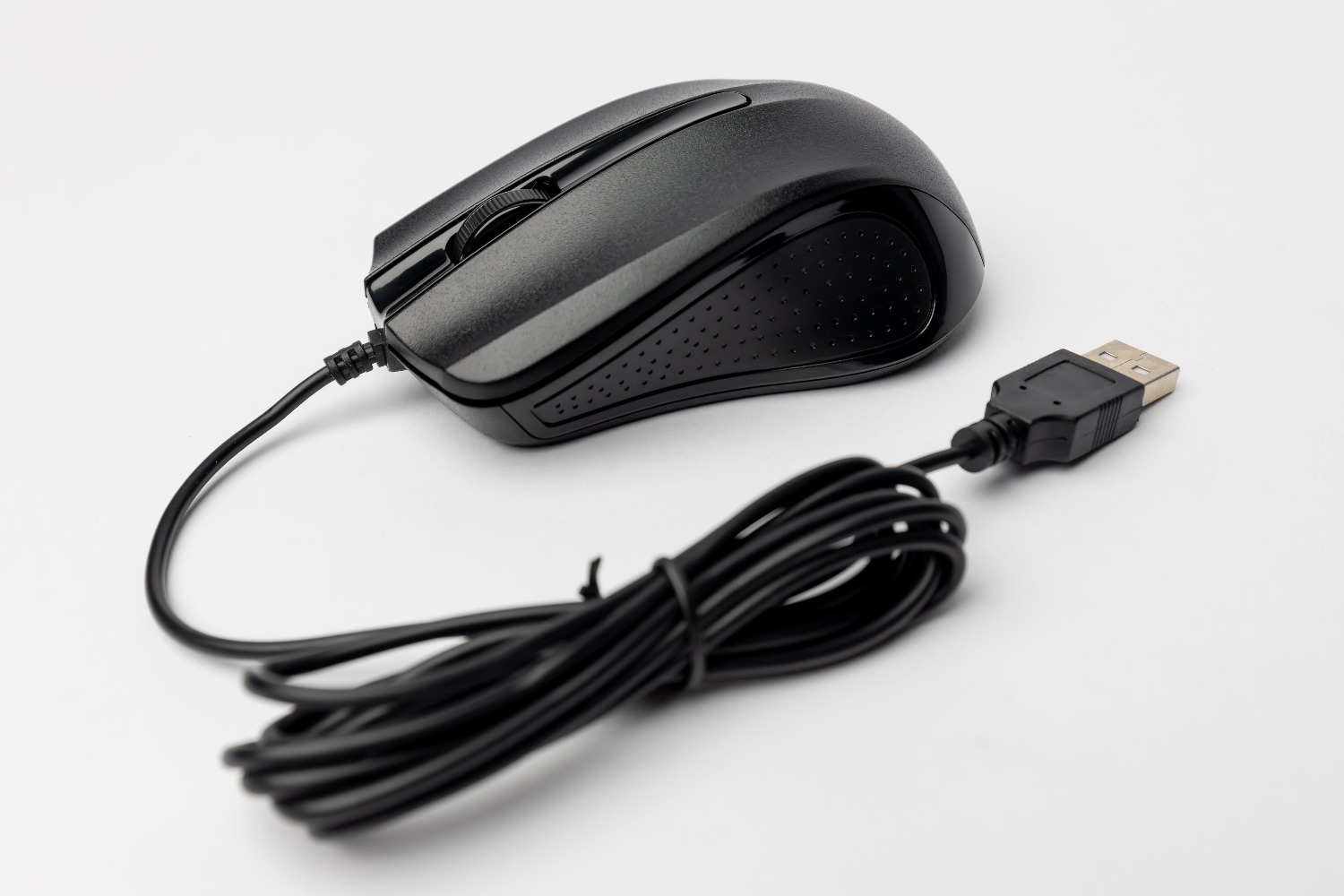
If the arrow still doesn't appear on the desktop or doesn't respond in other applications, check your device. Save the changes and exit the presentation. Esc to check it.
- USB MOUSE: Unplug it and plug it back in. Try a different port, and if you're using a hub, connect it directly to your computer.
- Wireless mouse: Check the battery, the power switch, and the receiver or Bluetooth connection.
- Try a different mouse: This will help you check if the fault is related to the peripheral.
Make sure the sensor is clean and use a suitable surface. A tracking problem can prevent the pointer from moving, even if PowerPoint isn't hiding it.
Increase pointer visibility in Windows
If the pointer works but you're having trouble finding it, in Windows 11 you can go to Settings > Accessibility > Mouse pointer and touch input to increase its size or change its color. You'll find more options in our guide on How to customize the mouse cursor in Windows 11.
You can also activate an indicator that shows its location when you press Ctrl:
- Open Settings > Bluetooth & devices > Mouse.
- Enter Additional mouse settings.
- Open the tab Pointer options.
- Brand Show pointer location when CTRL key is pressed and accepts.
This indicator helps you find the mouse in Windows, but it does not replace PowerPoint's visibility options.
If you use the touchpad, make sure it is enabled in Settings > Bluetooth & devices > TouchpadSome laptops also allow you to disable it using a specific key.
Check the screen you are presenting on
With a projector or a second monitor, the mouse might be on a different screen than the one you're looking at. If you use the Moderator viewIt distinguishes between the screen with your notes and the one that displays the slides to the audience.
Before you begin, move your cursor to the presentation screen and test the tool you plan to use. If you're also sharing the presentation via video call, consult How to share PowerPoint on Zoom without showing presenter notes.
What to do if the problem persists
If this only happens in PowerPoint, save the file, close the application, and try a new presentation. Check for updates from File > Account > Update Options > Update Now, when that option is available.
If it still fails, you can try a Microsoft 365 or Office repairIn Windows 11, open Settings > Apps > Installed apps, locate the product, and select Modify. The options depend on the installation; many will include Quick Repair and Online Repair. Repairing the product may affect the Office suite.
If the mouse also malfunctions in other applications, check Windows Update and your device drivers. The key check is to distinguish between a pointer hidden by PowerPoint, one located on another screen, and a mouse that doesn't really respond.Each case requires a different solution.
Frequently Asked Questions
Why can't I see the pencil cursor in presentation mode?
This happens frequently because the pointer automatically changes to white and blends in with the light background of the slides.
What to do if the mouse stops working on a laptop?
You should check if the touchpad has been accidentally disabled from the device settings or via a hotkey.
How can I quickly find the pointer if it gets lost?
It is possible to enable in Windows settings the option to show the pointer location every time the CTRL key is pressed.
Does updating the drivers help with this problem?
Yes, because outdated or corrupted drivers can cause the input device to stop communicating properly with the operating system.
Can malware cause the cursor to disappear?
Some malicious programs can alter critical system files or disable drivers, causing mouse malfunctions.
What is the sfc /scannow command and how does it help?
It is a Windows tool that analyzes and repairs corrupted system files that may be affecting pointer visibility or responsiveness.
Does hardware acceleration affect cursor visibility?
In some cases, GPU acceleration can cause graphics conflicts that make the cursor flicker or disappear in certain applications.
Index
- 1 How to show the pointer during a PowerPoint presentation
- 2 Distinguish between the arrow, the pencil, and the laser pointer
- 3 Check if the mouse works outside of PowerPoint
- 4 Increase pointer visibility in Windows
- 5 Check the screen you are presenting on
- 6 What to do if the problem persists
- 7 Frequently Asked Questions
