- Windows Sandbox creates an isolated environment to run software safely.
- Allows you to safely and temporarily test Chrome extensions and other programs.
- It is only available on Pro, Enterprise, and Education versions of Windows.
- It can be configured to add folders, memory or activate virtual GPU.

Many times, We don't dare try a Chrome extension for fear of putting our computer at risk. Whether it's because you fear it contains malware, that it affects performance, or simply because you don't fully understand its source. For these cases, there's a useful tool: Windows Sandbox.
This Windows feature allows run software in a completely isolated environment, which is ideal for safe testing. In this article, we explain how Windows Sandbox works, how to set it up correctly, and how you can use it to install Chrome extensions or other programs without worrying about your operating system.
What is Windows Sandbox and what is it for?
Windows Sandbox is a feature of the Windows 10 and 11 operating systems, available in Pro, Enterprise, and Education versions, which allows you to run a secure virtual environment within your system. It works as a kind of "throwaway Windows" that completely erases itself as soon as you close it.
This lightweight environment is based on a integrated virtualization technology; that is, you do not need to install additional software such as VMware o VirtualBox. Everything you need is already included in Windows, you just have to activate it. The big advantage is that Every time you start Windows Sandbox, it starts from scratchThis means that any Chrome extensions, programs, or files you install won't affect your main system and will disappear when you close the sandbox.
It is especially Useful for testing extensions, tools, or scripts with unknown functionality, experiment without fear or analyze how certain obsolete apps behave.

Key advantages of using Windows Sandbox
Windows Sandbox presents a series of benefits that differentiate it from both traditional virtual machines as well as other insulation solutions:
- Quick Startup: starts in just a few seconds.
- Enhanced security: It is based on Microsoft's hypervisor, running a kernel completely separate from the host system.
- No traceWhen you close the window, everything you did literally disappears. There's no risk.
- Lightweight in resources: consumes less memory and disk than a standard virtual machine.
- Integrated into Windows: : you don't need to install anything additional, everything is already included.
Requirements to enable Windows Sandbox
Before you get excited, make sure your team meets the technical requirements To use this feature, because Windows Sandbox is not available in all versions:
- Windows version: Windows 10 Pro, Enterprise, or Education (version 1903 and later), or any version of Windows 11 Pro/Enterprise.
- System architecture: 64 bits.
- Processor: Minimum of two cores, although at least four with hyperthreading is recommended.
- RAM: Minimum 4 GB, ideally 8 GB or more for smooth use.
- Storage: At least 1 GB free disk space, preferably SSD.
- Virtualization: It must be enabled in the BIOS/UEFI. It is usually called “Virtualization Technology” or “VT-x.”

How to enable Windows Sandbox on your system
If your PC meets the requirements, enabling Windows Sandbox is simple:
- Search and open “Turn Windows features on or off” from the start menu.
- In the drop-down list, locate and check the box called “Windows Sandbox” or “Windows Sandbox”.
- Click OK and wait for the installation to complete.
- Restart your computer when prompted.
Done! You can now search for “Windows Sandbox” in the Start menu and you'll see it appear as a separate app.
First Time Using Windows Sandbox: What to Expect
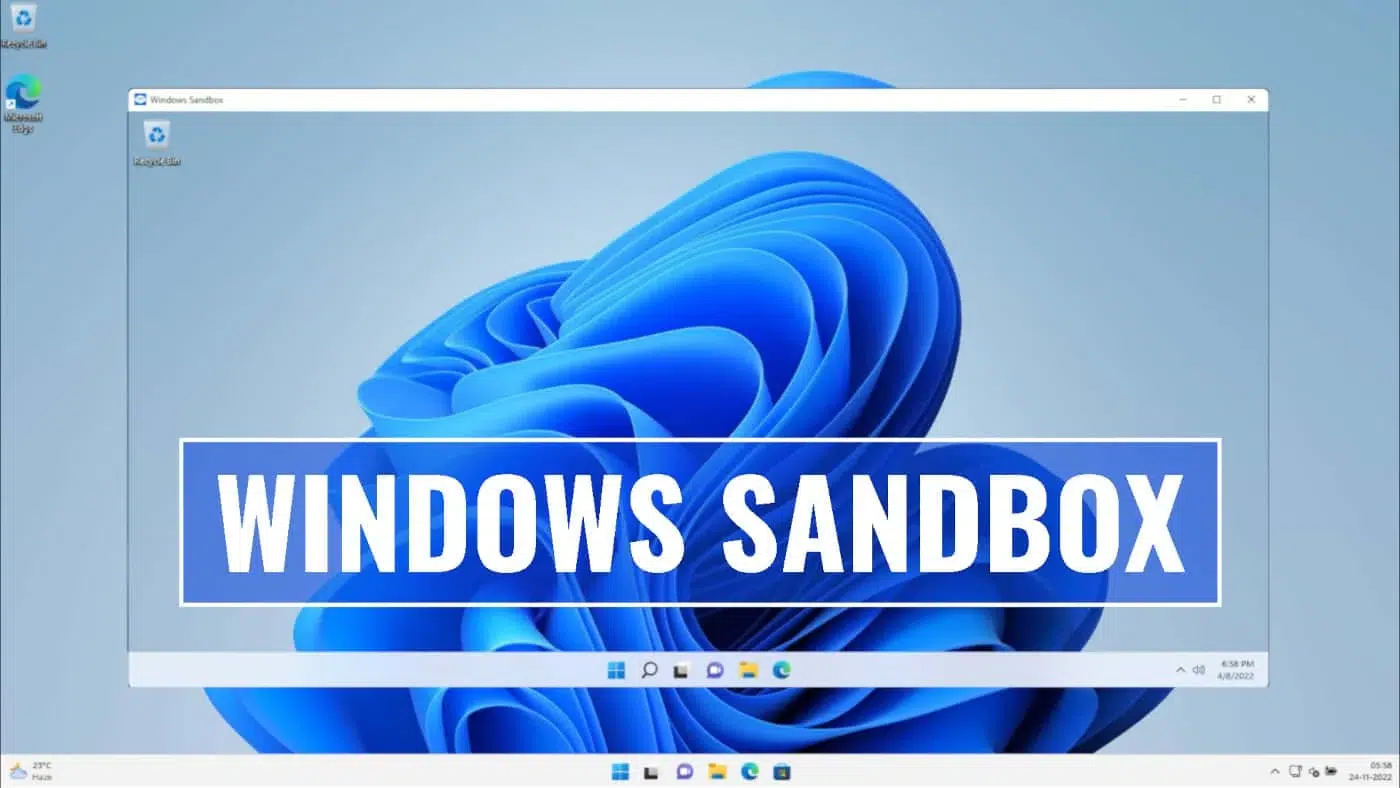
When you open Windows Sandbox you will find a window that looks like another Windows inside yours. It is not a complete copy of the system, but a reduced version in English, with the minimum necessary to work..
From there, you can drag a file from your computer to the virtual environment, or copy and paste it with Ctrl+C / Ctrl+V. Open Microsoft Edge, download Chrome, and try out any extensions you like: if it breaks anything, it's okay.
It is important to know that If you don't make any custom settings, Sandbox always behaves the same.: No access to personal folders, no GPU enabled, and limited memory allocation. If you'd like to learn how to set up a VPN on your Xfinity router for added security, you can do so in this article.
How to configure Windows Sandbox to get the most out of it
One of the most powerful aspects of Windows Sandbox is that allows you to customize its behavior by creating .wsb files, which define parameters such as how much memory you allow it to use, whether it should have access to folders, enable the GPU, etc.
Simply open Notepad, type your configuration, and save it with the .wsb extension, for example, "sandbox-test.wsb." Double-clicking the file will open it with that specific configuration.
Safely test Chrome extensions
Once inside the sandbox, download Google Chrome from Edge or apply an offline installation from your shared folder. Then simply access the Chrome Web Store and install any extensions you want to evaluate.
It is the ideal setting for detect strange behaviorIf you notice the extension redirecting to strange sites, consuming excessive resources, or making suspicious connections, you know what to do. Close the sandbox, and none of this will have affected your computer at all.
Windows Sandbox is A simple, powerful and useful tool for those users who like to experiment, test new extensions, or simply protect your computer from the unknown. It's ideal for situations where you don't want to compromise your primary operating system and allows you to run almost any file in complete isolation and without complications.

Editor specialized in technology and internet issues with more than ten years of experience in different digital media. I have worked as an editor and content creator for e-commerce, communication, online marketing and advertising companies. I have also written on economics, finance and other sectors websites. My work is also my passion. Now, through my articles in Tecnobits, I try to explore all the news and new opportunities that the world of technology offers us every day to improve our lives.