
We're going to talk about why the brightness adjusts itself even when it's turned off, and what you can do to fix it. This annoying problem is usually more common on laptops than on mobile devices. But regardless of the device involved, there are some solutions. Steps you can take to regain control of your screen.
The problem: The brightness adjusts itself even when it's turned off
Your screen It lowers or raises the light intensity without your command.Stay calm: you're not alone, and you're not becoming paranoid. Don't panic thinking your device is broken either. This behavior is actually more common than you might think, especially with laptops.
Of course, what's most disconcerting is that the brightness adjusts itself even when it's turned off. automatic brightnessThis feature is designed to enhance the viewing experience in environments with varying lighting. The screen brightness automatically increases in bright or outdoor environments and decreases in very dark or low-light spaces.
Undoubtedly, enabling automatic brightness on mobile phones and laptops has its advantages. For one thing, reduces eye strain when you use your device at night or with the lights off. On the other hand, it allows see clearly The screen remains visible even in sunlight or brightly lit rooms. The brightness adjustment is automatic, so there's no need to manually adjust it in the device settings.
Of course, you can always disable this feature if you need to maintain a constant screen brightness. And that's the problem: the brightness adjusts itself even when it's disabled. Why? The explanation lies in a combination of Technologies that seek to optimize the visual experience and energy consumptionHowever, these technologies don't always align with user preferences. Let's see.
Main causes of automatic brightness adjustment (even when disabled)
Yes, you go to your device settings and turn off automatic brightness, but you still notice variations in screen brightness. Why? First, because the button to turn off automatic brightness is... It only disables the adjustment based on the ambient light sensor.That sensor is what makes the screen light up in the sun and turn off in the cinema. But beneath that layer are other systems that, by design or by default, remain active.
Content-based Adaptive Brightness Control (CABC)
For example, one of those systems is the CABC (Content Adaptive Brightness Control), or Content-Based Adaptive Brightness Control. What this technology does is analyze the screen content (dark or light) and adjust the lighting to save energyFor example, if you switch from a document with a black background to a white web page, the brightness may automatically increase.
Some manufacturers (like Intel or Microsoft) include CABC technology in their devices. The same is true for Android devices from brands like Motorola and Samsung, which include the Adaptive Brightness feature. The problem is that CABC continues to run in the background, even if automatic brightness is turned off.And this causes those inexplicable variations in the screen's brightness intensity.
The brightness adjusts automatically even when it's turned off: High Dynamic Range (HDR)
If the brightness adjusts itself even when it's turned off, it could be due to the HDR or High Dynamic Range technologyHDR is present in some gaming and video editing monitors, high-end mobile phones, and compatible laptops. More and more manufacturers are including it in their devices, and rightly so, since the visual quality improves by 100%.
Part of the magic of HDR lies in displaying maximum brightness only in the brightest areas of an image or video. To do this, The system dynamically adjusts the overall background brightness and that of individual pixels. That's why, if you're watching a movie or editing a video and you switch to another application or the desktop, you'll notice a change in brightness, even if the manual setting hasn't changed.
Energy saving and performance modes
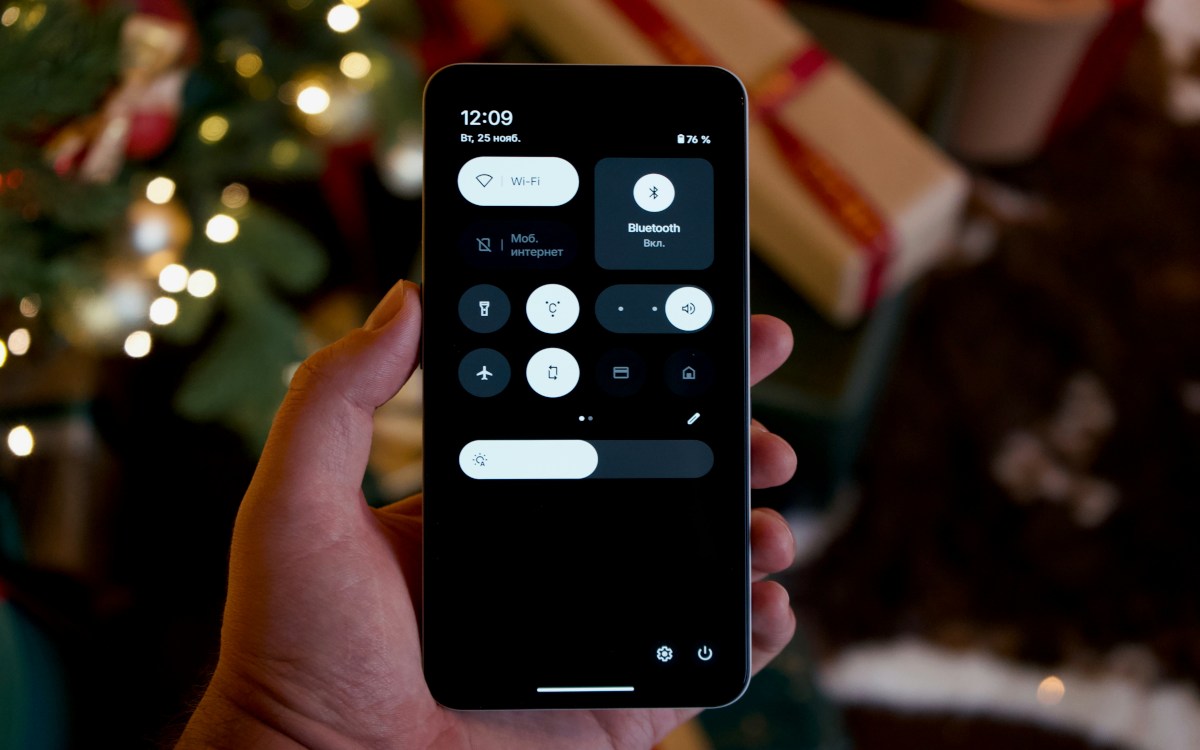
When the brightness adjusts itself even when it's turned off, one possible cause is power saving and performance modes. Mobile phones and laptops incorporate power saving features for this purpose. extend its autonomy and take care of the batteryThese settings not only limit the CPU, but also reduce screen brightness.
This makes sense, since one of the most effective ways to save battery is to reduce screen brightness. Therefore, if the Energy Saving If this feature is enabled on your computer, the screen will dim suddenly when the battery reaches 20% or 15%. On the other hand, the mode Performance It can increase the brightness without requiring permission to offer a "better visual experience".
The brightness adjusts itself even when it's turned off: Solutions

Several factors could be interfering when the brightness adjusts itself even when it's turned off. But primarily, those related to battery saving and optimizing visual quality are involved. Not all of these settings can always be disabled.But it's worth a try if it improves your user experience. (See the topic How to disable automatic brightness in Windows 11).
For example, you can try with deactivate CABCSome manufacturers allow you to do this from the advanced display settings. Also, try deactivate the ambient light sensorIf your laptop has one, check the HDR settings. It's also a good idea to review the HDR settings, especially if the flickering only occurs while editing images or videos.
Regarding performance modes, Configure the device to use one that is consistent. (such as "Balanced" or "Maximum Performance"). This is instead of using modes that make dynamic decisions, such as "Optimized" or "Smart." Of course, keep in mind that this could affect battery life or cause the device to run a little warmer.
The fact that the brightness adjusts itself even when it's turned off is usually not a manufacturing defect, but rather an attempt to improve your experience. Of course, it's not always exactly what you want, and sometimes it can become a real nuisance. Fortunately, You can calibrate it a little to reduce its impact and enjoy a more balanced experience.

From a young age, I've been fascinated by all things scientific and technological, especially those advancements that make our lives easier and more enjoyable. I love staying up-to-date on the latest news and trends, and sharing my experiences, opinions, and tips about the devices and gadgets I use. This led me to become a web writer a little over five years ago, focusing primarily on Android devices and Windows operating systems. I've learned to explain complex concepts in simple terms so my readers can easily understand them.