- Intel Dynamic Tuning manages power and heat; it's not always the browser that's to blame.
- Measure well: BIOS/UEFI and apps like Open Hardware Monitor or Core Temp.
- Proper ventilation, cleaning and accessories reduce several degrees.
- Power and maintenance adjustments prevent throttling and extend equipment life.
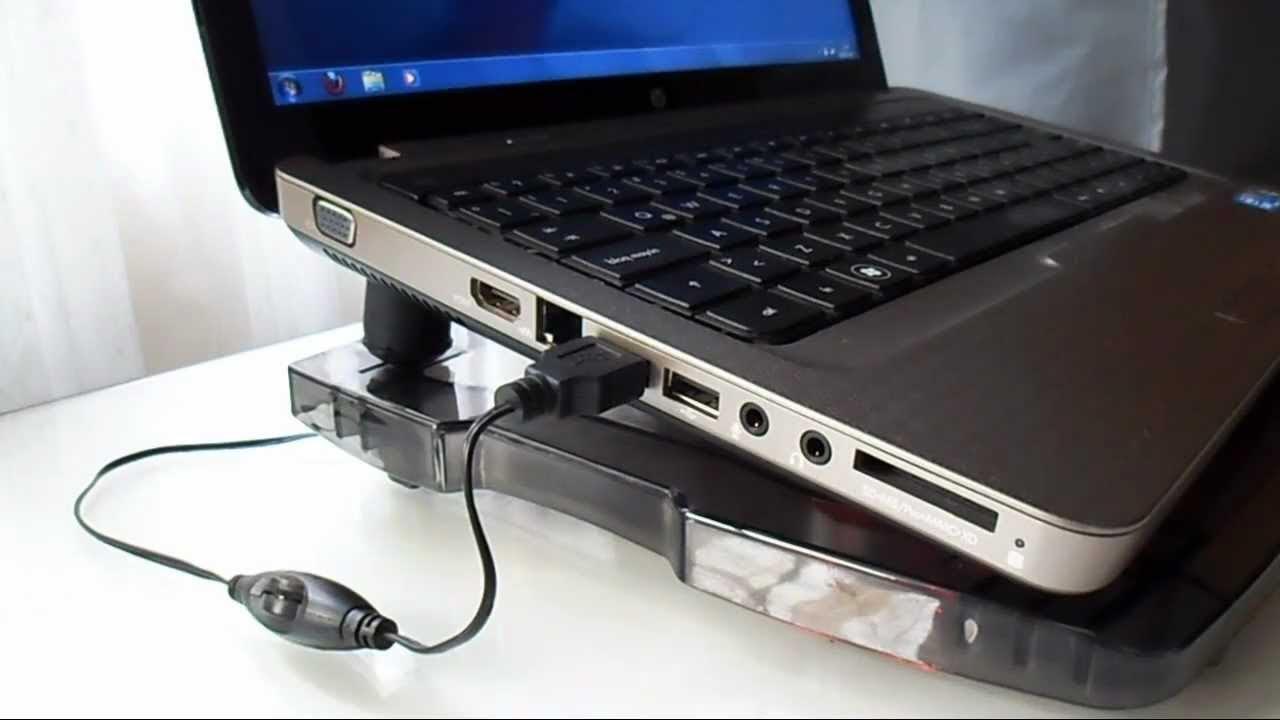
Does the Laptop heats up for no reason and it's not Chrome's fault: it's Intel Dynamic Tuning? You may suddenly notice the chassis burning or the fans roaring and think the culprit is the navigator. In many cases, It's not "Chrome's fault", but rather how the system manages power and temperature under the hood. Here you'll find a clear and practical guide to understanding why this happens, how to properly measure it, and what real solutions are available to you, from simple adjustments to advanced options.
First of all, breathe: modern laptops are designed to protect you. A CPU can reach 95–100 ºC under load and automatically reduce frequencies to avoid damage, and the system will shut down if it reaches dangerous limits (around 105°C). That doesn't mean you can't improve temperatures and noise with good habits, proper configuration, and regular maintenance. And if you need repairs, contact specialized technical support: This article does not replace technical service, but it will help you avoid problems and recognize when something is not right.
Why it's not the browser: This is how Intel Dynamic Tuning plays a role
In laptops with Intel processors, a key component is Intel Dynamic Tuning (DTT), the heir to the DPTF energy policies. This system adjusts power limits and thermal curves in real time. depending on the load, the selected profile, and the internal sensors. What does this mean? Your CPU can "throttle" with power and temperature spikes to give you instant performance, and maintain high frequencies as long as the chassis and fans can handle it.
If you experience heat even with light tasks, your manufacturer's profile may be too aggressive or background processes may be pushing the CPU. DTT is not “a failure”: It's a manager that seeks a balance between power, noise, and heat. Poorly adjusted, incomplete, or in an unfavorable environment (poor ventilation, dust, high ambient temperature), this can result in a hot laptop even if you're not working at full capacity.
It is worth knowing that, as Intel engineers explain in public presentations, CPUs are set to approach their maximum working temperature without suffering damage, and they self-regulate through thermal throttling to stay within safe limits. So don't panic if you see high peaks: observe the pattern, review what's causing them, and act methodically.
Measure temperature like a pro

Before touching anything, confirm whether the equipment is actually overheating. Measuring well is the first stepYou can do this from the BIOS/UEFI, in the system information section, where the basic temperatures are usually displayed.
On Windows, use trusted tools. Open Hardware Monitor, for example, displays current and maximum recommended temperatures of CPU and other sensors, including NVMe SSD temperaturesThis way, you'll know if what you're seeing is normal under load or if the readings are alarming at rest.
Don't just stick with a number. Observe the behavior over timeBrief spikes when opening heavy apps are normal; sustained high temperatures at idle are not. Write down what you were doing and for how long; it'll help you relate cause and effect.
Windows in check: process-hogging and life-saving reboots
When the numbers confirm that it's overheating, it's time to rule out a software problem. Open Task Manager with Ctrl+Alt+Del and go to Performance and Processes. If you see an application with high CPU usage or blocked, close it from End Task and check if the temperatures drop.
There are days when an app misbehaves and just closing it isn't enough. A quick reboot tidies up the house: Clean up zombie processes, restart services, and hopefully, your power consumption will return to normal. If an app is frequently giving you trouble (e.g., apps like Wallpaper Engine can be CPU intensive), check for updates or consider a lighter alternative.
And pay attention to what you don't see: malware or misconfigured services They can consume resources without warning. A scan with your antivirus and checking Windows startup to disable unnecessary programs can make a difference, especially at idle.
Physical ventilation: position your laptop properly and protect the environment
No matter how much magic the software does, if the air doesn't circulate, the heat stays inside. Locate the inlet and outlet grilles and avoid covering them. Using your laptop on a bed, sofa, or clothing blocks the flow and can cause temperatures to rise.
The location also matters. A closed, hot room in summer raises the internal temperature by several degrees. Improve the ventilation of the room and avoid direct sunlight on the equipment; in winter, the same goes for heaters or radiators nearby. A cooler environment means quieter fans and a longer lifespan.
Simple and effective trick: slightly raises the rear with a stand. That little extra gap under the base improves airflow as much as many budget stands with fans.
External bases and coolers: when are they worth it?
If you edit video, play games, or do intensive tasks, a cooling pad helps. Aluminum ones usually dissipate better than plastic ones., and choose a model with good airflow (CFM) and well-spaced fans. They connect via USB to the laptop itself or to a charger.
There is another, lesser-known option: “coolers” that attach to the side or rear grille to draw in hot air. They are not as effective as a good foundation, but they are compact, cheap and can give you a break if the problem is not extreme.
If your laptop already has a competent thermal design, such as hinges that lift the chassis or dual fans, you may not need any accessories. Some brands have greatly improved their systems, with solutions such as hinges that raise the keyboard to facilitate air intake or dual-fan configurations to better control temperature.
Internal cleaning: dust out, air in
Over time, dust builds up and clogs vents and ducts. Regular cleaning makes a differenceYou can start by blowing compressed air through the vents to remove surface lint.
For a thorough cleaning, open the bottom cover (using the appropriate screwdrivers) and access the interior. Applies compressed air in short bursts, without pointing directly at sensitive components and holding the can upright to avoid condensation.
Then, using soft craft brushes, remove any adhering dust. Press the minimum necessary And pay special attention to the fan blades and the space between them. If you're not comfortable with this, consult a professional; a good service is better than a broken tab or a damaged connector.
Thermal paste and pads: only if you know what you're doing
On laptops older than 3–4 years, the thermal paste between the CPU/GPU and the heatsink may have lost its properties. Replacing it can recover several degrees, but it is not a step for beginners: disassembling the thermal module requires delicacy and following the exact tightening order.
In addition to the paste, many models use thermal pads for VRM, memory, or heatsink areas. Over time they also degrade and changing them helps conduct heat better. There are high-performance pads, including top brands like Honeywell, that can perform better than conventional pastes on certain surfaces.
There is also liquid metal, which is very thermally conductive, but with clear risks: is electrically conductiveIt can shift over time and damage the board if not applied perfectly. If in doubt, don't use it. Even with conventional paste, follow the quantities, compatibility guidelines, and the manufacturer's instructions.
Power Settings in Windows: Balance Over Brute

Windows allows you to moderate your system's heat without touching any hardware. Type powercfg.cpl in the Start menu to open the power options and choose the Balanced plan instead of High Performance. It's the sensible fit for everyday use. if your priority is to reduce heat and noise.
In Advanced Plan Settings, go to Processor Power Management and set “Maximum Processor State” to less than 100%. 95–98% usually drop a few degrees with a small performance impact on most office tasks and browsing.
For fine-tuning, you can use third-party software. Core Temp and Open Hardware Monitor monitor temperatures and loads, and SpeedFan can fine-tune fans on compatible computers. Please note that not all laptops allow software fan control.; many depend on manufacturer firmware and profiles, and some Power profiles can lower FPS.
If you play, try Balanced mode instead of “Turbo”. From a certain power threshold on the GPU (for example, over 90W on some machines), actual FPS improvements may be small compared to the increased temperature and noise. A stable experience is better than a thermal roller coaster.
What is normal and when to worry?
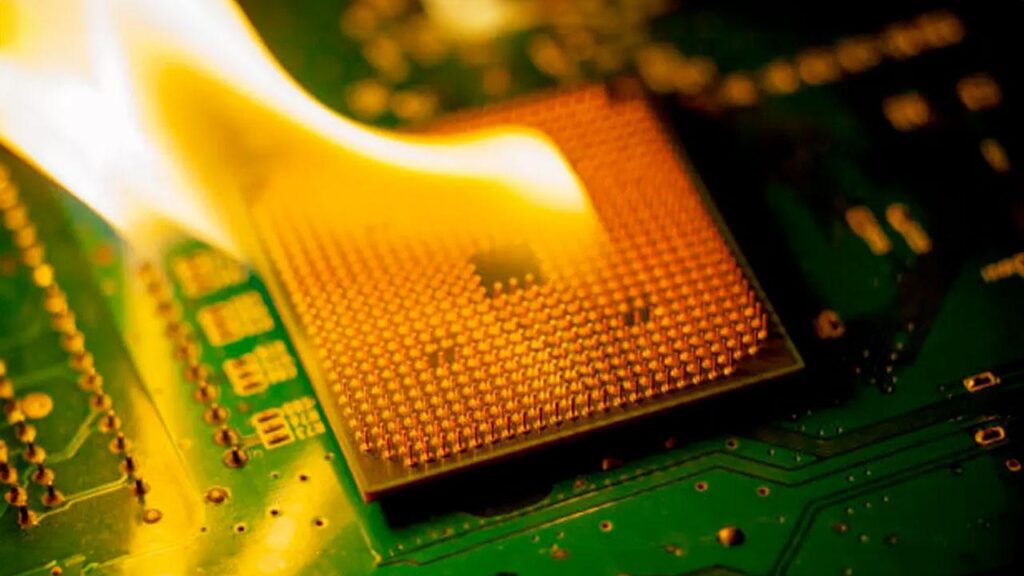
Normal: high load, audible fans, peaks of 95–100 ºC and occasional drops in frequency while the system cools. That's thermal throttling working to keep performance within safe limits. Nothing to worry about if there are no shutdowns.
What is not normal: 80–90 ºC sustained at rest, sudden shutdowns without heavy load, or high temperatures with the base clearly clogged or dirty. This is where maintenance is needed, checking the software and, if the problem persists, contacting technical support.
A note on health and comfort: working with your laptop on your lap can be pleasant, but it prolongs your contact with heat. Use on hard, well-ventilated surfaces to improve temperatures and avoid discomfort.
Common causes of overheating
There are several factors that combine to explain most cases. This is the essential checklist so as not to leave anything out:
- Insufficient ventilation: dust, clogged vents or thermal design pushed to the limit.
- Uninterrupted use for hours: Heat builds up if you don't give breaks or let the team breathe.
- Hot environment: closed rooms, summer, direct sunlight or nearby heat sources.
- Bad location: Beds, blankets and clothing block the base and retain heat.
- Intensive loads: Video editing, games or heavy calculations increase consumption and temperature.
- Hardware failures: touched fan, degraded thermal paste or sensors with anomalous readings.
- Problematic software: hung processes, malware, or misconfigured background services.
Effects of an overheated laptop
Sustained heat brings consequences. These are the most common so you can anticipate:
- Performance drop: The CPU/GPU reduces frequencies to avoid exceeding thermal limits.
- Crashes or reboots: The system protects itself if it detects temperatures outside the range.
- Potential damage: thermal stress on components such as VRM, memory or storage.
- Data risk: Unit degradation and unexpected outages can cause losses.
- Shorter battery life: Heat accelerates its chemical wear.
Good habits and small decisions that add up
Close unused programs, monitor processes, and update your apps and system. Avoid soft surfaces, elevate your rear end and keep the base clean. These are simple gestures that save energy and noise.
Set sleep or shutdown times when you are not in front of the computer. Set up power plans So that, whether on battery or plugged in, your laptop can rest after a period of inactivity. Fewer hours "roasting" in idle mode means better long-term health.
If you're considering a purchase, don't just look at CPU, RAM, and graphics. Ask about the cooling system: number of fans, air intakes and exhausts, hinges that raise the chassis, or materials that help dissipate heat. Getting this right prevents surprises with high temperatures in the future.
And a piece of advice for peace of mind: except for blackouts or severe throttling, Don't obsess over each degreeMany laptops run “hot” by design and have been doing so for years without problems with basic maintenance.
If you've made it this far, you already have an action plan: measure carefully, monitor processes, improve ventilation, add outside help if necessary, keep the interior clean, adjust the energy, and, if necessary, undertake advanced tasks such as paste or padding. Share your experience and questions in the comments.; together, it's easier to identify patterns and solutions that work in each model.


Passionate about technology since he was little. I love being up to date in the sector and, above all, communicating it. That is why I have been dedicated to communication on technology and video game websites for many years. You can find me writing about Android, Windows, MacOS, iOS, Nintendo or any other related topic that comes to mind.