
¿The screen flickers when I connect a USB in WindowsIn this guide article, you'll learn how to easily fix your screen flickering at different times.. Learn why it happens and how to fix it with practical and current steps as we always do in Tecnobits.
Connecting a USB device should be a simple matter, but in Windows, especially versions like 11, some users notice that their monitor begins to flicker uncomfortably. This inconvenience It may be mild or seriously interfere with the use of the equipment., and while it's not a serious problem, it affects enough people to seek answers. What causes it? Is it a hardware or operating system issue?
We will explore the reasons behind this behavior, from driver conflicts to power settings, and we'll guide you with practical solutions to stop your screen from flickering. All this with up-to-date information, designed for any user. Let's get started with solutions to your problem of the screen flickering when connecting a USB in Windows.
Why does the screen flicker when connecting a USB?
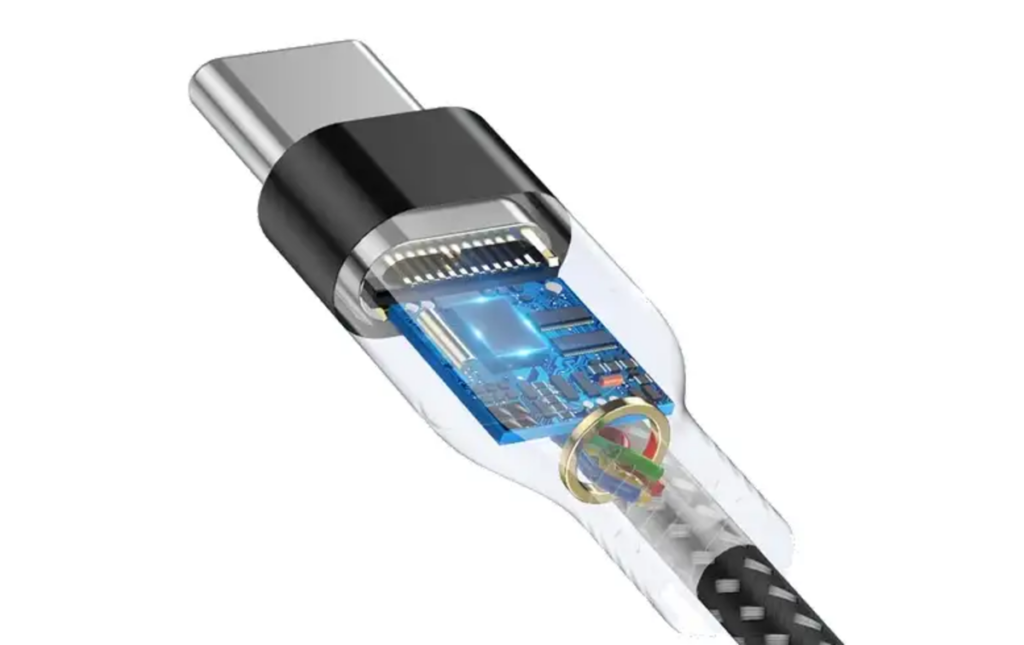
It can have several causes, and understanding them is the first step to solving it. USB devices interact with the system through ports and controllers, and any mismatch can be reflected on the screen. These are the most common reasons:
- Outdated graphics drivers: The software that drives the display may fail to detect new devices.
- Electrical interference: A faulty USB port or cable in poor condition can affect the monitor.
- Power settings: Windows adjusts power consumption and this sometimes causes flickering.
- Update frequency: Connecting a USB may temporarily alter the monitor's timing.
- Hardware failure: From the port to the graphics card, some component could be damaged.
Identifying the source of the problem will help you apply the right solution without much fuss. Does the screen flicker when I plug in a USB drive in Windows? So now we know the problem could be coming from different sources, and we're going to fix it.
Is it possible to prevent the screen from flickering?

Yes, this problem can be fixed in most cases. You don't need to be a tech expert to try the solutions we present. We'll show you how to address it step by step with simple and effective methods. Before diving into the solution or possible solutions to the screen flickering when connecting a USB in Windows, We leave you this other guide for here about How to calibrate the screen in Windows 11 step by step.
The screen flickers when I connect a USB in Windows: solutions
Depending on the cause, there are different ways to stabilize your screen. Here are the most useful options for Windows today.
- Update your graphics drivers
Drivers are key to a monitor's proper functioning; if they are outdated, they can cause issues when connecting devices.
- Press Win + X and select Device Manager.
- Find Display Adapters, right-click your graphics card, and choose Update Driver.
- Choose to check for updates online or download the latest version from the manufacturer's website (NVIDIA, AMD, or Intel).
- Restart your computer after installing it.
This will ensure the system handles USB connections correctly without affecting the display. Of all the solutions to the flickering screen when connecting a USB in Windows, this is usually the most efficient.
- Try another USB port or cable
Sometimes the problem is with the external hardware.
- Connect the device to another port on the computer.
- Use a different cable to rule out damage to the current one.
- If the flickering disappears, the port or cable was the culprit.
They are quick solutions that do not require complicated adjustments.
- Adjust power settings
Windows may suspend USB ports to save power, which sometimes causes conflicts.
- Open Control Panel (search for panel in the Start menu).
- Go to Hardware and Sound > Power Options > Change plan settings.
- Click Change advanced power settings.
- Find USB Settings and disable the Selective Suspend option.
- Save the changes and try connecting the USB again.
This setting prevents the system from unexpectedly cutting power.
- Change the update frequency
A mismatch in the monitor refresh rate can cause stuttering.
- Right-click on the desktop and select Display Settings.
- Go to Advanced display settings.
- Choose a different frequency (for example, 60 Hz to 75 Hz, if available).
- Please confirm and connect the USB to see if it improves.
Adjusting this parameter usually stabilizes the image.
- Check the computer hardware
If the above steps don't work, the problem could be physical.
- Inspect the USB ports for dust or visible damage.
- Connect the monitor to another computer to rule out display failures.
If you're using an external graphics card, make sure it's securely connected. A technician may be necessary if you suspect a damaged device. Like the first solution, we strongly recommend that you check out this if you want to fix the "Screen flickers when I plug in a USB" issue in Windows.
Precautions when connecting USB devices
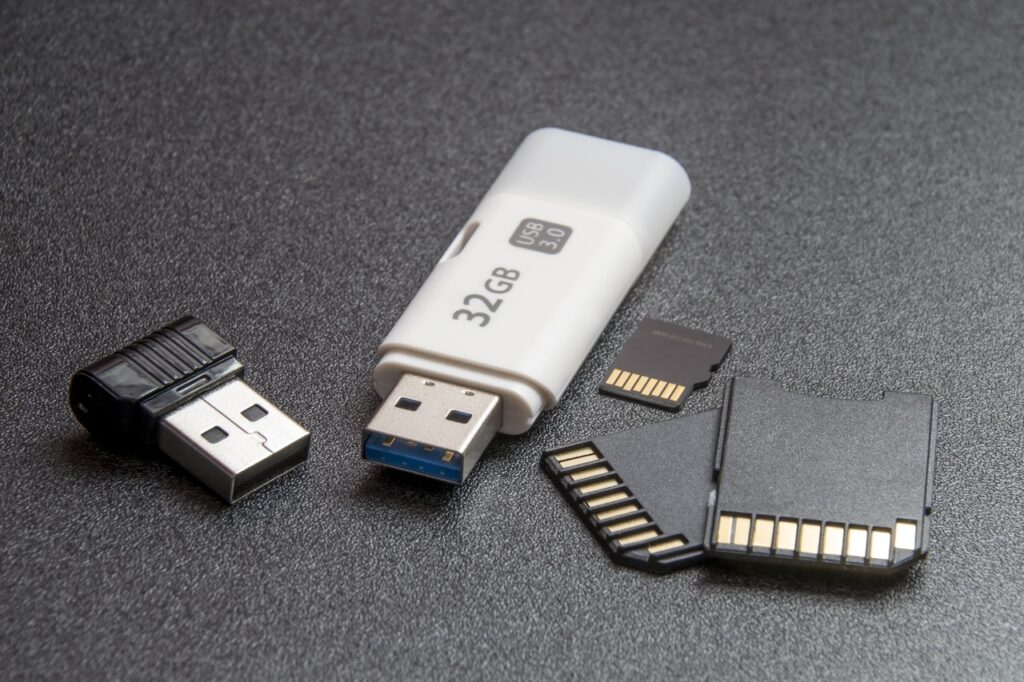
You already know the solutions to the screen flickering when connecting a USB in Windows, but we recommend that you keep these tips in mind to avoid this and other problems:
- Use reliable devices, cables or memory of dubious quality can cause problems.
- Don't overload ports; connecting too many devices at once can cause interference.
- Keep your system clean, as dust on the connectors affects performance.
- Avoid sudden disconnections; you must safely remove USBs using the system option.
What to do if the flickering persists
If the screen continues to flicker after trying the basic methods, there are additional solutions:
- Run the troubleshooter: Go to Settings > System > Troubleshoot > Other troubleshooters and use the hardware troubleshooter.
- Update Windows: In Settings > Windows Update, check for patches that fix compatibility issues.
- Restore system: If the problem started after a recent change, use System Restore from the Control Panel.
- Review the event viewer: Check for USB or graphics related errors in Win + X > Event Viewer.
These options are a lifesaver when simple solutions aren't enough. And with all of this, you'll likely find the solution to the problem of the screen flickering when I plug in a USB drive in Windows.
Useful tools for 2025

Before finishing this guide article on "the screen flickers when I connect a USB in Windows" we are going to give you some of these applications that can make the task easier, and keep in mind that these tools are optimized for Windows and will save you time in diagnostics, pay attention:
- Driver Booster: will update drivers automatically with one click.
- HWMonitor: will display the status of the components to detect physical failures.
- USBDeview: will scan the connected USB devices and their problems.
Resolve screen flickering when connecting a USB in Windows It's easier than it seems with the right steps. You have everything you need to restore stability to your monitor with constant updates. Knowing these details gives you a broader perspective on the problem. Apply these solutions and enjoy your computer without interruptions. We hope this article has been helpful and that you'll be back in business. Tecnobits with the solution to the problem of the screen flickering when I connect a USB in Windows, but above all, with more information to solve all kinds of problems.

Passionate about technology since he was little. I love being up to date in the sector and, above all, communicating it. That is why I have been dedicated to communication on technology and video game websites for many years. You can find me writing about Android, Windows, MacOS, iOS, Nintendo or any other related topic that comes to mind.