- The failure is usually due to poorly managed credentials, incorrectly assigned IP address, or changes in Windows security policies.
- Reviewing advanced sharing, clearing and recreating credentials, and checking the Credential Manager usually resolves the issue.
- Firewalls, antivirus software, and, in domains, Active Directory can block legitimate connections and trigger the credentials message.
- Using your Microsoft account, PIN, team name, and network permissions correctly is key to avoiding the credential request loop.

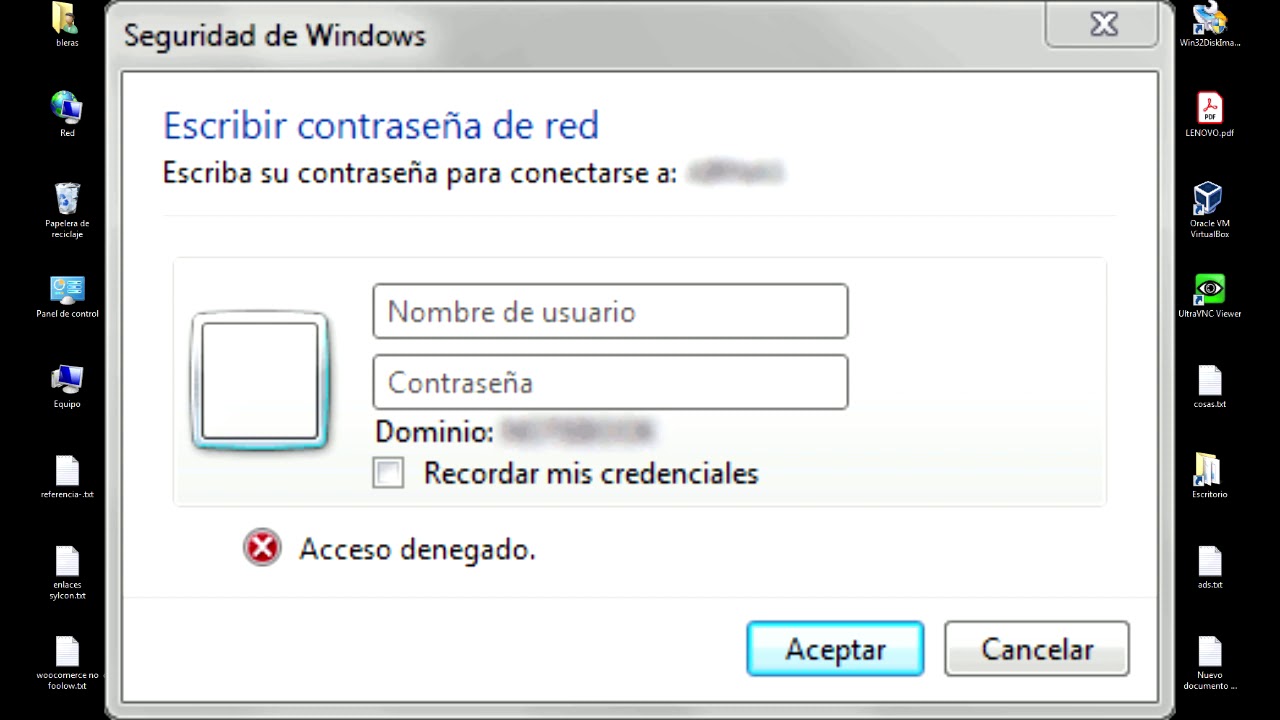
Sometimes, we come across this: The system It constantly asks for network credentials.Even when we're sure the username and password are correct. This error is very common when trying to access shared folders or drives between two Windows 10 or Windows 11 computers on the same local network.
In many cases, the dialog box of “Enter network credentials” It appears in a loop, rejects keys that you know are valid, or shows you the message "The username or password is incorrect" without any further explanation. Let's see why this happens. What is the relationship between Microsoft accounts, PIN, IP address, Firewall, and Credential Manager, and how to get everything working properly again so that network access works as usual?
What does the "Enter network credentials" message really mean?
When Windows displays the window for enter network credentialsWhat it's doing is asking you for a username and password with sufficient permissions to access a shared resource: folders, printers, network drives, etc. It's an extra layer of security to prevent anyone who connects to your Wi-Fi from accessing your PC and reading your files.
Under normal conditions, introducing the correct username and password From the remote machine (or by disabling password-protected sharing), the dialog box should disappear and access should work without problems. The issue is that, for various reasons, Windows can mishandle these credentials, store them incorrectly, or block the connection due to security policies, updates, or third-party software.
This error can appear in almost any modern version of Windows, but it is much more common from Windows 10 onwards and Windows 11, especially since Microsoft accounts became widespread, PIN logins were implemented, and certain changes were made to network and security policies.
In many real-world scenarios, the same story repeats itself: two Windows computers (one Pro and one Home, or two Windows 11), a shared folder, passwordless sharing enabled, the same Microsoft account on both, access that had worked for years… and suddenly, the network starts to constantly requesting credentials I've already rejected them all.
The system keeps asking for network credentials: Most frequent causes
Before we begin, it's important to understand what usually causes this problem. It's not always a single reason. Often, several factors combine. several factors: incorrectly stored credentials, incorrectly assigned IP address, security policies, disabled services, or even the antivirus software malfunctioning.
A classic cause is a Incorrect configuration of advanced sharingIf password-protected sharing is enabled when it shouldn't be, or if Windows isn't managing private network connections properly, it's very easy for the system to keep asking for a username and password even when the folder has been marked for sharing without a password.
The very ones that come into play also come into play user credentialsSince many computers now start with a Microsoft account and PIN, it's common for users to be unsure what information to enter in the network settings: their Microsoft email address? their local username? the machine name plus the username? If there have also been password changes, expired passwords, or corrupted accounts, disaster is guaranteed.
Another major problem area is the Credential Manager from Windows. If there are old entries, outdated passwords, or incorrectly saved credentials for that same computer or network path, the connection may be blocked or enter an error loop, even if the current key is correct.
In corporate environments, the Active Directory and group policies Group Policy Objects (GPOs) also have an impact: password expiration, account locks, the requirement to change the password at the next login, policies that block guest logins, or networks considered insecure… All of these can trigger the credentials message even if the user hasn't changed anything.
Finally, there are more technical reasons, such as a misconfigured IP (static or automatic when it's not required), conflicts with the Windows Firewall or third-party antivirus...or even critical services like the Credential Manager disabled or blocked after an update, and problems with administrator permissions.
Credential management: best practices to avoid surprises
The way you manage your passwords and user accounts This directly impacts network access problems, not only at home but especially in businesses where many devices, users, and services depend on the same infrastructure. It's advisable to follow these rules:
- Wear secure passwordsLong passwords, with a combination of uppercase letters, lowercase letters, numbers, and special characters. This is not only for security, but also because many organizations' policies require minimum complexity and expiration levels, and if these are not met, seemingly "inexplicable" authentication errors begin to appear.
- That each user Keep your credentials privateSharing usernames and passwords among several people triggers conflicts: account lockouts, password changes without notice, open sessions on multiple computers with different credentials…
- Use the Two-factor authentication (2FA)Another layer that, although normally applied to online services (email, VPN, web applications), is starting to be present even in internal access.
- Use password managersThese centralize credentials and distribute them securely. Very useful, provided they are used correctly.
- Wear digital certificates as a second factor or even as a primary requirement for user authentication to certain network services. If the certificate is expired, revoked, or not installed correctly, the network may reject the connection with a generic "incorrect credentials" message.
- Review the password policies (Expiration, minimum length, complexity) defined in the domain can cause a key to become invalid mid-session. The user continues browsing without issue until a network service attempts to re-validate the credentials, at which point the "Enter network credentials" prompt appears.
Check IP assignment and network configuration
One reason that is often overlooked is a inconsistent IP configurationIn simple home networks it doesn't usually cause so many problems, but in more structured local networks (offices, mixed environments, NAS, printers, etc.) it can be key to whether access works or not.
In many internal networks, assignments are made static IP addresses To ensure critical equipment (servers, desktop PCs, NAS devices) can always be located at the same IP address, the system must use a specific IP address. If one device is expecting to find another at a particular IP address, and that IP address has changed via DHCP, the system may attempt to authenticate against a different device or simply fail to find the resource, displaying credential errors or access denied messages.
On the other hand, if you've manually configured a static IP address and done it incorrectly (out-of-range IP, incorrect subnet mask or gateway, DNS that doesn't resolve anything), communication with the rest of the network can become erratic. Sometimes you'll see the computer name in the "Network" section of File Explorer, but when you try to log in, the connection fails and Windows keeps prompting you for credentials.
In these cases, it's advisable to check if each team is using Static or automatic IPYou can choose to set a well-configured static IP address, or conversely, return the network to a fully automatic scheme (obtaining IP and DNS via DHCP) and check if the credential errors disappear.
In Windows, the setting is accessed via Settings > Network & Internet > Change adapter options. Within the adapter properties (Ethernet or Wi-Fi), select Internet Protocol version 4 (TCP/IPv4) You'll see if "Obtain an IP address automatically" or "Use the following IP address" is selected. Switching between these options, depending on your network configuration, may be enough to restore smooth access to shared resources.
Using Microsoft accounts, PIN, and team name
Since Windows 10, it has become very common for users to authenticate to the system with a Microsoft account (Outlook, Hotmail, etc.) and use a PIN to log in daily. The problem is that, when accessing network resources, Windows doesn't always distinguish between cloud account, local account, PIN, and computer name.
One option that often works is to try entering Microsoft account details Complete the following in the network credentials box: your email address (for example, [email protected]) as your username, and the actual password for that account (not the PIN). Even though you almost never enter that password because you log in with your PIN, it's still the primary key associated with your account.
Another option that has worked for many users is Use the computer name followed by the usernameFor example, if the PC you want to access is called EQUIPO1 and the user is called juan, try EQUIPO1\juan as the username (without spaces or extra symbols) and the password that corresponds to that account.
On devices that use a PIN for login, the system sometimes fails to fully "understand" that there's also a traditional password associated with it, and therefore network authentication fails. Try this: temporarily disable the login PIN Using only a username and password to log into Windows can help the system unify credentials and stop asking for them unnecessarily when accessing over a network.
If the error is truly related to the credentials you enter, These three tests are usually key: Use Microsoft email and password, use computer_name\username and disable PIN to force login with real password.
Advanced sharing settings and password protection
A critical part of network configuration in Windows is in the Networking and sharing center, within the Control Panel. There you can define whether the computer allows file and printer sharing, and whether or not that sharing requires user credentials.
Within "Change advanced sharing settings" you'll see sections for private networks and "All networks". It's important to check that the option is enabled for the network you're using (usually a private one). sharing files and printersBecause otherwise, even though the resource appears to be shared, it is not actually being advertised correctly to the other teams.
The famous one appears in the "All Networks" section password-protected sharingIf you have this enabled, any device that wants to access your shared folders will have to provide a valid username and password. If you disable this protection, access without credentials is allowed, which is convenient in highly controlled home networks, but less advisable in large networks.
Many users who don't want to complicate things decide Disable this password-protected sharing This allows other devices to connect directly without requiring credentials. If you're confident your network is secure and free of unwanted guests, you can proceed, knowing you'll be sacrificing some security for convenience.
In older versions of Windows, there was also the concept of Home Groupwhich simplified sharing between home PCs. Although it has disappeared as such, some legacy options, such as "Let Windows manage homegroup connections," are still present in certain dialogs and it's advisable to keep them enabled if you see them available to allow the system to manage the discovery of other devices.
Review Active Directory and policies on domain-joined computers
In corporate environments where teams are tied to a domain, the role of Active Directory and group policiesMany network credential warnings are triggered by actions that appear invisible to the user, but are dictated by the domain server.
For example, if a Password has expired While the user is logged in, everything may appear normal until they attempt to access a network resource that requires re-validating credentials. At that point, the domain rejects the expired key, and Windows displays the credentials dialog box, even if the user hasn't manually changed anything.
Management actions such as block or disable an accountThis can force the user to change their password on the next login or apply stricter security policies. From the user's perspective, this translates into access errors in applications or resources that previously worked without problems.
In these situations, the most sensible thing to do is to contact the IT or support team from the organization, so that they can check from the domain side if the account is in good condition, if the password is valid, if there are GPOs that are affecting access to shared resources, or if any corporate antivirus has activated additional policies that block SMB or internal network connections.
Check for conflicts with Firewall and antivirus
Although ideally the Windows Firewall and antivirus software They can easily distinguish between legitimate local network connections and real threats; however, practice shows that sometimes they are too aggressive and end up blocking completely innocent access.
When a firewall or third-party antivirus software considers an SMB connection (the one Windows uses to share files and printers) suspicious, it may silently block trafficFor the user, this translates into errors accessing shared folders or the "Enter network credentials" box appearing repeatedly even though the data is correct.
A rapid test consists of Temporarily disable your firewall or antivirus software. Leave it for a few minutes and try accessing the shared resource again. If everything suddenly works perfectly, you know the problem originated there. Antivirus programs like Avast, Norton, McAfee, Bitdefender, and similar software usually have specific options to mark a network as "secure" or "trusted" and lists of trusted devices.
It is important to understand that It's not a good idea to leave the firewall or antivirus turned off. as a permanent solution. They should only be temporarily disabled for testing. If you confirm they are the source of the problem, you'll need to fine-tune their configuration to allow connections within your local network without leaving the door open to external threats.
In the case of Windows Firewall itself, it's worth checking that the rules for «File and printer sharing"They are enabled at least for private networks. If they have been disabled after an update or a network profile change, it is normal for the system to start denying access and insisting on credentials."
Ultimately, verifying that no security software is cutting off internal connections can save you many hours of testing by changing network settings that weren't actually the problem.
When Windows insists that The username or password is incorrect. When accessing over a network, even if you're completely sure everything is working correctly, there's usually a problem somewhere in the chain: corrupted cached credentials, an incorrect IP address, a disabled service, an overly restrictive policy, or an overprotective antivirus. By reviewing the sharing configuration step by step, cleaning and reconfiguring credentials, validating the IP address, checking services, and ruling out security blocks, access should usually become as seamless as before, allowing you to continue sharing folders and resources between your computers without the system bombarding you with credential requests every few minutes.

Editor specialized in technology and internet issues with more than ten years of experience in different digital media. I have worked as an editor and content creator for e-commerce, communication, online marketing and advertising companies. I have also written on economics, finance and other sectors websites. My work is also my passion. Now, through my articles in Tecnobits, I try to explore all the news and new opportunities that the world of technology offers us every day to improve our lives.