- Profile errors in Windows 11 are usually caused by corrupted files, abrupt shutdowns, problematic updates, or disk failures.
- Access can be recovered by creating a new user, repairing NTUSER.dat, adjusting the registry, and using SFC/DISM or Safe Mode.
- When repairs are not enough, an installation USB allows you to reset or reinstall Windows while keeping, if possible, your personal data.
- Using backups in the cloud or on external drives minimizes the impact of future user profile failures.

When you turn on your computer and the message pops up that The user profile could not be loaded in Windows 11The feeling is one of total panic. Your account and files seem inaccessible, and Windows keeps sending you to automatic repair over and over again. It's a very common problem, but also quite confusing, because it can have many different causes.
In this guide you will find a clear explanation of Why is the user profile service failing? And all the realistic ways to try to fix it without formatting, from the simplest to the most advanced (registry, NTUSER.dat, Safe Mode, system restore, etc.). You'll also see what to do when there's no other option but to reinstall Windows and how to protect your data so a profile error doesn't ruin your day.
What does the error “Could not load user profile” mean in Windows 11?
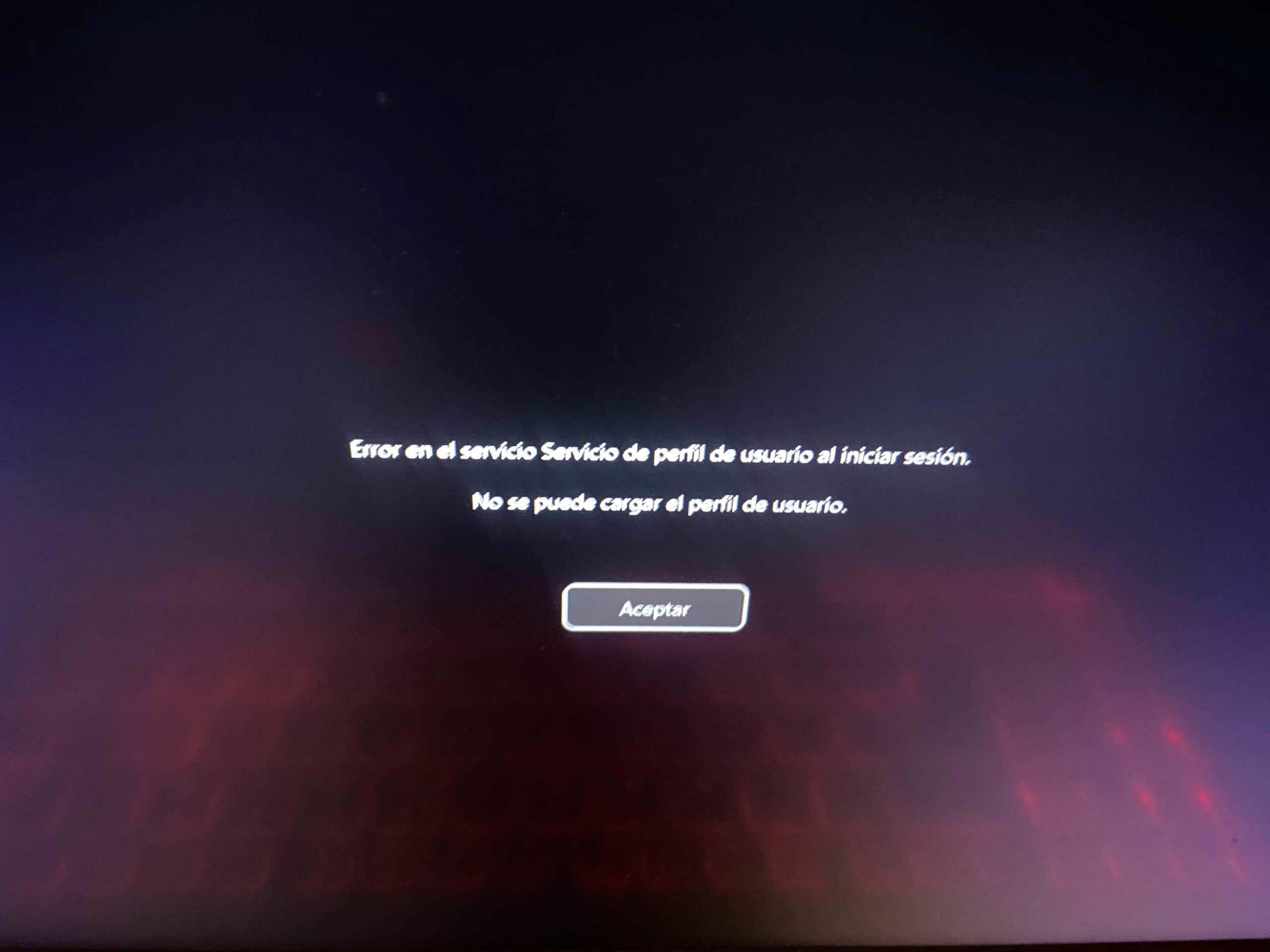
This message is usually accompanied by warnings such as “The user profile service could not log in” or status codes type 0xc000006d / 0xc0070016To put it simply, Windows is able to boot, but it fails to load your user settings: your preferences, your desktop, your personal registry, etc.
In practice, one of these situations occurs: You cannot log in with your usual account.You enter an automatic repair loop, a temporary profile is created, or you're left on the login screen without your PIN or password being accepted. The problem isn't with the account on Microsoft's servers, but with the profile stored on your PC's hard drive.
In many cases the problem arises right after Upgrade from Windows 10 to Windows 11This happens after installing a large update, restoring the system, after a sudden shutdown, or when the disk is almost full (with only a few MB free), preventing Windows from writing the necessary profile files.
It's also possible that, instead of a "pure" profile failure, you'll encounter the message “User Profile Service Error at Login” When trying to use the same PIN you had in Windows 10. Although the technical background changes a little, the end result is the same: you can't access your user account and you need alternatives.
Common reasons why Windows 11 does not load the user profile
There may be many reasons behind this message, but most of the time the origin lies in corrupted files or services that don't start properlyUnderstanding the causes helps you choose the most appropriate solution without going in blind.
One of the most frequent reasons is a Improper system shutdownPower outages, holding down the power button, a serious crash, etc. While Windows is in use, there are many system and profile files open; if the computer is shut down abruptly, some of these files can become corrupted and render the profile unusable.
Another possibility is that there is a internal failure of Windows 10 or 11This is especially true after a cumulative update, security update, or version migration. It's not uncommon for a patch that works well on millions of computers to cause problems on certain combinations of hardware, drivers, or software, and one of the typical symptoms is that the user profile fails to load.
We must not rule out a physical or logical problem in the hard drive or SSDBad sectors, file system errors, or a failing drive can prevent Windows from correctly reading profile data. And if the disk is almost full (for example, barely 8 MB free on C:), there won't be enough space for the system to create temporary files and complete the login process.
Malware also comes into play. virus or malware Any manipulation of system files or user profiles can render the system unusable. In these cases, even if you create another user account, it can become infected immediately. Sometimes the only reasonable solution is to boot from an alternative system (for example, a Linux Live distribution) to clean it with specialized tools such as Nirsoft toolsor simply format and reinstall from scratch.
Check if the problem is with the profile or the entire system
Before you start messing with the registry, files, or reinstalling, it's a good idea to check if the problem affects only your account or all accounts. The idea is to try using another local or administrator user and see if the system works normally with that account.
If you can still log in to Windows with another account, from Settings > Accounts You have the option to create a new local user with administrator privileges. There, you can go to "Family & other users" (or "Other users" in some editions) and choose "Add account," indicating that you don't have login credentials, and then "Add a user without a Microsoft account" to create a standard local user.
If you don't have access to a normal session, you can try using Safe ModeFrom the login screen, hold down the Shift key while clicking "Restart," then go to "Troubleshoot > Advanced options > Startup Settings" and click "Restart" again. When the options appear, press F4 or the 4 key to boot into Safe Mode.
Once in Safe Mode, Windows loads the bare minimum and usually allows you to log in with at least one internal administrator account. From there, you can create a new user or check if the problem only occurs with a specific account, which would confirm that the profile is damaged And the rest of the system, in principle, works.
Create a new profile and copy the data from the corrupted user
One of the most effective methods when the profile is broken but the system starts is Create a new user and migrate all your filesYou don't recover 100% of your original profile (backgrounds, some settings, etc.), but you can keep documents, photos, videos, and a good part of your personal data.
From your administrator account (normal or in Safe Mode), open Settings > Accounts Go to the Other Users section. Create a new account, preferably a local one, with administrator privileges, and set a password to have full control of the machine.
Then open the File Explorer and navigate to the drive where Windows is installed, usually C:. Enter the folder C:\Users (or C:\Users) and locate the folder that corresponds to the corrupted profile. This contains your desktop, documents, pictures, downloads, and the rest of your personal space.
Select all relevant files and folders from the old user (except for system files you're unsure about) and Copy them to the new profile folderwhich is also located within C:\Users. Ideally, you shouldn't overwrite the new user's basic configuration files, but you should transfer all personal content.
When you're finished, log out, log in with the new user account, and check that you can work normally. Some applications may ask you to log in again or configure settings, but if everything went well, you'll have saved your data and can consider your options as complete. remove the corrupt user later to free up space and clean the system.
Repair NTUSER.dat and the default profile folder
A fairly common reason why the profile won't load is that the file NTUSER.dat is damaged. This file stores your user preferences, many registry settings, and personal configurations. If it becomes corrupted after an update, a system restore, or a hard shutdown, Windows may refuse to log you in.
One very useful way to tackle this problem is replace the corrupted NTUSER.dat file with a healthy copy. from the default profile. To do this, you need to log in with another account on the same PC that works, or boot into Safe Mode and use an administrator account that loads correctly.
Open File Explorer and go to C:\Users. By default, the folder Default It's hidden, so in the "View" tab (or "View" depending on the version) select the option to show hidden items. This will reveal the "Default" folder, which is the profile Windows uses as the basis for creating new users.
Locate the file within that folder NTUSER.datYou can rename it or move it to another location for security (for example, to a USB drive). Then, go back to C:\Users, enter any other user folder that works correctly, copy its NTUSER.dat file, and paste it into the Default folder as a replacement.
This restores the base Windows profile to a healthy state, which is often enough to allow you to log in again. Your account will stop showing the profile error.If you don't have another working account on the PC, an alternative is to boot with tools like Hiren's BootCD or a Linux Live distro, mount the Windows drive and delete or replace NTUSER.dat from outside the system.
Fix the user profile service from the registry
Another key point in these cases is the Windows registryWhen the profile gives errors, it is very common for duplicate keys (with the .bak extension), incorrect values, or counters that prevent normal access to appear in the branch that manages user paths.
To check this, start your computer (normally or in Safe Mode) and open the Run dialog box with Win + R. Type regedit and press Enter to launch the Registry Editor. Before doing anything, it's highly recommended to make a backup: from the File menu, choose "Export", select "All", give it a name, and save the .reg file in a safe place.
Once the copy is made, navigate to the path HKEY_LOCAL_MACHINE\SOFTWARE\Microsoft\Windows NT\CurrentVersion\ProfileListInside you will see several folders with long names that begin with S-1-5; each one corresponds to a user profile on the system.
Locate the ones that have the suffix .bakYou'll usually see two nearly identical entries: one with .bak and one without. The idea is to identify which one corresponds to your legitimate user and which one Windows is using as the faulty one. It's usually enough to rename the key without .bak (for example, by adding .old) and remove the .bak from the working key, making it the primary one.
Within that same profile key, review the values State y RefCountOpen each one by double-clicking and set its data value to 0. If any of them don't exist, you can create them as a new DWORD (32-bit) value. This tells Windows that the profile is in a correct state and that the reference counter isn't preventing it from loading.
When you're finished, close the Registry Editor, restart your computer, and try logging in again. If everything went well, The message “The user profile could not be loaded” should disappear and you'll be back in your usual account. Keep in mind that carelessly messing with the registration can break other things, so this method is for users with some technical experience.
Verify and repair system files with SFC and DISM
It's not always the profile itself that's broken; sometimes the problem is that there are corrupted system files that affect the profile service or components required during login. In these cases, the built-in SFC and DISM tools can help you out.
Boot into Windows (normal or safe mode) and open the Command Prompt as administratorIn the search bar, type "command prompt", right-click on the application and choose "Run as administrator", accepting user account control if the window appears.
First, it's recommended to run DISM to repair the Windows image. Run the command DISM.exe /Online /Cleanup-image /Restorehealth (respecting the spaces). This process may take several minutes to perform checks and corrections, so please be patient.
When it finishes and indicates that the operation was completed successfully, launch the system file analyzer with sfc /scannowThis utility checks all protected Windows files and replaces corrupt or missing ones with good copies stored in the system cache.
When finished, close the window with the command exit Or simply press the cross, restart your computer, and try again. If the problem stemmed from a corrupted system file, many times Windows will reload the profile without errors. thanks to these repairs.
Review the user profile service and Safe Mode
The service that manages the profiles It should start automatically with Windows.If for any reason your login type changes, or remains disabled, the system may display errors when you try to log in with any user.
To check, boot into Safe Mode if you can't log in normally. Once inside, press Win + R, writes services.msc Press Enter to open the Services Manager. Look in the list for the entry “User Profile Service”.
Double-click on it and look at the field “Start type”It must be set to “Automatic”. If you see another value (for example, “Disabled” or “Manual”), change it to Automatic, apply the changes, and confirm. You can also take this opportunity to check that the service is running; if it isn't, click the “Start” button or use tools like Autoruns to detect interfering startup programs.
Once you've made these adjustments, restart your PC normally and check if your account is working again. In many cases, by simply correcting this type of start The profile error disappears because Windows correctly reloads the service upon startup.
Uninstall or roll back problematic updates
On more than one occasion a Windows update This has caused login failures or profile errors on some computers. If everything was working fine until you installed the latest patch, it's reasonable to suspect it and try removing it or installing a later fix.
First, you can try booting the system in Safe Mode and, from there, go to Settings > Update & Security (Windows 10) or Settings > Windows Update (Windows 11). In the corresponding section you will find the link to view the history of installed updates.
Write down the code of the latest update (It usually starts with KB). Then use the "Uninstall updates" option and double-click on the one that matches that code to remove it from the system. When finished, restart and check if you can log in normally.
The other option is to check for new updates. If Microsoft has already identified the problem and released a patch, that will suffice. Update Windows to fix the errorSometimes the solution involves a combination of both: uninstalling the conflicting update, restarting, and then installing a newer version that no longer causes the profile failure.
Use system restore points
Windows has included a very useful feature for these types of situations for years: restoration pointsThese are "snapshots" of the system's state (system files, registry, drivers, etc.) at a given moment. If something goes wrong later, you can revert to that previous state.
If you suspect the profile error started as a result of a recent change, you can try booting into Safe Mode and opening the panel of RecoveryFrom there you can access "Open System Restore" and see the available restore points that Windows created automatically or that you generated manually.
Select a restore point that is prior to the start of the problemFollow the wizard and allow the system to return to that state. The process may take a while, and the computer will restart several times. Once the restoration is complete, try logging in with your account to see if your profile loads correctly.
Keep in mind that each restore point takes up several gigabytes of space, so it's not a good idea to accumulate them for years. It's recommended to keep only the most recent ones. In any case, when a serious error like this occurs, Having a recent point in time can save you from reinstalling Windows.
Problems with PIN, password, and login methods
Sometimes the access block is not so much due to a corrupted profile as to a simple problem with PIN or passwordThis is especially common when upgrading from Windows 10 to Windows 11, where some users see the profile service error message when trying to use the old PIN.
If you think you have forgotten your PIN, from the login screen you can tap on “I’ve forgotten my PIN”Windows will ask for the password of the Microsoft account associated with that user to verify that you are the owner. After completing that step, you will be able to choose a new PIN.
If you also don't remember your Microsoft account password, the screen itself provides the link. “I forgot my password?”This will take you to a recovery process where you will need to answer security questions, use an alternate email address or phone number to restore access.
If you're not convinced about always relying on a PIN, you have alternatives such as Windows HelloThis allows you to use facial recognition with a compatible camera, fingerprint scanning with a biometric reader, or even an "image password" where you draw gestures over a chosen photo. Setting up multiple methods usually prevents a single problem with one of them from locking you out.
On the other hand, the physical keyboard may malfunction. If You cannot enter the PIN because the keyboard is not responding. (or some keys are malfunctioning), on the login screen itself there's a keyboard icon that lets you activate the on-screen keyboard. This allows you to enter your PIN or password with your mouse while you troubleshoot the hardware issue.
When no account works and you have to resort to external means
Sometimes the situation is more serious: No system account allows loginEven in Safe Mode, it won't boot, and you're stuck in a loop of automatic repairs or error screens. Although it may seem like the end, there are still options to recover your data and, hopefully, fix Windows.
The most practical is to prepare a bootable USB With a Linux distribution in Live mode (Ubuntu, for example) or with maintenance tools like Hiren's BootCD PE. You boot the computer from that USB (configuring it beforehand in the BIOS/UEFI to be the first boot device) and the system loads entirely into memory, without using your installed Windows.
From that external environment you can open a file explorer, mount the drive where Windows is installed and navigate to the folder C:\UsersThere you will have access to all user folders and you can copy important documents to another external drive or USB flash drive, securing your data before doing anything more drastic.
If you want to go a step further, you can try delete the NTUSER.dat file of the problematic user Or you can empty most of the profile content (saving anything you want first) and replace it with the content from C:\Users\Default. This forces the creation of a "clean" profile while maintaining the association with your account.
In the worst-case scenario, if the system is completely wrecked or deeply infected with malware, the wisest course of action is to use this external boot only to recover your files and prepare for a recovery. complete reinstallation of windows.
Reinstall Windows 11 using an installation USB
When you've tried repairing the profile, the registry, the services, run SFC and DISM, played around with Safe Mode, performed system restores, and nothing seems to fix it, it's time to consider whether format and reinstall Windows It's the most sensible option. Sometimes going around in circles only complicates the situation further.
The cleanest way to do this is to create a Windows installation USB Using the official Microsoft tool from another working PC. Once prepared, plug that USB drive into the problematic computer and enter the BIOS/UEFI to set it as the first boot option.
When you boot from the USB drive, you'll see the Windows installation screen. Instead of clicking "Install now" directly, you can click on “Repair the equipment” to try advanced repair options, restores, and more, if you haven't already tried them from there.
If you've already decided to reinstall, return to the installation wizard and, depending on your choice, you can opt for a reset while keeping personal files or deleting everything. Many users have resolved persistent profile errors using the factory reset initiated from installation media, which repairs all system files and leaves Windows like it's brand new.
After completing the process, you'll only need to go through the initial setup, log back in to your account, and reinstall any applications you need. If you had saved your documents in the cloud or on an external drive, it will be quite quick. return to normal.
When Windows 11 stops loading your user profile, it might seem like you've lost everything, but there's actually a wide range of solutions: from creating a new user and copying your files, adjusting the user profile service or the registry, running repair tools or restoring the system, to booting from external drives, uninstalling conflicting updates, or, as a last resort, reinstalling the system from scratch. With a good backup and a little patience, Normally, you should be able to use your computer again without losing your documents or going crazy in the process..

Editor specialized in technology and internet issues with more than ten years of experience in different digital media. I have worked as an editor and content creator for e-commerce, communication, online marketing and advertising companies. I have also written on economics, finance and other sectors websites. My work is also my passion. Now, through my articles in Tecnobits, I try to explore all the news and new opportunities that the world of technology offers us every day to improve our lives.