- Identify whether the TikTok shutdown is due to the app, the mobile device, or the servers.
- Apply basic solutions: restart device, close apps and clear cache.
- Use advanced measures: clear data, update, or reinstall TikTok from the Play Store.
- Check for login problems and any general platform issues.
That TikTok keeps closing on your Android phone It's one of those things that drives you crazy: you open the app all calmly, start watching videos, and suddenly, It throws you to the desk without warning.If this is happening to you, you're not alone; sometimes it's due to widespread issues, as we explain in Why TikTok keeps failingAnd luckily there are plenty of ways to try and fix it before throwing your phone out the window.
In the following lines you will find a complete guide To understand why TikTok keeps closing on its own on Android, what does that have to do with it? memory, cache, app updates, or even the platform's own serversAnd what you can do step by step to get it working normally again. The idea is to have all the possible causes and solutions in one place, explained simply, but without leaving out any important details.
Common reasons why TikTok closes on its own on Android
When TikTok closes immediately after opening or after a few seconds, it's usually It's not for a single reasonIt is usually a mixture of Outdated app, corrupted data, insufficient RAM, storage problems or even occasional TikTok server failures.
One of the most frequent reasons is in the application cacheThe app accumulates temporary files to load videos and your profile faster, but over time that cache can become damaged, take up too much space, or conflict with an updatecausing the app to close on its own without any apparent explanation. That's why it's advisable regularly clear the cache.
Another very common cause is have an older version of TikTok that no longer works perfectly with your Android version or with the changes the platform itself has made. Often, these older versions carry bugs that are fixed by updating; in these cases, check the Updates and solutions if TikTok is running slowly can help identify the problem.
It also has a significant influence. the general condition of your mobileIf you have a mid-range or low-end device, with low RAM or almost full storageAndroid can kill background processes to survive. In this "cutback," TikTok can be negatively impacted and close every time you try to use it, especially if many other apps are open at the same time.
We must not forget TikTok server outagesSometimes the problem isn't with your phone: if the platform's servers are down or overloaded, the app may behave strangely. Throwing errors, not letting you log in, or closing. when trying to load content. In these cases, there's little you can do other than wait for them to fix it.
First steps: restart your phone and close processes
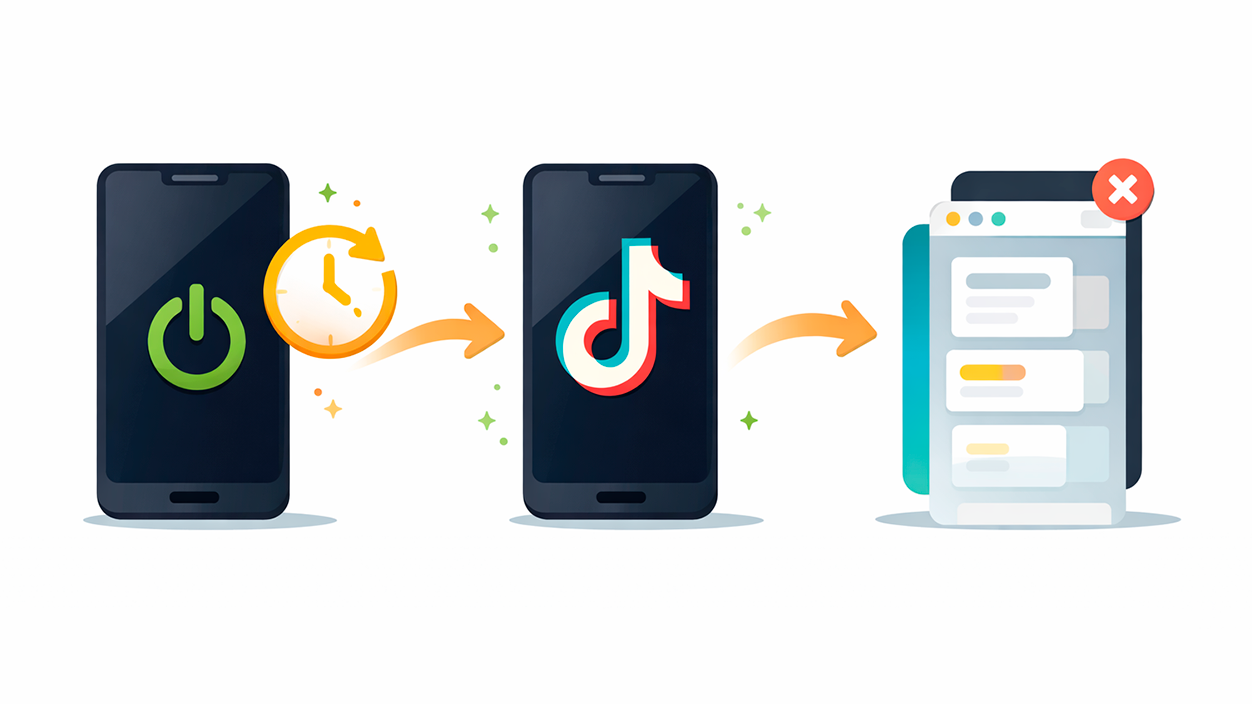
As basic as it may sound, Restarting the phone is usually the first logical step. When TikTok (or any other app) closes unexpectedly. The longer you leave your phone running, the more processes remain in the background and the greater the chance that something will get stuck. A restart clear the memory and close processes that are no longer needed.
Before resorting to more aggressive solutions, Turn the device off completelyWait about 20 or 30 seconds and turn it back on. After that restart, try opening TikTok again and see if it keeps crashing. Sometimes, Only with this does the app return to normal operation..
Besides the general reset, it's also good to Close other open applications that might be using up memory. On many Android phones, you can open the recent apps view by tapping the square icon or using the corresponding gesture, and from there Close all apps you're not using to free up RAM..
On Android devices that use virtual buttons, you'll typically have a square or three-line button to view all open apps. From that view, there's usually a button or icon (often a circle with an X) to... close them all at onceThe fewer things running in the background, the more resources TikTok will have to function.
If TikTok continues to malfunction after closing apps and restarting your phone, then you'll need to move on to the following options, which directly target the app itself: clear cache, delete data, or update from the official store.
Clear TikTok cache and data on Android
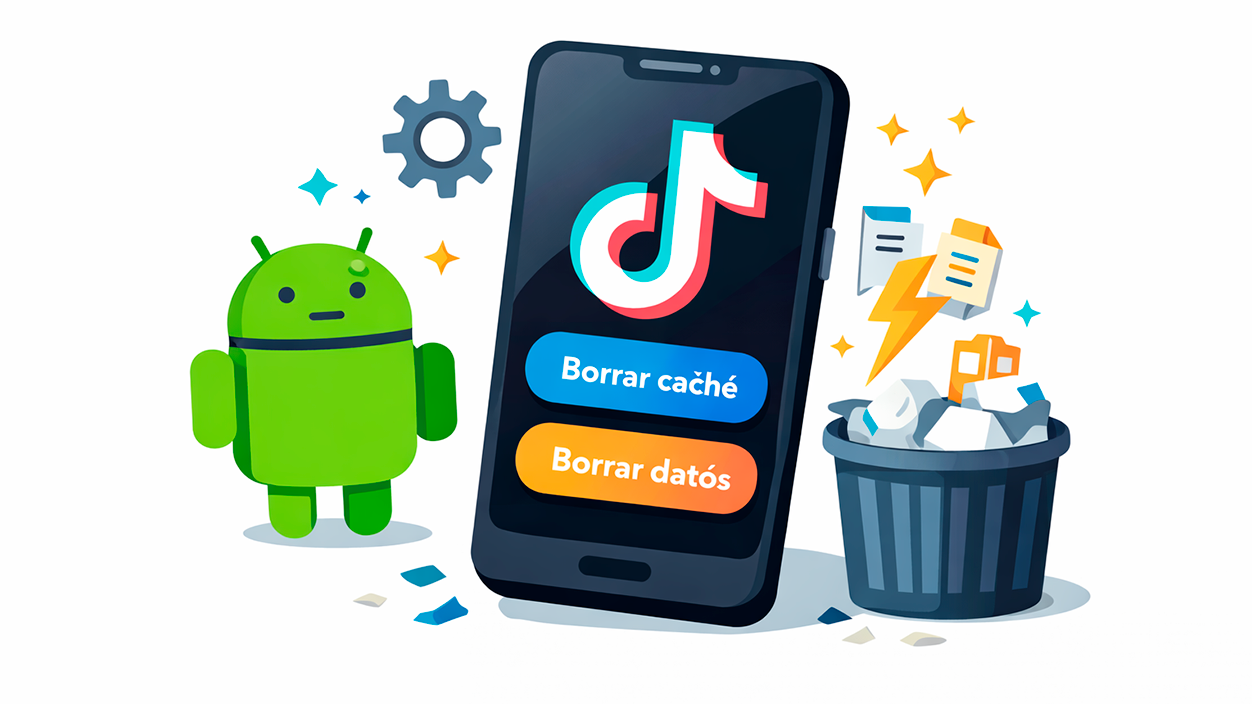
Delete TikTok cache and data It's one of the most effective solutions when the application closes unexpectedly, displays strange errors, or freezes. Over time, temporary files can become corrupted and cause internal failures in the app.
The first step is usually clear only the cacheBecause it's less intrusive: you don't lose your account or your main settings. To do this on Android, go to your phone's Settings, then to the Applications section, find TikTok in the list, and go to its storage options. There you should see the option to clear cache.
When you clear the cache, Android deletes temporary files TikTok has been saving data to speed things up. After clearing that cache, open the app again and check if The problem of closures has been solved or at least reducedOften, this simple step makes all the difference.
If TikTok continues to crash after clearing the cache, the next step is clear application dataYou'll also find this option in the same TikTok storage menu in your Android settings. When you clear data, The app resets as if you had just installed it.
Keep in mind that when deleting data Your account session will be closed and local app settings will be deleted. (like preferences stored on the device). You don't lose your TikTok account or your published videos, because that's on the platform's servers, but You'll need to log in again and configure some things again.If you need help with that step, see how Log out.
Update TikTok from the Play Store

If TikTok keeps closing on Android, it's key Check if there is a pending update.Often the app itself carries bugs that the TikTok team fixes in new versions, and if you don't update it You're stuck with those old mistakes..
To check if you have the latest version on AndroidOpen the Google Play Store and tap your profile picture in the top right corner. In the menu that appears, go to "Manage apps & device" to see the status of your installed applications.
In the available updates section you will see a list of apps that have a new versionFind TikTok in that list and, if it appears, tap "Update". Wait for the download and installation to finish before reopening the app.
After updating, try again if TikTok stops shutting downOften, problems with sudden crashes are due to incompatibilities between older app versions and changes in Android, and A properly implemented update resolves the conflict. without having to go any further.
Although this article focuses on Android, if you also use TikTok on iOS the process is similarBut you can get it from the Apple App Store and through the updates section in your profile. Keep the app up to date. It significantly reduces the probability of serious errors and continuous shutdowns..
Reinstall TikTok when nothing else works
If you've already tried Restart your phone, close apps, clear cache and dataAnd since TikTok keeps closing on its own, it's time to consider a complete uninstall and a clean reinstall from the Play Store.
To uninstall TikTok on Android, you can do so from Settings, in the Applications section, by searching for TikTok and using the uninstall option, or directly from the app icon on the desktop, by pressing and holding it and choosing to uninstall or dragging it to the trash depending on your customization layer.
Once the application is uninstalled, Restart your phone again To ensure no processes are left hanging or residual files remain, after restarting, go to the Google Play Store, search for "TikTok," and reinstall the app. from the official source.
When you open a newly installed TikTok you will have to Log in with your account (by username, phone number, email, or alternative methods offered by the app). Once you've logged in, try using it as usual and see if it continues to close or if The problem has completely disappeared.
This clean reinstallation usually fix deep errors which sometimes aren't fixed just by clearing the cache or data, because that deletes any corrupted files associated with the application and leaves you with the latest and most stable version available for your device.
When TikTok won't let you log in or gives a login error
Sometimes the problem isn't that TikTok is shutting down, but that It simply won't let you in.You enter your username, phone number, email, or password and receive an error message, or the app doesn't get past the login screen.
In cases, the simplest cause is having entered the login details incorrectlyMistyping a letter in your username, confusing your email address, changing a phone number, or entering the wrong password. Before you complicate things, review each field carefully..
If you're sure the data is correct, TikTok offers help within the login screen itselfOn the right side, you'll usually see a question mark icon. Clicking it opens a help menu with various topics related to login problems.
Select the topic that best describes your situation (For example, password problems, compromised account, login error, etc.). TikTok will guide you through specific steps for each case, such as resetting your password, checking your recovery email, or verifying your phone number.
If none of the topics match what's happening to you, you can click on the “Other” option within that help section. The app will ask if the problem has been resolved; select “No” and a form will open for you to Explain your case in more detail and send it directly to TikTok support..
The TikTok team will review the report and, in theory, should tell you what's happening with your account or how to regain access. It's worth it. explain the problem clearly, indicating if the app closes when you try to log in, if it gives a specific error message, or if you suspect that someone has changed your password.
“TikTok has stopped”: what this message means
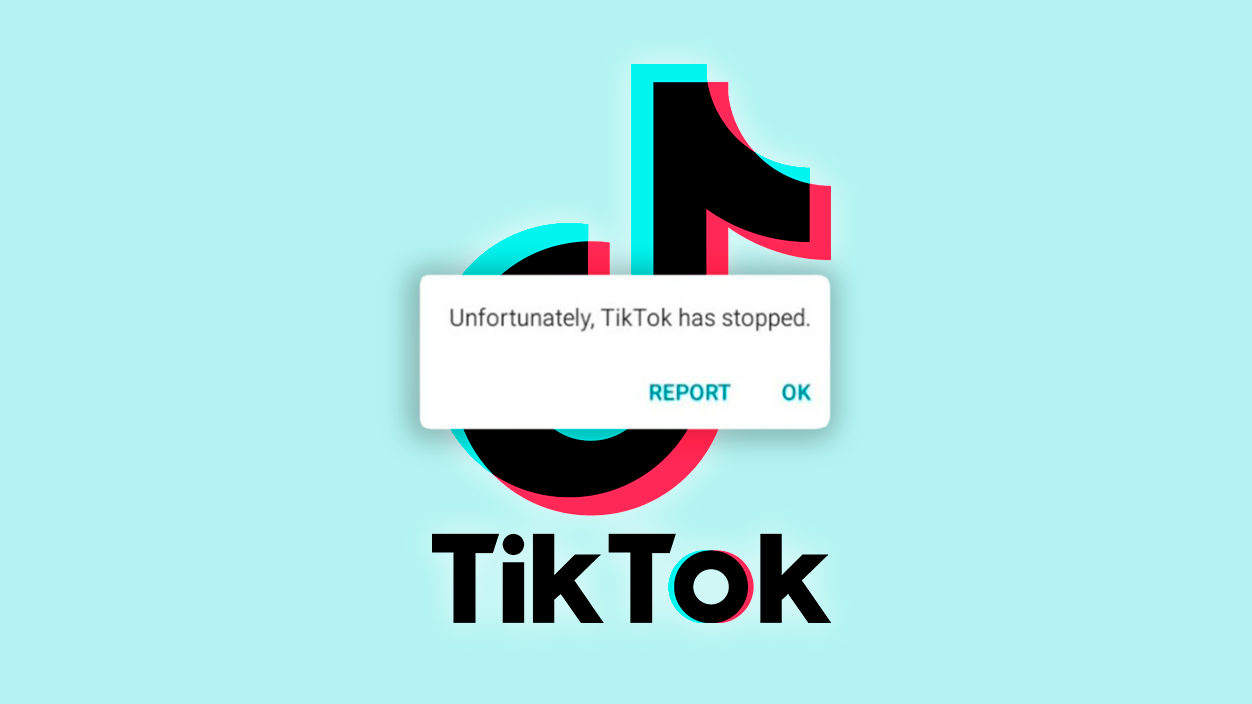
The message “TikTok has stopped” “The TikTok app has stopped” is Android’s way of telling you that The app has crashed unexpectedlyIn practice, it's the same as when TikTok closes on its own, but with a clearer warning.
When that message appears, a very common cause is the lack of memory on the phone. Both RAM (the memory used by open apps) and internal storage can be so limited that Android is unable to to keep TikTok running normally.
To alleviate the situation, begin closing other applications you have running in the background From the recent apps view, just as we mentioned before. The fewer apps you have open, the more RAM TikTok will have available to run. without stoppages or forced closures.
It is also worth reviewing How much storage space do you have left? on the device. If the phone is almost full, Android may have trouble managing temporary files and updates, increasing the likelihood of crashes and error messages in TikTok and other apps.
If, after freeing up memory and space, the message that TikTok has stopped still appears, try the other solutions again: clear the app's cache and data, update it from the Play Store, or even reinstall it if none of the above works.
Problems with TikTok on mid-range or low-end mobile phones
If you use a mid-range or low-end Android mobile phoneProblems with TikTok may be more frequent, especially when the device has little RAM or limited internal storage. This type of hardware It suffers more with heavy and very active apps like TikTok.
On these phones, cache memory and background processes become a major bottleneckBy accumulating a lot of data and keeping too many apps open, the system tends to close applications to survive, and TikTok may be one of the usual victims.
To reduce the number of times these types of devices close, it's advisable to get used to Close apps you don't use, and clear the cache regularly. of the heaviest applications (including TikTok) and make sure that the storage does not run out of space.
Also, if your phone is already running low on resources, avoid using TikTok while you have other demanding processes underwaysuch as demanding games, video editing apps, or multiple downloads. The less stress the system experiences, The more stable the app will remain.
In some extreme cases, if the phone is very old or very limited, even with all these measures TikTok may still behave erratically, because The app requires more and more resources. with new features, filters, and internal improvements.
TikTok server outages and global issues
TikTok doesn't always close on its own or give an error. The problem is with your Android device.Occasionally, the platform experiences server issues, which causes thousands or millions of users may experience similar errors at the same time.
When TikTok's servers fail, several things can happen: the app doesn't load content, it takes a long time to show videos, it freezes when trying to access your profile, or it simply crashes. It closes without further explanation.From the outside, it might look like a problem with your phone, but in reality It's a widespread phenomenon..
Under these circumstances, none of the classic solutions of the device (restart, clear cache, reinstallIt won't fix the problem, because the issue isn't with your phone, but with TikTok's infrastructure. The only thing you can do is check if other users are reporting similar problems and wait for the company to resolve it.
While the servers are down or unstable, it's normal that the service will recover on its own After a while, without you having to touch anything on your phone. Once TikTok fixes the issue, the app usually goes back to working as before. without needing to reinstall or modify settings.
Therefore, if you notice that Telegram, Twitter, or specialized forums are filled with messages from people saying that TikTok is down, the smartest thing to do is have a little patience and not go crazy changing phone settings They are not to blame for what is happening.
If you've gotten this far after trying several solutions, you probably already have a good idea of where the problem of TikTok closing on its own on your Android might be coming from: from something as simple as restart your phone or update the app...even clearing the cache, deleting data, checking your device's memory, or assuming it's the problem a general failure of the platform's serversWith these steps, you should be able to get TikTok working normally again in most cases without needing more drastic measures or changing your phone.
Index
- 1 Common reasons why TikTok closes on its own on Android
- 2 First steps: restart your phone and close processes
- 3 Clear TikTok cache and data on Android
- 4 Update TikTok from the Play Store
- 5 Reinstall TikTok when nothing else works
- 6 When TikTok won't let you log in or gives a login error
- 7 “TikTok has stopped”: what this message means
- 8 Problems with TikTok on mid-range or low-end mobile phones
- 9 TikTok server outages and global issues

I am a technology enthusiast who has turned his "geek" interests into a profession. I have spent more than 10 years of my life using cutting-edge technology and tinkering with all kinds of programs out of pure curiosity. Now I have specialized in computer technology and video games. This is because for more than 5 years I have been writing for various websites on technology and video games, creating articles that seek to give you the information you need in a language that is understandable to everyone.
If you have any questions, my knowledge ranges from everything related to the Windows operating system as well as Android for mobile phones. And my commitment is to you, I am always willing to spend a few minutes and help you resolve any questions you may have in this internet world.