
Do you need to shut down your computer without touching the Windows 11 Start menu? Maybe you want to shut down your PC faster or would like to learn how to do it using only the keyboard. Or, you're just curious how to do it without having to go through the Windows Start menu. Whatever the reason, You might be surprised by the different ways to shut down a computer.Let's see what they are.
Ways to shut down your computer without touching the Windows 11 Start menu
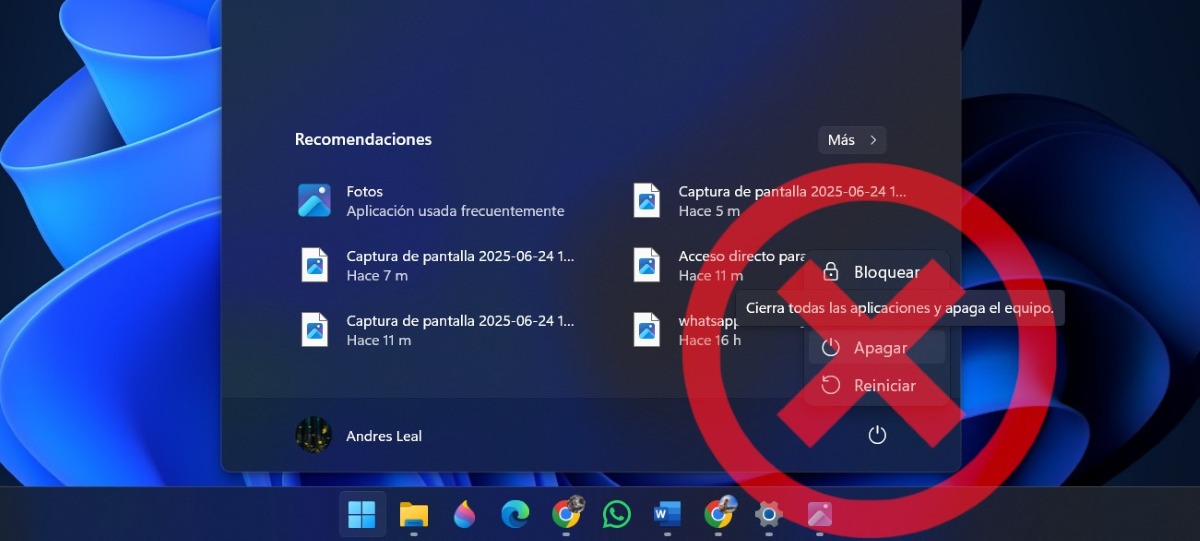
There are several ways to shut down your computer without touching the Windows 11 start menu, although this is the most well-known method. These alternatives are: easy and quick to apply and any user can run themIn fact, you can even schedule your PC to shut down without you having to touch anything at all.
Next, We will see how to turn off the computer without touching the Windows 11 start menu. in the following ways: scheduling an automatic shutdown, using keyboard shortcuts, running the shutdown command, and creating a shortcut on the Windows desktop. Let's get started right away.
Schedule Automatic Shutdown

Did you know it's possible Automate PC shutdown in Windows 11By scheduling this task on your PC, it will shut down at the time and on the days you've previously determined, without you having to do anything else. To achieve this, you'll need Use Windows 11 Task Scheduler and follow these simple steps:
- Click on Create basic task.
- Assign a name and a description to the task (Automatically turn off PC).
- Choose the frequency with which the task will be repeated.
- Select the start date and time of the task.
- Choose Start a program.
- In the address bar, copy this link “C:\Windows\System32\shutdown.exe” without the quotes.
- Confirm the information and click on Finish.
Keyboard shortcut Alt + F4
One of the fastest ways to shut down your computer without touching the Windows 11 start menu is to combining the Alt + F4 keys. You must do this from the desktop, making sure there are no applications or windows open on the PC. When you press these keys, a window will appear where you can select Shut Down and finally, click OK or press Enter. That's it.
Keyboard shortcut Windows + X
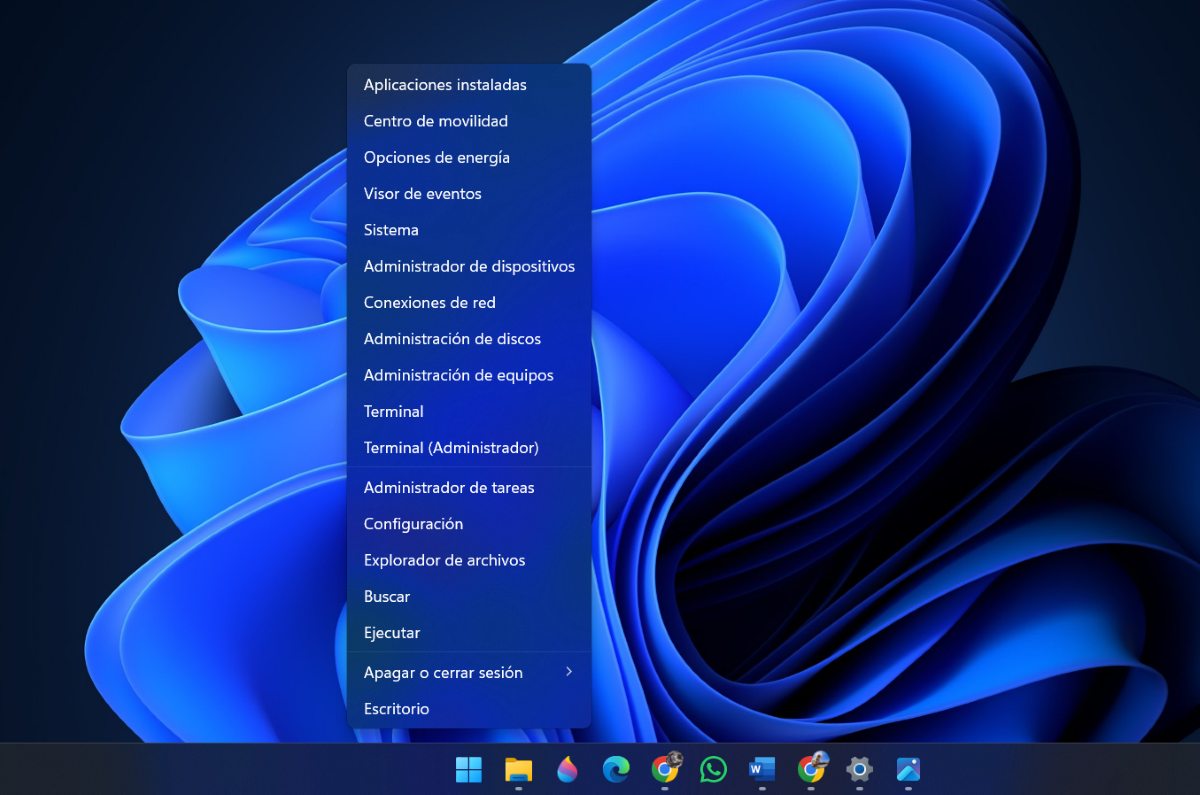
Another way to shut down your PC quickly is using the Windows + X key shortcutThis will open the Power User Menu, where you'll see a list of different options. Among them, you'll see one that says Shut down or log out. Scroll down using the arrow keys, select the option that says Power Off, and that's it.
Ctrl + Alt + Del to shut down your computer without touching the Windows 11 start menu
A third shortcut you can use to shut down your computer without touching the Windows 11 start menu is press Ctrl + Alt + Del simultaneouslyWhen you do this, the power options will appear on the bottom right of the screen. There, you'll need to tap the Shut Down option, and your PC will shut down immediately. This option is ideal when your PC is extremely slow or freezes for some reason.
Shutdown command in Run or Command Prompt
Another way to quickly shut down your computer is to use the shutdown command, either from Run or Command Prompt. To open the Run dialog box, press the Windows key + R. There, type the shutdown /s command and press Enter. This will shut down your PC instantly.
From the Command Prompt you can also shut down your computer without touching the Windows 11 start menu. To do this, Open Command Prompt from the Windows search bar. Next, type the command shutdown /s and press Enter to shut down your PC.
Now then, if you don't want the PC to shut down immediately, but rather to do it in a few minutes, you have to add a “t” and define the time (in seconds) that must elapse before the shutdown. For example, to have the PC shut down in 30 minutes, which is 1800 seconds, the command would be “shutdown /s /t 1800"without the quotation marks."
Create a shortcut on the desktop
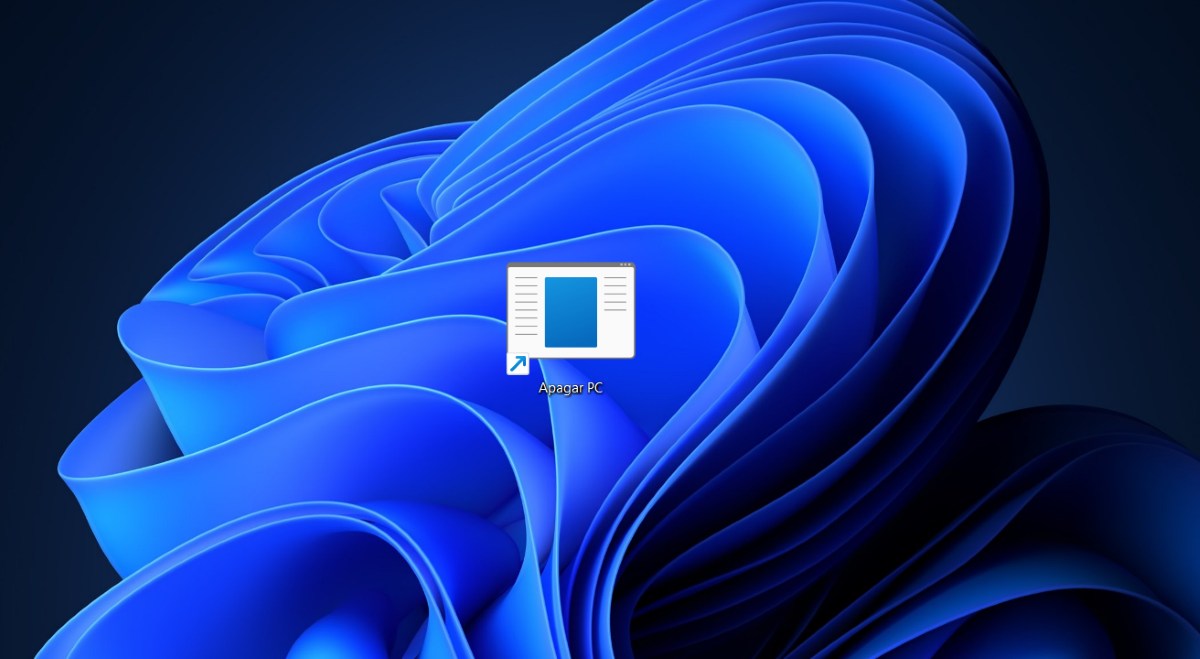
You can also create a Shutdown shortcut on your PC's desktop itself in order to turn it off by just double-clicking on it. Honestly, this is the fastest way to do it. To create a shutdown shortcut on your PC, follow the steps below:
- Right-click on the desktop and select New.
- Next, choose the option Direct access.
- Now, in the access location field, type the command shutdown /s /f /t 0 and click Next.
- The next step is to give the shortcut a name. In this case, you can give it one like Turn off PC.
- Finally, click Finish and you're done. You can then shut down your PC by double-clicking the shortcut, and that's it.
Physical power button
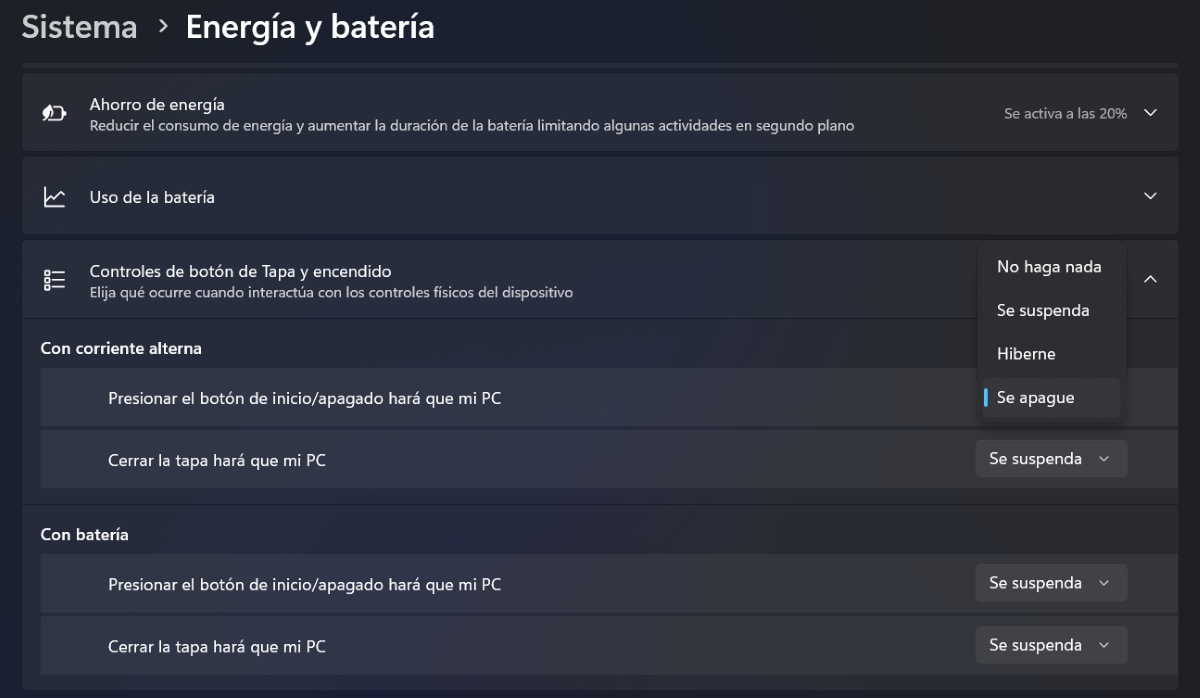
Finally, you have the option to press the physical power button to turn off the computer without touching the Windows 11 Start menu. However, this will only work if the physical button is configured to shut down the computer. To check, go to Settings – System – Power & battery – Power button controls. Under the option Pressing the power button will make my PC… choose “Shut down.”
Other options to shut down your computer without touching the Windows 11 start menu
In addition to shutting down your computer without touching the Windows 11 start menu, you have other options such as make your PC sleep or hibernate. When you put your PC to sleep, It uses very little energy, starts faster and you can return to where you left off.On most computers, this option is enabled by closing the lid or pressing the power button.
The option Hibernate was primarily designed for laptops and it uses even less power than the Sleep option. In either case, you can configure what you want your PC to do by going to System – Power & battery in Windows 11 Settings.

From a young age, I've been fascinated by all things scientific and technological, especially those advancements that make our lives easier and more enjoyable. I love staying up-to-date on the latest news and trends, and sharing my experiences, opinions, and tips about the devices and gadgets I use. This led me to become a web writer a little over five years ago, focusing primarily on Android devices and Windows operating systems. I've learned to explain complex concepts in simple terms so my readers can easily understand them.