
Offline voice access in Windows 11 is a tool designed for control the PC and write texts using only your voice...without needing an internet connection. Today, you'll learn how to set up and use this exciting feature to work smoothly, quickly, and independently from anywhere, even without an internet connection. First, we'll see how it works. Then, we'll explain how to get the most out of it.
How does offline voice access work in Windows 11?

Offline voice access in Windows 11 is one of the most useful features for productivity and accessibility. Because the processing is done locally on your computer, You don't need to be connected to the internet to use itUnlike the previous oneVoice recognitionThis version uses artificial intelligence to process language locally, making it faster, more private, and more accurate.
The main functions of voice access The following are offline options in Windows 11:
- Full control of the interfaceYou can navigate the entire operating system as if your words were the clicks of the mouse.
- Intelligent dictation and text editingYou can quickly draft emails, documents, or important messages.
- More precise navigationWhen there are elements that don't have clear names or are difficult to reach, you can use "Numbers" or "Mouse Grid" to access them.
- Accessibility and ProductivityYou can dictate or take notes while you make lunch, for example.
How to use offline voice access in Windows 11
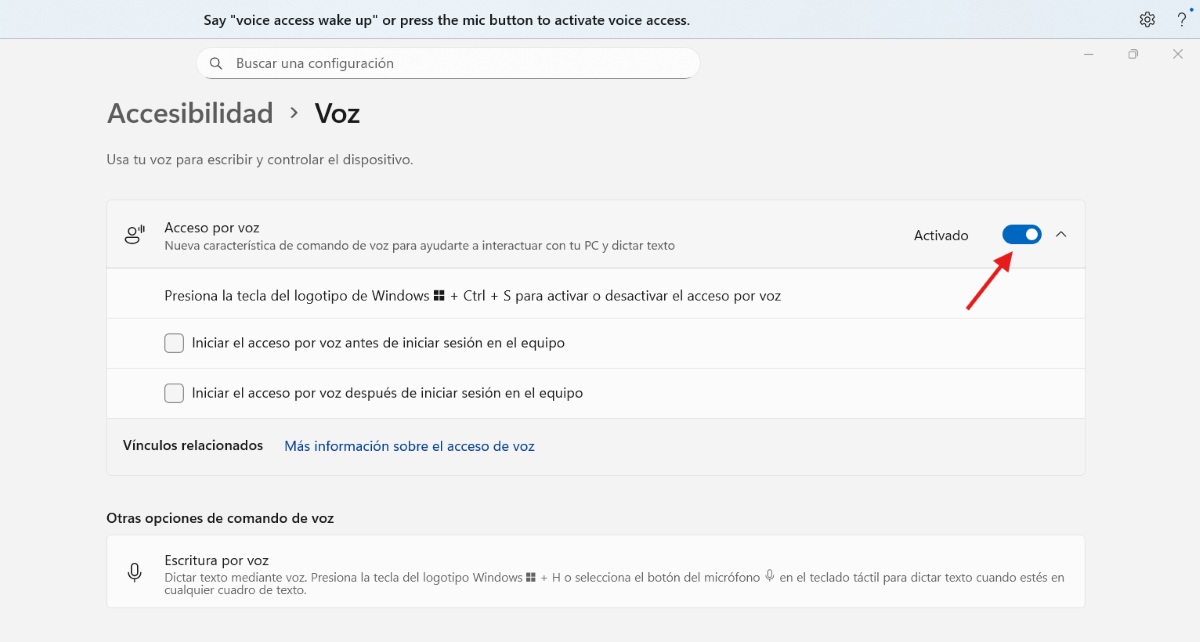
To use offline voice access in Windows 11, you first need to configure it. But be careful! To complete the initial voice access setup you need have an internet connectionThis will download the corresponding language pack. Of course, once this is done, voice access will work offline.
Follow these Steps to activate it and download the necessary files:
- Go to Home – Configuration.
- Select Accessibility in the side menu.
- Look for the Interaction section and click on Voice.
- Turn on the switch Voice access.
- If this is your first time using it, a bar will appear at the top of the screen asking you to download a voice model. You must be connected to the internet only for this initial download.
Once the language pack is downloaded and installed, Windows will no longer send your voice data to the cloud; it will be processed locally. In other words, you can disconnect your computer from Wi-Fi or unplug the Ethernet cable and continue dictating text, opening applications, or controlling the cursor with your voice. The available languages are:
- Spanish (Spain and Mexico), English (USA, UK, India, New Zealand, Canada, Australia), German, French (France and Canada). If your language is not on the list, you can use English (USA).
Start voice access from Windows Search
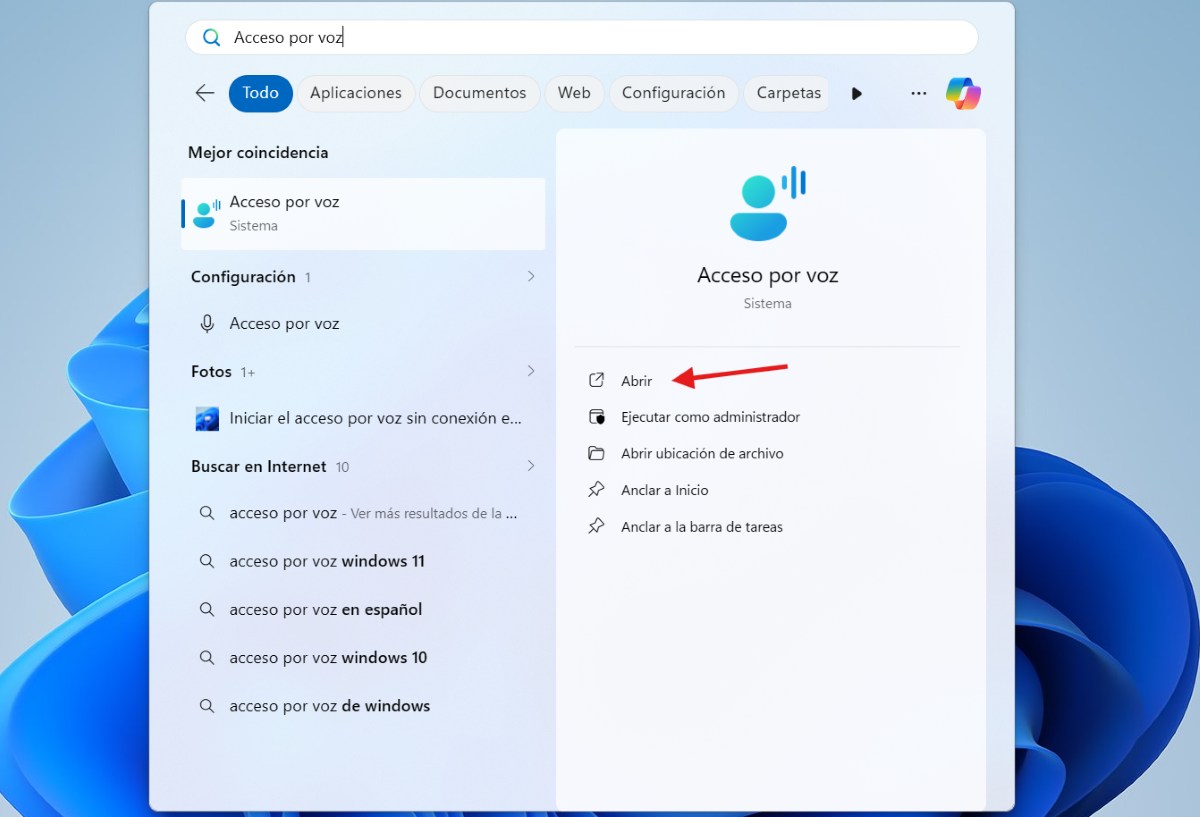
To start offline voice access in Windows 11, open Windows Search and type “voice accessThen, select Open to launch voice access. Optional tip: Select Pin to Start or Pin to taskbar to make voice access quicker to find next time.
Configure your microphone to use offline voice access
Before you start using offline voice access in Windows 11, you should select the microphone you want to useWhen you see the "Set up your microphone for voice access" window, select the microphone you want from the list. If yours isn't listed, select "Add a new microphone." Once you find it, select it and click Done to finish setting up voice access and start using it.
To interact with the elements on the screen
You can use offline voice access to interact with elements on your screen. For example, you can open and switch between apps, browse the internet, and read and write emails using your voice. Some basic commands you can use offline They are as follows:
- “Open (application name)”: for example, “Open Word”.
- “Click on (button name)”: to interact with menus.
- “Show numbers": The tool will put numbers over each item on the screen so you can say the number and select it (ideal when you don't know the name of the item).
- “Mouse grid": divides the screen into sections to move the cursor more precisely.
To get the most out of this tool, you can Take a look at this List of voice access commands from MicrosoftWith it, you can manage voice and microphone access, interact with applications, control the mouse and keyboard, navigate through text, edit it, dictate punctuation marks, symbols, etc.
Use offline voice access to create text with your voice.
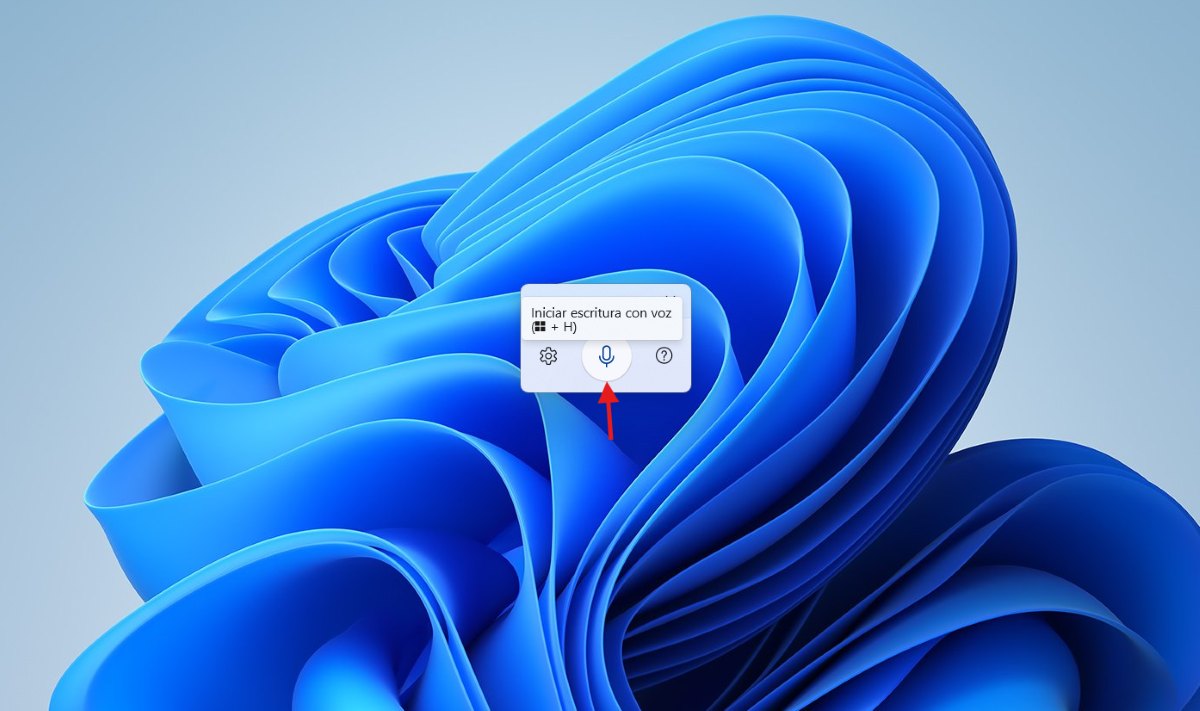
If you want to use offline voice access in Windows 11 to create text with your voice, you can start it. Pressing Windows + H for dictationWhen you do this, a small window with several icons will appear. To start dictating, place your cursor in a text box and then press the microphone icon. Everything you say will then be transcribed.
Can dictate punctuation marks or let the system insert them for youYou can also say something like “Delete the last word,” “Select the previous paragraph,” or “Bold that,” and your text will be edited hands-free. You can even say “spell that” to select the last dictated text and open the spell check window.
In the same window, you can access the Settings. From there, you can change the microphone you're using, modify the response time, change the language, and Leave the microphone option overlaid on the screen so you can use it whenever you want.Additionally, you can enable or disable the use of automatic punctuation and profanity.
Take advantage of offline voice access in Windows 11
Offline voice access in Windows 11 transforms productivity by allowing you to navigate the system and dictate text. By configuring the tool with your language, you gain complete privacy and seamless system control. Take advantage of this feature by dictating text and navigating menus to achieve even greater efficiency. work using only your voice.

From a young age, I've been fascinated by all things scientific and technological, especially those advancements that make our lives easier and more enjoyable. I love staying up-to-date on the latest news and trends, and sharing my experiences, opinions, and tips about the devices and gadgets I use. This led me to become a web writer a little over five years ago, focusing primarily on Android devices and Windows operating systems. I've learned to explain complex concepts in simple terms so my readers can easily understand them.