- Vaultwarden allows you to store passkeys and use them to access other services.
- FIDO2 protects the account as a second factor after the master password.
- Vaultwarden does not yet allow you to initialize and decrypt the vault using passkeys.
- HTTPS and a valid domain are essential for registering WebAuthn credentials.

Passkeys allow access to compatible services using a security key, device biometrics, or a PIN, avoiding reliance on passwords that are easily stolen through phishing. Vaultwarden can store them within the vault and also use FIDO2/WebAuthn credentials to add one. second check upon logging in.
However, it's important to differentiate these functions. Vaultwarden is an alternative server compatible with Bitwarden clients, but it doesn't automatically implement all the features of the official server. Currently, you can store passkeys for other websites and protect Vaultwarden using FIDO2, but You cannot completely replace the master password. using a passkey to start and decrypt the vault.
This guide assumes a system is already operational. If you don't have it set up yet, you must first... Install Vaultwarden with Docker and configure HTTPS.
What does it mean to use passkeys in Vaultwarden
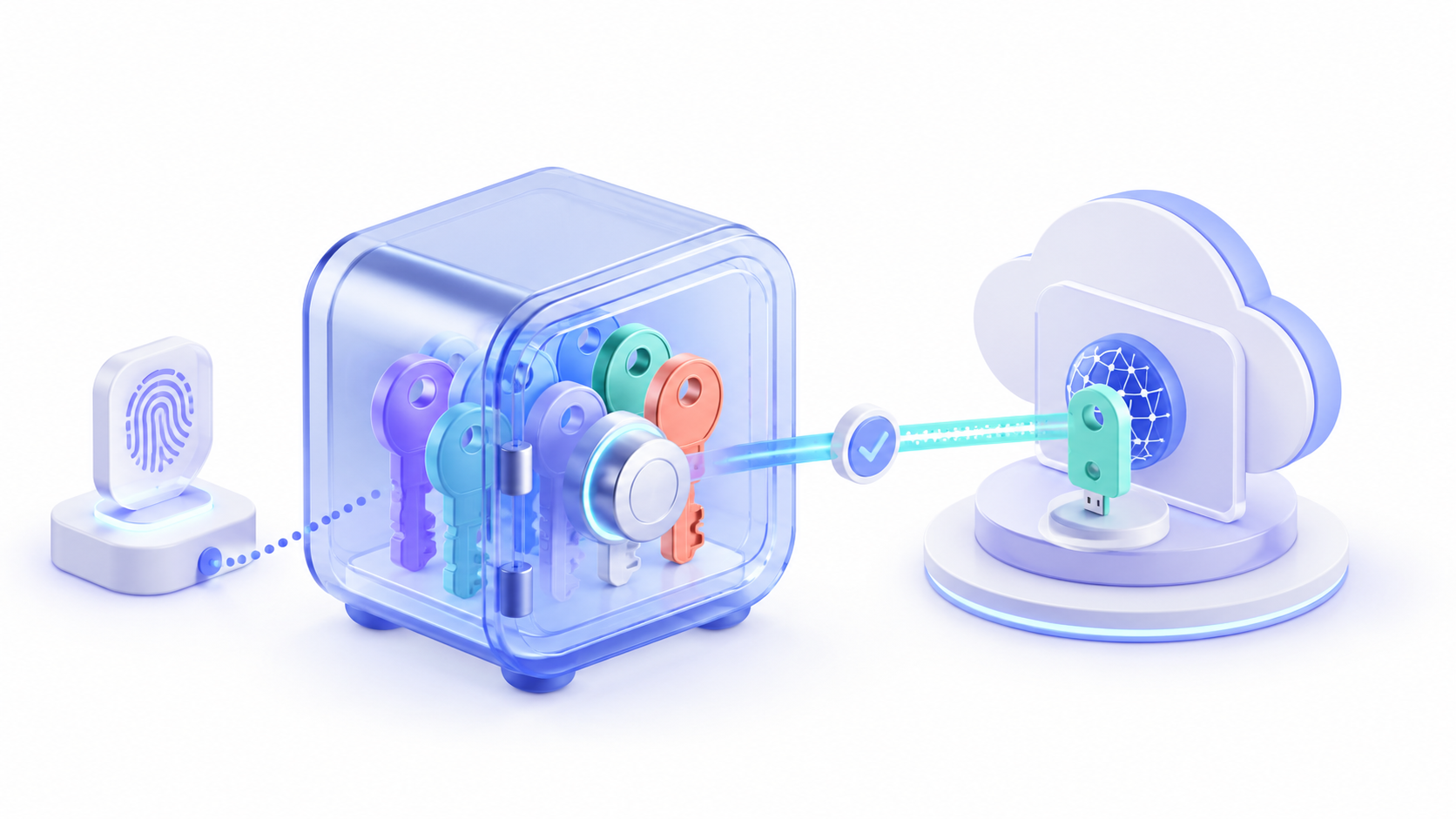
The word "passkey" appears in various areas of Bitwarden clients, but it doesn't always refer to the same function. In Vaultwarden, there are three scenarios that should be distinguished.
| Function | Availability in Vaultwarden | What is it for? |
|---|---|---|
| Save passwords from other websites | Yeah | Access Google, GitHub, or other services using a passkey stored in the vault. |
| FIDO2/WebAuthn as a second factor | Yeah | Confirm access to Vaultwarden after entering the email and master password. |
| Start and decrypt Vaultwarden with a passkey | No | Replace email, master password, and unlock using a PRF credential. |
Vaultwarden added support for save and use passwords from other websites through official Bitwarden extensions. These credentials are synchronized as part of the vault login elements.
It also supports two-step login using FIDO2/WebAuthn. In this case, you first enter your email address and master password, and then verify your identity using a physical key, Windows Hello, or another compatible authenticator.
The third possibility, called in Bitwarden Log in and unlock with passkeysIt requires additional server endpoints and support for PRF decryption. Vaultwarden does not yet implement these, although the web client may temporarily display buttons or settings related to this feature.
What you need to set up FIDO2 in Vaultwarden
To use a passkey as a second factor, you need to properly prepare the server and the device from which you will register it.
- A recent version of Vaultwarden and the Bitwarden client.
- Access to the web vault through a stable domain.
- An HTTPS connection with a valid certificate.
- The variable
DOMAINconfigured with the correct public address. - A browser compatible with WebAuthn.
- A physical key or compatible FIDO2 authenticator.
- The master password for the account.
The web vault requires a secure context to use Web Crypto and WebAuthn. Therefore, accessing it via an IP address using HTTP may prevent the browser from creating or using the credential.
The variable DOMAIN must match the address used to enter Vaultwarden:
DOMAIN=https://vault.ejemplo.comDo not register the key using a temporary domain that you plan to change later. WebAuthn credentials are linked to the service's domain and may stop working if the site identifier changes.
How to activate a passkey as a second factor
The configuration must be done from the web vault, not from the Vaultwarden administration panel.
- Open the web vault using its HTTPS address.
- Log in with your email address and master password.
- Enter Settings > Security.
- Select Two-step login.
- Look for the option Passkey o FIDO2 WebAuthn.
- Press Manage.
- Please confirm your master password again.
- Enter a name that identifies the device.
- Select the option to register or read the key.
- Complete the verification requested by the browser.
- Save the changes.
The authenticator can be a USB or NFC key, Windows Hello, the device's biometrics, or a compatible passkey manager. The specific options depend on the browser, operating system, and available devices.
If the browser tries to automatically use a different authenticator, look for an option like Try another way, Other options or use the button to cancel and choose another key.
After registering the credential, Vaultwarden will continue to request the master password. The passkey functions as second authentication stepnot as a substitute for the password.
How to save the recovery code
When you activate any two-step login method, you must immediately save the recovery code. Without it, losing your key or device could permanently lock you out of the vault.
- Open Settings > Security.
- Enter Two-step login.
- Select View recovery code.
- Enter the master password.
- Copy or print the displayed code.
Save it outside the vault itselfA hard copy inside a safe or an encrypted file stored on a disconnected device avoids the circular problem of needing to log into Vaultwarden to regain access to Vaultwarden.
When you use the recovery code, two-step login for the account is disabled. The system then generates a new code that you should also save.
How to test Passkey without locking your account
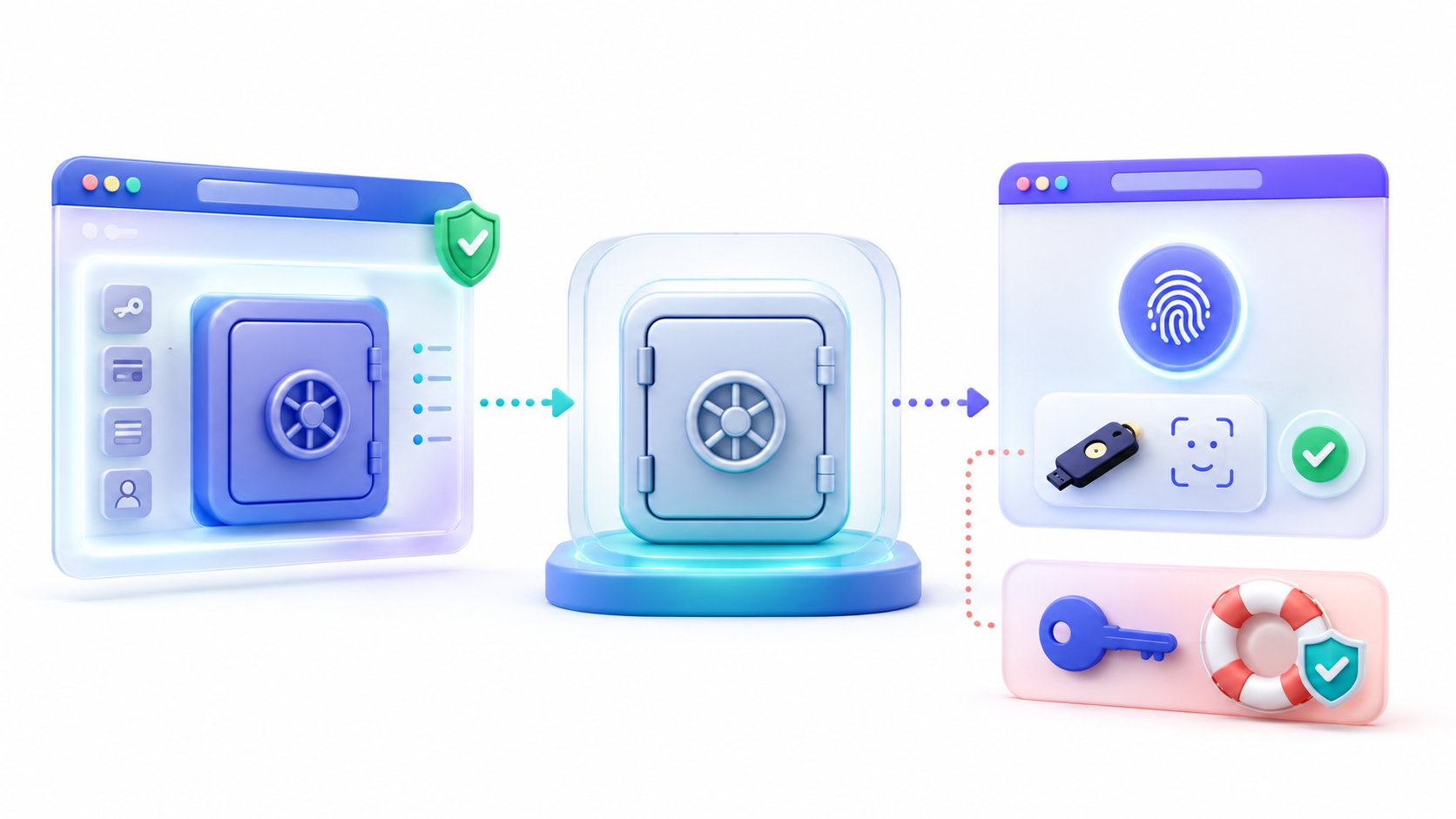
Do not close all sessions immediately after configuring FIDO2. Keep the tab you used to register open and use another window to verify access.
- Keep the current session open and unlocked.
- Open a private window or a different browser.
- Access the usual Vaultwarden domain.
- Enter your email address and master password.
- Complete the FIDO2 check when it appears.
- Verify that the vault is synchronized correctly.
If the test fails, you can return to the original session and remove or re-register the authenticator without relying on the recovery code.
It is also advisable to have a alternative second factor methodIt could be another physical key or a TOTP application stored on a separate device.
Why doesn't Vaultwarden allow logging in with just a passkey?
Bitwarden's official server allows you to use a passkey to authenticate your account and, if your browser and authenticator support PRF, to also decrypt your vault. This way, you can log in without entering your email address or master password.
This system needs to store additional information associated with the credential, such as the encryption key for the account protected by PRF. This is not solely a visual function of the web client: It also requires specific server support..
Vaultwarden does not currently have the necessary endpoints to complete this registration. Therefore, if the client displays the section Log in with passkeyYou may encounter 404 errors when trying to activate it. In some versions, the modified build of the web vault hides this option entirely to avoid confusion.
Modifying the CSS to display the button, changing the proxy, or using a PRF-compliant authenticator doesn't add the missing backend functionality. Until Vaultwarden officially incorporates this support, you'll need to continue using your master password to log in.
What is PRF and why doesn't it solve the limitation?
PRF means Pseudo-Random Function It's a WebAuthn extension that allows you to derive a secret key using the authenticator. Bitwarden can then use that key to protect the account's encryption key and unlock the vault using a passkey.
For it to work, both the browser and the authenticator must support PRF. For example, certain YubiKeys and Chromium-based browsers are compatible, although support varies depending on the operating system.
However, having a compatible key and browser is not enough. Vaultwarden would need to store and return the necessary encrypted data during login. Since this part of the server is not yet implemented, PRF does not allow decryption of a Vaultwarden vault.
How to save passwords from other websites in Vaultwarden
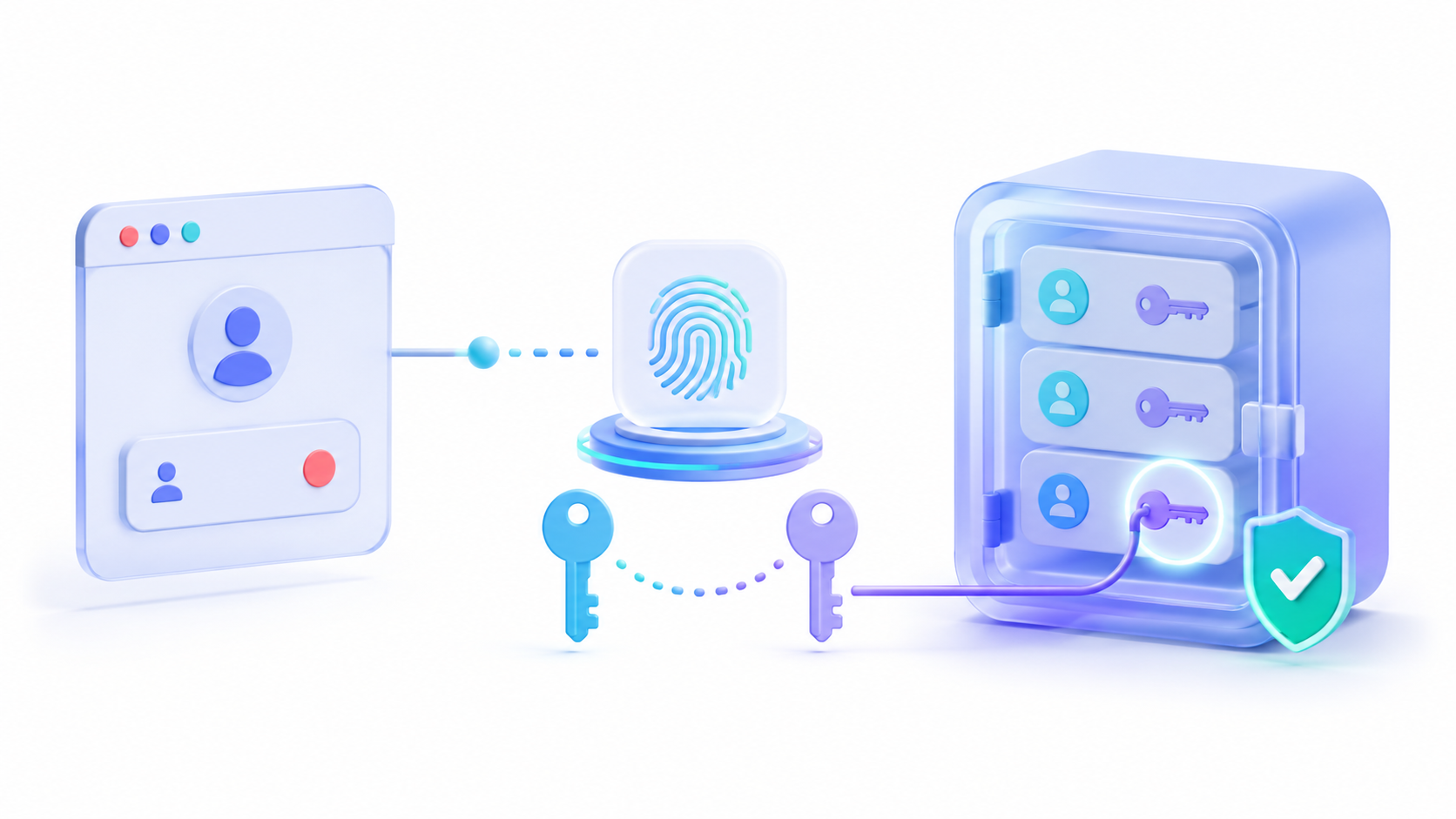
A different, and available, feature is the ability to use Vaultwarden to store passkeys created for other websites. This allows you to log in to compatible services without relying on your traditional passwords.
- Install a recent version of the official Bitwarden extension.
- Configure the extension to connect to your Vaultwarden server.
- Log in and unlock the vault.
- Open a website that allows you to create passkeys.
- Go into your security settings and select the creation of a new passkey.
- Choose Bitwarden when the browser asks where you want to save it.
- Authorize the operation through the extension.
- Verify that the passkey appears within the login element.
- Force a synchronization before testing it from another device.
When you return to the page, the extension will be able to offer the saved passkey. The private key remains encrypted within the vault and is synchronized across compatible clients.
This function should not be confused with protecting the account itself. It's a saved passkey for Google, GitHub, or any other service. It does not replace the Vaultwarden master password..

How to strengthen the master password with Argon2id
Since Vaultwarden still requires the master password, you must use a long, unique password that you can remember. You can also configure Argon2id as a key derivation function.
This setting is specific to each individual account. It is not activated by a container variable nor does it modify the server's global algorithm.
- Open the web vault.
- Enter Settings > Security.
- Select the section Keys.
- Choose Argon2id in the field of algorithms.
- Review the displayed parameters.
- Update the encryption settings.
- Check access from all your devices.
Excessively high values can slow down startup and unlocking, especially on low-end phones or devices. Do not copy extreme settings without first testing them on all your devices.
Argon2id makes brute-force attacks against the master password more difficult, but It does not enable login via passkeysThey are different and complementary mechanisms.
It is also advisable to apply the general recommendations for use password managers securelyespecially when the instance contains family or business credentials.
Security limitations on self-hosted servers
WebAuthn is designed to link a credential to the domain where it was created, significantly reducing the risk of phishing. However, Bitwarden's documentation warns that self-hosted servers may be vulnerable to certain attacks against FIDO2 two-step verification.
An attacker who already knows your email and master password could try to display a fake passkey request and reuse the response. For this reason, before touching a key or accepting a biometric request, always verify that you are in the exact domain of your server.
- Do not access links received through unexpected messages.
- Check the domain and the HTTPS certificate.
- Do not accept WebAuthn requests that appear outside of the expected login.
- Use a unique master password even if you have FIDO2 enabled.
- Keep the offline recovery code.
What happens to passkeys on iPhone and iPad
Native Apple clients need to associate the application with the server's domain. Some Vaultwarden users have reported authentication loops because the domain does not serve the file. apple-app-site-association expected by iOS.
However, manually adding a JSON file with the Bitwarden application identifiers It is not an official or universal solution.The proposal comes from an open incident and may stop working if the identifiers, routes, or client behavior change.
Furthermore, that file does not incorporate passkey-based initialization and decryption into the Vaultwarden backend. It only handles the association between the native application and the domain.
If you encounter a loop in iOS:
- Update Vaultwarden and the Bitwarden app.
- Confirm that
DOMAINIt contains the correct HTTPS address. - Check FIDO2 from the web vault.
- Check the available diagnosis at
/admin/diagnostics. - Delete and re-register the credential if you still have another session.
- Temporarily use TOTP or another alternative method.
Do not modify the proxy with identifiers copied from an incident without first checking the documentation and the current status of the problem.
Common mistakes when using passkeys in Vaultwarden
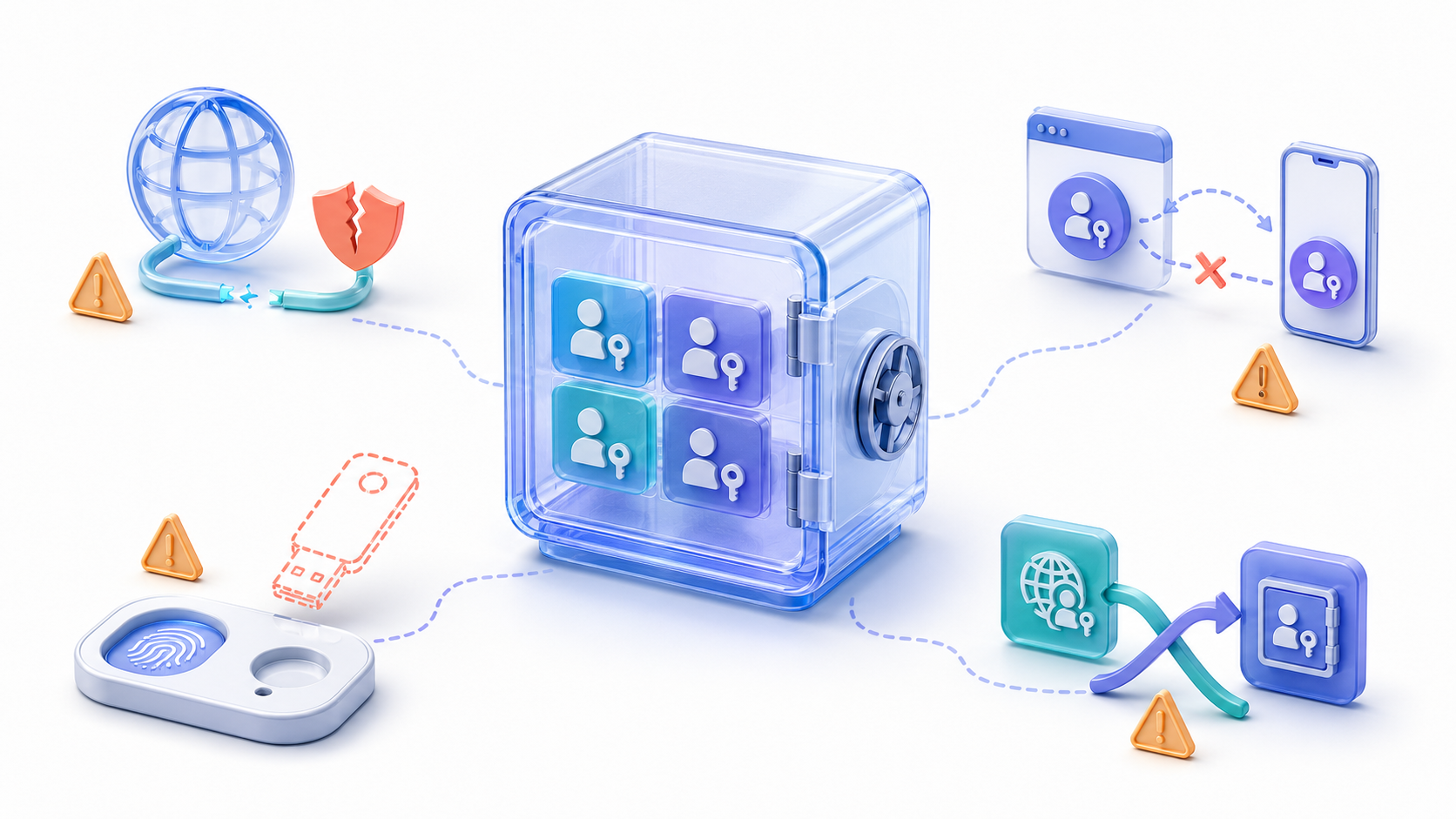
Log in with passkey returns a 404 error
The ability to initialize and decrypt the vault using a passkey is not yet implemented in Vaultwarden. The client is attempting to access endpoints that the server does not provide. This is not necessarily a problem with Caddy, Nginx, or the browser.
The FIDO2 WebAuthn option does not appear
Search within Settings > Security > Two-step loginYou should not use the master password section intended for passkey login on the official Bitwarden server.
Verify that you are using HTTPS, that the certificate is valid, and that DOMAIN Match the address displayed in the browser. Also check that the browser and authenticator support FIDO2.
The key works on the web, but not in the app.
Support may vary between the web vault, extensions, and native clients. Update all applications and maintain an alternative method for devices where WebAuthn does not work correctly.
The passkey accepts the verification, but does not unlock the vault.
This is the expected behavior when FIDO2 is used as a second factor. To unlock an already locked vault, you need the master password, a PIN, or the biometrics configured on the client.
The password from another page does not appear when logging in
Force the extension to synchronize, verify that the element contains the passkey, and check that the saved address matches the actual domain. WebAuthn credentials are linked to the identifier of the site that created them.
I've lost the security key
Use another configured method or the recovery code. The code is entered from:
https://vault.ejemplo.com/#/recover-2fa/After recovering it, reconfigure the two-factor methods and save the newly generated code.
Windows Hello opens instead of the USB key
The system may automatically select your built-in authenticator. Look for an option to use another device or cancel the first dialog to display the full credential selector.
Passkeys significantly expand Vaultwarden's capabilities, but it's essential to understand the function of each one. You can save credentials to access other websites without a password and protect your own account using FIDO2/WebAuthn as a second factor.
What you can't do yet is completely replace your Vaultwarden email, master password, and decryption with a PRF passkey. Until the project incorporates that support, maintain a strong master password, store your recovery code outside the vault, and test each authenticator before closing other sessions.
Index
- 1 What does it mean to use passkeys in Vaultwarden
- 2 What you need to set up FIDO2 in Vaultwarden
- 3 How to activate a passkey as a second factor
- 4 How to save the recovery code
- 5 How to test Passkey without locking your account
- 6 Why doesn't Vaultwarden allow logging in with just a passkey?
- 7 What is PRF and why doesn't it solve the limitation?
- 8 How to save passwords from other websites in Vaultwarden
- 9 How to strengthen the master password with Argon2id
- 10 Security limitations on self-hosted servers
- 11 What happens to passkeys on iPhone and iPad
- 12 Common mistakes when using passkeys in Vaultwarden
- 12.1 Log in with passkey returns a 404 error
- 12.2 The FIDO2 WebAuthn option does not appear
- 12.3 The browser rejects the creation of the credential.
- 12.4 The key works on the web, but not in the app.
- 12.5 The passkey accepts the verification, but does not unlock the vault.
- 12.6 The password from another page does not appear when logging in
- 12.7 I've lost the security key
- 12.8 Windows Hello opens instead of the USB key
