- Windows.old saves your previous installation to allow you to revert to the old one for a limited time (usually 10 days).
- It can take up many gigabytes when including system, programs and data; cleaning tools safely return the space.
- Deleting it is safe if you're not going to revert it: use Temporary Files, Storage Sense, or Disk Cleanup.
You may have come across a gigantic folder called Windows.old taking up a large part of your C: drive after updating your PC. That folder isn't there by chance. And while it might seem unnecessary, it serves a very specific security function. If you're wondering what it stores, why it can be so large, and whether or not you should delete it, here's the ultimate guide.
Let's take a detailed look at what it contains, how long it stays, how to delete it with 100% safe methods, and what to do if you see a huge size that doesn't match what's inside. We'll also review additional options for recovering space and protect your system without surprises, with steps for Windows 10 and Windows 11. Let's learn all about What's in the Windows.old folder and why does it take up so much space?
What is Windows.old and why does it appear after an update?
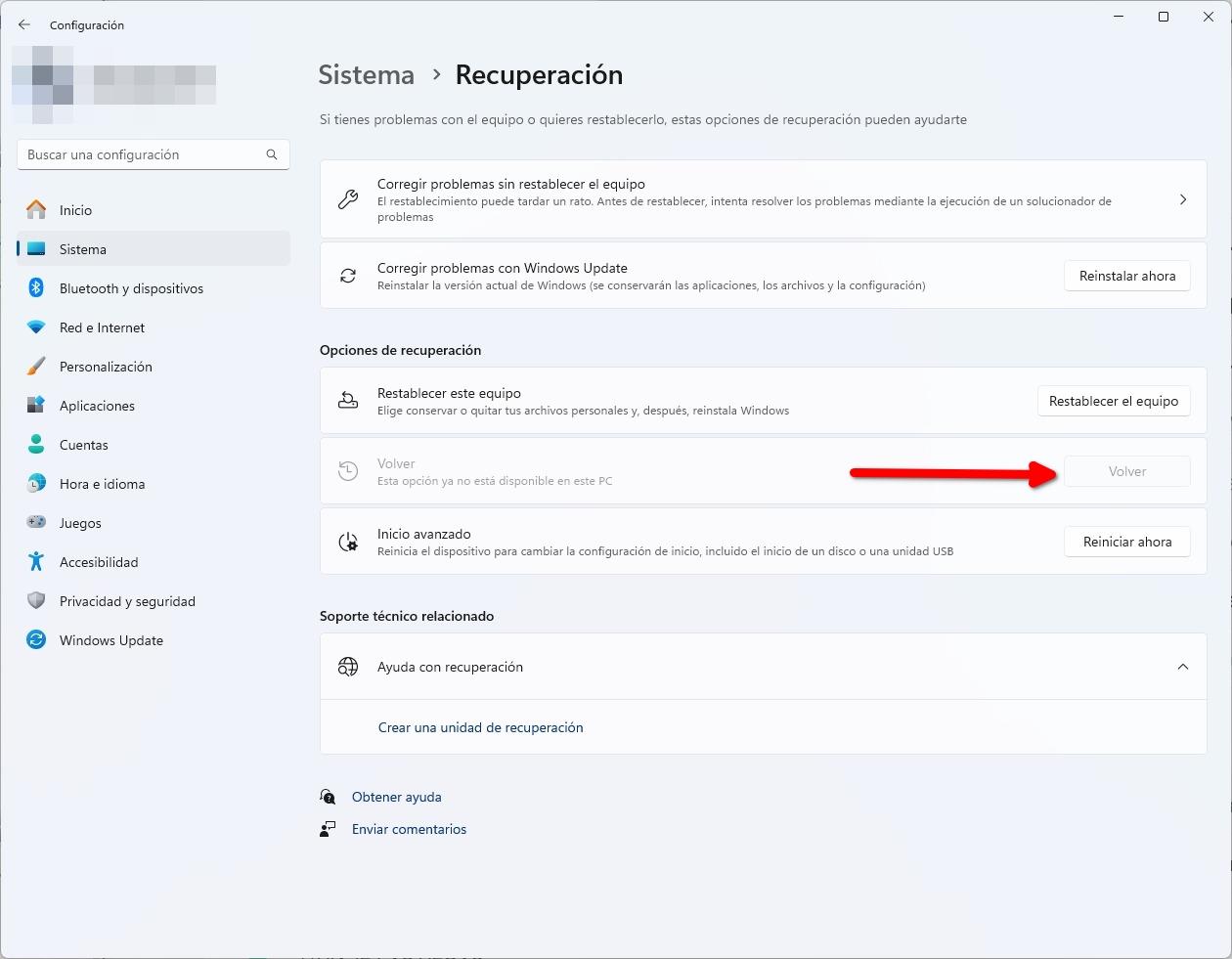
The Windows.old folder is a backup of the previous Windows installation that the system automatically creates when applying a major update (for example, go from Windows 10 to Windows 11). Its mission is to allow you to go back If something goes wrong or you're simply not happy with the new version, Windows enables the "Go Back" option in Settings > System > Recovery for a limited time, thanks to this directory.
In practice, in Windows 10 and Windows 11, the option to undo the update is usually available during 10 daysIn some circumstances, the timeframe may be extended slightly if Microsoft detects issues, and in older documentation and guides you will see references to periods of up to 30 days in other versions of Windows. The system's objective is to balance the security of having a "plan B" with the disk space that copy occupies.
Windows.old stores system files, Program Files, user data, and some of the settings you used before upgrading. It's not just a simple container with four filesbut rather a fairly complete snapshot of your previous installation, designed to make a return possible and to rescue files that may not have been copied correctly in the new version.
What exactly does it contain, and why might it take up so much space?
Windows.old typically takes up a similar amount of space to what your system weighed before the upgrade, as it includes critical Windows components and your dataThat's why it's not unusual for it to be around several gigabytes, and on computers with a lot of software installed or large user profiles, the figure can be considerable.
In most devices you'll see sizes of 8 GB or more, but there are particular cases where the counter skyrockets. If you see a disproportionate figure (for example, hundreds of gigabytes), may be due to several factors: hard links that Explorer counts in an unintuitive way, remnants of previous installations, system snapshots, restore points, or update caches that have not yet been purged.
A typical case: after reinstalling Windows 11, a user sees that Windows.old "weighs" ~600 GB even though they only find a few megabytes inside. This anomalous reading is usually related to metadata, links, or internal references These errors point to data that has already been migrated or duplicated, and not necessarily to "real" duplicated content on the disk. In these scenarios, properly deleting Windows.old using system tools usually recovers the space without breaking anything.
How long is Windows.old kept and when is it automatically deleted?
Normally, Windows will automatically delete that folder once the rollback period expires. In Windows 10/11, the typical period is 10 days.Previous materials and versions allowed for a one-month period, and in some cases this period may be extended if there are technical reasons to do so (for example, widespread issues with a recent update).
If you need to free up space as soon as possible and you're sure you're not going back, you can manually delete Windows.old using the methods below. Note: Do not attempt to delete it manually in the Explorer. Because, by design, that folder has special permissions and direct deletion usually fails or leaves remnants.
Another possibility that is sometimes considered is copying Windows.old to an external drive to preserve it beyond those days. Although “in theory” it could help you recover something in the future, It is not a reliable long-term recovery mechanismWindows disables the standard rollback process when the time limit expires, and saved system files age quickly. It's best to rely on backups or system images specifically designed for this purpose.
Does it need to be deleted? When to do it and when not to.
In most cases, it's not essential to touch anything: Windows will get rid of that folder on its own when the time comes. When is it advisable to erase it by hand? If you're short on space, if you're happy with the upgrade, and if you're absolutely sure you don't want to revert.
There are user profiles (computers with 128 GB SSDs, for example) that cannot afford to "give up" 10 days of space to Windows.old. If you find yourself in that situationUse the cleaning tools I've provided below. You'll gain several gigabytes immediately and without putting your system at risk.
If, on the other hand, you prefer to keep the option to revert to the previous version for the time allowed by Windows, The wisest thing to do is not to touch anythingOnce the deadline has passed, the folder disappears on its own, saving you from complications.
Safe methods to remove Windows.old
Before we begin, a reminder: Don't try to delete it from the Explorer.Use the tools of the system itself This will also delete permissions and references you don't see. Here are all the options:
Option 1: From Settings (Temporary Files)
This method is integrated into Windows 10 and Windows 11 and is probably the most direct. It works with a couple of clicks and it lets you see what will be deleted:
- Open Settings > System > Storage.
- Go to Temporary Files.
- Check the Previous version of Windows box.
- Click Remove files (or the cleanup button that shows the size to be freed).
In Windows 11 you will also find it under Cleaning recommendations within Storage. The process is the same: locate the category of previous installations and delete them.
Option 2: with Storage Sense
Storage Sense automates some disk maintenance and allows for instant cleanup. In Windows 10 You will find the option to remove the previous version of Windows within its settings:
- Settings > System > Storage.
- Under Storage direction, tap Change how we automatically free up space.
- Select "Delete the previous version of Windows" and click "Clean now".
In Windows 11, the typical path is Settings > System > Storage > Cleanup recommendations. Brand Previous Windows Installation(s) and confirm with the Clean button that indicates the size to be released.
Option 3: Disk Cleanup (cleanmgr)
The classic Disk Cleanup tool is still very effective. If you're comfortable with shortcuts, It's another quick and safe way.:
- Open Run with Windows + R.
- Type cleanmgr.exe and press Enter.
- In the window, click on Clean up system files.
- Mark Previous Windows Installations.
- Confirm with Accept to start the cleaning.
At the end, the space occupied by Windows.old should be freed up. If the figure was anomalous (e.g., hundreds of gigabytes), this is where you'll see real storage recovery.
Option 4: Delete with CMD (advanced)
If you prefer the command line, you can force the deletion by taking ownership of the folder and adjusting permissions. Open Command Prompt as administrator (search for “CMD”, right-click, Run as administrator) and execute, in this order:
takeown /F "C:\Windows.old" /A /R /D Y
icacls "C:\Windows.old" /grant *S-1-5-32-544:F /T /C /Q
RD /S /Q "C:\Windows.old"
These commands reassign ownership to the administrators group, grant full control, and recursively and silently delete the directory. Use it only if the previous methods have not worked. and double-check the route to avoid errors.
Common problems when deleting Windows.old and how to solve them
There are two very common situations when you try to delete the folder and you can't. The firstWindows may have already deleted it automatically. In that case, you'll see "file not found" or invalid path errors, and there's nothing more you can do.
The secondInsufficient permissions. Windows.old is not a regular folder, and the system protects its contents. Fix this using the Settings, Storage Sense, or Disk Cleanup options, which will manage permissions for you. Only if everything else fails, resort to the method with CMD described above.
Finally, avoid deleting it manually from the Explorer: You can leave traces or break internal ties. that then complicate the cleanup. Official methods are there for that.
Can I use Windows.old to revert to a previous version or recover files?
While the rollback period is active, you'll see the Roll Back button in Settings > System > Recovery (Windows 11) or Settings > Update & Security > Recovery (Windows 10). If that button no longer appearsThe period has expired and you will not be able to undo the update through the standard method.
If you need to recover personal files (documents, photos, desktop), you can explore C:\Windows.old\Users\your_username and copy the missing content. Do it before deleting the folderso you don't lose anything. If it's no longer available, you'll have to use your usual backup system.
Why does the Windows.old folder show 600 GB when it only contains 100 MB?
This symptom is usually due to how Windows calculates certain sizes, hard links, and internal references that Explorer adds up "as if they were copies". System snapshots also have an influence. or remnants of previous installations that haven't yet been purged. That's why the count might not match what you see when you open the folder.
In most cases, the solution involves cleaning with system tools (Temporary Files, Cleaning Recommendations, or cleanmgr). If you delete Windows.old using these methodsYou will recover the space actually used and it will not affect your current files, which have already been migrated to the new installation.
My regular “Windows” folder takes up almost 50 GB, is that normal?
The C:\Windows folder on modern computers can range from 20 to 50 GB, depending on components, drivers, update caches, and the component store (WinSxS). Overall, that figure falls within the expected range. And it's not a good idea to manually delete anything in there.
If you want to reduce the size occupied by your system, use the Temporary Files, Cleanup Recommendations, and Disk Cleanup options to delete files. old installation files and update logsAvoid "aggressive cleaning" of the component warehouse on your own if you don't know exactly what you're doing.
Backups and better alternatives to keeping Windows.old
As a long-term backup, Windows.old is not the best idea: It is automatically removed and deactivated to revert It's preferable to use Windows Restore Points and regular backups or images, which take up less space and are more reliable.
Some guides recommend third-party tools to extend the C: partition or clean junk files when space is tight. Among them you will see references to AOMEI Partition Assistant Standard (for cleaning and managing partitions), EaseUS Todo Backup Free (backups), or EaseUS Partition Master (resizing partitions). If you decide to use external software, make sure you understand the changes you are making and have a backup before modifying any partitions.
Windows 10 and Windows 11: Paths and names you'll see
Depending on the version, the menus may vary slightly. In Windows 10, Storage Sense appears under System > Storage, and from there you can tap Change how we automatically free up space To enable the removal of the previous version, in Windows 11 the most direct way is to go to Cleanup recommendations within Storage and select Previous Windows installation(s).
If you use Temporary Files, you will see a box with text like Previous version of Windows or Previous Windows installation(s). Select it, confirm, and let Windows do the rest. The process may take a few minutes if the folder size is large.
Best practices before deleting Windows.old
Before deleting it, ask yourself if you need the option to go back or recover anything. If you have any doubts, take advantage of the 10-day period. And don't touch anything. If you're sure you need the space, clean without fear using the official methods.
If you want to preserve the possibility of future recovery, it's best to configure a backup plan (system images, file backups) and enable Restore Points. These alternatives are lighter and more effective than keeping Windows.old indefinitely.
Quick FAQ
Where is Windows.old? In the root of the system drive, usually C:\Windows.old, after a major system upgrade.
Is it safe to delete it? Yes, as long as you don't want to revert the update and your files are in their correct location. Use Temporary Files, Storage Sense, or Disk Cleanup.
Why can't I erase it by hand? Because it requires special permissions and Windows protects it. Use the cleanup tools or, as a last resort, the method using CMD as administrator.
How long does it hold? Typically 10 days in Windows 10/11; in earlier versions and materials, it could be up to 30 days. After that, Windows automatically deletes it.
Can I use it as a permanent backup? It's not ideal. Windows disables rollback after the specified time window, and the files become outdated. It's better to use restore points and system images.
If you've recently upgraded and see Windows.old taking up half the world, don't panic: That folder exists for your peace of mind.Use it if you need to revert to the previous version or to recover files that were lost along the way. And if you don't need it, delete it using the official methods and recover space in seconds. With a couple of cleaning routines and a good backup strategy, your computer will be running smoothly and, most importantly, safe from unpleasant surprises.

Passionate about technology since he was little. I love being up to date in the sector and, above all, communicating it. That is why I have been dedicated to communication on technology and video game websites for many years. You can find me writing about Android, Windows, MacOS, iOS, Nintendo or any other related topic that comes to mind.